Nativ is a free, open-source Mac app for running MLX AI models on Apple Silicon.
You can download a model, chat with it, analyze images, and serve local model responses to coding agents such as Claude Code and Codex.
Chat and hands-on work share the same window.
Keep a code file, document, website preview, or terminal open beside a conversation, and use a tool-capable model to help with project files.
Nativ also has image generation, voice dictation across Mac apps, and a dashboard for model speed and hardware usage.
Key Features
- Run local text and vision models with streaming chat, reasoning output, and saved conversations.
- Open code, Markdown, documents, HTML previews, terminals, and web pages next to chat in the shared Work pane.
- Use local project files, authorized file tools, and optional per-chat Git worktrees for coding tasks.
- Generate and edit images with compatible MLX models, then find outputs in the Artifacts library.
- Download MLX models from Hugging Face, reuse local model caches, and store the primary cache on an external APFS drive.
- Dictate into other Mac apps using a local speech model, configurable shortcuts, or optional “Hey Nativ” activation.
- Connect MCP servers, install extensions, apply Kits, and run saved prompts as scheduled tasks.
- Serve local models through OpenAI- and Anthropic-compatible APIs for coding agents, editors, and other clients.
- Monitor tokens, latency, CPU, GPU, unified memory, disk activity, and server health.
- Configure per-model inference settings, including context, sampling, prefix caching, and speculative decoding.
Chat with Local Models and Work on Files
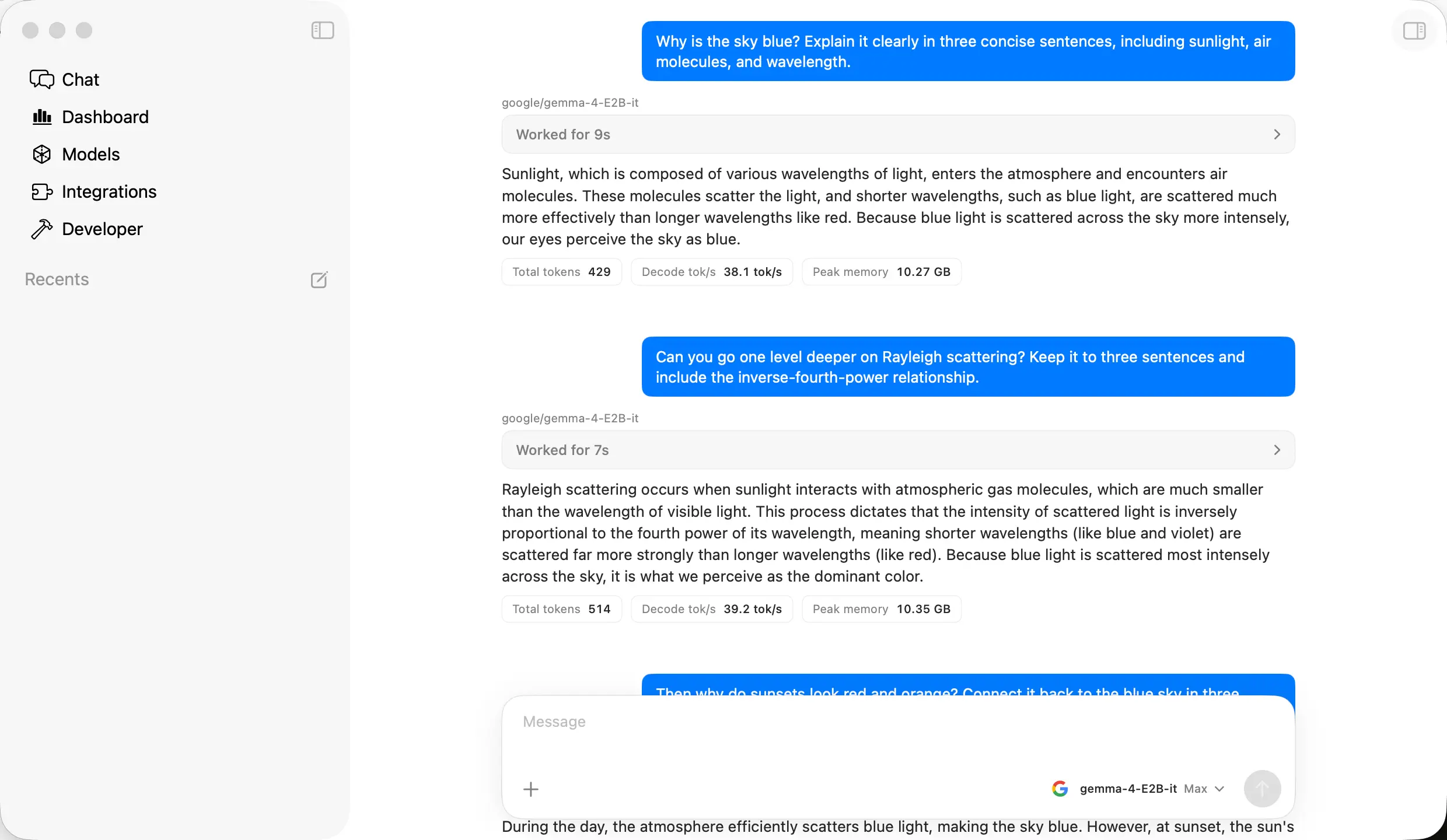
Open Chat, select a downloaded language model, and enter a prompt. Nativ streams the reply, formats code and Markdown, and displays reasoning output when the model emits it.
Drag a file from Finder into the composer, or paste a screenshot or photograph when the active model has vision capability.
Conversations are saved locally, and recent replies show token use, time to first token, and decode speed.
As a conversation grows, Nativ can summarize older messages for the next model request while retaining the full transcript in Chat.
Automatic context compaction runs through the bundled mlx-vlm server. The default threshold is 75% of the model’s context window, and you can change it in the settings.
The Shared Work Pane
Press Command + Shift + B to open the Work pane beside Chat. Create a Markdown document, edit code, preview HTML, open a terminal, or load a website in the browser tab.
Nativ remembers the state of the Work pane tabs for each conversation. Multiple windows can host different chats and workspaces, all using the loaded models and local inference server.
Select text in a document or web page and send it to Chat to ask a question or request a change.
When tool access is enabled, a model that supports tool calling can revise items in the Work pane or interact with its browser after you approve the action.
Imported text files open as working copies, so edits in the pane leave the original files unchanged.
Projects, File Tools, and Git Worktrees
Project chats can read and search files inside an authorized local folder. When File Write is enabled, the model can create text files or propose edits using the available file operations.
Commands that change files or run programs use approval controls. A project chat also has access to terminals in the Work pane, which lets a coding model inspect a repository, change files, and run local commands.
Once a Git repository has at least one commit, select Worktree before sending the first message in a project chat. Nativ creates a branch and checkout for that conversation. Each coding task uses its own working directory, leaving the main checkout untouched.
When you delete a managed worktree chat, you can save a recovery snapshot of its committed, staged, and unstaged changes.
Manage MLX Models and Generate Images
The Models area finds compatible model files in your Hugging Face cache, including locations configured through HF_HUB_CACHE or HF_HOME.
You can search for a model, inspect its available capabilities, download it, load it, and remove files you no longer need. Model cards display download sizes and warnings when a model is unlikely to run within the Mac’s available unified memory.
Model cards identify the tasks a model can perform, including text chat, image understanding, image generation, audio and video understanding, speech-to-text, text-to-speech, and embeddings.
Select a text or vision model for Chat, an image model for Images, or a speech model for Audio. You can preload different model types and inspect the memory estimate before loading them together.
To use an external APFS drive as the primary model cache, open Models → Sources → Choose External Location and choose a folder on the drive.
Changing the cache location restarts Nativ’s model server. Existing downloads are not moved automatically. Models stored on the external drive are available when it is connected.
In Images, enter a prompt and select a compatible image-generation model. You can also supply an existing picture for image editing when the installed model provides that capability.
Chat can invoke the image tools when the active language model supports tool calling and the operation is approved. Generated and imported files appear in Artifacts.
Once an embedding model is installed, its Smart Search can find files through semantic similarity. Ordinary metadata search works before that model is installed.
Voice Dictation and Hands-Free Input
Nativ’s included Audio extension transcribes speech locally and pastes the result into the active Mac app. Select an installed speech-to-text model, grant microphone and Accessibility permissions, and use the configured record shortcut. The current default is Control + Option + Command.
In hands-free mode, double-tap the modifiers to begin and end recording. Push-to-talk uses a press and hold. You can change the shortcut and capture mode under Audio. Fn + R retries the latest recording.
Enable Hey Nativ in Audio to start dictation with your voice when the local speech model and server are running. Nativ begins recording after the wake phrase and stops after two seconds of silence. The resulting transcript contains your dictation, not the wake phrase.
You can finish dictation with a spoken command such as “enter,” which inserts the transcript and presses Return. The Audio page keeps a history of transcripts and dictation statistics. Nativ deletes raw audio recordings after five minutes or on app exit, while text transcripts remain available until you remove them.
Connect Coding Agents, Editors, and MCP Servers
Nativ’s local server gives coding tools an endpoint for the MLX model loaded on your Mac. Open Integrations to generate configuration for tools including Codex, Claude Code, Pi, Hermes, OpenCode, Aider, Goose, Crush, Qwen Code, and OpenClaw.
Editor integrations include VS Code, Cursor, Zed, JetBrains, Cline, and Continue. The external tool performs its normal editing or agent operations, and the model inference request goes to Nativ.
Claude Code connects through the Anthropic-compatible Messages endpoint, while Codex uses OpenAI-compatible Responses. In Integrations, select the client to generate its configuration for the MLX model loaded in Nativ.
For manual setup, Claude Code uses ANTHROPIC_BASE_URL=http://127.0.0.1:8080. Codex uses base_url = "http://127.0.0.1:8080/v1" and wire_api = "responses". Set the model ID and API key for your Nativ server in the client configuration.
The coding agent sends prompts to your local model, which needs sufficient context and tool-calling ability for the work you ask it to do.
Local API Endpoints
Nativ’s server listens on http://127.0.0.1:8080 by default. Set the base URL to http://127.0.0.1:8080/v1 for OpenAI-compatible clients or http://127.0.0.1:8080 for Anthropic-compatible clients.
The server handles Chat Completions, Responses, Models, image, audio, embeddings, Anthropic Messages, and token-counting requests, using the locally loaded model for each operation.
For a simple test, replace your-model-id with the ID of the model loaded in Nativ. The example uses the default local API key, nativ. If you configured a different server key, use that value.
curl http://127.0.0.1:8080/v1/chat/completions \
  -H 'Content-Type: application/json' \
  -H 'Authorization: Bearer nativ' \
  -d '{
    "model": "your-model-id",
    "messages": [{"role": "user", "content": "Summarize this code module."}],
    "stream": false
  }'
In Developer, copy endpoint URLs, inspect request logs, and configure the API key, port, or listening address. The default 127.0.0.1 address accepts connections from this Mac only. Select another accessible network address if you want a client on a different device to connect.
MCP Tools and Kits
Connect an MCP server from the Extensions area to give a tool-calling local model access to its actions. The model can request a configured tool, and Nativ asks for consent before tool execution.
Built-in tools can read authorized files, work with items in the shared pane, generate images, or inspect model and hardware statistics.
Kits let you activate a related set of MCP servers, skills, and extensions at once. Choose a built-in Kit such as Engineering or Research, then manage its components individually in Extensions.
Skills supply instructions for the model, and the enabled tools perform the actions it requests.
Scheduled Local AI Tasks
Use Scheduled to run a saved prompt at a chosen time or on recurring weekdays. Pick the chat where its results should appear, select the model and schedule, and enable the task.
Each run writes the prompt, tool activity, and response into that conversation. A macOS launchd agent can launch a scheduled run and start Nativ’s server when needed.
For scheduled research or status checks, assign an enabled MCP server, tool, skill, or Kit and use a model that can call tools. File Write requires approval in Chat and cannot run in an unattended scheduled task. If you want an alert after each run, enable completion notifications in macOS.
Analytics, Hardware Monitoring, and Model Settings
Analytics reports request counts, token usage, time to first token, decode speed, and model-level performance.
The System Monitor shows CPU and GPU use, unified memory, swap pressure, storage activity, disk health, thermal information, and power sensors.
Menu-bar controls can start or stop the server, switch the loaded model, and display compact hardware graphs.
To experiment with a model’s responses and memory use, adjust sampling, thinking budgets, structured output, KV-cache quantization, prefix caching, or speculative decoding in its advanced settings.
Run comparable prompts and use Analytics to inspect response speed and memory consumption on your Mac.
How to Install and Use Nativ on Mac
1. Get the current DMG from GitHub Releases, move Nativ to Applications, and launch it. Nativ can install subsequent updates within the app. Homebrew installation is also available.
2. Choose an already installed MLX model, download a recommended model, or continue with load-on-demand.
3. Open Chat, select a language model, and enter a short question.
4. Use Command + Shift + B to view a document, code, terminal, or website beside the conversation. Configure project file access if you want a model to work on local files.
5. Open Integrations to configure Codex, Claude Code, or an editor against the local model server.
6. Set a speech model and microphone permissions for dictation. Enable appropriate MCP tools, Kits, or scheduled prompts for recurring tasks.
7. Check Analytics and System Monitor to see model response times and whether the selected model is stressing memory.
8. To install Nativ with Homebrew, run:
brew install --cask nativRequirements, Price, and Local Privacy
- Hardware: A Mac with Apple silicon (M1 or newer). Intel Macs are not supported.
- Operating system: macOS 26 or newer.
- Memory: Enough unified memory for the models selected. Larger or concurrent models require more.
- Model format: MLX-compatible models through the bundled MLX runtime, not a general-purpose GGUF model runner.
- Cost: Nativ is free, open-source software under the MIT license.
- Downloads: Model files require internet access to obtain. Gated Hugging Face models need authentication. Each model carries its own license.
Nativ vs. LM Studio and Ollama
Nativ, LM Studio, and Ollama can all serve local AI models to other applications. Nativ focuses on a macOS workspace for MLX models, with chat, coding and document tools, dictation, and hardware monitoring in the app.
| App | Models and main workflow |
|---|---|
| Nativ | MLX on Apple silicon; local chat, projects, voice, and system monitoring |
| LM Studio | GGUF and Apple silicon MLX; cross-platform desktop model library and server |
| Ollama | Cross-platform model runner, CLI, API, and desktop chat |
Nativ vs. LM Studio
LM Studio runs on macOS, Windows, and Linux and handles GGUF models, plus MLX on Apple silicon. It has model discovery, local chats, a developer server, and OpenAI- and Anthropic-compatible API endpoints. Nativ focuses on MLX and puts its Work pane, Mac dictation, Git worktrees, and hardware monitoring inside one macOS app.
Nativ vs. Ollama
Ollama runs on macOS, Windows, and Linux. It provides a model library, command-line commands, an API server, and a desktop chat app with file and image input. Nativ focuses on native macOS access to MLX models and includes integrated model analytics, document and browser work, voice dictation, and agent tool configuration. Ollama is a useful choice for an existing ollama pull model setup or cross-platform deployment.
Use Cases
- Fix a bug in a local repository. Create a project chat with a worktree, ask a tool-capable model to inspect the relevant files, review its code changes, and run tests from the terminal before merging the branch.
- Build a small HTML prototype. Attach a design screenshot to a vision conversation, create an HTML file in the Work pane, and review the rendered page beside the chat as the model revises the markup.
- Draft notes while using another Mac app. Dictate a paragraph into an editor or message field with a downloaded speech model, then review the saved transcript in Audio if you need to reuse it.
- Generate a recurring project update. Schedule a prompt in its own chat, attach a Kit or an authorized read-only tool when required, and examine the recorded responses after each run.
- Compare model behavior on your Mac. Run a consistent coding or writing prompt with different compatible MLX models and examine response latency, token speed, and unified-memory usage in Analytics and System Monitor.
Pros
- Native macOS app with integrated MLX inference.
- Local chat, image, voice, work-pane, and coding features.
- OpenAI- and Anthropic-compatible local endpoints.
- Project worktrees, MCP tools, Kits, and scheduled tasks.
- Detailed hardware and response metrics.
Cons
- Apple silicon and macOS 26 are required.
- GGUF-only model collections cannot be loaded directly.
- Large models and model combinations demand substantial unified memory and storage.
- Agent-driven file edits require a tool-calling model and file access approval.
Alternatives & Related Resources
- Osaurus: Free Local AI Agents for Mac
- LM Studio: Run Local LLMs on Windows, Mac, and Linux
- Claude Code Local: Run Claude Code With Local AI on Apple Silicon
- Wayland: Local-First AI Agent Command Center for Claude Code & Codex
- SmallCode: Fast, Free, Local AI Coding Agent for Small LLMs
- The Ultimate Claude Code Resource List 2026: Agents, Skills, Plugins & More
FAQs
Can I use Nativ on a Mac with 8 GB of unified memory?
An Apple silicon Mac with 8 GB of unified memory meets Nativ’s processor requirement, provided it runs macOS 26 or newer. The models you can use depend on their memory needs and how much RAM is available at runtime. Nativ displays a warning when a selected model is unlikely to fit. Smaller quantized models require less memory than larger models.
Can I recover code after deleting a worktree chat?
When you delete a managed Git worktree chat, Nativ can save a recovery snapshot of its files and changes. Open Settings → Projects → Recently deleted worktrees to restore that snapshot in a new branch and checkout. The deleted conversation itself is not recovered.
Why might a coding agent fail even though it connects to Nativ?
A successful API connection only confirms that the client can reach the local server. The loaded model must also handle the agent’s instructions, context length, and tool calls, and the server must implement the operations the client sends. Check the selected model and the request logs in Nativ’s Developer page when a coding command fails.
Last updated: Oct 15, 2026