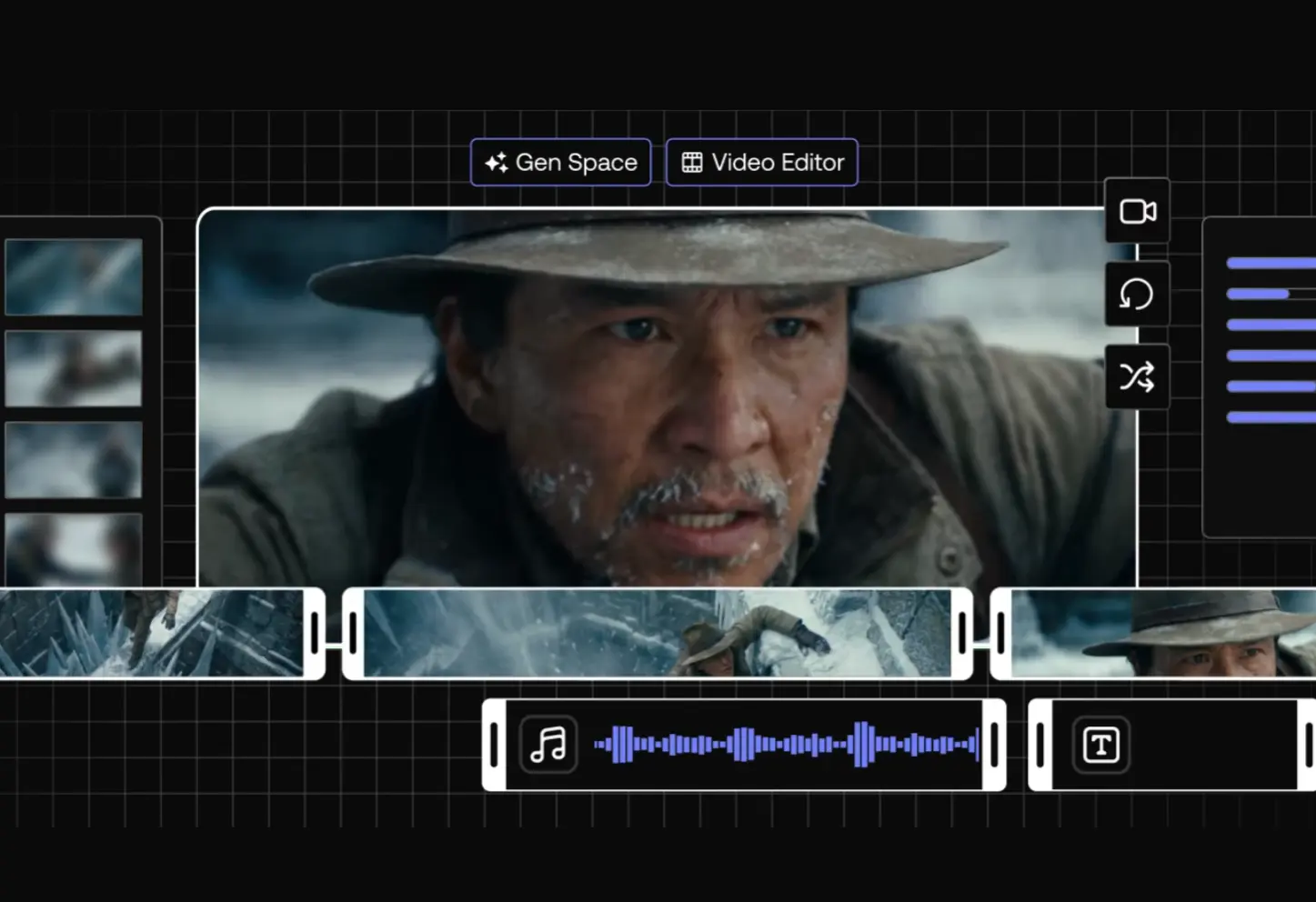
LTX Desktop is a free, open-source AI video editor from Lightricks with local video generation and a built-in non-linear editor. LTX-2.5 Fast is the default local video model, with LTX-2.3 Fast available as another local checkpoint.
The app has two main work areas. GenSpace handles text-to-video, image-to-video, audio-to-video, still images, LoRAs, and generation settings. The Video Editor places those results on a timeline where you can trim clips, create new takes, fill gaps, retake part of a shot, extend footage, add subtitles, and prepare an export.
Local generation is available on NVIDIA/CUDA Windows and Linux configurations and qualifying Apple Silicon Macs. LTX API mode is available when local generation is unavailable or when you want to use cloud models.
Key Features
- Run LTX-2.5 Fast locally on supported Windows, Linux, and Apple Silicon hardware.
- Generate synchronized video from text, reference images, or audio.
- Retake, extend, or fill timeline sections with generative editing tools.
- Use local LoRAs and compatible IC-LoRA controls for additional conditioning.
- Edit projects with slip, slide, roll, ripple, transitions, color correction, and multiple takes.
- Generate and edit still images with Z-Image Turbo locally or through fal.ai.
- Import FCP 7 XML or FCPXML timelines from major desktop video editors.
- Edit subtitles and import or export SRT files inside the timeline.
- Export finished projects as H.264, ProRes, or VP9 video.
- Switch to LTX API mode for cloud generation and API-only models.
Use Cases
- Build storyboards and previsualization sequences on local hardware before production.
- Replace or extend selected shots inside an imported Premiere, Resolve, or Final Cut timeline.
- Create dialogue- or music-driven shots from an existing audio track.
- Generate portrait clips for social video with controlled opening and ending frames.
- Apply local style or subject LoRAs inside a larger video editing project.
Local vs API Mode
All supported hardware can run LTX models locally after the required model files have been downloaded. API mode handles video generation on systems below the local requirements and provides access to cloud-only model options.
| Platform / Hardware | Generation Mode |
|---|---|
| Windows + NVIDIA CUDA GPU with 16GB+ VRAM | Local or API |
| Linux + NVIDIA CUDA GPU with 16GB+ VRAM | Local or API |
| Apple Silicon Mac with 15GB+ free RAM at launch | Local or API |
| Windows/Linux systems where the app does not expose a local backend | API |
| Intel Mac or Apple Silicon Mac below the free-RAM threshold | API |
LTX Models in Desktop
| Model | Availability | Main Role |
|---|---|---|
| LTX-2.5 Fast | Local and API | Default local model for text-to-video, image-to-video, audio-to-video, and LoRA workflows |
| LTX-2.3 Fast | Local and API | Alternative local Fast model available from Settings |
| LTX-2.5 Pro / LTX-2.3 Pro | API only | Paid cloud generation |
Installation
1. Open the LTX Desktop official release page and download the installer for your platform: .exe for Windows, .dmg or .zip for Apple Silicon macOS, or .deb/.AppImage for Linux.
2. Install and launch LTX Desktop. Windows SmartScreen can require More info → Run anyway. On macOS, drag the app to Applications and use Right-click → Open if Gatekeeper displays a warning.
3. Complete the first-run setup. Sign in to Hugging Face and accept the LTX-2.x model license when prompted before downloading gated LTX-2.5 weights.
4. Choose text encoding. A free LTX API key can handle cloud text encoding, or you can download the local text encoder for fully offline operation on compatible hardware.
5. Select the model you need. The initial local video setup is about 45GB. The full set of video, text, and image models can approach 160GB.
How to Use LTX Desktop
Video generation starts in GenSpace, and finished generations can move into the Video Editor for trimming, generative edits, subtitles, timeline work, and export. The local Fast model offers different duration ranges at each resolution.
Choose a Resolution and Duration
| Local Fast Resolution | Available Durations at 24 FPS |
|---|---|
| 540p | 5, 6, 8, 10, or 20 seconds |
| 720p | 5, 6, 8, or 10 seconds |
| 1080p | 5 seconds |
Create Your First Text-to-Video Clip
Open GenSpace and choose video generation. Local systems use the checkpoint selected in Settings → Models; API mode offers the models available through the cloud service.
Write the scene prompt. Include the subject, action, setting, camera behavior, and any dialogue or sound that should influence the generated clip. The Enhance option can expand the prompt before generation.
Choose the resolution, duration, frame rate, aspect ratio, and an optional Camera Motion preset.
Enable generated audio when the shot needs synchronized sound.
Start the generation and review the result in GenSpace.
Use the GenSpace gallery to filter Videos or Images, mark useful generations as favorites, and sort by date, type, duration, resolution, or aspect ratio.
Use First and Last Frames or Audio
A first-frame image can define the opening composition, subject, or pose for image-to-video generation. GenSpace can also use a last-frame image to guide the ending when a first frame is present and a fixed duration is selected.
Audio-to-video uses an uploaded audio file as part of the generation input. It works with a fixed duration and is useful for clips driven by dialogue, music, or another existing soundtrack.
Use LoRAs and Prompt Enhance
The built-in LoRA library is available for local video generation. You can download adapters inside the app, load your own .safetensors files, and adjust the strength of each selected LoRA. IC-LoRA options depend on the active local model and conditioning mode.
Enhance rewrites the prompt before generation and can use metadata, example prompts, and trigger words from a selected LoRA or IC-LoRA. Local Enhance uses a downloaded Gemma prompt enhancer. API Enhance uses the Gemini model configured under Settings → API Keys.
Retake, Extend, and Fill Gaps on the Timeline
Retake regenerates a selected time range inside an existing clip. Generated takes stay attached to the clip and can be selected during editing.
Extend generates additional footage before the start or after the end of an existing clip.
Gap Fill generates footage for empty space between timeline clips. It can create 2–5 second clips for timeline gaps shorter than six seconds.
Edit and Export a Complete Sequence
The Video Editor includes slip, slide, roll, and ripple trims, transitions, primary color correction, text overlays, subtitle editing, and SRT import/export. Generated clips and imported media can both be edited on one timeline.
LTX Desktop can import FCP 7 XML or FCPXML timelines from Premiere Pro, DaVinci Resolve, and Final Cut Pro. After editing or regenerating selected shots, you can export an FCPXML timeline for continued work in a desktop NLE. Finished video exports include H.264, ProRes, and VP9.
Tips for Better Results and Local Performance
- Use LTX API text encoding to save local memory, or install the local encoder for offline generation.
- If the LoRA selector is missing, confirm that local video generation is active and at least one LoRA is installed.
- Reopen the generation view or restart the app after adding custom LoRA files if they do not appear immediately.
- On Apple Silicon, close memory-heavy apps and relaunch LTX Desktop if a capable Mac opens in API-only mode.
- On NVIDIA/CUDA systems, the experimental Diffusion Stage Cache can reduce repeated loading work during Fast generations.
- Use Settings → Models to switch local checkpoints or keep an older checkpoint after an upgrade.
System Requirements and Installation
System Requirements
Windows
| Requirement | Specification |
|---|---|
| OS | Windows 10/11 (64-bit) |
| GPU | NVIDIA GPU with CUDA and 16GB+ VRAM |
| RAM | 16GB minimum, 32GB recommended |
| Disk Space | 160GB+ free |
| Internet | Required for initial setup and model download |
Linux
| Requirement | Specification |
|---|---|
| OS | Ubuntu 22.04+ or similar (x64 or arm64) |
| GPU | NVIDIA GPU with CUDA and 16GB+ VRAM |
| RAM | 16GB minimum, 32GB recommended |
| Disk Space | Enough for selected model files and outputs |
| Internet | Required for initial setup and model download |
macOS
| Requirement | Specification |
|---|---|
| Chip | Apple Silicon (M1 or later) |
| OS | macOS 13 Ventura or later |
| Memory | 15GB+ free RAM at launch |
| Disk Space | Enough for selected model files and outputs |
| Generation | Local through MPS when the free-RAM threshold is met |
Model Downloads Reference
LTX Desktop downloads model files from Hugging Face during setup. A basic local video setup uses about 45GB of model files with LTX API text encoding. The local text encoder adds about 26GB for fully offline text encoding.
| Model / Component | Purpose | Required | Approx. Size |
|---|---|---|---|
| LTX-2.5 distilled transformer | Main LTX-2.5 Fast weights | Yes | ~42GB |
| Spatial upscaler ×2 | 1080p output | Yes | ~1GB |
| Video VAE | Video encode/decode | Yes | ~1.2–1.5GB |
| Audio VAE | Audio generation | Yes | ~365MB |
| Duration head | Automatic duration | For Auto duration | ~8MB |
| Gemma 4 text encoder | Local text encoding | Optional | ~26GB |
| Gemma 4 E2B | Local prompt Enhance | For local Enhance | ~10GB |
| Z-Image Turbo | Image generation and editing | For image features | ~31GB |
| LTX-2.3 Fast | Alternative local Fast checkpoint | Optional | ~46GB + encoder |
Pros
- Free, open-source desktop application
- Local generation on Windows, Linux, and Apple Silicon
- No per-generation fee for local inference
- XML round-trip with major NLEs
Cons
- 16GB+ NVIDIA VRAM for Windows/Linux local generation
- Large local model downloads
Related Resources
- LTX-2.5: Model details, local weights, API access, generation modes, and capabilities.
- LTX Desktop GitHub Repository: Source code, releases, issue tracker, and technical setup information.
- LTX-2.5 on Hugging Face: Gated model weights for local LTX-2.5 generation.
- LTX Console: Create an LTX API key for text encoding or API-backed generation.
- LTX Playground: Try LTX models through a browser before setting up local generation.
- Best AI Video Editors: Compare LTX Desktop with other AI-assisted video editing options.
FAQs
Q: Does LTX Desktop work on Mac?
A: Yes. Apple Silicon Macs running macOS 13 or later can generate locally through MPS when at least 15GB of free RAM is available at launch. Intel Macs use API mode.
Q: Can LTX Desktop run offline?
A: Yes. A local setup can run offline after the required models and local text encoder are installed. API generation, cloud text encoding, Gemini features, LoRA library downloads, and update checks require an internet connection.
Q: Do I need an LTX API key?
A: The API key is optional for local generation when the local text encoder is installed. Cloud text encoding and API video generation require an LTX API key. Text encoding through the LTX API is free, and API video generation is paid.
Q: What happens on hardware below the local requirements?
A: LTX Desktop uses API mode for video generation. An LTX API key and internet connection are required, and video generation is billed through the API.