Nanobot is a free, open-source, self-hosted personal AI agent framework written in Python. It can run tasks, call tools, keep long-term memory, schedule automations, and use hosted or local LLMs.
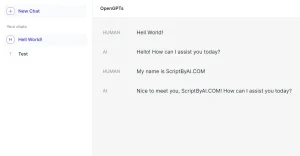
The project started as a lightweight OpenClaw-style agent and keeps a compact Python core that is easy to inspect and modify. It includes a browser WebUI and a native terminal client. The gateway keeps saved sessions available across local clients and connected chat apps.
Apps and MCP integrations connect Nanobot to external tools. The Python SDK embeds the agent runtime in Python, and the optional HTTP server exposes an OpenAI-compatible API. You can run Nanobot as a personal assistant on one machine or keep the gateway online for chat channels and scheduled work.
Features
- Connect OpenAI, Claude, Gemini, OpenRouter, Groq, Bedrock, and compatible model endpoints.
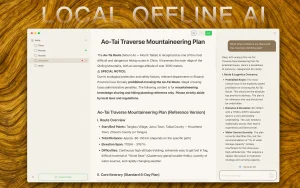
- Run local models through Ollama, vLLM, LM Studio, or another OpenAI-compatible server.
- Connect Telegram, WhatsApp, Discord, Slack, WeChat, email, and other chat channels.
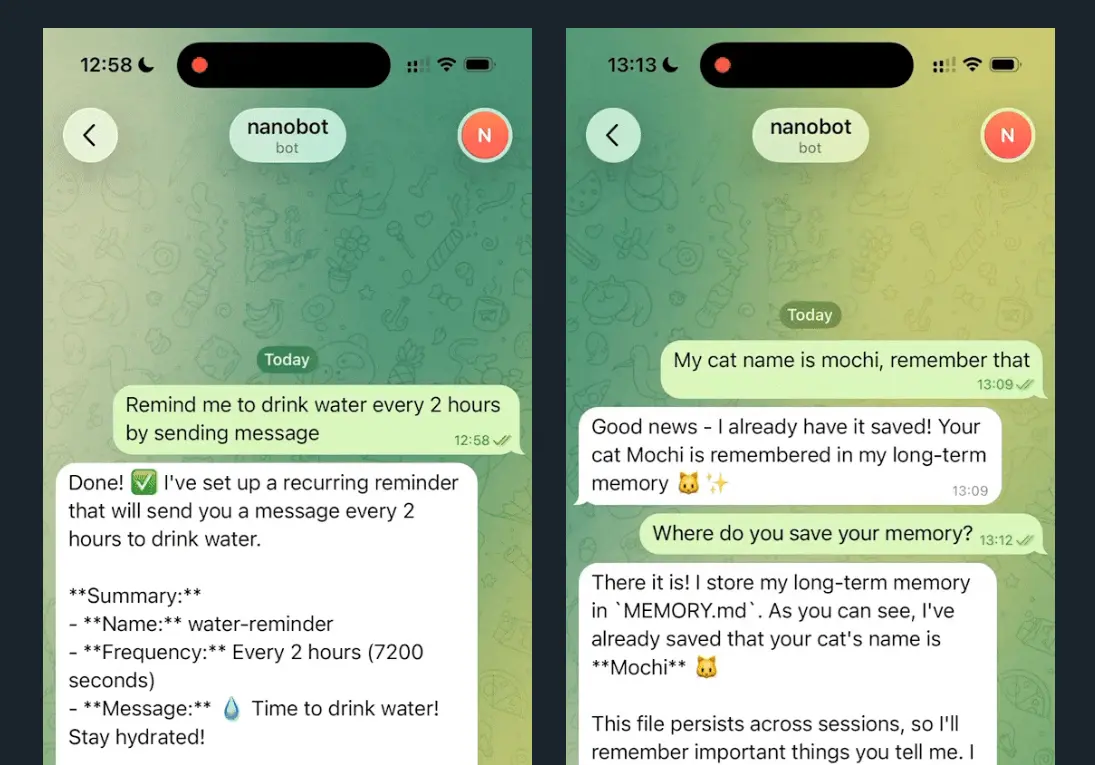
- Schedule one-time or recurring agent tasks from a linked conversation.
- Keep long-term memory and saved sessions across conversations and restarts.
- Connect MCP servers, Agent Plugins, CLI Apps, and reusable Skills.
- Run the agent inside Python with the Nanobot SDK.
- Expose the agent through an OpenAI-compatible HTTP API.
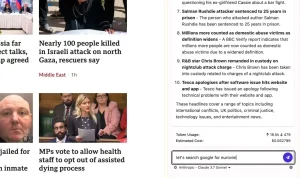
- Use files, shell commands, web search, web fetch, and subagents.
- Process images, common documents, and voice input with configured models and channels.
- Keep chat channels and automations online through the gateway.
See It In Action
Nanobot vs. OpenClaw
| Nanobot | OpenClaw | |
|---|---|---|
| Core | Python personal AI agent framework | Self-hosted personal AI assistant built around one Gateway |
| Main clients | WebUI, native terminal client, chat apps, HTTP API | Native apps, WebChat, chat apps |
| Model access | Hosted providers and OpenAI-compatible local servers | Swappable model and agent-harness plugins |
| Extensions | Apps, Skills, MCP, Agent Plugins, Python SDK | Plugins, skills, and channel integrations |
| Deployment | Python package, source install, Docker, background gateway | Native apps plus a self-hosted Gateway |
Use Cases
- Run scheduled market scans and send recurring reports to a configured chat channel.
- Review code, edit files, run shell commands, and connect repository tools through MCP.
- Send morning briefings, reminders, recurring checks, and end-of-day summaries on a schedule.
- Keep project notes and long-term memory available across saved conversations.
- Run private local-model tasks through Ollama, vLLM, LM Studio, or a compatible server.
- Operate a shared assistant through approved chat channels with pairing or allowlists.
How to Use Nanobot
Installation
macOS or Linux Installer
curl -fsSL https://raw.githubusercontent.com/HKUDS/nanobot/main/scripts/install.sh | shWindows PowerShell
irm https://raw.githubusercontent.com/HKUDS/nanobot/main/scripts/install.ps1 | iexuv or pip
uv tool install nanobot-ai
python -m pip install nanobot-ai
Install from Source
Create a virtual environment for the checkout and install the Python package in editable mode.
git clone https://github.com/HKUDS/nanobot.git
cd nanobot
python -m venv .venv
python -m pip install -e .
Initial Setup
For a normal desktop install, open the bundled WebUI and configure the first provider and model under Settings → Models. The local browser UI opens at http://127.0.0.1:8765. SSH and headless installs can use the setup wizard from the terminal.
nanobot webui
# SSH or headless setup
nanobot onboard --wizard
Using Local Models
Nanobot can use Ollama, vLLM, LM Studio, or another OpenAI-compatible local server. The vLLM example below starts a local model endpoint on port 8000 and points a Nanobot model preset at that endpoint.
Start vLLM
vllm serve meta-llama/Llama-3.1-8B-Instruct --port 8000Configure the Model Preset
{
  "providers": {
    "vllm": {
      "apiBase": "http://127.0.0.1:8000/v1",
      "apiKey": "EMPTY"
    }
  },
  "modelPresets": {
    "primary": {
      "provider": "vllm",
      "model": "served-model-name",
      "maxTokens": 8192,
      "contextWindowTokens": 65536
    }
  },
  "agents": {
    "defaults": {
      "modelPreset": "primary"
    }
  }
}
Terminal Workbench and CLI
Run nanobot for the native terminal workbench. Use -m for one request and an immediate exit. The explicit nanobot agent form is also available for compatibility.
nanobot
nanobot -m "What is 2+2?"
nanobot agent
WebUI and Background Gateway
nanobot webui opens persistent browser conversations, model controls, Apps, Skills, Automations, tool activity, and file diffs. Use a background gateway when chat channels or scheduled work need to continue after the local WebUI and terminal clients close.
nanobot webui
nanobot gateway --background
Model Presets and Runtime Switching
Model presets store a provider, model, context settings, and optional reasoning controls under one label. Select a preset from the WebUI or terminal client. Fallback models can continue a task through another configured provider after a request failure.
Python SDK and OpenAI-Compatible API
The Python SDK runs the Nanobot agent runtime inside a Python process with sessions, memory, tools, streaming events, and structured run results. Nanobot.from_config() reuses the normal Nanobot configuration and workspace.
Python SDK Example
import asyncio
from nanobot import Nanobot
async def main():
    async with Nanobot.from_config() as bot:
        result = await bot.run("Summarize this project")
    print(result.content)
asyncio.run(main())
OpenAI-Compatible API
The optional HTTP server exposes /v1/chat/completions, /v1/models, and /health. It binds to 127.0.0.1:8900 by default. A public bind needs an API key. Enable the API plugin, verify one local agent reply, and start the server.
nanobot plugins enable api
nanobot -m "Hello!"
nanobot serve
Call the API
Send one user message to the local endpoint. A session_id keeps that conversation isolated from other API sessions.
curl http://127.0.0.1:8900/v1/chat/completions \
  -H "Content-Type: application/json" \
  -d '{
    "messages": [{"role": "user", "content": "Hello"}],
    "session_id": "my-session"
  }'
MCP and Apps
Nanobot can connect external tools through the Model Context Protocol (MCP). Open Apps in the WebUI to connect an MCP preset or configure a custom stdio, HTTP, or SSE server. Limit each connection to the tools the agent needs for that task.
Telegram Setup
Create a Telegram bot with @BotFather and copy its token. The WebUI setup is under Settings → Channels → Telegram. Manual installs use the optional Telegram package. Keep private access limited through pairing or a narrow allowFrom list.
nanobot plugins enable telegram
nanobot channels status
nanobot gateway
WhatsApp Setup
WhatsApp uses an optional channel package and a linked-device login. Enable the package, start the login flow, and scan the QR code from WhatsApp → Settings → Linked Devices. Pairing keeps the first private deployment restricted to approved senders, and groupPolicy: "mention" limits group replies to mentions.
Enable and Link WhatsApp
nanobot plugins enable whatsapp
nanobot channels login whatsapp
Minimal Channel Configuration
{
  "channels": {
    "whatsapp": {
      "enabled": true,
      "groupPolicy": "mention"
    }
  }
}
Start the Gateway and Approve Pairing
Start the gateway, send the bot a private WhatsApp message, and replace the example pairing code with the code returned in that chat.
nanobot gateway
nanobot agent -m "/pairing approve ABCD-EFGH"
Other Channels
Nanobot also documents Discord, Slack, WeChat, Feishu, email, Mattermost, Microsoft Teams, Matrix, Signal, QQ, DingTalk, WeCom, and other chat channels. Use Settings → Channels for guided local configuration or install a channel package with nanobot plugins enable <channel> on managed deployments.
Scheduled Automations
Create a scheduled automation from the WebUI topic or chat where its result should appear. The cron tool accepts one-time schedules, intervals, and cron expressions. Use the WebUI Automations view to inspect, pause, resume, rename, run, or delete scheduled jobs. Keep the gateway online for background delivery.
Every weekday at 9am, check open pull requests and summarize blockers here.Docker Deployment
Nanobot’s maintained Docker setup builds from the project repository. Docker Compose stores the Nanobot data directory at /home/nanobot/.nanobot inside the container and keeps the mapped host data across restarts. Remote WebUI access also needs an intentional external bind and WebSocket authentication.
docker compose run --rm nanobot-cli onboard
docker compose up -d nanobot-gateway
Nanobot CLI Commands
| Command | Purpose |
|---|---|
nanobot webui | Open the bundled browser workbench |
nanobot | Open the native terminal workbench |
nanobot -m "message" | Run one request and exit |
nanobot status | Check config, workspace, model, and provider |
nanobot gateway | Run the gateway in the foreground |
nanobot gateway --background | Keep channels and automations running in the background |
nanobot serve | Start the OpenAI-compatible API |
nanobot plugins list | Show optional channels and capabilities |
nanobot channels status | Check chat channel configuration |
nanobot channels login <channel> | Link a QR or OAuth-style channel |
nanobot trigger <id> "message" | Send a local trigger to a linked session |
Pros
- Free, open-source, and self-hostable
- Bundled browser and terminal clients
- Hosted and local model endpoints
- Python SDK and OpenAI-compatible API
- MCP, chat channels, memory, and automations
Cons
- Provider or local-model configuration required
- Per-channel credentials and setup
- Remote access needs explicit security controls
- Tool calling and streaming vary by provider
Alternatives & Related Resources
- Nanobot Documentation
- NanoClaw: Lightweight OpenClaw Alternative for Safer Local AI Agents
- QwenPaw 2.0: Free, Open-source Personal AI Agent (Formerly CoPaw)
- 7 Best OpenClaw Alternatives for Safe & Local AI Agents
FAQs
Q: Can I run Nanobot completely offline?
A: Yes, for local tasks that use a local model server and local tools. Web search, hosted models, remote MCP servers, and internet chat channels need network access.
Q: Can I continue a Nanobot conversation between the WebUI and terminal?
A: Yes. The WebUI and native terminal client use the gateway and saved sessions. You can resume an existing session from another local client.
Q: What keeps chat channels and scheduled automations running after I close the WebUI?
A: nanobot gateway --background keeps the gateway running after local clients exit. Scheduled tasks and connected channels continue through that background process.
Last updated: Oct 05, 2026