Connecting to the Roihu web interface
- Ensure that you have a CSC account:
- Using a web browser, go to www.roihu.csc.fi.
-
On the landing page, click on "Log in" and select an appropriate authentication provider.
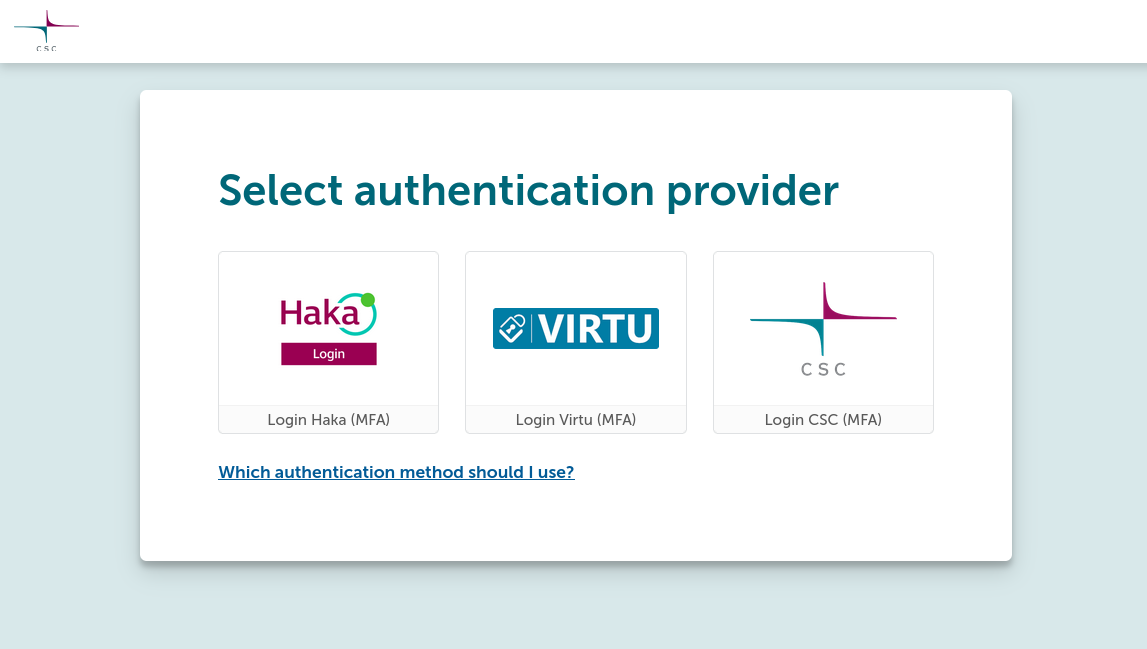
- Enter your CSC username and password.
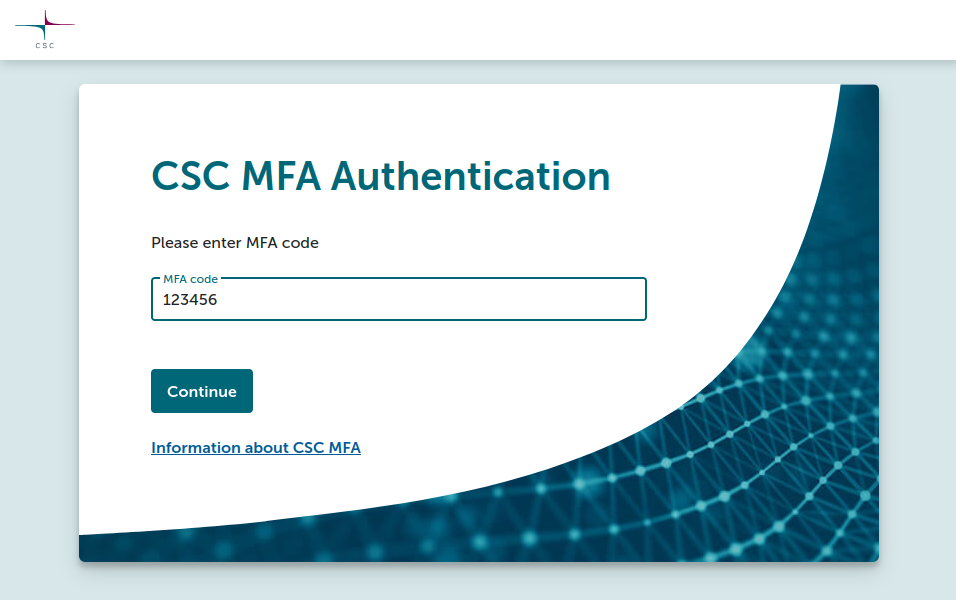
- Enter the MFA code (TOTP) on the CSC MFA authentication page.
- Select your organization from the list.
- Authenticate using the credentials provided by your organization.
- If your organization has enabled Haka MFA, you are directed to the MFA authentication page of your organization. Enter the MFA code (TOTP) as instructed.
- If your organization has not enabled Haka MFA, you are directed to
the CSC MFA authentication page. Enter the MFA code (TOTP) as
instructed.
- Select your organization from the list.
- Authenticate using the credentials provided by your organization.
- You are directed to the CSC MFA authentication page. Enter the MFA code
(TOTP) as instructed.
Known issues
- Currently, if you try to navigate directly to a URL which is protected by authentication and authorization, you will be sent to Haka MFA by default. In this case, users who do not have Haka MFA will have to return manually to the front page to log in.
- If you have Haka credentials, but have not yet created a CSC account, you will receive a false error message when trying to log in stating that you need to activate MFA. This is, however, not the root cause of the issue. In reality, you need to first create a CSC account, and only then ensure that you have Haka MFA or CSC MFA enabled in order to log in.
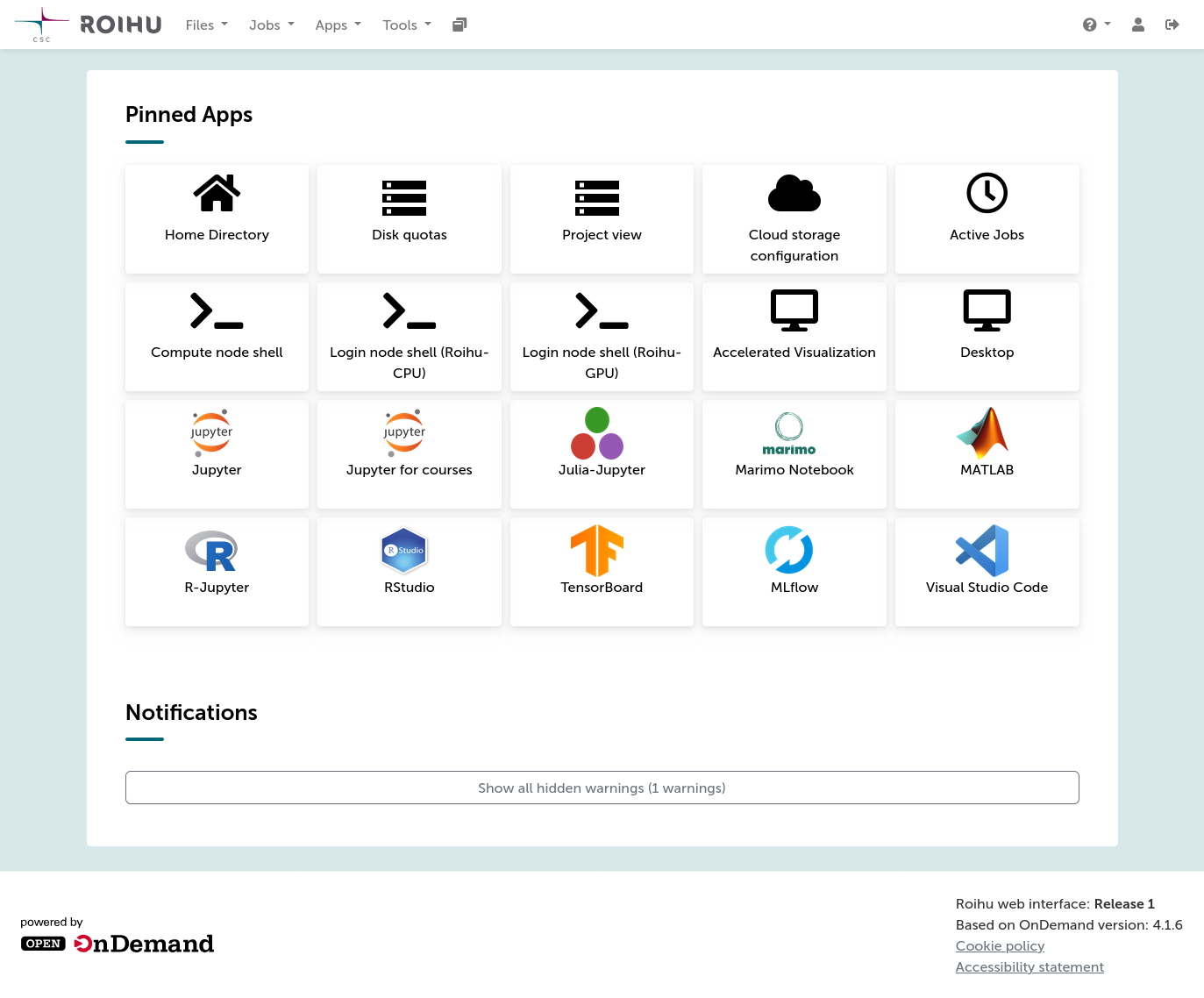
After successful authentication, you will see the dashboard. From here, you can browse your files on the supercomputer, start a shell, view running jobs or start one of the many available applications. The dashboard also contains some important system information.