Accelerated visualization
The Accelerated visualization app enables using visualization applications with GPU acceleration on a compute node, and is available on Roihu.
Available applications
Roihu
Launching
- Open the
Accelerated visualizationpage under Apps. - Specify the needed resources. One GPU will be reserved.
- Launch the app.
- Connect to the desktop.
- Launch the visualization application from the applications menu, found either in the top-left corner, or by right-clicking the desktop.
Note
Considerations about accelerated visualization on Roihu:
- Jobs launched from the accelerated visualization desktop on Roihu run on the
vizinteractivepartition, which has a maximum runtime of 12 hours. - Keep the accelerated visualization application open only when you are actively using it. Use the
Deletebutton onMy interactive Sessionspage to finish working. - In terms of Billing Units, a single visualization GPU consumes GPU Billing Units at approximately the same rate as a full CPU node on Roihu consumes CPU Billing Units. For more information, see Billing.
Connecting
There are two options for connecting to the Accelerated Visualization app:
- With web-browser.
The noVNC Connection tab can be used to connect to the app using a web browser by selecting wanted compression and quality and then clicking
Launch Desktop. Using the browser to connect is recommended for most users.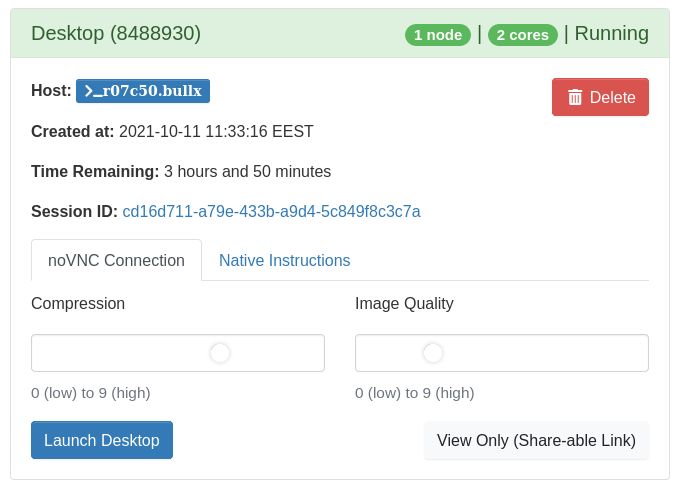
- With VNC client. For better performance you can use a native VNC client, such as RealVNC or TigerVNC. Instructions for native VNC clients can be found in the Native instructions tab. This requires installing the VNC client on your local machine.
Using the app
The Accelerated Visualization app is used in the same way as the Desktop app. However, shortcuts for the accelerated apps will not be generated on the desktop automatically. To create shortcuts for them, you can drag the desired application from the applications menu to the desktop.
Note that if you are running applications that do not benefit from GPU acceleration, you should use
the Desktop app instead. Only the applications suffixed with (Accelerated) benefit
from a GPU.
For more details about running your own applications in the Accelerated Visualization app, see the creating containers page.
