Amber
Amber is a molecular dynamics package including a number of additional tools for more sophisticated analysis and in particular NMR structure refinement.
Available
| Version | Available modules |
|---|---|
| 26 | amber/26 |
| 24 | amber/24 |
| Version | Available modules |
|---|---|
| 26 | amber/26 |
| 24 | amber/24 |
| Version | Available modules |
|---|---|
| 24 | amber/24-cpuamber/24-gpu |
License
Amber can be used on CSC servers by all not-for-profit institute and university researchers irrespective of nationality or location. Look for the academic license text here.
AmberTools is free of charge and can be used by everyone. Its components are mostly released under the GNU General Public License (GPL), while a few are in the public domain or have other open-source licenses. See the AmberTools home page for details.
Usage
See available versions and how to load Amber by running:
On LUMI, you need to add the CSC modules to your module path before running the above command:
The module load command will set $AMBERHOME and put the Amber and
AmberTools binaries in the path. Loading an Amber module will also
automatically load the latest AmberTools module (python-ambertools/26.0 on
Roihu and ambertools/26.0 on LUMI, see below).
Run Amber production jobs in the batch queues, see below. Very light system preparation (serial AmberTools jobs lasting a few seconds and using barely any memory) can be done on the login node as well. Heavier analyses should be run e.g. in an interactive compute session.
Molecular dynamics jobs are best run on Roihu-GPU using pmemd.cuda or
pmemd.cuda.MPI (for multi-GPU jobs), as they are much faster on GPUs than
on CPUs. Similarly, on LUMI one should use pmemd.hip or pmemd.hip.MPI,
which requires loading a module with the -gpu extension.
Run only GPU-aware binaries in the GPU partitions. If you're unsure, check with
seff <slurm_jobid> that GPUs were used and that the job was significantly
faster than without GPUs. If running on multiple GPUs, please ensure that the
job scales (see
performance checklist).
AmberTools Python tools
Many AmberTools utilities are Python-based. On Roihu, these are provided as a
containerized
Conda environment by the
python-ambertools module. Loading an Amber module will also automatically
load the AmberTools module. You can also load it separately:
Containerizing the installation avoids the poor performance of large Conda environments consisting of a huge number of small files on the Lustre parallel file system. Using the containerized tools does not require any special steps, the commands can be run as usual, for example:
module load amber/26
MMPBSA.py -O -i mmpbsa.in -cp complex.prmtop -rp receptor.prmtop -lp ligand.prmtop -y prod.nc
Note
Do not run anything heavy on the login node! See the usage policy for details. Resource-intensive processes should be run as batch jobs or in an interactive session.
On LUMI, a similar containerized AmberTools installation is available as the
ambertools module. It is also loaded automatically when you load an Amber
module. To load it separately, run:
Example batch scripts
#!/bin/bash
#SBATCH --account=<project>
#SBATCH --partition=small
#SBATCH --time=01:00:00
#SBATCH --nodes=1
#SBATCH --ntasks=1
#SBATCH --mem-per-cpu=2000M

# The non-GPU-aware binaries, e.g. AmberTools, can be run as batch jobs in
# the following way:

export OMP_NUM_THREADS=${SLURM_CPUS_PER_TASK:-1}

module purge
module load amber/26

srun paramfit -i Job_Control.in -p prmtop -c mdcrd -q QM_data.dat
#!/bin/bash
#SBATCH --account=<project>
#SBATCH --partition=gpumedium
#SBATCH --time=01:00:00
#SBATCH --nodes=1
#SBATCH --ntasks-per-node=1
#SBATCH --cpus-per-task=1
#SBATCH --gres=gpu:gh200:1

# Our tests show that for medium-sized systems the most efficient setup is
# one GPU card and one CPU core.

export OMP_NUM_THREADS=${SLURM_CPUS_PER_TASK:-1}

module purge
module load amber/26

srun pmemd.cuda -O -i mdin.GPU -o mdout.GPU -p Cellulose.prmtop -c Cellulose.inpcrd
#!/bin/bash
#SBATCH --account=<project>
#SBATCH --partition=gpumedium
#SBATCH --time=01:00:00
#SBATCH --nodes=1
#SBATCH --ntasks-per-node=4
#SBATCH --cpus-per-task=1
#SBATCH --gres=gpu:gh200:4

# Please ensure your job is able to utilize multiple GPUs efficiently!

export OMP_NUM_THREADS=${SLURM_CPUS_PER_TASK:-1}

module purge
module load amber/26

srun pmemd.cuda.MPI -O -i mdin.GPU -o mdout.GPU -p Cellulose.prmtop -c Cellulose.inpcrd
#!/bin/bash
#SBATCH --account=<project>
#SBATCH --partition=small-g
#SBATCH --time=01:00:00
#SBATCH --nodes=1
#SBATCH --ntasks-per-node=1
#SBATCH --gpus-per-node=1

# Our tests show that for medium-sized systems the most efficient setup is
# one GPU card and one CPU core.

export OMP_NUM_THREADS=${SLURM_CPUS_PER_TASK:-1}

module use /appl/local/csc/modulefiles
module load amber/24-gpu

srun pmemd.hip -O -i mdin.GPU -o mdout.GPU -p Cellulose.prmtop -c Cellulose.inpcrd
#!/bin/bash
#SBATCH --account=<project>
#SBATCH --partition=standard-g
#SBATCH --time=01:00:00
#SBATCH --nodes=1
#SBATCH --ntasks-per-node=8
#SBATCH --gpus-per-node=8

# Please ensure your job is able to utilize multiple GPUs efficiently!

export OMP_NUM_THREADS=${SLURM_CPUS_PER_TASK:-1}
export MPICH_GPU_SUPPORT_ENABLED=1

module use /appl/local/csc/modulefiles
module load amber/24-gpu

cat << EOF > select_gpu
#!/bin/bash

export ROCR_VISIBLE_DEVICES=\$SLURM_LOCALID
exec \$*
EOF

chmod +x ./select_gpu

CPU_BIND="mask_cpu:fe000000000000,fe00000000000000"
CPU_BIND="${CPU_BIND},fe0000,fe000000"
CPU_BIND="${CPU_BIND},fe,fe00"
CPU_BIND="${CPU_BIND},fe00000000,fe0000000000"

srun --cpu-bind=$CPU_BIND ./select_gpu pmemd.hip.MPI -O -i mdin.GPU -o mdout.GPU -p Cellulose.prmtop -c Cellulose.inpcrd
Performance notes
If Amber performance is not fast enough, consider using GROMACS, which is typically able to scale further (i.e. make use of more CPU and/or GPU resources). Consider also whether you really need speed, or just a lot of sampling. Accelerated sampling can be achieved through ensemble simulations, where multiple independent trajectories (e.g. the same system equilibrated from different initial velocities) are run simultaneously. For more details, see the section on high-throughput simulations with Amber.
If you want to use multiple GPUs, perform a scaling test to verify that the
jobs really become faster, and use a binary with .cuda.MPI or .hip.MPI
extension. The rule of thumb is that when you double the resources, the
performance should increase at least 1.5-fold. For overall performance
info, consult the
Amber benchmark scaling details.
Typically, the best efficiency is achieved with 1 GPU.
Running on multiple GPUs on LUMI will benefit from GPU binding. In the
full-node example above, a bitmask is used to bind CPU cores to optimal
(linked) GPUs, as well as to exclude the first CPU core in each group of 8
cores (these are reserved for the operating system and thus not available
for computing). For background and further instructions, see the
LUMI documentation.
Note that CPU/GPU binding is only possible when reserving full nodes
(standard-g).
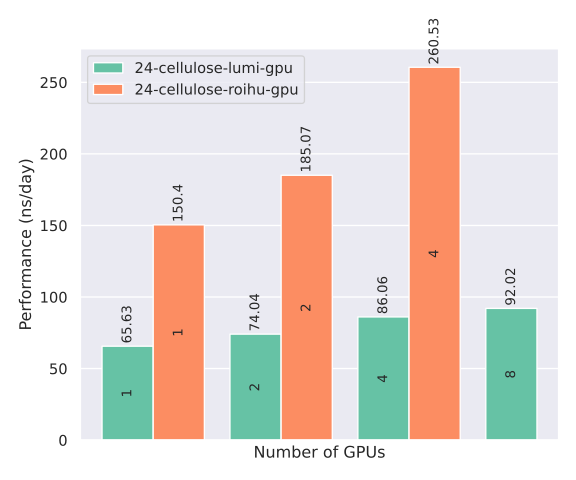
A performance comparison of Amber on Roihu-GPU and LUMI-G is shown in the figure below. The benchmark is a 408k-atom cellulose system (2 fs time step). The per-GPU performance on Roihu is more than twice as high as on LUMI-G. However, note that this system is too small to scale efficiently to multiple GPUs. In most cases it is best to run Amber using only a single GPU.
For simplicity, the term GPU is used here both for Roihu's GH200 superchips and LUMI's MI250X GCDs.
Interactive jobs
Sometimes it is more convenient to run small jobs, like system preparations, interactively. Interactive jobs prevent excessive load on the login node and should be used in these cases. You can request a shell on a compute node in the HPC web interfaces, from the command line with sinteractive, or manually with:
Once you have been allocated resources (you might need to wait), you can run
e.g. the paramfit task directly with:
High-throughput computing with Amber
Similar to GROMACS multidir, Amber has a built-in "multi-pmemd" functionality, which allows you to run multiple MD simulations within a single Slurm allocation. This is an efficient option in cases where you want to run many similar, but independent, simulations. Typical use cases are enhanced sampling methods such as replica exchange MD. Also, since Amber simulations do not typically scale that well to multiple GPUs, multi-simulations can be used as a straightforward method to accelerate sampling by launching several differently initialized copies of your system, all running simultaneously on a single GCD each. If your system is very small and hence unable to utilize the full capacity of a GCD, it might even make sense to run multiple replicas on the same GCD to maximize efficiency.
Note
GPU resources on Roihu are scarce, so we recommend running large-scale multi-pmemd simulations only on LUMI. LUMI-G has a massive GPU capacity available, which is also billed more affordably compared to Roihu.
An example multi-pmemd batch script for LUMI-G is provided below.
#!/bin/bash
#SBATCH --account=<project>
#SBATCH --partition=standard-g
#SBATCH --time=01:00:00
#SBATCH --nodes=2
#SBATCH --ntasks-per-node=8
#SBATCH --gpus-per-node=8

export OMP_NUM_THREADS=${SLURM_CPUS_PER_TASK:-1}
export MPICH_GPU_SUPPORT_ENABLED=1

module use /appl/local/csc/modulefiles
module load amber/24-gpu

cat << EOF > select_gpu
#!/bin/bash

export ROCR_VISIBLE_DEVICES=\$SLURM_LOCALID
exec \$*
EOF

chmod +x ./select_gpu

CPU_BIND="mask_cpu:fe000000000000,fe00000000000000"
CPU_BIND="${CPU_BIND},fe0000,fe000000"
CPU_BIND="${CPU_BIND},fe,fe00"
CPU_BIND="${CPU_BIND},fe00000000,fe0000000000"

srun --cpu-bind=$CPU_BIND ./select_gpu pmemd.hip.MPI -ng 16 -groupfile groupfile
In this example, 16 copies of a system are run concurrently within a single
Amber job, each using 1 GCD. 2 nodes are requested in total as each node on
LUMI-G contains 8 GCDs (4 GPUs). The input, output, topology and coordinate
files for the respective simulations are defined in a so-called groupfile:
-O -i mdin.GPU -o mdout000.GPU -p system000.prmtop -c system000.inpcrd
-O -i mdin.GPU -o mdout001.GPU -p system001.prmtop -c system001.inpcrd
-O -i mdin.GPU -o mdout002.GPU -p system002.prmtop -c system002.inpcrd
-O -i mdin.GPU -o mdout003.GPU -p system003.prmtop -c system003.inpcrd
-O -i mdin.GPU -o mdout004.GPU -p system004.prmtop -c system004.inpcrd
-O -i mdin.GPU -o mdout005.GPU -p system005.prmtop -c system005.inpcrd
-O -i mdin.GPU -o mdout006.GPU -p system006.prmtop -c system006.inpcrd
-O -i mdin.GPU -o mdout007.GPU -p system007.prmtop -c system007.inpcrd
-O -i mdin.GPU -o mdout008.GPU -p system008.prmtop -c system008.inpcrd
-O -i mdin.GPU -o mdout009.GPU -p system009.prmtop -c system009.inpcrd
-O -i mdin.GPU -o mdout010.GPU -p system010.prmtop -c system010.inpcrd
-O -i mdin.GPU -o mdout011.GPU -p system011.prmtop -c system011.inpcrd
-O -i mdin.GPU -o mdout012.GPU -p system012.prmtop -c system012.inpcrd
-O -i mdin.GPU -o mdout013.GPU -p system013.prmtop -c system013.inpcrd
-O -i mdin.GPU -o mdout014.GPU -p system014.prmtop -c system014.inpcrd
-O -i mdin.GPU -o mdout015.GPU -p system015.prmtop -c system015.inpcrd
See the Amber manual for further details on multi-pmemd.
References
When citing Amber or AmberTools, please use the following:
D.A. Case, H.M. Aktulga, K. Belfon, I.Y. Ben-Shalom, J.T. Berryman, S.R. Brozell, D.S. Cerutti, T.E. Cheatham, III, G.A. Cisneros, V.W.D. Cruzeiro, T.A. Darden, N. Forouzesh, M. Ghazimirsaeed, G. Giambaşu, T. Giese, M.K. Gilson, H. Gohlke, A.W. Goetz, J. Harris, Z. Huang, S. Izadi, S.A. Izmailov, K. Kasavajhala, M.C. Kaymak, A. Kovalenko, T. Kurtzman, T.S. Lee, P. Li, Z. Li, C. Lin, J. Liu, T. Luchko, R. Luo, M. Machado, M. Manathunga, K.M. Merz, Y. Miao, O. Mikhailovskii, G. Monard, H. Nguyen, K.A. O'Hearn, A. Onufriev, F. Pan, S. Pantano, A. Rahnamoun, D.R. Roe, A. Roitberg, C. Sagui, S. Schott-Verdugo, A. Shajan, J. Shen, C.L. Simmerling, N.R. Skrynnikov, J. Smith, J. Swails, R.C. Walker, J. Wang, J. Wang, X. Wu, Y. Wu, Y. Xiong, Y. Xue, D.M. York, C. Zhao, Q. Zhu, and P.A. Kollman (2024), Amber 2024, University of California, San Francisco.
More Information
The Amber home page has an extensive manual and useful tutorials.
