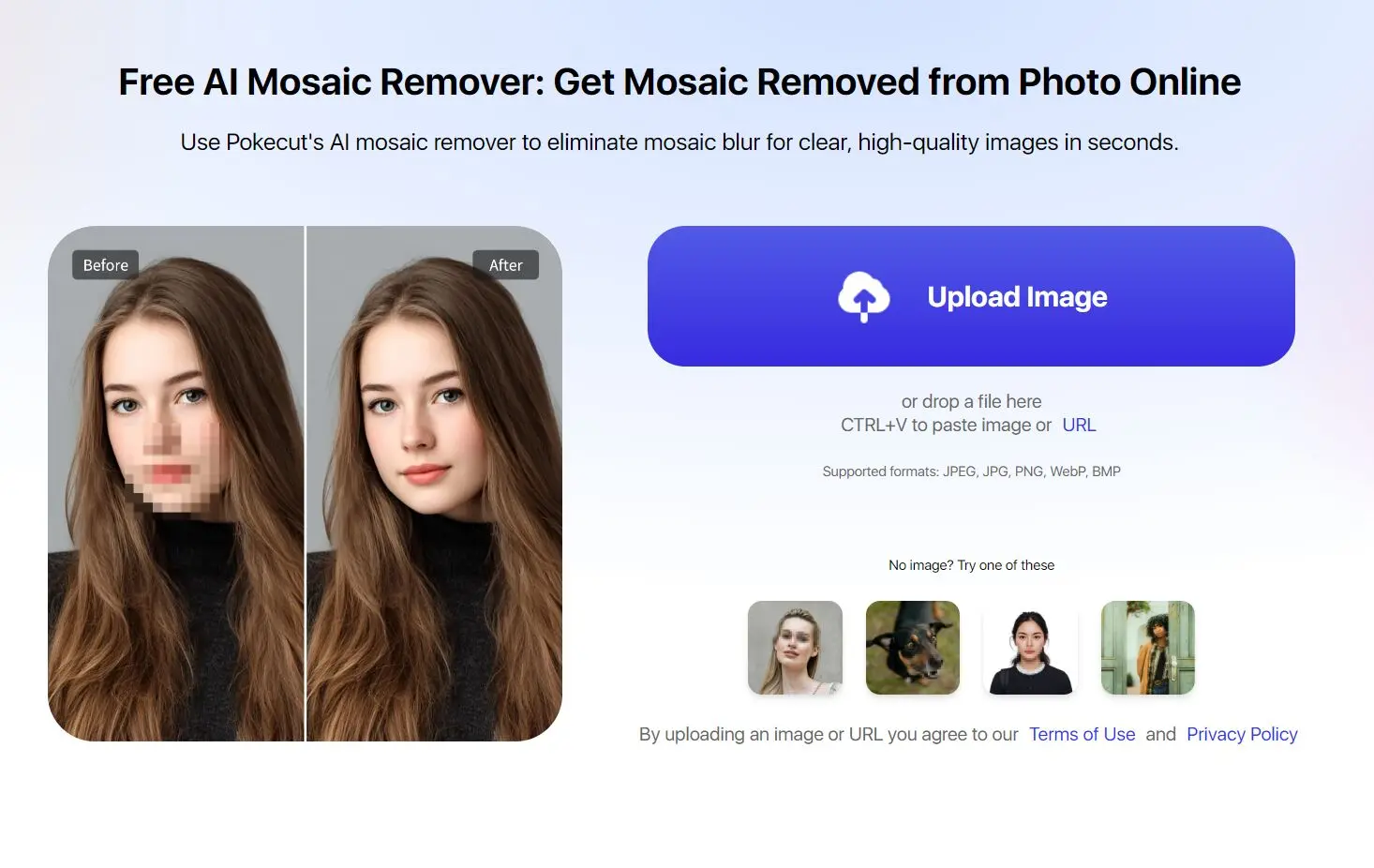
Pokecut Mosaic Remover is a free, browser-based AI image editor for removing square, round, and pixelated mosaic effects from photos.
Upload an image, mark the affected area with the Magic Brush, and let the model generate replacement pixels from the surrounding colors, lighting, textures, and visible structure.
Key Features
- Removes square, round, and pixelated mosaic effects from selected areas.
- Uses a Magic Brush to mark the exact region you want to process.
- Generates replacement pixels from nearby color, lighting, texture, and visible image structure.
- Accepts JPEG, JPG, PNG, WebP, and BMP images.
- Runs in a web browser with no desktop software installation.
- Works with portraits, group photos, social images, pet photos, and other pictures with mosaic blur.
See Pokecut Mosaic Remover in Action
Use Cases
- Personal Photo Recovery: Restore your own face in selfies where you previously added mosaic blur for privacy before sharing online
- Family Photo Restoration: Remove censorship from old family portraits or group pictures where faces were pixelated to protect identities
- ID Document Processing: Clear mosaic effects from badge photos, school IDs, or staff cards for official document preparation
- Pet Photo Enhancement: Restore natural appearance to pet photos where faces were pixelated before online sharing
- Social Media Content: Process celebrity photos downloaded from social platforms that have intentional face pixelation
- Archive Photo Cleaning: Restore clarity to historical or archived images with mosaic censorship applied over time
How to Use It
1. Go to the Pokecut mosaic remover website and click “Upload Image.” Select the photo containing mosaic blur from your device.
For best results, select mosaic areas precisely rather than painting over large image sections. The tool works most effectively on standard pixelation patterns rather than heavy artistic distortions.
2. Use the brush tool to paint over the specific mosaic or pixelated regions you want to remove. You can adjust brush size for precision: use smaller brushes for detailed facial features and larger ones for broader censored areas. The tool highlights selected areas in a different color.
3. Click the “Remove” button to start the AI processing. The algorithm analyzes the selected mosaic patterns and reconstructs the underlying details based on surrounding image context and facial recognition patterns.
4. Review the processed image to check if the mosaic removal meets your expectations. Download the final result in HD quality directly to your device. The entire process typically takes 10-30 seconds depending on image size and complexity.
Pros
- Simple browser-based workflow.
- Magic Brush for precise area selection.
- Handles square, round, and pixelated mosaics.
- Free processing is available for select images.
Cons
- Generated details are not exact originals.
- Accuracy depends on visible surrounding context.
- Some advanced features require an upgrade.
FAQs
Can Pokecut Recover the Original Details Behind a Mosaic?
Pokecut reconstructs the selected area with generated pixels based on the visible image around it. The model can create plausible facial features, textures, edges, colors, and lighting. Generated content does not prove what was originally hidden.
For faces, text, documents, and other areas where exact details matter, the output is an AI reconstruction. It is not reliable evidence of the original uncensored information.
Can Pokecut remove blur as well as mosaic effects?
Pokecut lists square mosaic, round mosaic, pixelated effects, and various blur types among the effects its Mosaic Remover processes.
Are uploaded images deleted after processing?
Uploaded files are processed online and deleted after the mosaic-removal process is complete.
How long does mosaic removal take?
Most images are processed within a few seconds.
Related Resources
- AI Magic Eraser: Free AI Object Remover for Photos
- 10 Best AI Image Editors to Edit Photos Fast
- 10 Best Free AI Background Removers Compared
Last Updated: Sep 13, 2026