Plot Bunni is a free, open-source novel writing app for planning and drafting long-form fiction. Each novel is organized into acts, chapters, and scenes, while the Concept Cache keeps characters, locations, lore, items, and other story details close to the manuscript.
The browser app stores novel data locally with IndexedDB. Story planning, scene drafting, outline import, project backups, and manuscript exports all run inside the same web app. Cross-device moves use manual JSON export and import.
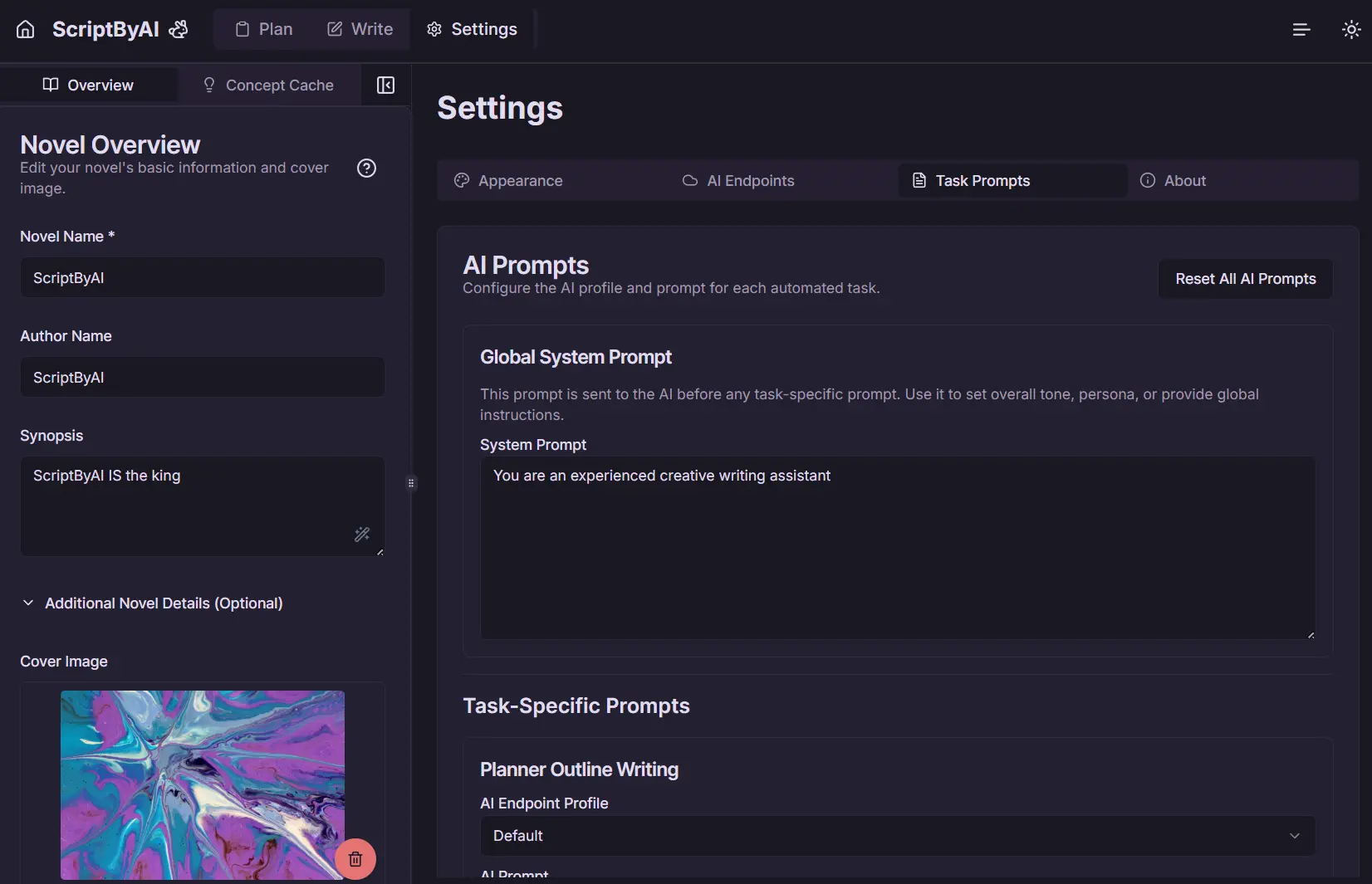
AI is optional. Plot Bunni supports AI Horde and configurable AI endpoints for brainstorming, planning, concept descriptions, synopses, and scene text. AI settings also include endpoint profiles and task-specific prompts.
Key Features
- Organize each novel into acts, chapters, and scenes.
- Import an indented text outline as a starting story structure.
- Keep characters, locations, lore, items, and custom fields in the Concept Cache.
- Draft and navigate the manuscript scene by scene.
- Generate outlines, synopses, concept descriptions, brainstorming responses, and scene text with optional AI.
- Configure AI endpoints, profiles, and task-specific prompts.
- Store novel data locally in browser IndexedDB.
- Export projects and manuscripts as JSON, Markdown, text, or PDF.
- Adjust themes, colors, fonts, and text size.
Use Cases
- Plan complex novels with a visible act, chapter, and scene hierarchy.
- Keep characters, locations, lore, and other story details beside the manuscript.
- Turn an existing outline into a structured writing project.
- Use AI for brainstorming, story planning, concept development, and scene drafting.
How To Use Plot Bunni
- Open the browser app or run Plot Bunni locally. The hosted app is available at
https://app.plotbunni.com/. The GitHub repository contains the source code and local setup instructions. - Create a novel. Enter the project name and any useful metadata, such as author, synopsis, point of view, genre, time period, audience, themes, tone, or cover image.
- Build or import the story plan. Create acts, chapters, and scenes manually, or import an indented text outline as the starting structure.
- Create story concepts. Use the Concepts area for characters, locations, lore, items, and other reference material. Link concepts to scenes where they are relevant.
- Draft the manuscript. Open the Write area and move through the novel scene by scene.
- Configure AI. Choose AI Horde or another supported endpoint profile, then adjust the prompts for the AI tasks you use.
- Export backups. Download the project as JSON and export manuscript content before moving to another browser or device.
Pros
- Free and open-source
- Built-in novel planning hierarchy
- Local project storage
- Optional AI writing tools
- Portable JSON project backups
Cons
- No built-in cloud sync
- Manual browser-data backups
- Remote AI sends generation text
Alternatives & Related Resources
- gpt-author – An open-source project focused on automated fantasy novel generation when you want AI to produce much more of the book from an initial prompt.
- Novel – A minimal WYSIWYG editor with AI autocomplete for document-focused writing.
- Best Free AI Writing Tools – A free AI tool list for drafting, rewriting, editing, and general writing tasks.
FAQs
Do Plot Bunni’s AI features require a paid API key?
No. Plot Bunni supports community-powered AI Horde models, and you can also use a personal AI Horde key or configure another AI endpoint. A third-party provider can charge for its own service.
Where are AI prompts processed?
Remote AI endpoints receive the prompt and relevant story context for generation. Local AI endpoints process those requests on your own hardware. Novel project data stays in browser storage.
How do I move a Plot Bunni novel to another browser or device?
Download the complete project as JSON, move the file to the other browser or device, and import it there. Cross-device transfers use this manual backup process.