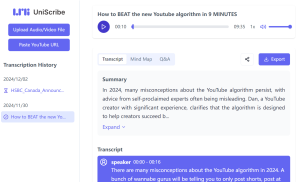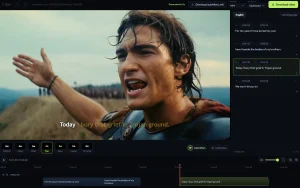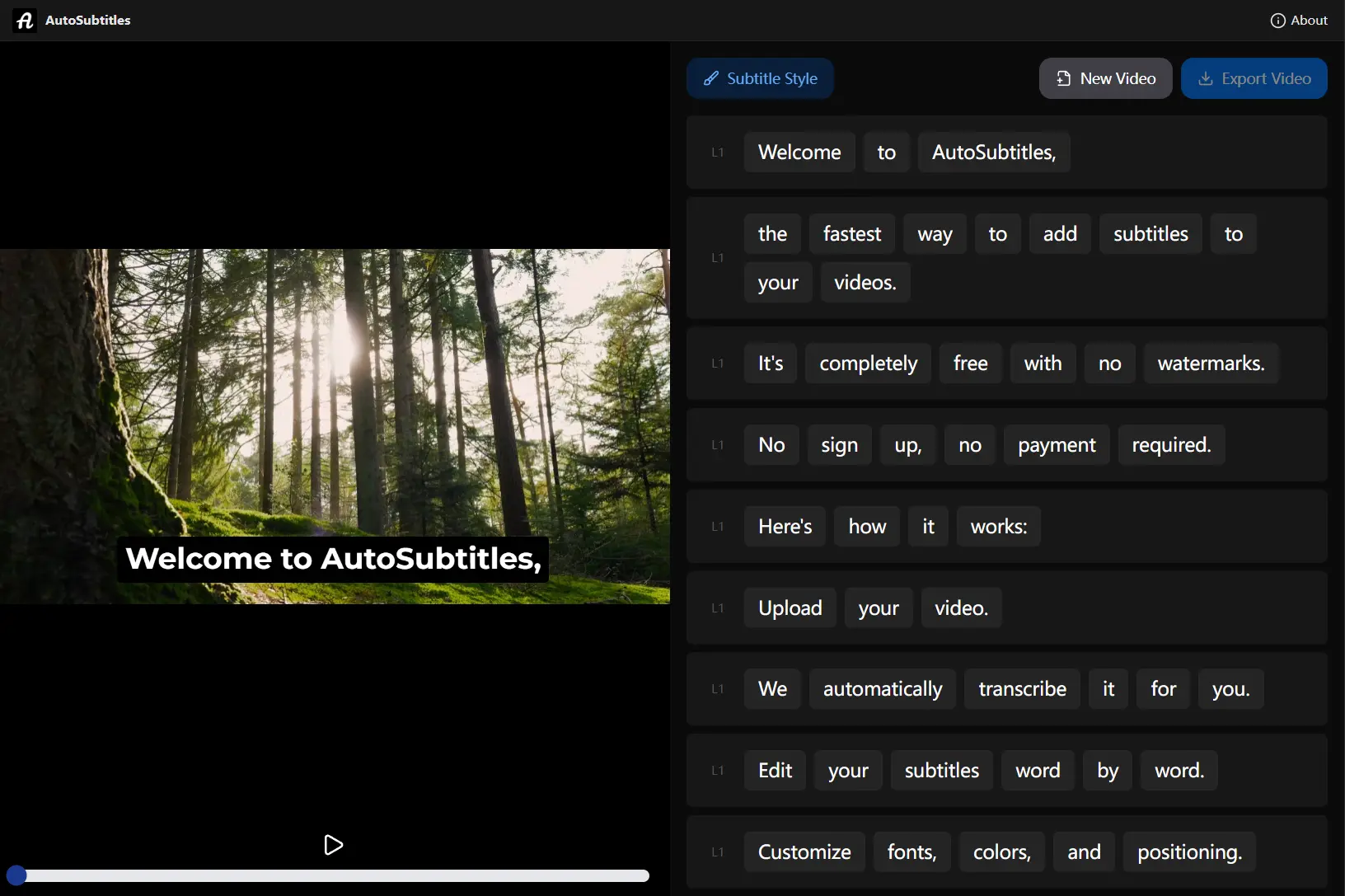
AutoSubtitles is a free AI video subtitle generator for TikTok, Instagram Reels, and YouTube. It transcribes speech into timed captions, lets you correct the text and timing, and exports videos with the subtitles embedded.
You can adjust how the captions look, from simple text with a background or outline to animated styles that highlight words as they are spoken. The editor previews your changes alongside the video.
Features
- Generates time-synced subtitles from spoken audio, with automatic language detection for multiple languages.
- Edits individual words and subtitle segments, including their start and end times, with options to split or merge lines.
- Includes 28 caption presets in the full editor, with animations, word-by-word highlights, and auto-emoji options.
- Adjusts subtitle fonts, sizes, colors, outlines, backgrounds, alignment, and screen position.
- Accepts MP4, MOV, WebM, and other common video formats in portrait, landscape, or square layouts.
- Exports captioned video with subtitles rendered into the picture, ready to publish as a video clip.
Use Cases
- Short-form social videos: Caption TikTok videos, Instagram Reels, and YouTube Shorts with animated word highlights that follow the speech.
- Tutorials and online lessons: Make spoken instructions readable on screen and correct specialized terms before sharing the video.
- Promotional videos: Style product-demo and small-business clips with consistent caption fonts and colors.
- Videos in other languages: Generate captions for speech in multiple languages. Pro can also translate captions into more than 30 languages.
How to Use AutoSubtitles
1. Open AutoSubtitles and select an MP4, MOV, WebM, or other common video file. Choose the spoken language or use automatic detection.
2. The AI transcribes the speech and places the generated captions into timed segments beside the video preview.
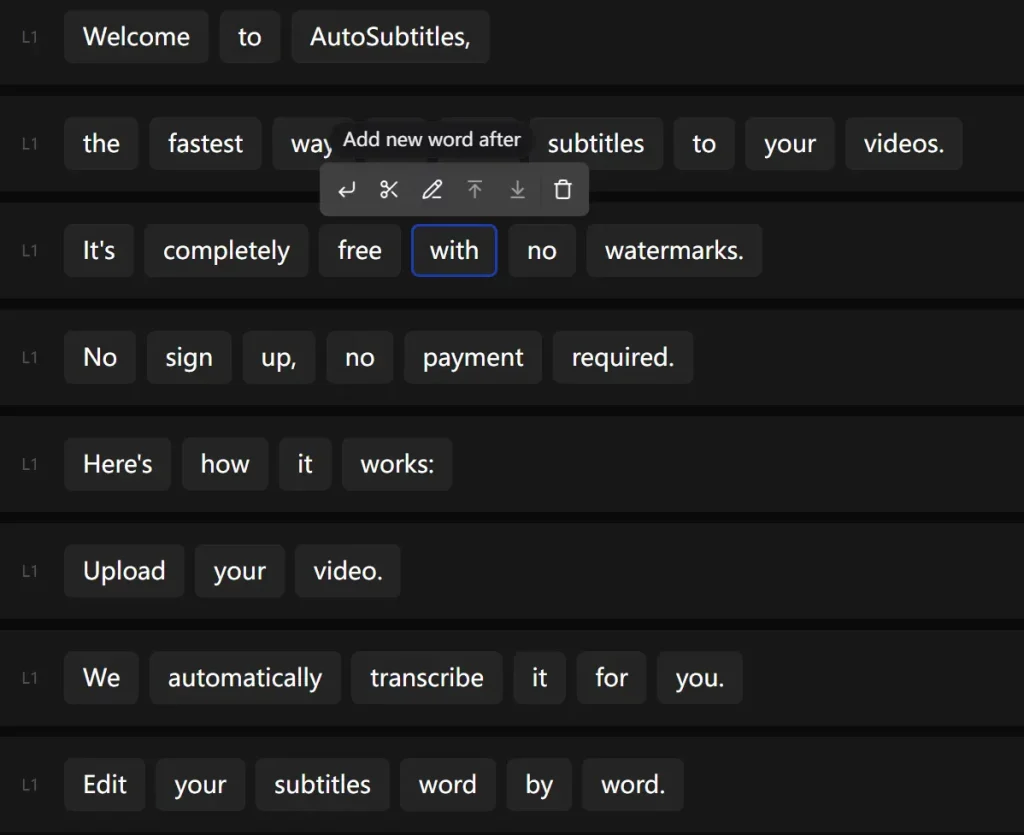
3. Review the transcript and correct names, technical terms, or misheard words. Adjust segment timestamps, split long captions, or merge short ones to keep the text in sync with the speech.
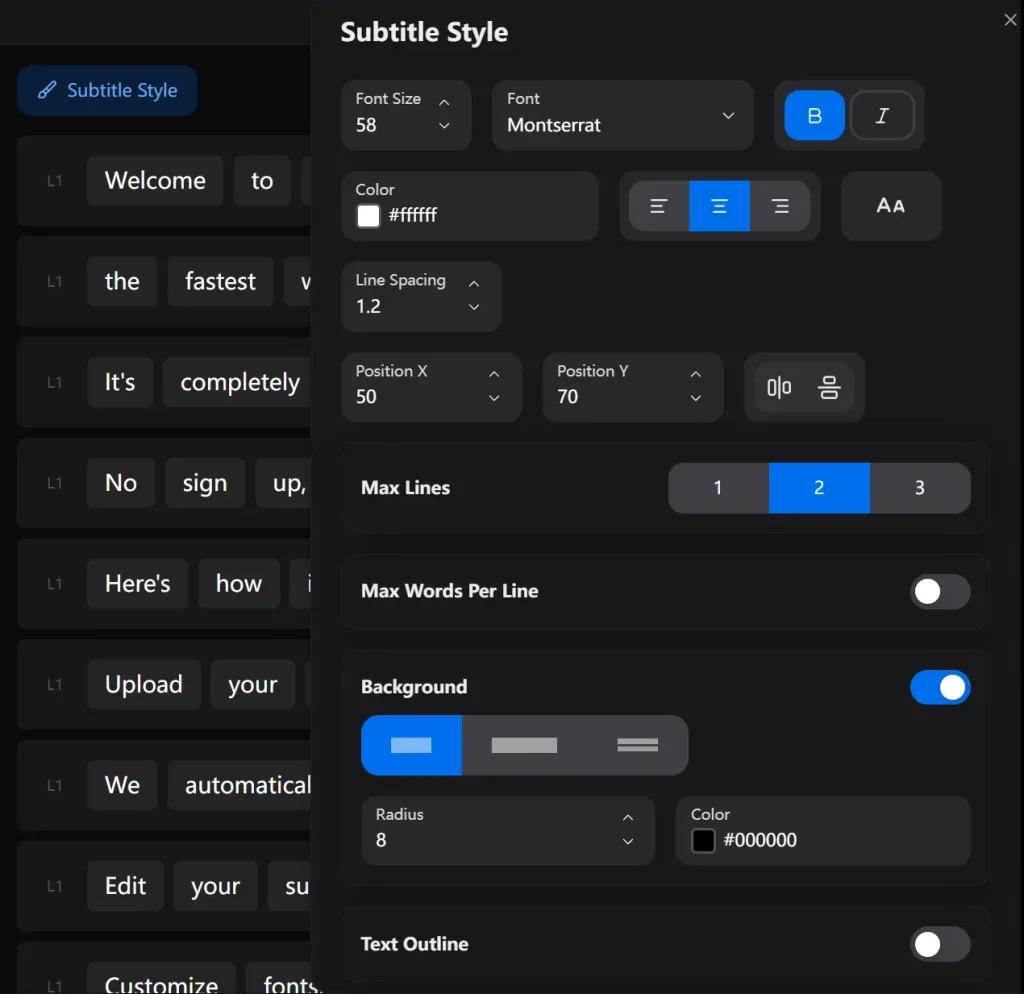
4. Open the style panel to choose a preset or adjust the font, text size, outline, background, colors, and position. The full editor includes animated styles and karaoke-like word highlighting.
5. Select Export Video to download a video with the captions burned into the picture. These captions appear whenever the video plays and cannot be turned off. Pro also exports SRT and VTT files for selectable subtitles on YouTube and other video players.
6. For a free video export with no watermark, open the Simple Editor and use its 480p export.
Free Plan, Watermarks, and Pricing
| Plan/editor | Video export and features |
|---|---|
| Simple Editor (free) | Up to 480p, no watermark, up to 10 minutes per video. Basic text, styling, and timing controls. |
| Full Editor (free) | Up to 720p, small AutoSubtitles.com watermark, up to 10 minutes per video. All 28 presets, animations, and word highlighting. |
| Pro ($9/month) | No watermark, up to 4K, videos up to 30 minutes. SRT, VTT, and TXT export, AI translation, custom fonts, and saved styles. |
| Max | Pro features with videos up to 1 hour. |
Privacy and Video Processing
AutoSubtitles edits, previews, and renders your video locally in the browser. The full video stays on your device. For AI transcription, the audio track and limited metadata can be sent to a third-party transcription provider, where the data is processed temporarily and deleted after transcription.
Pros
- Generate and edit subtitles in your browser without creating an account.
- Use all 28 caption presets and animations in the free full editor.
- Export basic 480p captioned videos for free with no watermark.
Cons
- The free full editor exports at up to 720p with a small watermark.
- Each free video is limited to 10 minutes.
- Downloading standalone SRT, VTT, and TXT files requires a paid plan.
Alternatives & Related Resources
- Free AI Subtitle Generator for Local Videos – subvid.app
- Free AI Video, Audio, and YouTube Transcription and Summarization Tool
- Free AI Tools For Video Subtitle Generator
FAQs
How accurate are the AI-generated subtitles?
Clear speech with little background noise generally needs fewer corrections. Names, technical vocabulary, overlapping speakers, and noisy recordings can require manual edits. Review the transcript and timestamps before exporting.
Can I export multiple videos for free?
Yes. The free Simple Editor permits multiple watermark-free exports. Each video can be up to 10 minutes long, with output resolution up to 480p.
Can I use AutoSubtitles videos for commercial projects?
Yes. You own the videos, subtitles, and projects you create with AutoSubtitles and can share or sell them under its terms of use. Paid access is required for watermark-free full-editor exports.
Last Updated: Oct 21, 2026