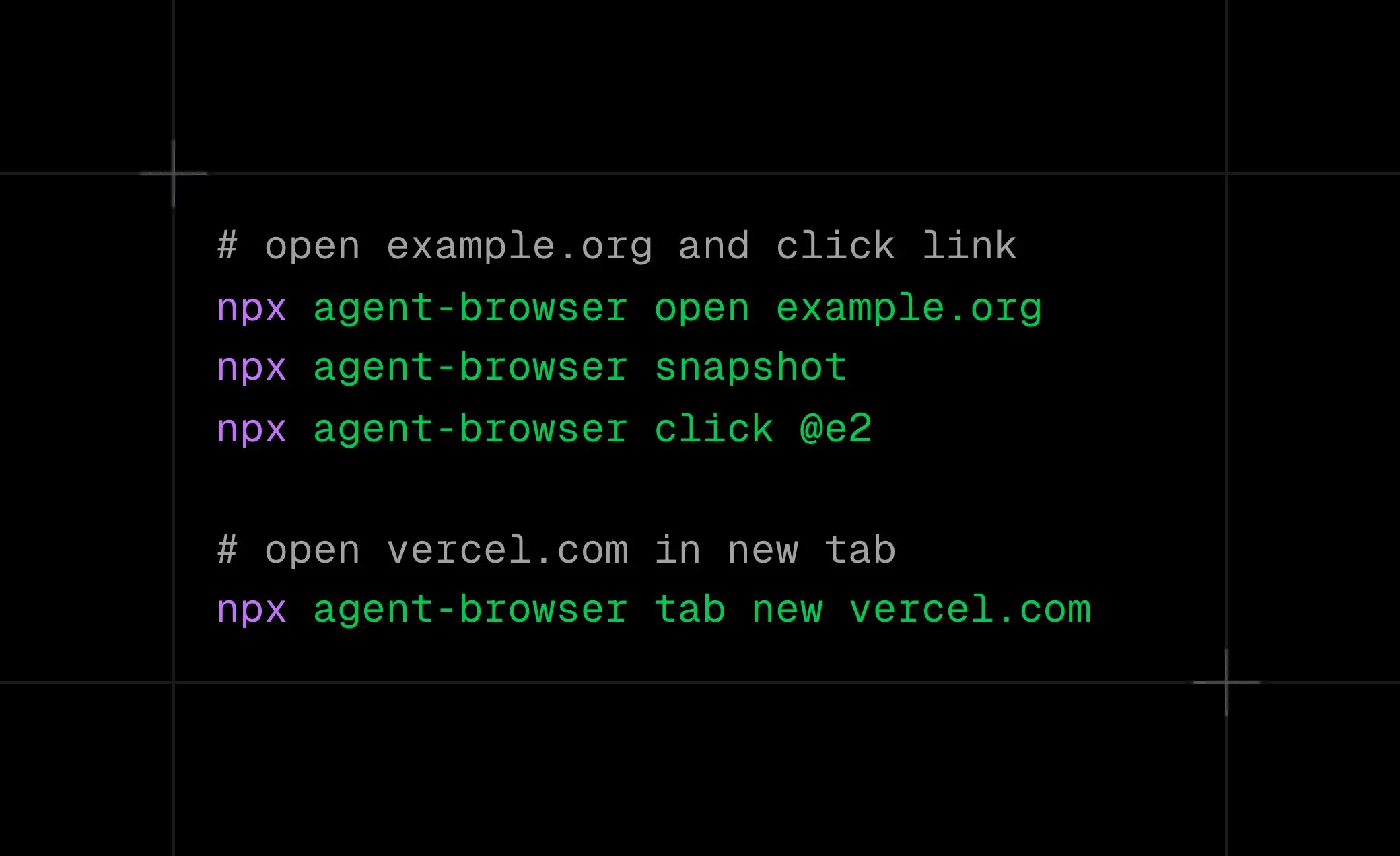
agent-browser is a free, open-source browser automation CLI from Vercel Labs. It gives AI coding agents control of a real browser through terminal commands. They can navigate websites, inspect page elements, fill forms, follow links, and verify the results of their actions.
The active browser session persists across commands. Compact accessibility snapshots identify controls with element refs such as @e2. Claude Code, Codex, Gemini CLI, Cursor, and other AI coding agents can act on those refs and check the results through updated snapshots, screenshots, and browser recordings.
Features
- Navigate websites, click links and controls, enter text, upload files, and inspect page state from terminal commands.
- Get compact accessibility-tree snapshots with
@e1-style element refs, interactive-only filtering, and selector scoping. - Request
snapshot --deltaupdates and keep refs for DOM elements that survive same-document changes. - Capture full-page, annotated, or conditional screenshots, and record browser sessions with optional cursor and contact sheets.
- Read rendered page text or fetch agent-readable Markdown with
read [url], including outlines andllms.txtdiscovery. - Keep browser tabs, cookies, local storage, authenticated profiles, and named sessions available across commands.
- Inspect network requests, intercept responses, record HAR files, and diagnose errors or browser performance.
- Audit accessibility with embedded axe-core rules and inspect React trees, renders, Suspense boundaries, and Web Vitals.
- Connect AI coding agents through CLI commands, runtime-loaded agent skills, a stdio MCP server, or the plugin protocol.
- Discover page-provided WebMCP tools in compatible Chrome sessions and invoke the tool selected by the agent.
- Observe browser activity through the built-in dashboard, stream a session, or connect to a Chrome DevTools Protocol endpoint.
- Run on macOS, Linux, and Windows with the native Rust CLI. Use Chrome by default or select another eligible browser engine or provider.
Quick Command Reference
| Task | Command |
|---|---|
| Open a page | agent-browser open https://example.com |
| Inspect interactive elements | agent-browser snapshot -i |
| Check page changes | agent-browser snapshot --delta |
| Click a control | agent-browser click @e2 |
| Fill an input | agent-browser fill @e3 "text" |
| Read the active tab | agent-browser read |
| Wait for navigation | agent-browser wait --url "**/dashboard" |
| Capture changed screenshots | agent-browser screenshot --if-changed ./page.png |
| Start video recording | agent-browser record start ./flow.webm |
| Audit accessibility | agent-browser a11y https://example.com |
| Run MCP tools | agent-browser mcp |
| Diagnose installation | agent-browser doctor |
How agent-browser Works
An AI agent opens a page, inspects its accessibility tree, and selects a control from the returned element refs. On a page with a single link, the agent can use the current link ref to click through and check the destination URL. A form task follows the corresponding pattern with fill and a check of the resulting page state. The browser process persists across these commands.
agent-browser open https://example.com
agent-browser snapshot -i
# Click the link ref from the snapshot
agent-browser click @e1
agent-browser get url
agent-browser snapshot -i
Snapshot Deltas, Screenshots, and Video
When an agent revisits a changing page, snapshot --delta returns a full first snapshot and tracks its revision. Later calls report structural changes or an unchanged page. Use snapshot --delta --full to rebuild the baseline. The reduced output is useful for repeated UI and form-state checks.
agent-browser snapshot --delta
# Perform a browser action, then inspect the difference
agent-browser snapshot --delta
agent-browser snapshot --delta --full
For screenshots, --if-changed skips writing another image when the captured page matches the previous image for that tab and capture mode. Use --threshold to ignore small pixel differences. The --annotate option places numbered markers over clickable elements and prints the corresponding @eN refs.
agent-browser screenshot --if-changed ./page.png
agent-browser screenshot --if-changed --threshold 0.02 ./page.png
agent-browser screenshot --annotate ./controls.png
For UI regression checks, diff snapshot compares the current accessibility tree against the previous snapshot. diff screenshot --baseline compares the rendered page against a saved image and reports the pixel mismatch. diff url can compare staging and production pages.
agent-browser diff snapshot
agent-browser diff screenshot --baseline before.png
agent-browser diff url \
  https://staging.example.com \
  https://prod.example.com --screenshot
You can also record a browser session as a WebM or MP4 file for a bug report, product demonstration, or CI artifact. Recording uses ffmpeg, which must be installed separately. The optional cursor overlay displays pointer movements and clicks, and a contact sheet creates a timestamped PNG showing important changes during the recording.
agent-browser record start ./flow.webm --cursor --contact-sheet
agent-browser snapshot
agent-browser click @e2
agent-browser record stop
The --human option gives an individual click or drag a curved mouse movement. For repeated actions, --input-mode human sets the movement behavior for the session.
agent-browser click @e2 --humanAI Agent Integrations and WebMCP
Claude Code, Codex, Cursor, Gemini CLI, OpenCode, GitHub Copilot, Goose, and Windsurf can run the browser CLI as shell commands. The repository also publishes an agent skill. Installing it through the Skills installer gives compatible coding agents a discovery entry point, while agent-browser skills get core retrieves instructions matching the installed CLI version.
Running browser commands does not require a model subscription. An AI agent or cloud browser provider can have its own usage charges.
npx skills add vercel-labs/agent-browser
agent-browser skills get core
For agents that use the Model Context Protocol, agent-browser mcp starts a local stdio MCP server. Tool profiles determine how many browser commands the client sees. The default core profile keeps discovery compact, and other profiles can expose commands for networking, authentication state, debugging, or React inspection.
agent-browser mcp
agent-browser mcp --tools core,network
The plugin system connects external credential vaults, cloud browser providers, custom launch settings, and extra commands. Plugins run as local processes that exchange JSON over standard input and output. Install an npm or GitHub plugin through plugin add, inspect it with plugin list, and use its declared capability through the corresponding CLI command.
WebMCP is an experimental browser capability through which participating websites expose callable actions. In compatible Chrome sessions, agent-browser announces available page tools, their origins, and their frame IDs. The agent retrieves the selected tool’s input schema before invoking it. Websites that do not expose WebMCP tools can still be automated through snapshots, clicks, and form commands.
agent-browser webmcp list
agent-browser webmcp list search --json
agent-browser webmcp invoke search --params '{"query":"browser agents"}'
For agents built with eve, the @agent-browser/eve package mounts browser commands into the agent as namespaced tools such as browser__navigate and browser__snapshot. Those commands execute inside the eve sandbox, where browser processes, downloads, and screenshots can be managed apart from the Next.js runtime.
Browser Sessions, Engines, and Monitoring
Chrome and Chromium are the standard browser engines. A named session isolates state for parallel jobs, and --restore saves a session’s cookies and local storage for subsequent runs. You can also attach to a Chrome DevTools Protocol session or pin a named agent session to one browser tab. Header and domain restrictions apply when the agent needs authenticated access or a constrained browsing environment.
agent-browser --session qa open https://example.com
agent-browser --session qa snapshot -i
agent-browser --session qa --restore open https://example.com
Other local engines include Lightpanda and the experimental Obscura engine. Obscura needs its own installed binary, runs headlessly, and uses the CLI through CDP. It does not currently provide full Chrome compatibility for accessibility, screenshots, profiles, extensions, or WebGPU. Browser-provider integrations can also connect remote or hosted browsers through providers such as Browserbase, Browserless, Kernel, Browser Use, AgentCore, and Remote Agent Browser.
agent-browser --engine obscura open https://example.comFor controlled network egress, --proxy directs browser traffic through an HTTP or SOCKS proxy, and --proxy-bypass identifies hosts that should connect directly. In corporate networks that inspect TLS traffic, --ca-cert loads a private certificate bundle and --use-system-ca uses the operating system trust store for CLI HTTPS requests. Both options preserve certificate verification for commands such as read, install, upgrade, and doctor.
The bundled dashboard shows the active viewport and a chronological activity feed of commands, results, and console messages. You can also create sessions there and open optional AI chat. The built-in chat command and dashboard chat require a Vercel AI Gateway API key. The normal CLI, agent skills, and MCP server can operate independently of that chat service.
Every active session also has a local WebSocket stream for browser frames. stream status shows its assigned port. Configure AGENT_BROWSER_STREAM_QUALITY, AGENT_BROWSER_STREAM_MAX_WIDTH, or AGENT_BROWSER_STREAM_MAX_HEIGHT when a remote viewer needs smaller frames. Streaming clients can request frame-rate limits or acknowledgment-based pacing.
agent-browser dashboard start
# Open http://localhost:4848 to view active sessions
Use Cases
- Test login, checkout, and other UI flows with a coding agent. It can inspect the current controls, complete the steps, and check the resulting page or error message.
- Collect data from JavaScript-rendered websites. Open filters, move through pagination, and read the resulting content from the rendered tab.
- Capture screenshots and recordings for bug reports or product documentation. Record a sequence of browser actions and keep the resulting WebM or MP4 file as evidence.
- Run accessibility checks during UI development. The
a11ycommand returns violations with rule IDs and affected selectors that can be used in regression checks. - Investigate the requests made by a web application. Capture HAR traffic with response bodies and use the bundled
derive-clientskill to identify endpoints for a reusable client. - Continue authorized work in a signed-in browser. Named sessions, saved storage, and scoped HTTP headers make it possible to return to a protected app during subsequent commands.
How to Use It
Installation
NPM (Recommended)
npm install -g agent-browser
agent-browser install  # Download Chrome from Chrome for Testing
Project Installation
npm install agent-browser
agent-browser install
Homebrew (macOS)
brew install agent-browser
agent-browser install
Cargo (Rust)
cargo install agent-browser
agent-browser install
From Source: Requires Node.js 24+, pnpm 11+, and Rust.
git clone https://github.com/vercel-labs/agent-browser
cd agent-browser
pnpm install
pnpm build
pnpm build:native   # Requires Rust
pnpm link --global
agent-browser install
Linux Dependencies
agent-browser install --with-depsUpgrade and Diagnose: doctor --fix can reinstall Chrome and clean existing local state.
agent-browser upgrade
agent-browser doctor
agent-browser doctor --fixThe main interaction commands accept a snapshot ref or a selector. Use fill for inputs and click for links and buttons.
open [url],back,forward, andreloadnavigate the browser.click,dblclick,fill,type,focus, andhoverinteract with elements.press,keyboard type,keyboard inserttext,keydown, andkeyuphandle keyboard input.select,check,uncheck,scroll,scrollintoview,drag, anduploadhandle forms and pointer operations.screenshot,pdf,read [url], andevalcapture or inspect page content.
A snapshot shows the current accessibility tree. Use the following options to focus on interactive controls or a particular region of a complex page.
-i, --interactive: Show only interactive elements (buttons, inputs, links).-c, --compact: Remove empty structural elements.-d, --depth <n>: Limit the tree depth.-s, --selector <sel>: Scope the snapshot to a specific CSS selector.--json: Output raw JSON for machine parsing.
Commands accept element refs, CSS or XPath selectors, and semantic locators.
Element refs: Choose an @e1 or @e2 identifier from the current snapshot to interact with that exact element.
CSS or XPath: Use selectors such as #submit or xpath=//button when a stable element ref is not available.
Semantic Locators: Find elements by their human-readable attributes.
find role <role> <action>: e.g.,find role button click --name "Submit"find text <text> <action>: e.g.,find text "Sign In" clickfind label <label> <action>: e.g.,find label "Email" fill "[email protected]"find placeholder <ph> <action>: Find by input placeholder.find alt/title/testid: Find by alt text, title attribute, ordata-testid.find first/last/nth: Select specific matches (e.g.,find nth 2 "a" text).
Read content from the active rendered page or retrieve text from a URL. The inspection commands return values that an agent can check after interacting with an element.
Read a Page:
agent-browser read https://example.com/article
agent-browser read https://docs.example.com --outline
agent-browser read https://docs.example.com --llms index --filter auth
agent-browser read  # Read the rendered active tab
Get Info:
get text <sel>: Read text content.get html <sel>: Get inner HTML.get value <sel>: Get input value.get attr <sel> <attr>: Get an attribute (likehref).get title/get url: Get page metadata.get count <sel>: Count matching elements.get box <sel>: Get bounding box coordinates.
Check State:
is visible <sel>is enabled <sel>is checked <sel>
Waiting, Browser Settings, and Authentication
Wait for the specific page change your browser task needs, such as a URL, message, selector, or JavaScript condition. networkidle works best on pages that eventually stop making requests.
wait <selector>: Wait for an element to appear.wait <ms>: Pause for a fixed number of milliseconds.wait --text "Welcome": Wait for text to appear.wait --url "**/dash": Wait for the URL to match a pattern.wait --load networkidle: Wait until network traffic stops.wait --fn "window.ready === true": Wait for a JS condition.
Set the viewport, device, location, connectivity, or HTTP headers for a test session.
set viewport <w> <h>: Change window size.set device <name>: Emulate a device (e.g., “iPhone 14”).set geo <lat> <lng>: Set geolocation coordinates.set offline [on|off]: Toggle offline mode.set headers <json>: Add global HTTP headers.set credentials <u> <p>: Set HTTP Basic Auth.set media [dark|light]: Emulate color schemes.
Cookies, local storage, and authentication settings let an existing browser session continue through protected pages.
Cookies: cookies (list), cookies set <name> <val>, cookies clear.
Storage: storage local (list), storage local set <k> <v>, storage local clear. (Same for session storage).
For form-based logins, save a credential profile with auth save <name> --url <url> --username <user> --password-stdin. The password is supplied through standard input. auth login <name> opens the saved login URL and fills the matching fields. Use auth login <name> --no-navigate when an in-page login screen is already prepared. It checks the page origin against the saved login URL before entering credentials.
Origin-scoped headers: Send an authorization header to a known origin when the test has permission to use an existing token. This does not perform a browser login or create website credentials.
agent-browser --headers '{"Authorization":"Bearer <token>"}' open https://api.example.comNetwork, Tabs, and Debugging
Record requests, block resources, or mock responses when debugging browser behavior and application APIs.
network route <url>: Intercept requests.network route <url> --abort: Block requests (e.g., ads).network route <url> --body <json>: Mock API responses.network route '*' --abort --resource-type script: Block a specific CDP resource type.network requests: View tracked requests (use--filterto narrow down).network har start/network har stop [output.har]: Record browser traffic as a HAR file. Text response bodies are embedded by default. Use--content allfor binary bodies or--content nonefor metadata only.
Tab IDs such as t1 and t2 stay stable within a session, and tab labels keep related pages easy to identify. Switch tabs before using a ref captured from that tab.
tab: List tabs with stable IDs such ast1,t2, and optional labels.tab new [url]: Open a new tab.tab new --label docs [url]: Open a labeled tab.tab <tN|label>: Switch to a stable tab ID or label.tab close [tN|label]: Close the current tab, a tab ID, or a labeled tab.tab <targetId>: Switch with a CDP target ID that persists across daemon restarts.window new: Open a new window.frame <sel>: Switch context to an iframe.frame main: Return to the main page.
Use the dialog and diagnostic commands to inspect browser failures during a test.
Dialogs: dialog accept [text] (handle alerts/prompts) or dialog dismiss.
Debug:
trace start/stop [path]: Record execution traces.console: View browser console logs.errors: View page errors.highlight <sel>: Visually highlight an element.state save/load <path>: Save or load full authentication state (cookies/storage) to a file.doctor: Diagnose Chrome, daemon state, config files, security, providers, network reachability, and headless launch behavior.a11y [url]: Run accessibility checks in the current CDP page or navigate to a URL first. Safari and iOS WebDriver sessions do not support this command.
Headed Mode: Run with --headed to see the browser window.
CDP Mode: Connect to an existing browser (Chrome/Electron) via the Chrome DevTools Protocol using --cdp <port>.
Auto-Connect: Use --auto-connect or AGENT_BROWSER_AUTO_CONNECT=1 to discover a running Chrome instance with remote debugging enabled.
Sessions, Deployment, and Agent Setup
Use different --session values to isolate browser state across agents. For an existing Chrome CDP endpoint, --pin-tab keeps each session attached to its selected tab.
agent-browser --session agent1 open site-a.com
agent-browser --session agent2 open site-b.com
# Reuse saved cookies and localStorage under a stable session key
agent-browser --session agent1 --restore open site-a.com
# Keep two shared-CDP sessions attached to their own tabs
agent-browser --session agent1 --cdp 9222 --pin-tab open site-a.com
agent-browser --session agent2 --cdp 9222 --pin-tab open site-b.com
Restore sessions save state periodically and when the browser closes. The default one-hour idle timeout closes inactive headless sessions. Set AGENT_BROWSER_IDLE_TIMEOUT_MS=0 to disable that cleanup. State files contain session tokens. Keep them out of version control or set AGENT_BROWSER_ENCRYPTION_KEY to encrypt saved state.
Serverless jobs can run a custom Chromium executable. Vercel Sandbox integrations use the separate helper package.
agent-browser --executable-path /path/to/chromium open example.comnpm install @agent-browser/sandbox @vercel/sandboxOn React pages, use the built-in React DevTools integration to inspect component trees and renders. The accessibility command checks the current page with embedded axe-core rules.
agent-browser open --enable react-devtools https://example.com
agent-browser react tree
agent-browser react inspect <fiberId>
agent-browser react renders start
agent-browser react renders stop
agent-browser react suspense
agent-browser vitals https://example.com
agent-browser a11y https://example.com --tags wcag2a,wcag2aa
For WebGPU pages, launch with --webgpu, capture the result, and use doctor --webgpu to diagnose rendering.
agent-browser --webgpu open https://example.com
agent-browser screenshot webgpu-page.png
agent-browser doctor --webgpu
WebGPU screenshots work headlessly on macOS. Windows requires headed mode in a logged-in desktop session, while Linux requires headed mode with Xvfb for captured WebGPU canvas output. Linux also needs a Vulkan loader and Mesa Vulkan drivers for the default software backend.
Use domain allowlists, content boundaries, output caps, and confirmation policies when running an agent against untrusted sites or actions that change data.
agent-browser --allowed-domains "example.com,*.example.com" open example.com
agent-browser --content-boundaries --max-output 50000 snapshot
agent-browser --confirm-actions eval,download open example.com
The domain allowlist also blocks disallowed subresources, WebSocket connections, beacons, and WebRTC bypasses in supported Chromium sessions. It requires a fresh controllable browser context and rejects launch paths where equivalent containment cannot be installed before page scripts run.
Pros
- Compact snapshots:
snapshot -ifilters for interactive controls, and-cremoves empty tree nodes. - Broad Inspection: Inspect text, accessibility, React, Web Vitals, networks, HAR bodies, screenshots, and PDFs.
- Stable Handles: Snapshot refs, tab IDs, CDP targets, and tab pinning identify the intended browser object.
- Native CLI: Rust command parsing and a persistent browser daemon avoid starting a new browser for every action.
- Session Recovery: Restore sessions save cookies and localStorage periodically. An encryption key protects saved state at rest.
- Agent Integrations: Call agent-browser through project instructions, skills, MCP, or capability-scoped plugins.
Cons
- Browser setup: The default Chrome engine needs a browser binary and system dependencies, especially on Linux.
- Chrome-Centered Default: Standard automation uses Chrome or Chromium. iOS Safari requires macOS, Xcode, Appium, and device setup.
- AI Chat Key: Built-in
chatrequires an AI Gateway API key. - Sensitive State: Plain state files contain cookies and session tokens.
Alternatives and Related Resources
- Page Agent: Free & Open-source In-Page AI Browser Control
- agent-browser Official Documentation
- Playwright enables reliable web automation for testing, scripting, and AI agents.
- Automate Anything: 10 Best & Open-source AI Agents
FAQs
Is agent-browser free and open source?
Yes. The Vercel Labs CLI is free and released under the Apache-2.0 license. It runs local browser commands through the native CLI. Remote browser providers and AI Gateway models are external services with their own charges.
Do element refs survive navigation or changes to the page?
Refs for surviving DOM elements persist across same-document updates. A replaced element, full navigation, or replaced iframe invalidates earlier refs. Run another snapshot after navigation, and use snapshot --delta to inspect changes between snapshots.
Can agent-browser work with Claude Code and Codex?
Yes. Both can execute the CLI directly from the terminal. Install the vercel-labs/agent-browser skill for browser-specific agent instructions, or connect a compatible agent through the stdio MCP server with agent-browser mcp.
Do I need an AI Gateway API key?
No key is required for direct CLI commands, snapshots, screenshots, agent skills, or the MCP server. An AI_GATEWAY_API_KEY is required only for the built-in chat command and dashboard AI chat.
Can I automate login-protected websites?
Yes. Browser sessions can keep cookies and local storage, and scoped authentication headers can be used where appropriate. Treat saved browser state as sensitive because session files can contain login tokens. Use encryption or keep those files in a protected location outside source control.
Can accessibility audits run offline or under a strict Content Security Policy?
Yes. The embedded axe-core engine runs from the browser binary and does not require a page-provided window.axe. This feature requires the CDP browser implementation and is not available for Safari/iOS WebDriver sessions.
What should I do when a click is blocked by an overlay?
Inspect the error to identify the blocking modal, cookie banner, or other element. Dismiss or interact with the overlay, take another snapshot, and retry the action with the current element ref.
Can agent-browser record videos and inspect a session live?
Yes. The record commands write WebM or MP4 video with ffmpeg installed. The local dashboard and streaming server display live browser frames and command activity. Streaming prioritizes the latest frame when a client is slow, so it does not guarantee delivery of every captured frame.
Last Updated: Oct 14, 2026