
To use Perplexity AI, open perplexity.ai, ask a specific question, and read the answer alongside its linked sources. Open the sources behind important claims, then ask a follow-up to narrow the result. Start with one small research task before adding files, changing search controls, or choosing a paid plan.
For a first task, try finding an official policy, understanding an unfamiliar term, or building a reading list. A useful answer gives you a starting point; the original source tells you whether the information actually supports your decision.
GlobalGPT brings Perplexity and other leading AI models into one affordable subscription. You can move from research to an outline, a polished draft, and supporting creative work in one workspace, using different models for different parts of the job.
What Perplexity AI does
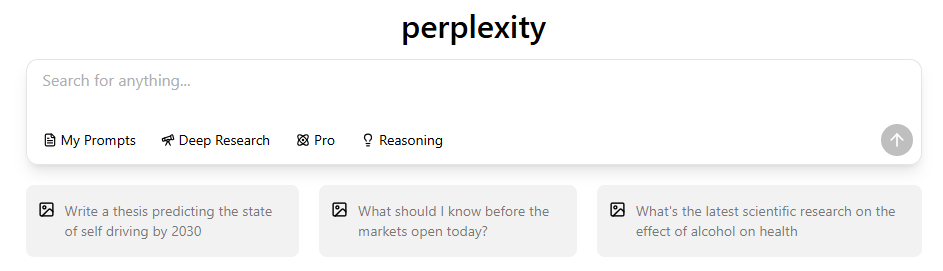
Perplexity combines a conversational question box with research and source discovery. Instead of stopping at a list of links, you can ask for an explanation, request a comparison, and continue with a more specific question. That makes it useful when you need both an introduction to a topic and somewhere to read further.
Keep three things separate: the generated answer, the list of sources, and what those sources actually say. A source can be relevant to the topic without supporting every sentence in an answer. If you need a number, a quote, a deadline, or a rule, check that particular detail on the original page.
For more background, see how Perplexity differs from traditional search engines.
How to get started, step by step
1. Open the website or app
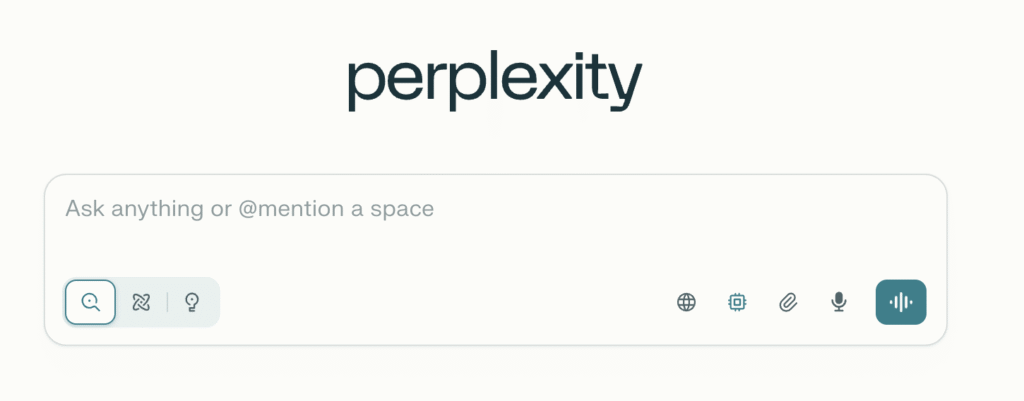
Open Perplexity in your browser and find the question box. On mobile, use the Perplexity app listing from the official app store for your device. Check the app name and publisher before installing; similarly named AI apps can lead to a different service.
2. Sign in when you need your research history
Use the same account on the devices where you want to continue your work. If a sign-in prompt appears, choose your usual sign-in method rather than accidentally creating a second account. A subscription attached to one account will not resolve a sign-in problem in another.
3. Ask a question with a clear finish line
A narrow question is easier to check than a broad request such as “Tell me everything about AI.” Say what you need, who it is for, and what kind of source would help. For example:
- “Explain retrieval-augmented generation to a beginner in three short paragraphs. Link to an original technical source.”
- “Find the official opening hours and visitor rules for the museum I name. Separate regular hours from holiday exceptions.”
- “Compare two approaches to reducing household food waste. Give one practical example for each and link to the research behind it.”
Treat these as starting prompts, not promised outputs. If the answer is too broad, narrow the next question to one location, date range, or part of the problem. If you need current information, explicitly ask for the relevant date and verify it on the source page.
Check citations before you use an answer
Open an inline citation or the source list associated with the answer. Then open the underlying article, report, or official page. For a product feature, look for the provider’s documentation; for a study, look for the original paper; for a policy, look for the organization that owns it.
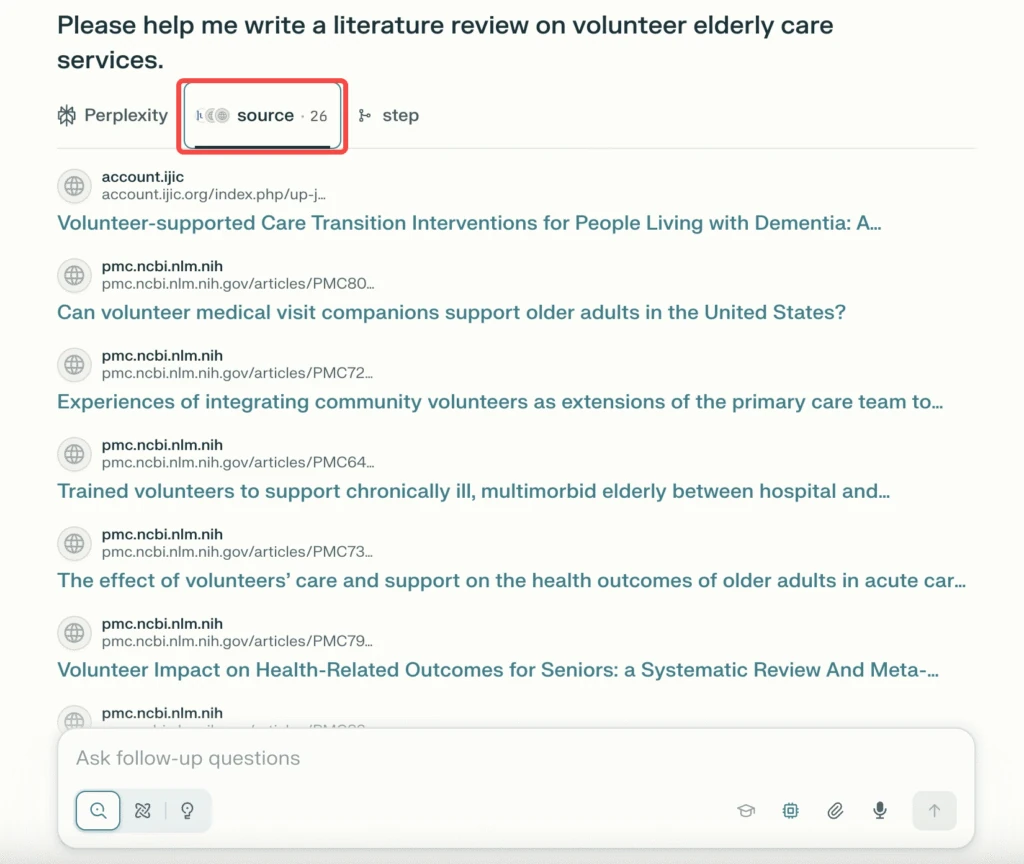
- Match the claim: find the sentence, table, or passage that supports the detail you plan to use.
- Check the scope: a study about one population or a policy for one country may not apply elsewhere.
- Check the date: publication, update, and effective dates can mean different things.
- Keep the original link: save the source title and URL with your notes, so you can return to it later.
If the original page does not support the answer, ask: “Which source supports this exact sentence? Quote the relevant passage and separate your inference from the source.” Check the new citation too. Another confident response does not settle the question.
For academic writing, format the original sources according to your required citation style. If your school or publisher asks you to disclose AI assistance, follow that rule as well; a list of links is not a complete reference list.
Use a follow-up to refine the same task
Useful follow-ups change one part of the request: “Use only official sources,” “Explain the second point more simply,” or “What evidence would change this conclusion?” Start a new conversation when you move to an unrelated task, so earlier assumptions do not shape a different question.
Understand search controls before changing them
A source filter, a search mode, and a model choice answer different questions. A source filter changes where to look. A search mode changes the kind of research workflow. A model choice changes the model producing the answer. Read the labels and access requirements in your own interface before selecting an option.
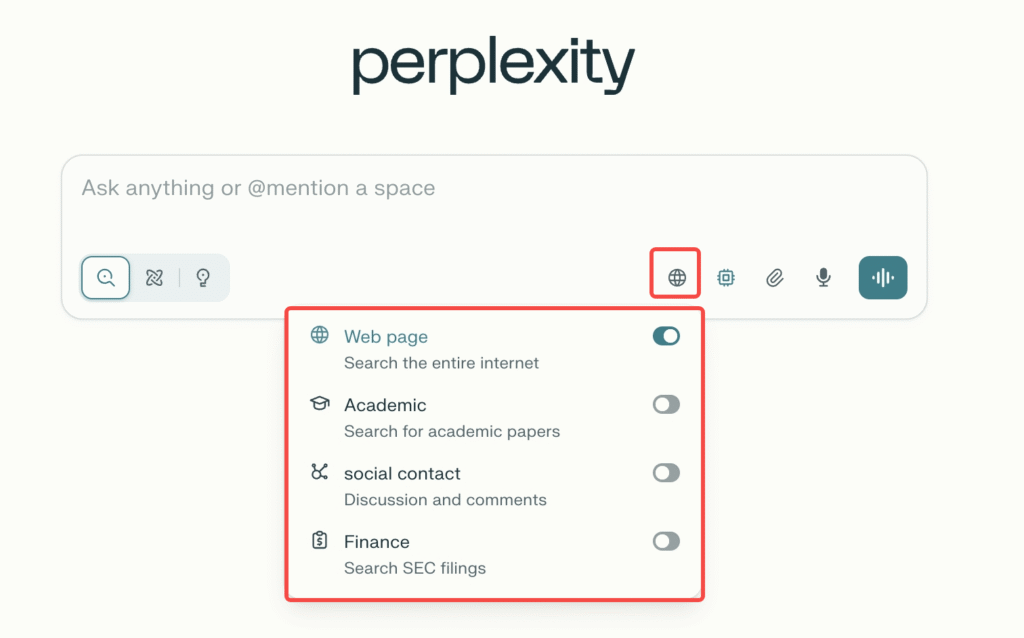
The earlier interface above shows source switches for the web, academic material, social content, and finance. Source categories determine where to look; search modes determine the research workflow. For a research paper, prioritize original research and inspect the paper itself. For a community question, social discussions can reveal experiences and objections, but they do not establish official product rules.
Begin with the default search experience. Change a control only when you can name what is missing from the result: a narrower source type, a more detailed investigation, or a different response style. Selecting more advanced options does not remove the need to verify the answer.
You may encounter “Focus Modes” in older tutorials, including our guide to earlier Focus Modes. Use the labels in your account to identify the controls available to you, rather than treating an older menu as a list of current features.
Upload a file and ask a question about it
For a document task, start with the file and a specific question. The attachment control in the question box is the place to begin. Check the file types, size limit, and usage message shown in your account before uploading.
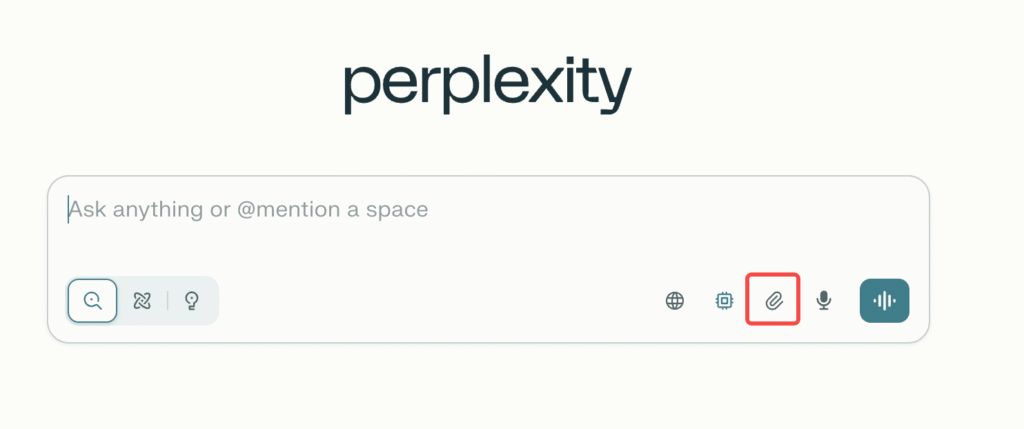
- Choose a document you are allowed to share. Remove confidential or unnecessary personal information.
- Attach the file and wait for the interface to finish processing it.
- Tell Perplexity whether to use only the document or also research the web.
- Ask for the exact information you need, such as the deadlines, named owners, or differences between two sections.
- Compare the answer with the relevant passage in the file. Ask it to mark missing information instead of filling the gap.
A useful instruction is: “Use only the attached file. List the project, owner, and deadline in a table. If any value is missing, write ‘Not supplied.’ Do not infer a budget.” This gives you fields you can check instead of an open-ended summary that is harder to audit.
For a PDF, verify a few important passages after extraction, especially tables, scanned pages, footnotes, and multi-column layouts. If a response misses a section, narrow the question to that section and provide a more readable source file when possible. Do not interpret a failed upload as a factual answer about the document.
Keep a copy of your document outside the chat. The official file-retention guide, checked September 15, 2026, says consumer session attachments are retained for 30 days. After that, the file contents are no longer accessible for follow-ups, although the session can retain the context of earlier questions and answers. Files in Projects and personal repositories are retained until deleted and follow their respective access and retention policies.
How to use Perplexity on mobile
Mobile is useful for short questions and checking a source while you are away from your desk. Match the app name in the store with the service you intend to use.
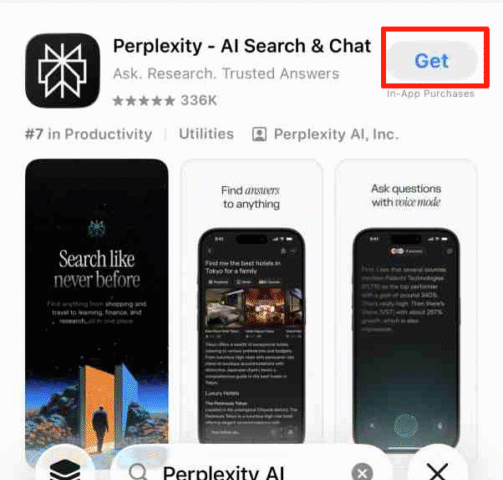
- Install the correct app and sign in with the account you use on the web.
- Type your question, or use a visible voice control if it is available in your app.
- Review the words entered by voice before submitting names, dates, or technical terms.
- Open the cited pages and check the original information. Move longer reading or document comparison to a larger screen when that is easier.
For a photo question, explain what you want to know about the image. “What does this label say?” and “Is this product suitable for me?” are different tasks; the second may require context that a picture alone cannot provide.
For a walkthrough focused on Apple devices, see how to use Perplexity on iPhone.
Should a beginner use Free or Pro?
Start with the tasks you actually need to complete. Try a simple web question, a follow-up, and a source check before paying for more access. A paid plan makes sense when a specific feature or usage limit interrupts work you do regularly.
The official plan comparison checked on September 15, 2026 described Free as offering “practically unlimited basic searches,” with limited access to advanced searches and uploads. It listed weekly or monthly limits for several Pro features. Basic search, Pro Search, and Research have different allowances; paying for Pro does not make every action unlimited.
| Feature | Free | Pro |
|---|---|---|
| Basic search and history | Search history; practically unlimited basic searches | Included, with extended research access |
| Pro Search | 3 per day | Weekly limits; the table did not give a fixed number |
| Research queries | 1 per month | Monthly limits; the table did not give a fixed number |
| File upload sessions | Limited | Weekly limits; do not treat sessions as a per-file allowance |
| Advanced model selection | Automatic model selection; no advanced-model access | Advanced AI models; check the current model list |
| Image/video generation | Not included in the plan comparison | Included with feature limits |
| File and app creation | Not included | Monthly limits; separate from uploading a file to ask about it |
| Individual monthly price in USD | $0 | $20 |
The upload row measures sessions. The plan table’s footnote says persistent files in Projects and personal repositories have additional limits. Check those separately from your session allowance; the table does not supply an exact weekly upload quota for individual Pro accounts.
Sources: Perplexity Help Center plan comparison and official pricing page, checked September 15, 2026. Prices here are advertised individual monthly prices in US dollars, not a quote for your country, taxes, app-store billing, or an annual invoice. Review the terms shown at checkout before subscribing.
Free — $0 per month
Pro — $20 per month
Pro adds $20 to the advertised monthly subscription cost. Upgrade when the extra access solves a recurring problem in your work; use Free to learn the search-and-source-checking routine.
Source: Perplexity pricing, checked September 15, 2026. Individual monthly billing in USD; taxes and local checkout can differ. Bars share a $0–$20 scale. The pale Free track marks the scale, not a charge.
| Your recurring need | What to check |
|---|---|
| Basic questions and source discovery | Whether the available free experience completes the task. |
| Frequent document work | Supported files, per-file size, and the account’s upload allowance. |
| More involved research | Which research modes are included and how their usage allowance is measured. |
| A particular model or creative tool | Whether that exact feature is included in the plan you are buying. |
| A student or partner offer | Eligibility, redemption deadline, renewal price, and billing terms. |
Use the Perplexity subscription walkthrough for the purchase steps. Decide based on the plan terms attached to your account; a past student promotion or a screenshot from another account does not establish your eligibility.
For more detail, read the free-plan guide, Free versus Pro comparison, or overview of Pro benefits.
Student offers need an eligibility check
The Education Pro help page checked September 15, 2026 describes a discounted subscription for verified students and educators, with SheerID verification. It allows a personal or student email for the Perplexity account. This is not a blanket promise of twelve free months for every student. Check the offer, verification result, renewal price, and cancellation terms attached to your account.
The official subscription-plan page lists Education Pro at $10 per month with SheerID verification, checked September 15, 2026. Creating an account with a student email does not replace verification. Confirm that SheerID has approved your eligibility and that you are signed in to the account where you redeemed the offer; review the price and billing terms shown before paying.
Our guides to student access options and student discounts cover related questions. Use the current official offer terms to decide whether an option applies to you.
Turn research into useful work
For an essay, report, or work brief, separate research from drafting. First collect claims and sources. Then organize them into an outline. Draft only after you know which facts are supported and where the gaps are. This makes editing faster because you are not trying to fix the argument and verify every fact at the same time.
| Task | Try asking |
|---|---|
| Learn a topic | Explain [topic] for [audience]. Define unfamiliar terms and link to an original source. |
| Compare options | Compare [A] and [B] for [specific task]. State the criteria and separate facts from judgment. |
| Read a document | Use only this file. Extract [fields] and mark values the document does not supply. |
| Check a claim | Find the original source for [claim]. Identify the relevant date, scope, and supporting passage. |
| Create an outline | Use these verified notes to propose an outline. Keep source URLs next to the claims they support. |
Use Perplexity in GlobalGPT for the research stage, then move into writing, reasoning, or creative work with other leading models in the same subscription. Keep your checked notes and source links together as you turn the research into a draft. That gives the next model a factual starting point.

Try Perplexity in GlobalGPT to begin a research task and continue the writing workflow in the same workspace.
If your task extends beyond research, using AI at work offers ways to organize the next steps. For visual tasks, see Perplexity and image creation.
Account settings, privacy, and shared research
Account preferences, data-use controls, and sharing permissions are separate things. Before adding sensitive information or sharing a research thread, review the controls that apply to that action. A preference about writing style does not tell you who can access a shared document.
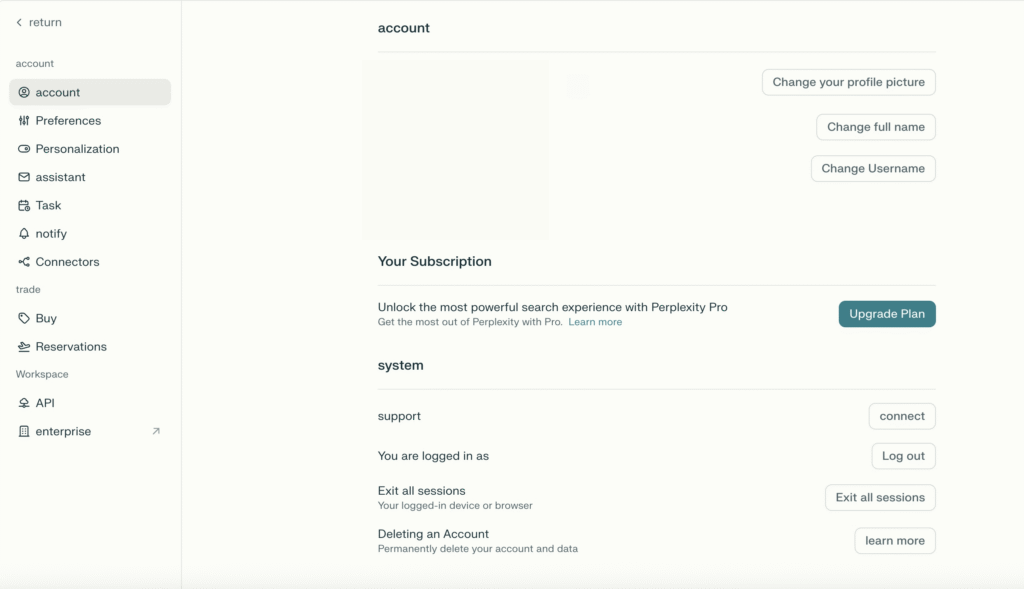
According to the official data-collection guide checked September 15, 2026, AI Data Retention is enabled by default for Free, Pro, and Max users. To opt out of AI training data collection, open your account’s Preferences page and turn off AI Data Retention. Read the explanation next to the setting before changing it.
The opt-out applies to data collected after the change. It does not remove previously collected training data, and Perplexity may still process data for service operation, legal compliance, and product improvement. A training preference is therefore not the same as a promise that nothing is stored or processed.
Before sharing a session, check its attachments. The file-privacy guide, checked September 15, 2026, says anyone with the link to a public session can see the uploaded files or images that remain visible there. Deleting a session also deletes its attachments. Removing a file from the context of a follow-up on the web is a different action: earlier generated responses retain their context.
For an ongoing project, keep the brief, source links, and open questions together. If you use a Space or another shared collection, check its members and visibility before adding files. Share the minimum material your collaborators need, and inspect what a recipient can actually open.
When you personalize responses, give practical instructions such as the audience, preferred language, and desired level of detail. Keep essential requirements in the task prompt too, especially when an answer must follow a particular format.
Perplexity or ChatGPT: choose around the task
Use a task you actually need to finish as the comparison. For research, check whether you can find the original source and whether it supports the answer. For writing, check whether the draft follows your brief, preserves the facts, and needs manageable edits. Do not judge either tool by confidence of tone alone.
A simple comparison uses the same prompt and the same source material in both tools. Keep a note of the date, plan, and tools enabled, because those conditions affect the result. For a focused comparison, see Perplexity versus ChatGPT.
Troubleshoot common problems
- An answer seems wrong: isolate the claim, open its source, and check the date and scope. Rephrase the question if it combines several tasks.
- A file will not upload: check the file type, file size, account allowance, and visible error. Try a small readable file to distinguish a document problem from an account or service problem.
- Your history is missing: check that you are signed in to the same account and used the same sign-in method. Confirm the connection before changing app settings.
- A feature is unavailable: read the access message for that feature. Do not assume every option in a menu is included in your account.
- The issue continues: record the error and the steps that caused it, without sharing passwords or private document contents, and use the official help channel.
For a file Perplexity cannot read, its file troubleshooting guidance checked September 15, 2026 says to verify that the content does not exceed 40MB and is safe for work. Use this as a troubleshooting check alongside the requirements shown at your upload entry point. It is not a complete list of supported formats or a guarantee that every product entry point accepts the same files.
Avoid clearing app data as the first troubleshooting step. First check the account and preserve any work you need. Reinstalling an app will not fix a file that exceeds the stated upload limit.
Frequently asked questions
How do I start using Perplexity AI?
Open Perplexity, ask one specific question, open a linked source, and follow up on anything unclear. Start with a small task whose answer you can check before adding files or changing advanced controls.
What is the best way to use Perplexity for research?
Define the question and the source types you need. Open the original pages behind important claims, check dates and scope, and keep the source links with your notes. Use follow-ups to fill a specific gap.
Can I trust every citation in a Perplexity answer?
Check each citation you plan to rely on. A page can be related to a topic without supporting a particular sentence. Open the source and find the exact passage or data behind the claim.
How should I ask Perplexity about a PDF?
Attach a supported PDF, wait for processing, and specify whether the answer should use only the file. Ask for defined fields or passages, and tell it to mark missing information. Compare the result with the original document.
Is Perplexity better than ChatGPT?
Choose based on the task you need to complete. For research, evaluate source discovery and whether the evidence supports the answer. For drafting or other work, evaluate the output against your brief. A general winner is less useful than checking the workflow you actually need.
Do I need Pro to learn how to use Perplexity?
You can start with Free and practice asking questions, checking sources, and following up. The official plan table checked September 15, 2026 lists 3 Pro Searches per day and 1 Research query per month on Free. It lists weekly Pro Search limits for Pro without a fixed number. Upgrade when a specific allowance or feature limits your recurring work.
A good first session ends with one answer you understand and one source you have actually read. Build from there: improve the question, keep your notes traceable, and add more tools when the task calls for them.
Related guides for your next task
- Perplexity Labs background and access — context for the tools described in earlier tutorials; check current feature names in your account.
- Perplexity Pro costs — questions to consider before choosing a billing plan.
- An earlier Perplexity and ChatGPT comparison — background reading alongside current plan details.
- Perplexity and ChatGPT: understanding the relationship — how the product and the underlying models differ.
- Perplexity versus Claude — another workflow comparison.
- Gemini versus Perplexity — options for a broader research and writing workflow.
- Perplexity alternatives — other tools to consider for a task Perplexity does not complete.