

Applet Viewer is a command-line program to run Java applets. It is included in the SDK. It helps you to test an applet before you run it in a browser. An applet is a special type of application that's included as a part of an HTML page and can be stored in a web page and run within a web browser. The applet's code gets transferred to the system, and then the browser's Java Virtual Machine (JVM) executes that code and displays the output.
In this article, we will learn how to set up and use Java Applet Viewer on Windows.
Note: The
appletviewertool was removed from JDK 9 and onwards, you'll need to use JDK 8 to run applets.
Common features:
- Smaller, incremental JRE download and faster applet startup.
- Applets run in a separate process to the browser, and each applet can optionally run in a separate JVM instance, so one misbehaving applet cannot affect other applets or the browser.
- Applets can have parameters passed to them to control behavior such as setting a large initial heap size to avoid out-of-memory exceptions.
- Applets can now be dragged out of the web browser and run as separate applications.
Steps to Install Java Applet Viewer in Windows
Now let us discuss steps that are been involved sequentially with the help of visual aids to install java applet viewer in Java. Below we are providing steps right from scratch as follows:
Step 1: Download JDK 8
Search and download the JDK 8. Below we are downloading version 8.
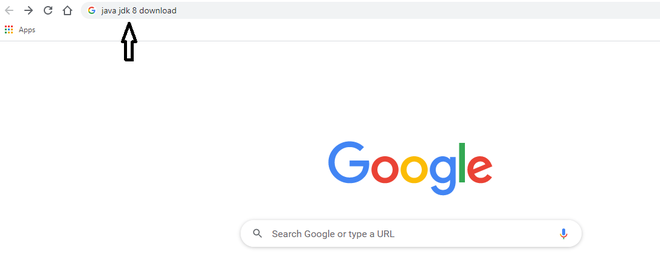
Click on the link in the browser provided by oracle docs.
Note: We do have Open JDK and ORacle JDK, as far as development in java is concerned we have to always go with Oracle JDK>
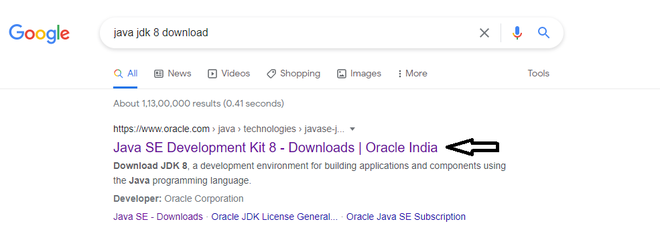
Scroll down the page & find the windows x64 download link

Accept and download the file.
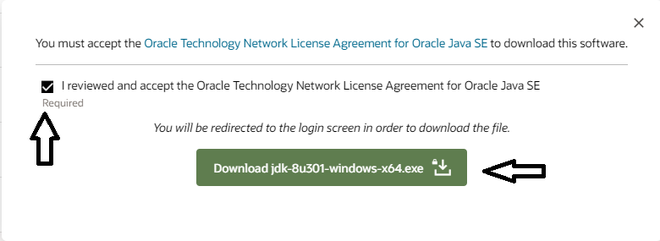
Step 2: Install JDK 8
Install it by clicking next every time and at last click on finish, just like installing any other application for windows.
In the below image, we can see the JDK 8 has installed successfully in our system.
.png)
Step 3: Set Up Environment Variables
1. Set JAVA_HOME:
- Right-click on
This PCorMy Computeron your desktop or in File Explorer. - Click on
Properties. - Click on
Advanced system settings. - Click on
Environment Variables. - Under
System variables, clickNewand setVariable nametoJAVA_HOMEandVariable valueto the path where JDK 8 is installed.
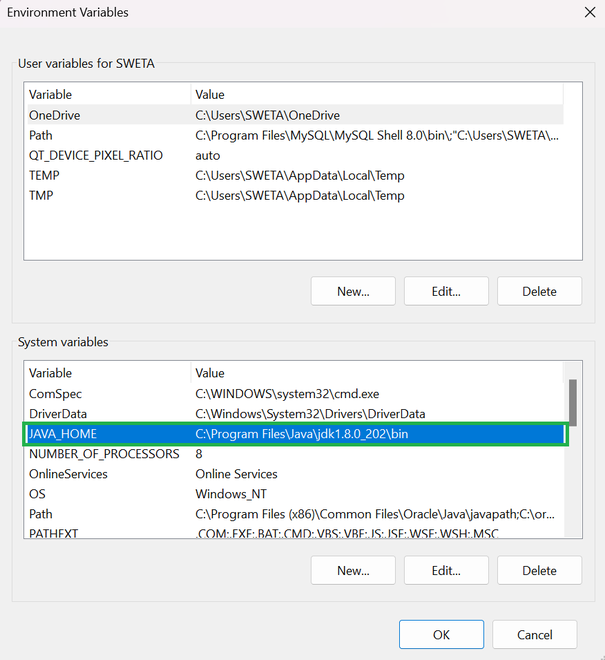
Path where JDK 8 is installed:
.png)
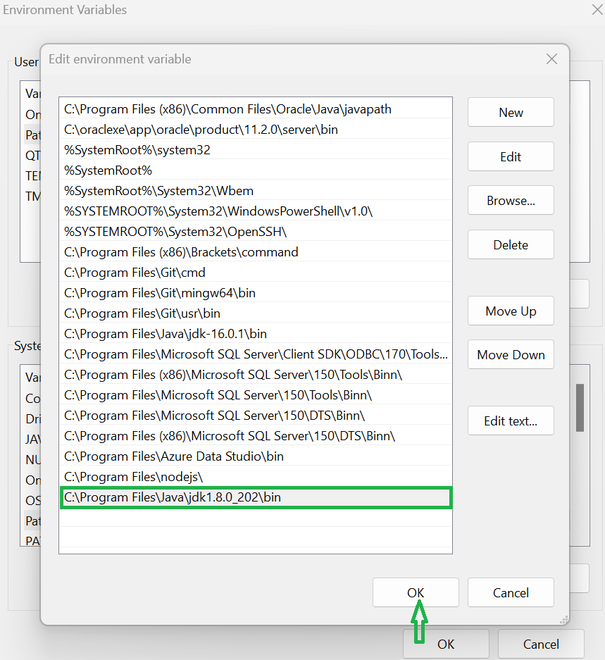
2. Update PATH Variable:
- In the
System variablessection, find thePathvariable and clickEdit. - Add a new entry with the path to the
bindirectory of your JDK 8 installation.
3. Verify Installation:
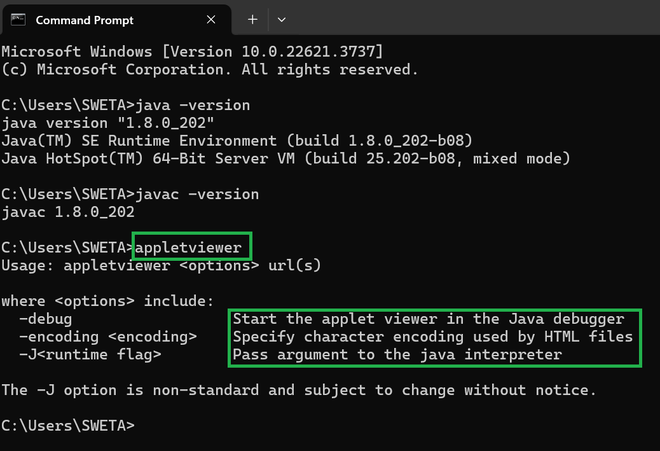
- Open Command Prompt window.
- Type
java -versionandjavac -versionto ensure it shows the JDK 8 version.
.png)
After this, write appletviewer command to check whether it is there or not,
Step 4: Prepare the Java Applet
- Create a Project Directory: Create a directory for the project. For example,
C:\JavaApplets. - Create Applet Java Source File: Inside the project directory, create a file named SampleApplet.
java:
.png)
SimpleApplet.java:
import java.applet.Applet;
import java.awt.Graphics;

public class SimpleAppletApplet extends Applet {
    @Override
    public void paint(Graphics g) {
        g.drawString("Hello, World!", 20, 20);
    }
}
Step 5: Compile the Java Applet
- Open Command Prompt:
- Open Command Prompt window.
- Navigate to the directory where the applet source file is located:
- Compile the Applet:
- Use the
javaccommand to compile your applet:
- Use the

Step 5: Create an HTML File to Reference the Applet
- Create an HTML File: In the same directory where our applet class file (Simple
Applet.class) is located, create a file named SimpleApplet.html:
<html>
<body>
    <applet code="SimpleApplet.class" width="300" height="300">
    </applet>
</body>
</html>
Below is the SimpleApplet.html file location:
.png)
Step 6: Run Your Java Applet
- Navigate to the Project Directory: In the Command Prompt window, navigate to the directory where your applet and HTML file are located.
- Run the Applet Using
appletviewer: Use theappletviewertool to run the applet:
appletviewer SimpleApplet.html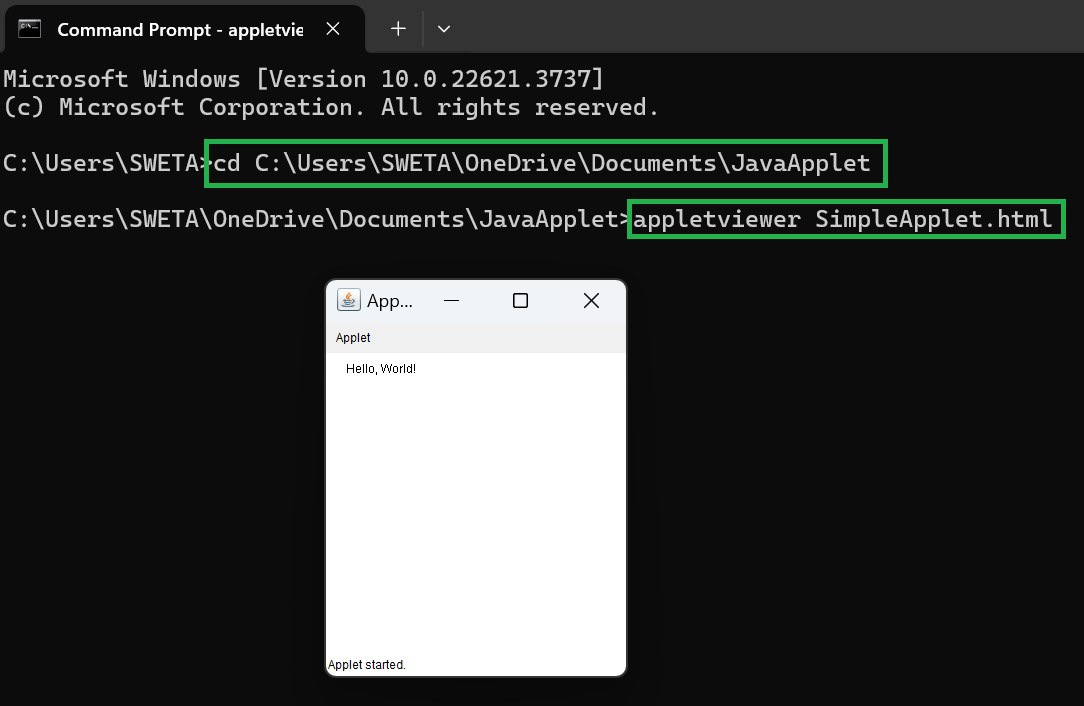
By following these steps, we can set up and run Java applets using the appletviewer tool on Windows with JDK 8.
