

Wine is a software application that enables users to run Microsoft Windows applications on Unix-like operating systems. Programs running in Wine act as native programs would, without the performance/memory penalties of an emulator. This guide installs Wine on Linux Mint from the vendor repository, which serves the current stable release rather than the older build in Mint’s own archive. Every command below was run start to finish on Linux Mint 22.3 in August 2026, where that repository served WineHQ stable 11.0. Two changes in that release line are worth knowing before you start, because both of them break instructions written for older Wine:
- The
wine64loader binary is gone. A singlewinecommand now picks 32-bit or 64-bit from the executable you hand it, and defaults to 64-bit when a program ships both. Any older guide telling you to runwine64will give you a “command not found”. - The new WoW64 architecture is finished, so one 64-bit prefix runs 32-bit and 64-bit Windows programs side by side. Sixteen-bit applications work in that mode as well.
- Pure 32-bit prefixes made with
WINEARCH=win32are deprecated and are not supported under the new WoW64 mode. - The NTSync kernel module is used when the host offers it, which speeds up the synchronization primitives that games and heavier applications lean on. It ships with Linux 6.14 and newer, so check for
/dev/ntsyncto see whether your kernel exposes it. - Roughly 6,300 individual changes and more than 600 bug fixes went in over the year of development behind it.
Check official document on the full Wine 11.0 release notes.
Install Wine on Linux Mint
Linux Mint 22.x is built on Ubuntu 24.04, so the packages you want are the ones WineHQ builds for the noble suite. The UBUNTU_CODENAME line in /etc/os-release is what decides this, not the Mint version number.
$ cat /etc/os-release
NAME="Linux Mint"
VERSION="22.1 (Xia)"
ID=linuxmint
ID_LIKE="ubuntu debian"
PRETTY_NAME="Linux Mint 22.1"
VERSION_ID="22.1"
HOME_URL="https://www.linuxmint.com/"
SUPPORT_URL="https://forums.linuxmint.com/"
BUG_REPORT_URL="http://linuxmint-troubleshooting-guide.readthedocs.io/en/latest/"
PRIVACY_POLICY_URL="https://www.linuxmint.com/"
VERSION_CODENAME=xia
UBUNTU_CODENAME=noble
Below are the steps to install and run Wine on Linux Mint.
Step 1: Update System
Our rule of thumb before any installation is ensuring the system is updated:
sudo apt update && sudo apt full-upgrade -y
[ -f /var/run/reboot-required ] && sudo reboot -f
Step 2: Enable 32 bit architecture
If you’re running a 64-bit system, enable support for 32-bit applications.
sudo dpkg --add-architecture i386 Once the command has been executed proceed to add the repository for Wine.
Step 3: Add Wine repository
Ensure wget command line tool is installed.
sudo apt update
sudo apt install software-properties-common wget curl
Import repository GPG key:
sudo mkdir -pm755 /etc/apt/keyrings
sudo wget -O /etc/apt/keyrings/winehq-archive.key https://dl.winehq.org/wine-builds/winehq.key
Add the WineHQ repository to Linux Mint.
wget -nc https://dl.winehq.org/wine-builds/ubuntu/dists/noble/winehq-noble.sources
sudo mv winehq-noble.sources /etc/apt/sources.list.d/
Update the APT cache and install Wine on Linux Mint.
### Stable release of Wine - use this one ###
sudo apt update
sudo apt install --install-recommends winehq-stable

### Development release - only if you need a fix that is not in stable yet ###
sudo apt update
sudo apt install --install-recommends winehq-devel
Agree to installation prompt:
.....
libx264-155:i386 libx265-179:i386 libxau6:i386 libxcb-dri2-0:i386
  libxcb-dri3-0:i386 libxcb-glx0:i386 libxcb-present0:i386 libxcb-randr0:i386
  libxcb-render0:i386 libxcb-shm0:i386 libxcb-sync1:i386 libxcb-xfixes0:i386
  libxcb1:i386 libxcomposite1:i386 libxcursor1:i386 libxdamage1:i386
  libxdmcp6:i386 libxext6:i386 libxfixes3:i386 libxi6:i386 libxinerama1:i386
  libxkbcommon0:i386 libxml2:i386 libxpm4:i386 libxrandr2:i386
  libxrender1:i386 libxshmfence1:i386 libxslt1.1:i386 libxss1:i386
  libxvidcore4:i386 libxxf86vm1:i386 libzstd1:i386 libzvbi0:i386
  mesa-va-drivers:i386 mesa-vdpau-drivers:i386 mesa-vulkan-drivers:i386
  ocl-icd-libopencl1:i386 va-driver-all:i386 vdpau-driver-all:i386 wine-stable
  wine-stable-amd64 wine-stable-i386:i386 winehq-stable zlib1g:i386
0 upgraded, 237 newly installed, 0 to remove and 0 not upgraded.
Need to get 245 MB of archives.
After this operation, 1,668 MB of additional disk space will be used.
Do you want to continue? [Y/n] y
Wait for the installation to complete, then check which version of Wine actually landed.
$ wine --version
wine-11.0
Wine needs to be configured before you can start using it. To configure Wine, run:
winecfgThen Wine will ask you to install Mono package.
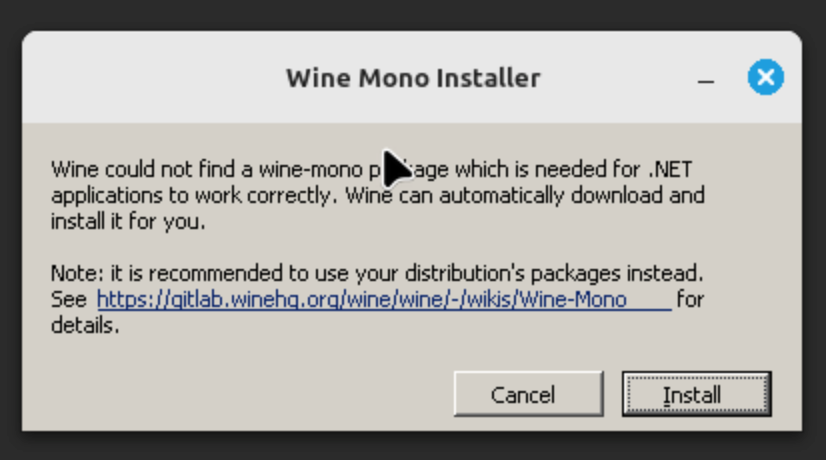
Click on Install and then OK to apply:
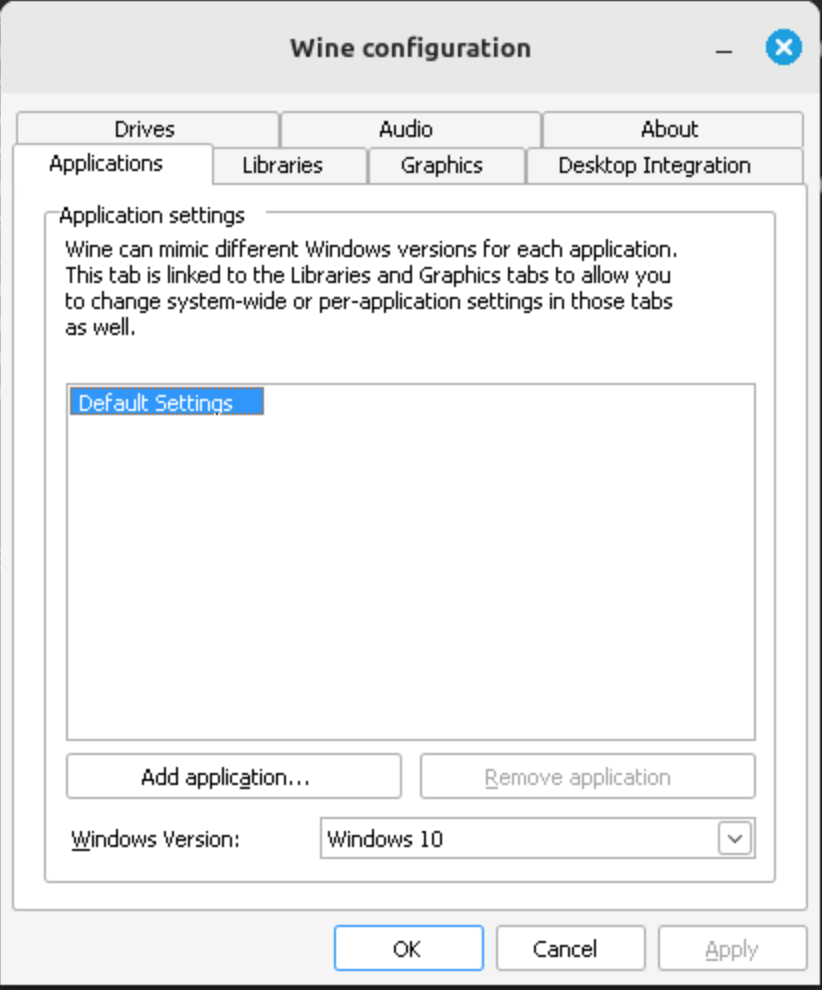
Now install a real Windows application with Wine. Download the Notepad exe file from GitHub:
VER=$(curl -s https://api.github.com/repos/notepad-plus-plus/notepad-plus-plus/releases/latest | grep tag_name | cut -d '"' -f 4 | sed 's/v//g')
wget https://github.com/notepad-plus-plus/notepad-plus-plus/releases/download/v${VER}/npp.${VER}.Installer.exe
Run installer:
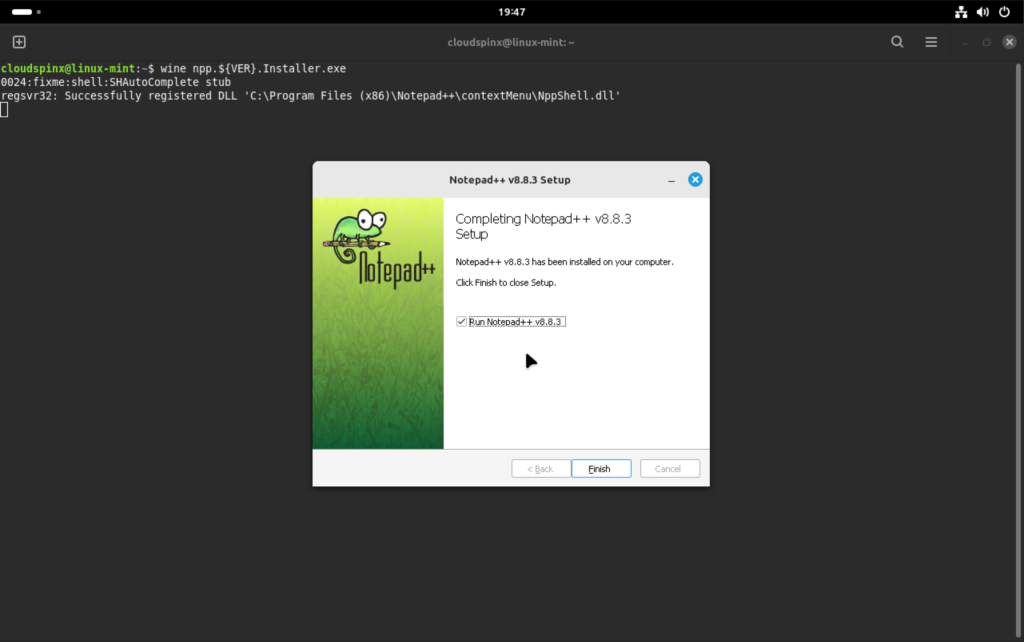
wine npp.${VER}.Installer.exeStart installation by pressing OK key.
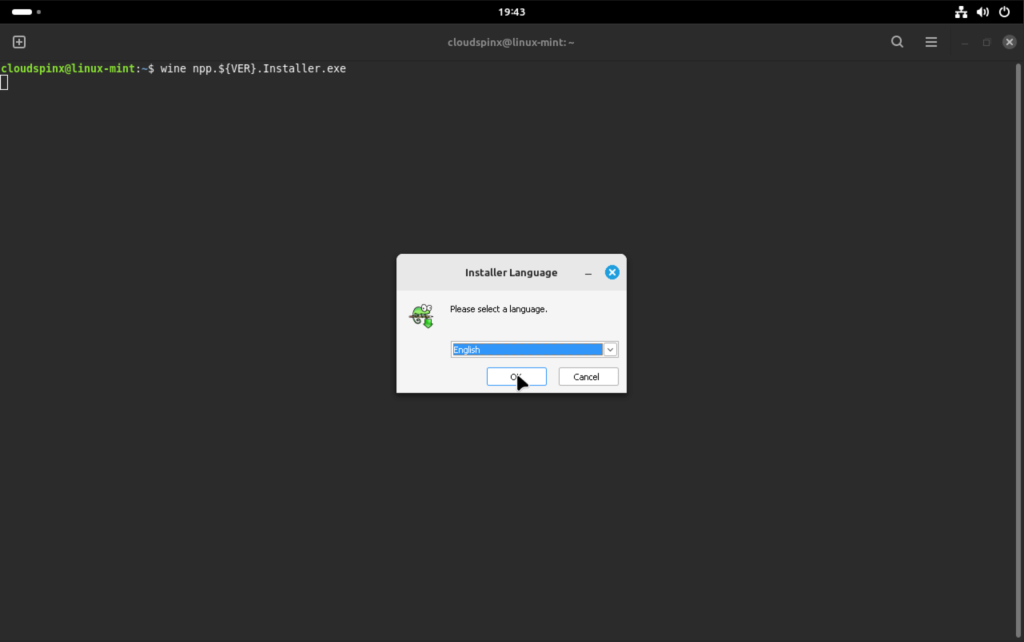
Follow the remaining prompts to finish your first Windows application installation.
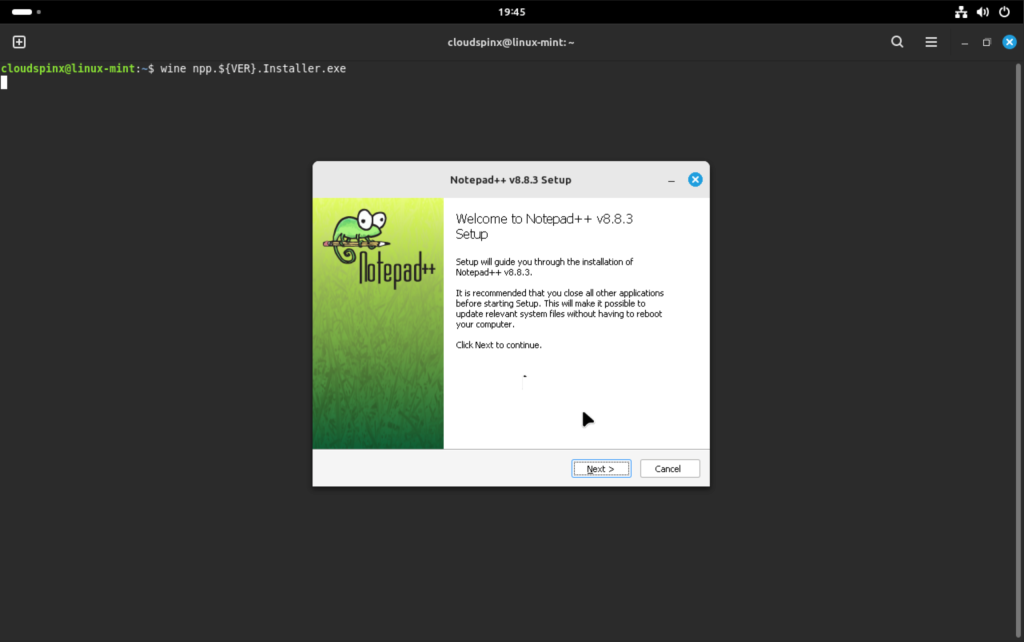
Finish your installation by clicking on Finish:
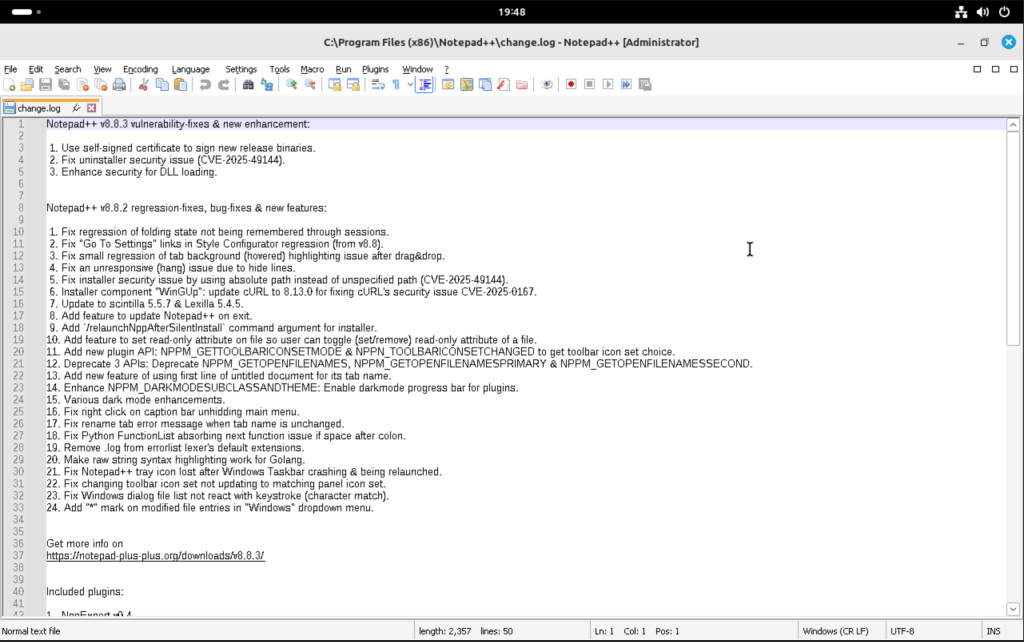
Launch the application when done with the installation and confirm it can run smoothly.
Where Wine is in the menu, and how to launch a program
Wine deliberately puts nothing in the applications menu. It installs /usr/share/applications/wine.desktop, but that entry is marked NoDisplay=true, so the menu hides it. Its job is to register Wine as the handler for .exe, .msi and .bat files, which is why double-clicking a Windows executable in Files works even though there is no Wine icon to click. Menu entries appear only once you install a Windows application, and Wine writes them under ~/.local/share/applications/wine/.
To launch something by hand, give Wine a path to a real executable. The usage line printed by wine --help reads wine PROGRAM [ARGUMENTS...], and PROGRAM there is a placeholder, not something to type literally:
wine ~/Downloads/npp.Installer.exeRun it with the placeholder still in place and Wine falls back to start.exe, which reports the file it could not find in wording that looks like a broken installation but is not:
Application could not be started, or no application associated with the specified file.
ShellExecuteEx failed: File not found.
If you are unsure whether Wine itself is healthy, wine --version and winecfg are the two checks worth running. Note there is no wine64 command any more: the loader was merged into a single wine binary that picks 32-bit or 64-bit from the executable you hand it.
That is Wine installed from the vendor repository, configured, and proven against a real Windows application on Linux Mint. More Linux Mint guides on this site:





Did not work for me everything went as you posted but when I went to run WINE it stated
~$ wine PROGRAM
Application could not be started, or no application associated with the specifie
d file.
ShellExecuteEx failed: File not found.
And wine does not appear in my programs list Any ideas
PROGRAM is the placeholder printed by the wine usage line, not something to type literally. Give it a real path, for example wine ~/Downloads/npp.8.9.8.Installer.exe, and it will run. Wine also installs no visible menu entry by design: /usr/share/applications/wine.desktop is marked NoDisplay=true and only registers Wine as the handler for .exe and .msi files, so entries show up under ~/.local/share/applications/wine/ once you install a Windows program. I have added a section to the guide covering both.