








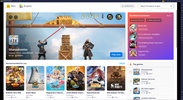













BlueStacks is one of the most popular Android emulators for Windows. With the help of this program, you can run Android games and apps on your PC in the highest quality, especially if you have a powerful graphics card and processor. What's more, you can play with a controller or keyboard and mouse, all with the advantage of having a large screen where you can see your enemies more easily.
Bluestacks Prime Subscription
BlueStacks Prime is a monthly membership that unlocks an upgraded, more rewarding version of BlueStacks. You will gain access to premium benefits built to deliver a smoother, cleaner, and more valuable gaming journey. Features :: Ad-Free Experience, Monthly Loyalty Rewards,
Extra Savings on Every Purchase,Premium, Dedicated Support. Check more details:: [url]https://www.bluestacks.com/bluestacks-prime.html[/url]
Android emulation optimized for PC
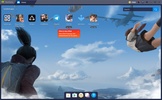
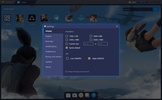
When installing BlueStacks, you can choose the Android version you want to install, the screen resolution, the architecture to emulate, and much more. After that, you will see the home screen, similar to what you would find on an Android device such as a smartphone or tablet. You can also choose the graphics quality you want the emulation to have in each instance, offering the best possible experience for Android games and at a higher FPS than on your device or tablet.
Support for keyboard, mouse and controllers
BlueStacks offers native support for keyboards, mice and gamepads, with an editor that allows you to fully customize the controls for each game. In fact, some games are already mapped by default so that you can play them directly with the keyboard. In addition, you can create macros to optimize movements, carry out repetitive tasks, or farm resources. Finally, you have the Smart Controls mode, which automatically locks and releases the cursor for games like shooters.
Customize the emulator to your liking
The program's Multi-Instance functionality allows you to have multiple virtual environments, so you can have one instance for gaming and another for other Android tasks. You can clone them or synchronize actions between them, plus you can have them open at the same time to perform any kind of testing, or even play the same game with different characters.
Install all kinds of apps
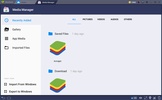
In addition to accessing the Google Play Store and installing all kinds of apps, you can log in with your Google account to synchronize your account and games. You can also transfer files, videos and images between your PC and Android with ease. Simple shortcuts to the app store as well as the Chrome browser are installed by default. You can install any APK and XAPK files that you have on your PC by dragging them or double-clicking, as well as any you have downloaded from the emulator instance itself.
Record your games and take screenshots
To record gameplay or tutorials, BlueStacks incorporates a recorder function that only saves what you can see inside the emulator. You can also take screenshots natively, as well as adjust the resolution of your instance to get the desired resolution when recording.
Compatibility, security and continued support
BlueStacks supports over 95% of all titles on Android, and the team releases frequent updates with new features, support for the latest Android versions and bug fixes.
Download BlueStacks for Windows and enjoy your Android apps and games on PC with one of the most stable and complete emulators you can find.


 363 reviews
  Users call the app very good and highly recommend it
 This is an AI-generated summary based upon real user reviews.



















Comments
Very good application. 100% recommendable
I have tried main emulator's. Some of them buy suspicious apps. Some of them lags my pc. But except this one. This is the most cleanest emulator i have tried. Next level.
Very good
Thanks for the update
Very good
Why can't I set control on the PC keyboard in Windows 11? It doesn't save when I check edit control, at the dpad.