docker基础

本文介绍了Docker的基础知识,包括Docker镜像、容器和仓库的概念,以及如何在CentOS上安装Docker。详细阐述了`docker run`命令的不同用法,展示了Docker的底层原理,并提供了Docker常用命令的示例,指导读者从创建到运行Docker容器的全过程。

docker基本组成

img

概念说明

Docker 镜像(Images)

Docker 镜像是用于创建 Docker 容器的模板,比如 Ubuntu 系统。

Docker 容器(Container)

容器是独立运行的一个或一组应用,是镜像运行时的实体。

Docker 客户端(Client)

Docker 客户端通过命令行或者其他工具使用 Docker SDK (https://docs.docker.com/develop/sdk/) 与 Docker 的守护进程通信。

Docker 主机(Host)

一个物理或者虚拟的机器用于执行 Docker 守护进程和容器。

Docker Registry

Docker 仓库用来保存镜像,可以理解为代码控制中的代码仓库。

Docker Hub(https://hub.docker.com) 提供了庞大的镜像集合供使用。

一个 Docker Registry 中可以包含多个仓库(Repository);每个仓库可以包含多个标签(Tag);每个标签对应一个镜像。

通常,一个仓库会包含同一个软件不同版本的镜像,而标签就常用于对应该软件的各个版本。我们可以通过 <仓库名>:<标签> 的格式来指定具体是这个软件哪个版本的镜像。如果不给出标签,将以 latest 作为默认标签。

Docker Machine

Docker Machine是一个简化Docker安装的命令行工具,通过一个简单的命令行即可在相应的平台上安装Docker,比如VirtualBox、 Digital Ocean、Microsoft Azure。

**Docker大部分的操作都围绕着它的三大核心概念:镜像、容器和仓库。因此,准确把握这三大核心概念对于掌握Docker技术尤为重要。**
Docker镜像

Docker镜像类似于虚拟机镜像,可以将它理解为一个只读的模板。
例如,一个镜像可以包含一个基本的操作系统环境,里面仅安装了Apache应用程序(或用户需要的其他软件)。可以把它称为一个Apache镜像。
镜像是创建Docker容器的基础
通过版本管理和增量的文件系统,Docker提供了一套十分简单的机制来创建和更新现有的镜像,用户甚至可以从网上下载一个已经做好的应用镜像,并直接使用。

Docker容器

Docker容器类似于一个轻量级的沙箱,Docker利用容器来运行和隔离应用
容器是从镜像创建的应用运行实例。它可以启动、开始、停止、删除,而这些容器都是彼此相互隔离、互不可见的。
可以把容器看作一个简易版的Linux系统环境(包括root用户权限、进程空间、用户空间和网络空间等)以及运行在其中的应用程序打包而成的盒子。
注意
镜像自身是只读的。容器从镜像启动的时候,会在镜像的最上层创建一个可写层。

Docker仓库

Docker仓库类似于代码仓库,是Docker集中存放镜像文件的场所
有时候我们会将Docker仓库和仓库注册服务器(Registry)混为一谈,并不严格区分。实际上,仓库注册服务器是存放仓库的地方,其上往往存放着多个仓库。*每个仓库集中存放某一类镜像,往往包括多个镜像文件,通过不同的标签(tag)来进行区分。*例如存放Ubuntu操作系统镜像的仓库,被称为Ubuntu仓库,其中可能包括16.04、18.04等不同版本的镜像。仓库注册服务器的示例如图所示。
[外链图片转存失败,源站可能有防盗链机制,建议将图片保存下来直接上传(img-T4XDeoXM-1600172822812)(docker%E5%9F%BA%E7%A1%80.assets/image-20200710114830523.png)]
图注册服务器与仓库
根据所存储的镜像公开分享与否,Docker仓库可以分为公开仓库(Public)和私有仓库(Private)两种形式。
目前,最大的公开仓库是官方提供的Docker Hub,其中存放着数量庞大的镜像供用户下载。国内不少云服务提供商(如腾讯云、阿里云等)也提供了仓库的本地源,可以提供稳定的国内访问。
当然,用户如果不希望公开分享自己的镜像文件,Docker也支持用户在本地网络内创建一个只能自己访问的私有仓库。
当用户创建了自己的镜像之后就可以使用push命令将它上传到指定的公有或者私有仓库。这样用户下次在另外一台机器上使用该镜像时,只需要将其从仓库上pull下来就可以了。
注意
可以看出,Docker利用仓库管理镜像的设计理念与Git代码仓库的概念非常相似,实际上Docker设计上借鉴了Git的很多优秀思想

CentOs支持docker

环境准备:

  1. Linux基础(阿里云服务器, CentOS 7.3,最近学生活动买的,可以玩半年)

  2. xshell连接该服务器进行操作

  3. [root@ajn404 /]# uname -r
    3.10.0-514.26.2.el7.x86_64
    
    [root@ajn404 /]# cat ./etc/os-release
    NAME="CentOS Linux"
    VERSION="7 (Core)"
    ID="centos"
    ID_LIKE="rhel fedora"
    VERSION_ID="7"
    PRETTY_NAME="CentOS Linux 7 (Core)"
    ANSI_COLOR="0;31"
    CPE_NAME="cpe:/o:centos:centos:7"
    HOME_URL="https://www.centos.org/"
    BUG_REPORT_URL="https://bugs.centos.org/"
    
    CENTOS_MANTISBT_PROJECT="CentOS-7"
    CENTOS_MANTISBT_PROJECT_VERSION="7"
    REDHAT_SUPPORT_PRODUCT="centos"
    REDHAT_SUPPORT_PRODUCT_VERSION="7"


使用帮助文档(http://www.dockerinfo.net/docker%e5%ae%89%e8%a3%85-centos)(https://docs.docker.com/engine/install/centos/),详情:

  • 删除docker旧版本

    sudo:https://www.cnblogs.com/sparkdev/p/6189196.html

    yum:https://www.cnblogs.com/chuncn/archive/2010/10/17/1853915.html

$ sudo yum remove docker \
                  docker-client \
                  docker-client-latest \
                  docker-common \
                  docker-latest \
                  docker-latest-logrotate \
                  docker-logrotate \
                  docker-engine
  • 安装方式1:使用repository,默认配置国外镜像地址

    $ sudo yum install -y yum-utils
    #$ sudo yum-config-manager \
    #   --add-repo \
    #   https://download.docker.com/linux/centos/docker-ce.repog
    

配置国内镜像加速器(这一步按照狂神的视频应在下一节)

阿里云容器镜像服务https://cr.console.aliyun.com/cn-hangzhou/instances/mirrors


此时问题来了:

sudo systemctl restart docker
Failed to restart docker.service: Unit not found.

😂重新来好吧,https://blog.csdn.net/qq_25760623/article/details/88657491

更新yum

yum update

重新安装yum-utils,提供yum-config-manager,用来管理yum源

sudo yum install yum-utils

添加yum源

sudo yum-config-manager --add-repo http://mirrors.aliyun.com/docker-ce/linux/centos/docker-ce.repo

更新yum软件包索引

yum makecache fast

下载引擎

sudo yum install docker-ce docker-ce-cli containerd.io

然后

[root@ajn404 /]# sudo systemctl start docker
[root@ajn404 /]# sudo docker run hello-world
Unable to find image 'hello-world:latest' locally
latest: Pulling from library/hello-world
0e03bdcc26d7: Pull complete 
Digest: sha256:d58e752213a51785838f9eed2b7a498ffa1cb3aa7f946dda11af39286c3db9a9
Status: Downloaded newer image for hello-world:latest

Hello from Docker!
This message shows that your installation appears to be working correctly.

To generate this message, Docker took the following steps:
 1. The Docker client contacted the Docker daemon.
 2. The Docker daemon pulled the "hello-world" image from the Docker Hub.
    (amd64)
 3. The Docker daemon created a new container from that image which runs the
    executable that produces the output you are currently reading.
 4. The Docker daemon streamed that output to the Docker client, which sent it
    to your terminal.

To try something more ambitious, you can run an Ubuntu container with:
 $ docker run -it ubuntu bash

Share images, automate workflows, and more with a free Docker ID:
 https://hub.docker.com/

For more examples and ideas, visit:
 https://docs.docker.com/get-started/

补充,判断是否安装成功,可以使用docker version

[root@ajn404 /]# docker version
Client: Docker Engine - Community
 Version:           19.03.12
 API version:       1.40
 Go version:        go1.13.10
 Git commit:        48a66213fe
 Built:             Mon Jun 22 15:46:54 2020
 OS/Arch:           linux/amd64
 Experimental:      false

Server: Docker Engine - Community
 Engine:
  Version:          19.03.12
  API version:      1.40 (minimum version 1.12)
  Go version:       go1.13.10
  Git commit:       48a66213fe
  Built:            Mon Jun 22 15:45:28 2020
  OS/Arch:          linux/amd64
  Experimental:     false
 containerd:
  Version:          1.2.13
  GitCommit:        7ad184331fa3e55e52b890ea95e65ba581ae3429
 runc:
  Version:          1.0.0-rc10
  GitCommit:        dc9208a3303feef5b3839f4323d9beb36df0a9dd
 docker-init:
  Version:          0.18.0
  GitCommit:        fec3683

查看更多信息docker info

[root@ajn404 /]# docker info
Client:
 Debug Mode: false

Server:
 Containers: 1
  Running: 0
  Paused: 0
  Stopped: 1
 Images: 1
 Server Version: 19.03.12
 Storage Driver: overlay2
  Backing Filesystem: extfs
  Supports d_type: true
  Native Overlay Diff: false
 Logging Driver: json-file
 Cgroup Driver: cgroupfs
 Plugins:
  Volume: local
  Network: bridge host ipvlan macvlan null overlay
  Log: awslogs fluentd gcplogs gelf journald json-file local logentries splunk syslog
 Swarm: inactive
 Runtimes: runc
 Default Runtime: runc
 Init Binary: docker-init
 containerd version: 7ad184331fa3e55e52b890ea95e65ba581ae3429
 runc version: dc9208a3303feef5b3839f4323d9beb36df0a9dd
 init version: fec3683
 Security Options:
  seccomp
   Profile: default
 Kernel Version: 3.10.0-514.26.2.el7.x86_64
 Operating System: CentOS Linux 7 (Core)
 OSType: linux
 Architecture: x86_64
 CPUs: 1
 Total Memory: 1.796GiB
 Name: ajn404
 ID: QPMU:LICM:ROH6:D7ID:EEWI:PSRU:GXI3:SGR2:GOAG:Q4Y6:YX7Q:CVOT
 Docker Root Dir: /var/lib/docker
 Debug Mode: false
 Registry: https://index.docker.io/v1/
 Labels:
 Experimental: false
 Insecure Registries:
  127.0.0.0/8
 Registry Mirrors:
  https://0fw9gvcu.mirror.aliyuncs.com/
 Live Restore Enabled: false

查看docker镜像

[root@ajn404 /]# docker images
REPOSITORY          TAG                 IMAGE ID            CREATED             SIZE
hello-world         latest              bf756fb1ae65        6 months ago        13.3kB

补充,卸载docker:1.卸载依赖–>2.删除资源目录

yum removedocker-ce docker-ce-cli containerd.io
rm -rf /var/lib/docker

阿里云镜像加速 🐱‍🏍🐱‍🏍🐱‍🏍🐱‍🏍🐱‍🏍🐱‍🏍🐱‍🏍🐱‍🏍🐱‍🏍🐱‍🏍🐱‍🏍🐱‍🏍🐱‍🏍🐱‍🏍🐱‍🏍🐱‍🏍🐱‍🏍🐱‍🏍🐱‍🏍🐱‍🏍🐱‍🏍🐱‍🏍🐱‍🏍🐱‍🏍

[root@ajn404 /]# sudo mkdir -p /etc/docker
[root@ajn404 /]# sudo tee /etc/docker/daemon.json <<-'EOF'
> {
>   "registry-mirrors": ["https://0fw9gvcu.mirror.aliyuncs.com"]
> }
> EOF
{
  "registry-mirrors": ["https://0fw9gvcu.mirror.aliyuncs.com"]
}
[root@ajn404 /]# sudo systemctl daemon-reload
[root@ajn404 /]# sudo systemctl restart docker
[root@ajn404 /]# 

docker run ***的详细步骤

  1. The Docker client contacted the Docker daemon.
  2. The Docker daemon pulled the “hello-world” image from the Docker Hub.
    (amd64)
  3. The Docker daemon created a new container from that image which runs the
    executable that produces the output you are currently reading.
  4. The Docker daemon streamed that output to the Docker client, which sent it
    to your terminal.

[外链图片转存失败,源站可能有防盗链机制,建议将图片保存下来直接上传(img-qnx0MhMo-1600172822815)(docker%E5%9F%BA%E7%A1%80.assets/image-20200705154429979.png)]

Docker底层原理

Docker 是一个Client-Server 结构的系统 Docker的守护进程进行运行在主机上,通过Socket 从客户端访问

DockerServer 接受到Docker-Client的指令,就会执行这个命令

Docker为什么比虚拟机快

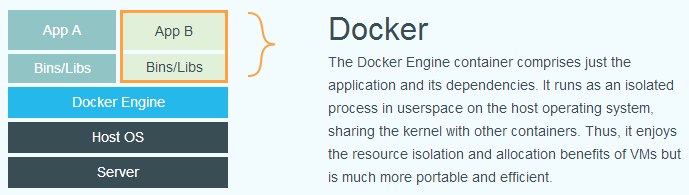
1.Docker有着比虚拟机更少的抽象层,由于Docker不需要Hypervisor实现硬件资源虚拟化,运行在Docker容器上的程序直接使用的都是实际物理机的硬件资源,因此在Cpu、内存利用率上Docker将会在效率上有明显优势。

2.Docker利用的是宿主机的内核,而不需要Guest OS,因此,当新建一个容器时,Docker不需要和虚拟机一样重新加载一个操作系统,避免了引导、加载操作系统内核这个比较费时费资源的过程,当新建一个虚拟机时,虚拟机软件需要加载Guest OS,这个新建过程是分钟级别的,而Docker由于直接利用宿主机的操作系统则省略了这个过程,因此新建一个Docker容器只需要几秒钟。

 Docker容器虚拟机(VM)
操作系统与宿主机共享OS宿主机OS上运行宿主机OS
存储大小镜像小,便于存储与传输镜像庞大(vmdk等)
运行性能几乎无额外性能损失操作系统额外的cpu、内存消耗
移植性轻便、灵活、适用于Linux笨重、与虚拟化技术耦合度高
硬件亲和性面向软件开发者面向硬件运维者
![传统虚拟化](https://img-service.csdnimg.cn/img_convert/445eece82ede85fb9f14034b48b38697.png)

Docker

Docker常用命令

docker基本用法

  • 管理docker守护进程

    systemctl start docker     #运行Docker守护进程
    systemctl stop docker      #停止Docker守护进程
    systemctl restart docker   #重启Docker守护进程
    
  • 管理镜像

docker pull registry.cn-hangzhou.aliyuncs.com/lxepoo/apache-php5

修改标签。由于阿里云仓库镜像的镜像名称较长,您可以修改镜像标签以便记忆区分。

docker tag registry.cn-hangzhou.aliyuncs.com/lxepoo/apache-php5:latest aliweb:v1

强制删除镜像

docker rmi -f registry.cn-hangzhou.aliyuncs.com/lxepoo/apache-php5

[root@ajn404 ~]# docker images
REPOSITORY                                             TAG                 IMAGE ID            CREATED             SIZE
hello-world                                            latest              bf756fb1ae65        6 months ago        13.3kB
registry.cn-hangzhou.aliyuncs.com/lxepoo/apache-php5   latest              e121d5f99e1e        3 years ago         448MB
[root@ajn404 ~]# docker tag registry.cn-hangzhou.aliyuncs.com/lxepoo/apache-php5:latest aliweb:v1
[root@ajn404 ~]# docker images
REPOSITORY                                             TAG                 IMAGE ID            CREATED             SIZE
hello-world                                            latest              bf756fb1ae65        6 months ago        13.3kB
aliweb                                                 v1                  e121d5f99e1e        3 years ago         448MB
registry.cn-hangzhou.aliyuncs.com/lxepoo/apache-php5   latest              e121d5f99e1e        3 years ago         448MB
[root@ajn404 ~]# docker rmi -f registry.cn-hangzhou.aliyuncs.com/lxepoo/apache-php5
Untagged: registry.cn-hangzhou.aliyuncs.com/lxepoo/apache-php5:latest
Untagged: registry.cn-hangzhou.aliyuncs.com/lxepoo/apache-php5@sha256:243fb0b814e008a2687bb21d6992e1280267b812bcddfb2aabb34c3d72b21c76
[root@ajn404 ~]# docker images
REPOSITORY          TAG                 IMAGE ID            CREATED             SIZE
hello-world         latest              bf756fb1ae65        6 months ago        13.3kB
aliweb              v1                  e121d5f99e1e        3 years ago         448MB

补充

docker search 搜索镜像

[root@ajn404 ~]# docker search --help

Usage:	docker search [OPTIONS] TERM

Search the Docker Hub for images

Options:
  -f, --filter filter   Filter output based on conditions provided
      --format string   Pretty-print search using a Go template
      --limit int       Max number of search results (default 25)
      --no-trunc        Don't truncate output

[root@ajn404 ~]# docker search --help

Usage:	docker search [OPTIONS] TERM

Search the Docker Hub for images

Options:
  -f, --filter filter   Filter output based on conditions provided
      --format string   Pretty-print search using a Go template
      --limit int       Max number of search results (default 25)
      --no-trunc        Don't truncate output
[root@ajn404 ~]# docker search -f=STARS=200 java
NAME                DESCRIPTION                                     STARS               OFFICIAL            AUTOMATED
node                Node.js is a JavaScript-based platform for s…   9012                [OK]                
tomcat              Apache Tomcat is an open source implementati…   2775                [OK]                
openjdk             OpenJDK is an open-source implementation of …   2333                [OK]                
java                Java is a concurrent, class-based, and objec…   1976                [OK]                
ghost               Ghost is a free and open source blogging pla…   1207                [OK]                
couchdb             CouchDB is a database that uses JSON for doc…   355                 [OK]                
jetty               Jetty provides a Web server and javax.servle…   338                 [OK] 

docker pull拉取(下载)镜像

[root@ajn404 ~]# docker pull mysql
Using default tag: latest
latest: Pulling from library/mysql
8559a31e96f4: Pull complete 
d51ce1c2e575: Pull complete 
c2344adc4858: Pull complete 
fcf3ceff18fc: Pull complete 
16da0c38dc5b: Pull complete 
b905d1797e97: Pull complete 
4b50d1c6b05c: Pull complete 
c75914a65ca2: Pull complete 
1ae8042bdd09: Pull complete 
453ac13c00a3: Pull complete 
9e680cd72f08: Pull complete 
a6b5dc864b6c: Pull complete 
Digest: sha256:8b7b328a7ff6de46ef96bcf83af048cb00a1c86282bfca0cb119c84568b4caf6
Status: Downloaded newer image for mysql:latest
docker.io/library/mysql:latest
[root@ajn404 ~]# docker pull mysql:5.7
5.7: Pulling from library/mysql
8559a31e96f4: Already exists 
d51ce1c2e575: Already exists 
c2344adc4858: Already exists 
fcf3ceff18fc: Already exists 
16da0c38dc5b: Already exists 
b905d1797e97: Already exists 
4b50d1c6b05c: Already exists 
d85174a87144: Pull complete 
a4ad33703fa8: Pull complete 
f7a5433ce20d: Pull complete 
3dcd2a278b4a: Pull complete 
Digest: sha256:32f9d9a069f7a735e28fd44ea944d53c61f990ba71460c5c183e610854ca4854
Status: Downloaded newer image for mysql:5.7
docker.io/library/mysql:5.7

关于docker联合文件系统https://www.jianshu.com/p/5ec3d4dbf580

  • 管理容器

进入容器。e1xxxxxxxxxe是执行docker images命令查询到的ImageId,使用docker run命令进入容器。

docker run -it e1xxxxxxxxxe /bin/bash

退出容器。使用exit命令退出当前容器。

关于docker run:

docker run [OPTIONS] IMAGE [COMMAND] [ARG...]
[root@ajn404 ~]# docker run -it centos /bin/bash
[root@f6ff703d20b1 /]# 

https://docs.docker.com/engine/reference/commandline/run/

https://www.jianshu.com/p/ea4a00c6c21c

使用docker镜像nginx:latest以后台模式启动一个容器,并将容器命名为mynginx。
docker run --name mynginx -d nginx:latest  
使用镜像nginx:latest以后台模式启动一个容器,并将容器的80端口映射到主机随机端口。
docker run -P -d nginx:latest  
使用镜像nginx:latest以后台模式启动一个容器,将容器的80端口映射到主机的80端口,主机的目录/data映射到容器的/data。
docker run -p 80:80 -v /data:/data -d nginx:latest  
使用镜像nginx:latest以交互模式启动一个容器,在容器内执行/bin/bash命令。
runoob@runoob:~$ docker run -it nginx:latest /bin/bash  
root@b8573233d675:/#   

run命令加上–d参数可以在后台运行容器,--name指定容器命名为apache。

docker run -d --name apache e1xxxxxxxxxe

进入后台运行的容器

docker exec -it apache /bin/bash

将容器做成镜像,命令的参数说明:docker commit <容器ID或容器名> [<仓库名>[:<标签>]]

docker commit containerID/containerName repository:tag

为了方便测试和恢复,将源镜像运行起来后,再做一个命名简单的镜像做测试。

docker commit 4c8066cd8**** apachephp:v1

运行容器并将宿主机的8080端口映射到容器里去。

docker run -d -p 8080:80 apachephp:v1
  • 补充

删除所有镜像

docker rmi $(docker images -q)

删除所有容器

docker rm $(docker ps -a -q)

另一种删除所有容器的方法

docker ps -aq|xargs docker rm -f

xargs(linux命令:给其他命令传递参数的一个过滤器,也是组合多个命令的一个工具。参考https://man.linuxde.net/xargs)

列出容器(查看当前运行中的容器)

docker ps

docker ps 命令参数https://www.runoob.com/docker/docker-ps-command.html

停止正在运行的容器

docker stop <containerid>

制作镜像

  1. 准备Dockerfile内容。

    1. 新建并编辑Dockerfile文件。

      vim Dockerfile
      
    2. 按i进入编辑模式,添加以下内容。

      FROM apachephp:v1  #声明基础镜像来源
      MAINTAINER DTSTACK #声明镜像拥有者
      RUN mkdir /dtstact #RUN后面接容器运行前需要执行的命令,由于Dockerfile文件不能超过127行,因此当命令较多时建议写到脚本中执行
      ENTRYPOINT ping www.aliyun.com #开机启动命令,此处最后一个命令需要是可在前台持续执行的命令,否则容器后台运行时会因为命令执行完而退出。
      
    3. 按下键盘esc键,输入:wq并按下enter键,保存并退出Dockerfile文件。

  2. 构建镜像。

    docker build -t webaliyunlinux:v1 .   # . 是Dockerfile文件的路径,不能忽略
    docker images                    #查看是否创建成功
    
  3. 运行容器并查看。

    docker run -d webaliyunlinux:v1       #后台运行容器
    docker ps                        #查看当前运行中的容器
    docker ps -a                     #查看所有容器,包括未运行中的
    docker logs CONTAINER ID/IMAGE   #如未查看到刚才运行的容器,则用容器id或者名字查看启动日志排错
    
  4. 制作镜像。

    docker commit fb2844b6**** dtstackweb:v1 #commit参数后添加容器ID和构建新镜像的名称和版本号。
    docker images                    #列出本地(已下载的和本地创建的)镜像
    
  5. 将镜像推送至远程仓库。

    默认推送到Docker Hub。您需要先登录Docker,为镜像绑定标签,将镜像命名为Docker用户名/镜像名:标签的格式。最终完成推送。

    docker login --username=dtstack_plus registry.cn-shanghai.aliyuncs.com #执行后输入镜像仓库密码
    docker tag [ImageId] registry.cn-shanghai.aliyuncs.com/dtstack123/test:[标签]
    docker push registry.cn-shanghai.aliyuncs.com/dtstack123/test:[标签]
    

Dockerfile Image Container 的关系:

[外链图片转存失败,源站可能有防盗链机制,建议将图片保存下来直接上传(img-jM1VAkjE-1600172822826)(docker%E5%9F%BA%E7%A1%80.assets/2441456-af6c270b1a64912a.png)]

Dockerfile: 用于描述镜像的生成规则。 Dockerfile中的每一条命令,都在Docker镜像中以一个独立镜像层的形式存在。

Image: 由Dockerfile生成, 呈现层级结构, 每层镜像包含:镜像文件以及镜像json元数据信息。

Container: Container 是Image 的动态运行结果,概括而言,就是在Docker镜像之上,运行进程。

其他重要命令

后台启动容器

docker run -d [REPOSITORY]

注意docker 容器使用后台,**需要一个进程,**否则自动停止例如:(进程(Process)是计算机中的程序关于某数据集合上的一次运行活动,是系统进行资源分配和调度的基本单位,是操作系统结构的基础。https://www.liaoxuefeng.com/wiki/1016959663602400/1017627212385376)

[root@ajn404 ~]# docker run -d centos
25ba1fe065c860a62719fba2212e6cd7ddd095ce6a5485fbcaddd2d686823cbf
[root@ajn404 ~]# docker ps
CONTAINER ID        IMAGE               COMMAND             CREATED             STATUS              PORTS               NAMES
[root@ajn404 ~]# 
练习
  • docker运行ngnix并上线运行
  • 装一个Tomcat
评论 2
添加红包

请填写红包祝福语或标题

红包个数最小为10个

红包金额最低5元

当前余额3.43前往充值 >
需支付:10.00
成就一亿技术人!
领取后你会自动成为博主和红包主的粉丝 规则
hope_wisdom
发出的红包
实付
使用余额支付
点击重新获取
扫码支付
钱包余额 0

抵扣说明:

1.余额是钱包充值的虚拟货币,按照1:1的比例进行支付金额的抵扣。
2.余额无法直接购买下载,可以购买VIP、付费专栏及课程。

余额充值