


When you’re a beginner to the self-hosting ecosystem, Docker is hands-down the best companion on your containerization journey. After all, it’s well documented and has a plethora of convenient tools to help you deploy cool services inside containers. Docker Compose, for example, lets you define all the specifications of a service inside a config file, which you can use to spin up a container without dealing with long docker run commands.
Then there are tools like Portainer, which provide easy-to-use web UI for Docker’s first-party utilities. I often use it to manage Docker and Podman containers, but its paywalled facilities have made me seek different alternatives. One of these is Komodo, a FOSS container management interface that integrates really well with Docker Compose. Although it’s not a Portainer killer just yet, it’s more than enough for tinkerers who need a lightweight FOSS companion app for Docker (and even Podman) setups.
Komodo has some handy config management tools
There's indentation for Docker Compose (and support for .env variables)


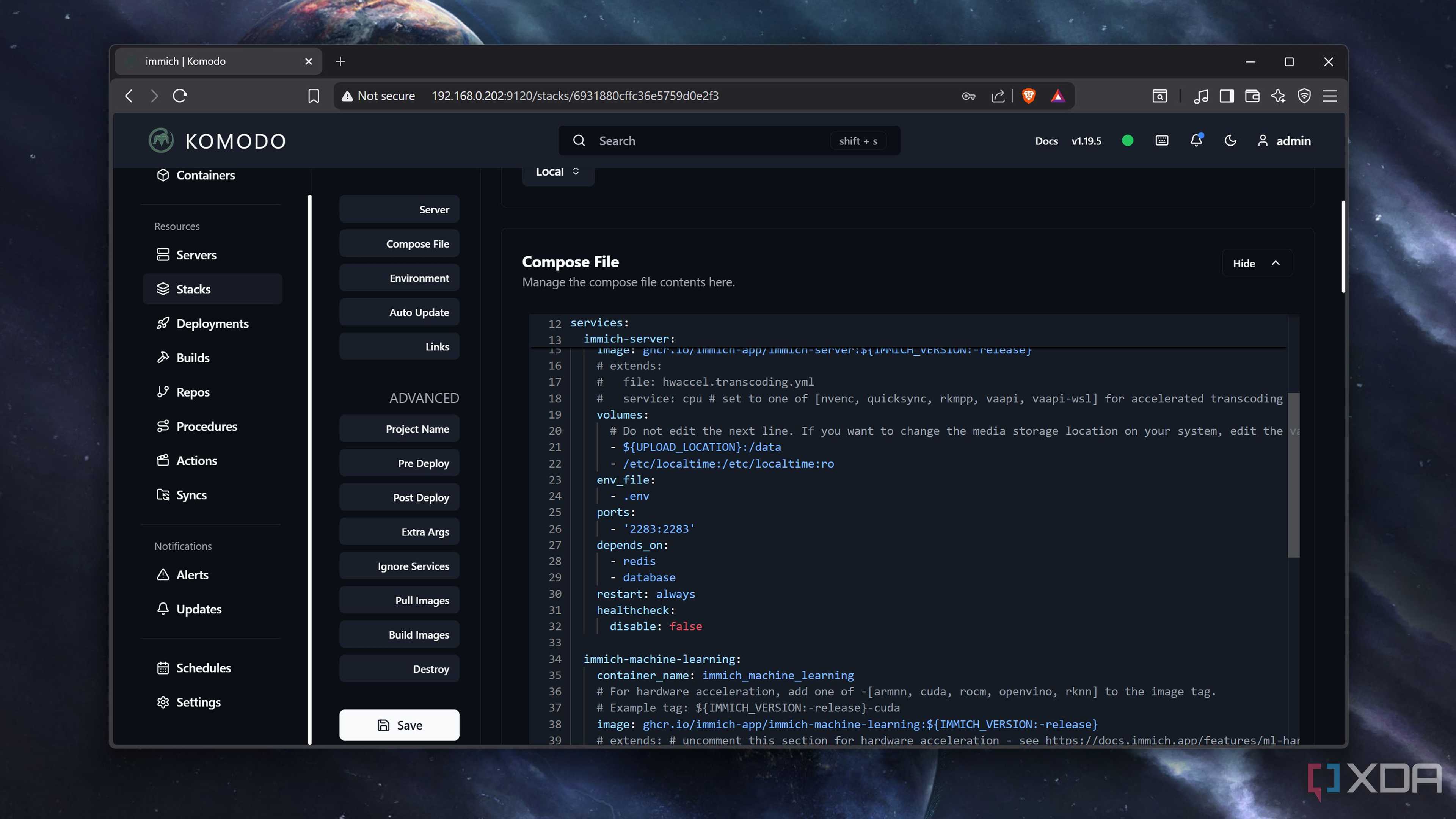
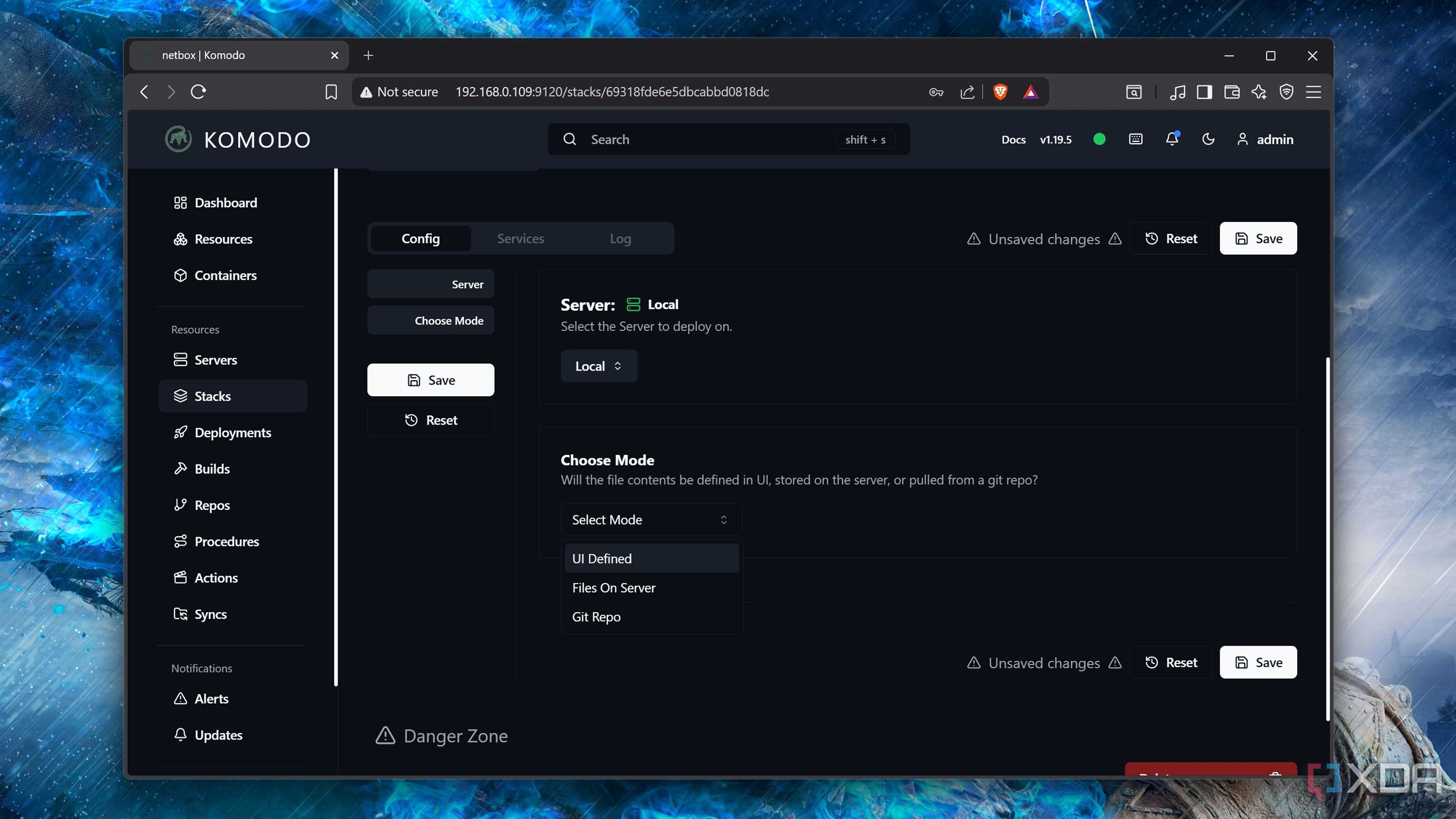
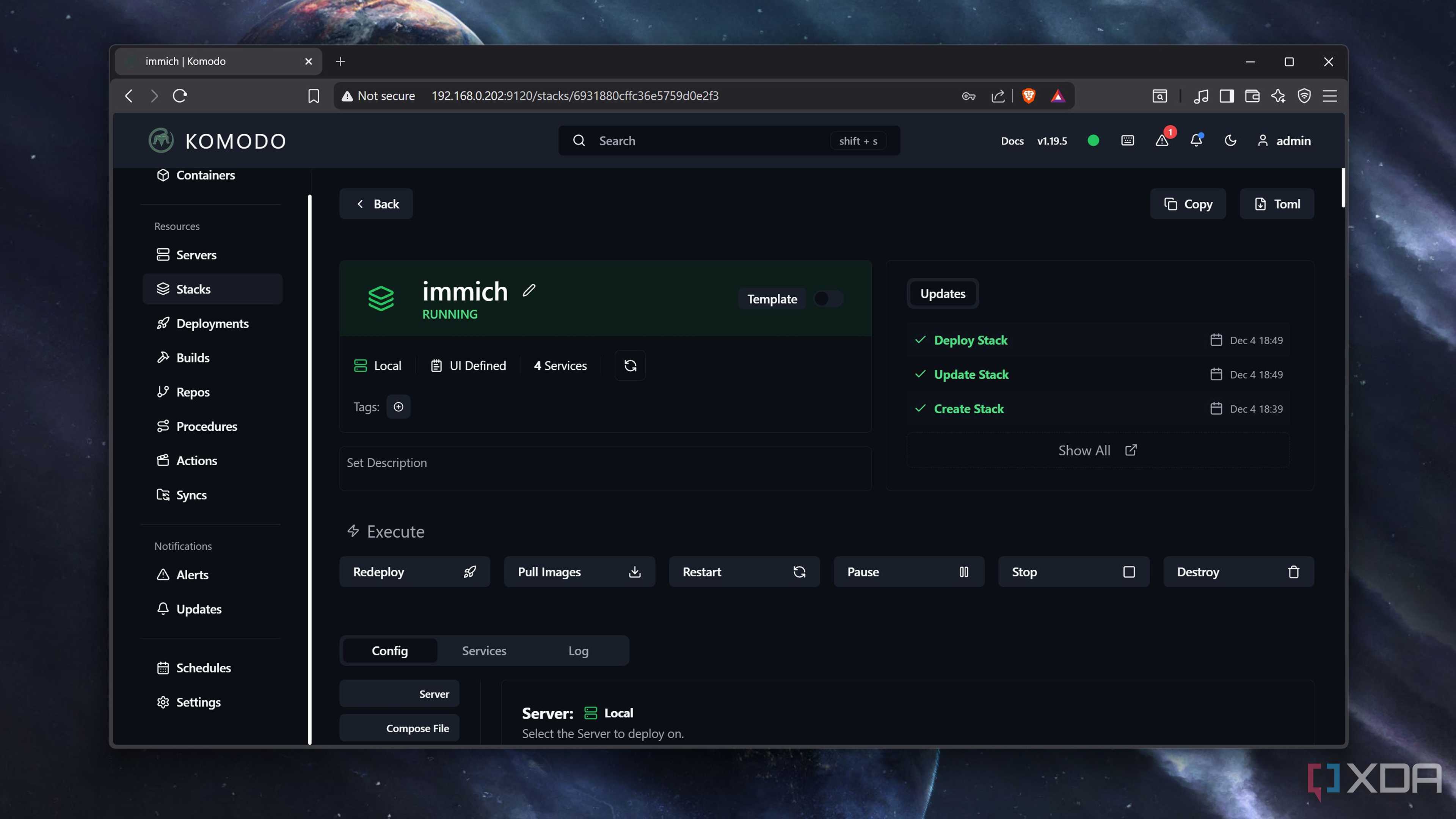
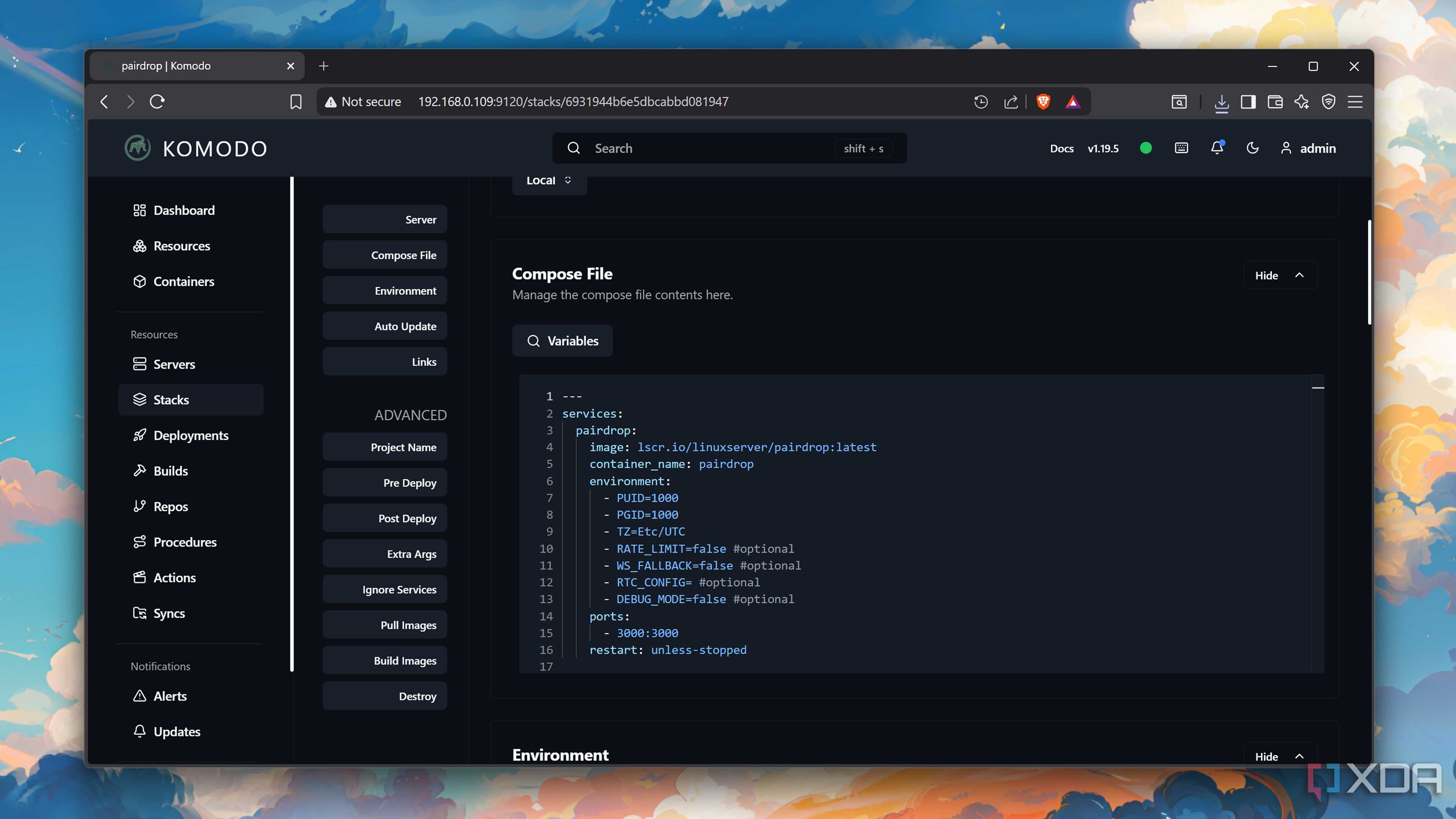
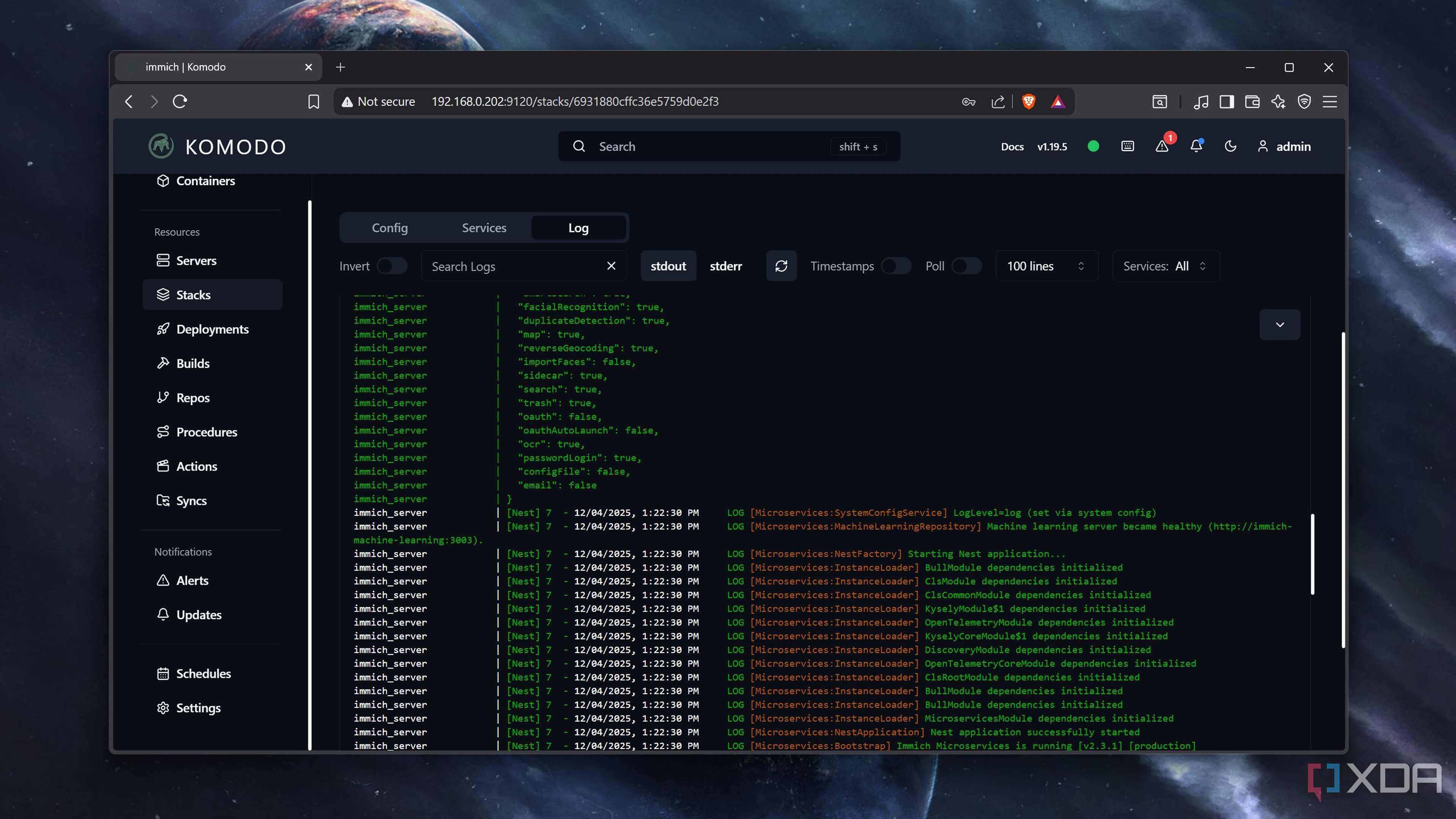
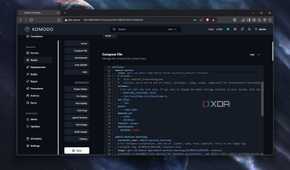
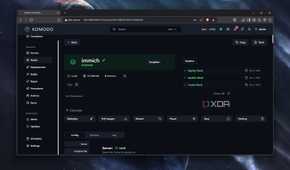
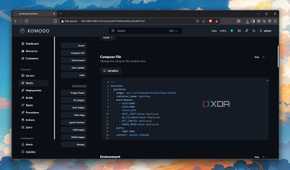
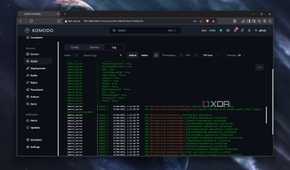
Unlike Portainer’s extensive toolkit, Komodo has a concise interface with a smaller number of menus and tabs. But when it comes to deploying containers, it’s just as reliable as its freemium counterpart. For tinkerers who use Docker Compose as much as I do, the Stacks tab is the base of operations. Besides letting you add the directories containing the compose.yml files, Komodo also includes the option to define custom YAML code within its web UI.
Better yet, the web-based code editor includes proper indentation breaks. If you’ve ever worked with YAML files, you’d know that the serialization language takes indentation so seriously that even a single incorrect space can cause your painstakingly written code to throw errors.
Komodo also lets you add environment variables for your compose.yml configuration files, and you can specify the directory of the .env document. Likewise, you get the option to insert extra arguments for your containers, which are essentially flags you can use with the docker compose up -d command. If you want even more fine-tuned containerized environments, Komodo also offers the ability to execute pre- and post-deploy scripts for your self-hosted services.
You can build Docker images from its web UI

While Docker Compose is pretty handy, there are times when building an image from scratch is your only option. Perhaps an obscure service only includes a Dockerfile and no deployable images. Or maybe you want to compile the beta versions of a popular tool yourself to avoid running into errors from faulty images.
Komodo’s Build page acts similarly to Stacks, except, it’s centered around Dockerfiles instead of Compose configs. You also get the ability to add custom labels, image repos, and build arguments, with Komodo even remembering the Variables you’ve used in different Dockerfiles.
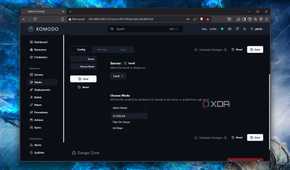
And for folks who want to deploy containers the conventional way, Komodo has a Deployments page, where you can select the images, network mode, volumes, and other settings manually.
It even supports notification servers
Though you’ll need a community tool for Gotify

I rely on Gotify to stay up to date on my home server and NAS notifications, so I always appreciate it when virtualization platforms and containerization tools are compatible with alert services. By default, Komodo supports Slack, Discord, Pushover, and Ntfy alerts alongside the ability to add custom endpoints for notification hubs, so it definitely earns some brownie points on this front.
Unfortunately, Gotify isn’t natively supported by Komodo, but thanks to the talented community of tinkerers, it’s possible to integrate the self-hosted notification server with the platform. I’ve used the gotify-alerter repository by FoxxMD, which relies on a Resource Sync script as a workaround for sending notifications to Gotify.
Komodo is easy to set up, too
And you can link multiple Docker instances using periphery

If you’ve ever worked with Docker containers in the past, deploying Komodo is fairly simple. First, you’ll have to paste the compose.yml file from the official link into your preferred directory. Komodo’s config relies on environment variables, which is why you’ll also require the compose.env document from the same link, though you’ll have to modify the KOMODO_DB_USERNAME, KOMODO_DB_PASSWORD, and COMPOSE_KOMODO_BACKUPS_PATH parameters. Once you’re done, running docker compose up -d inside a terminal should get Komodo set up, and you can access the web UI by typing the IPv4 address of your server node followed by a colon (:) and port number 9120.

As is the case with most self-hosted utilities, this process is even simpler on Proxmox. You can simply run the bash -c "$(curl -fsSL https://raw.githubusercontent.com/community-scripts/ProxmoxVE/main/ct/komodo.sh)" command inside your PVE node’s Shell, select Default settings, and wait for the Proxmox VE Helper-Script to whip up a Komodo LXC. Then, you can use the link generated inside the terminal to access the web UI, though you’ll need to use the cat ~/komodo.creds command inside the Komodo LXC to grab the user credentials.
For folks with multiple Docker instances, you can deploy Komodo on each system and link them together by adding the periphery URLs of all the systems inside a single Komodo web UI.
It can't replace Portainer just yet

Remember how I said Komodo isn’t a Portainer killer at the beginning of the article? Well, that’s because it’s still lacking in certain areas. For example, there’s no way to manage the networks and mounted volumes of all containers from a unified interface on Komodo. Docker Swarm and Kubernetes aren’t supported by the platform, either, even though it works just fine with Podman (and even Podman-Compose).
But if you’re on the hunt for a lightweight container deployment web UI that can help you manage YAML configs, environment variables, and Dockerfiles, Komodo is a rock-solid alternative to Portainer.
