

Table of contents
.png)
How to get your ChatGPT API key (4 steps)


.avif)
Pritak Patel
Integrating ChatGPT—OpenAI’s advanced AI language model—with your internal applications and products can revolutionize how your employees use your systems as well as how your clients engage with your platform.
By leveraging ChatGPT’s natural language processing capabilities, you can automate customer support interactions, streamline data analysis processes, build cutting-edge product features, and much more.
But before you can start integrating with ChatGPT’s API, your developers need to get an API key to access it. We’ll help you do just that by breaking down each step of getting your API key.
Step 1: Create an account
ChatGPT is entirely free to sign up. You can create a free account by signing up here.
Related: A guide to getting your Anthropic API key
Step 2: Generate an API key
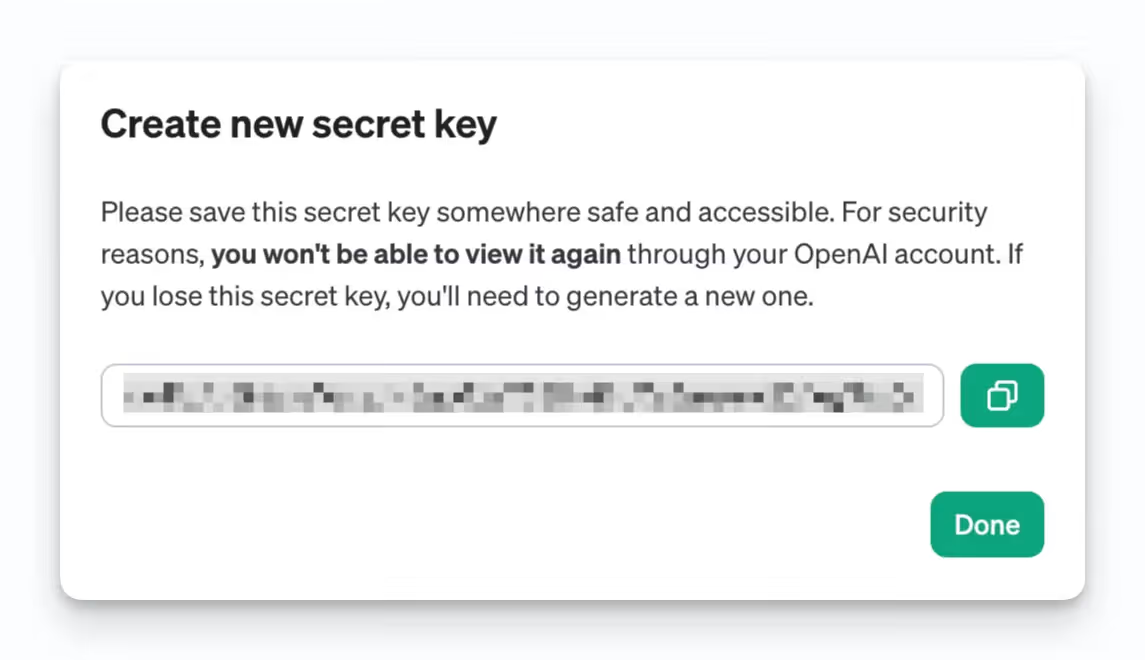
Once logged in, head to the left navigation bar and click “API Keys”
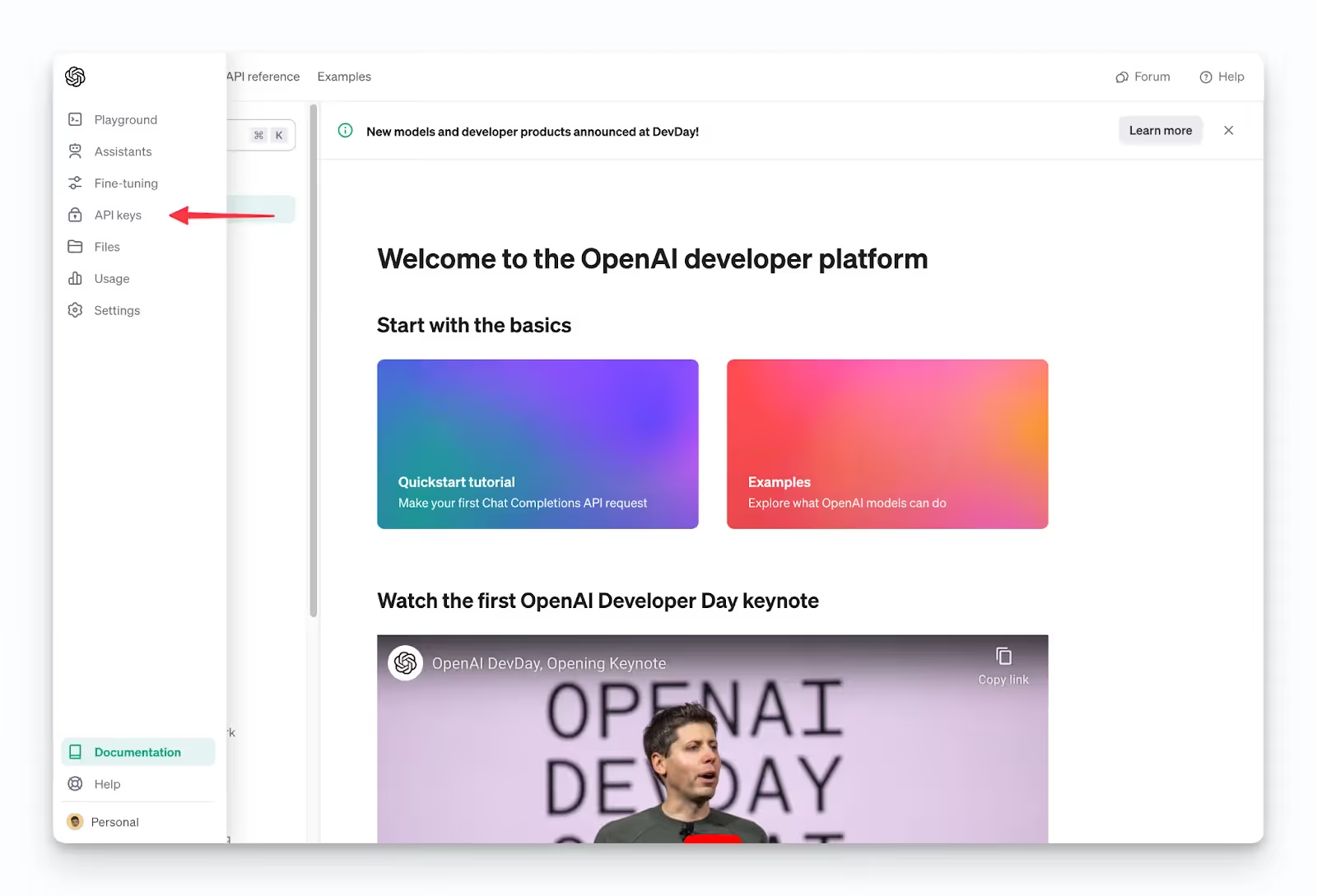
On the next screen, click “+ Create new secret key” and enter a name for your key in the pop-up window. After entering a name, click “Create secret key”
In case you plan to create multiple keys, we recommend giving it a name that’s specific to how you plan on using it.
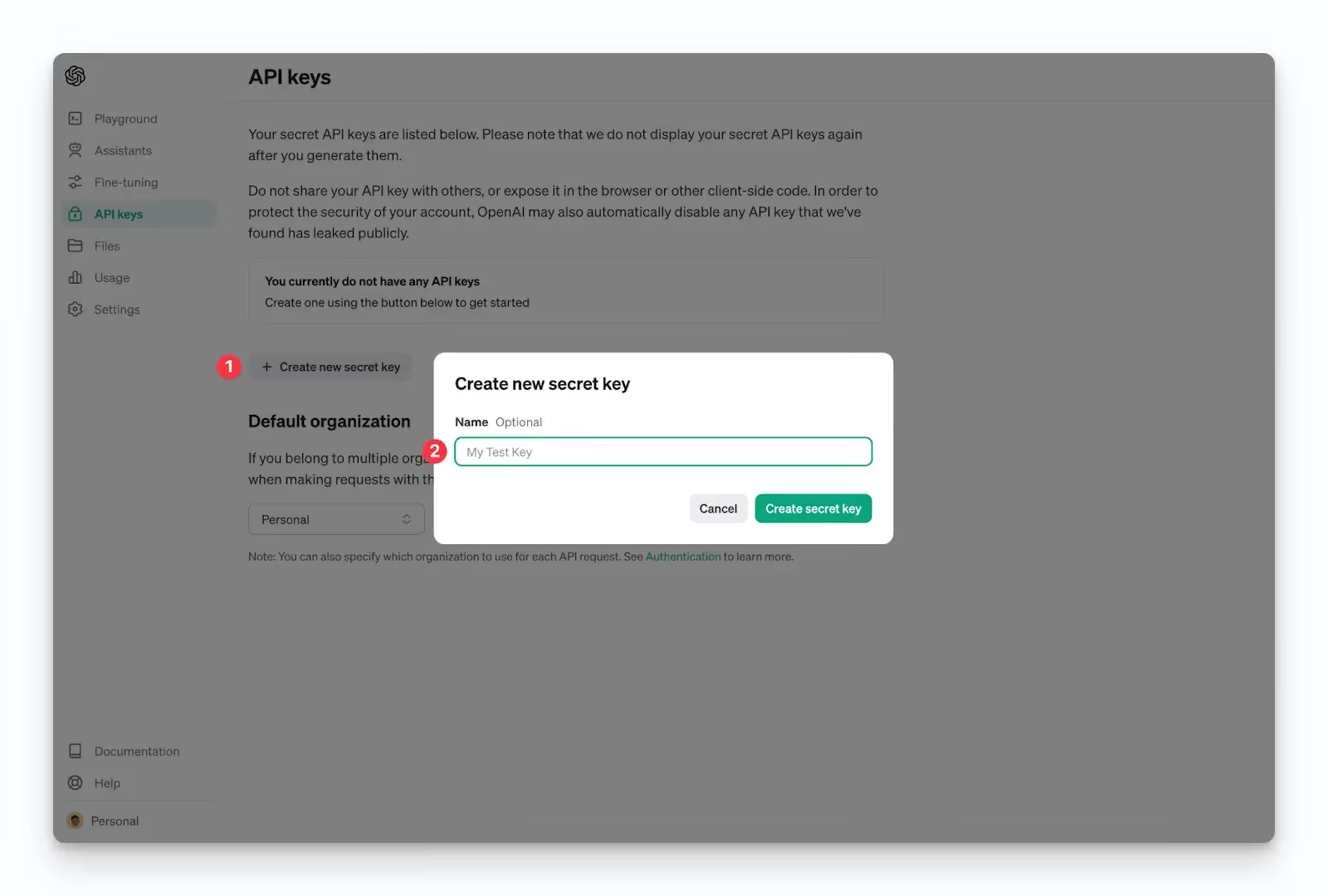
On the next screen, copy your API Key and store it somewhere safe. You will not be able to view it again.
{{this-blog-only-cta}}
Step 3: Set up billing
OpenAI implements a pay-per-use model for its API services. Therefore, it's essential to establish a payment method for billing purposes. Without this setup, the newly-created API Key will be inactive.
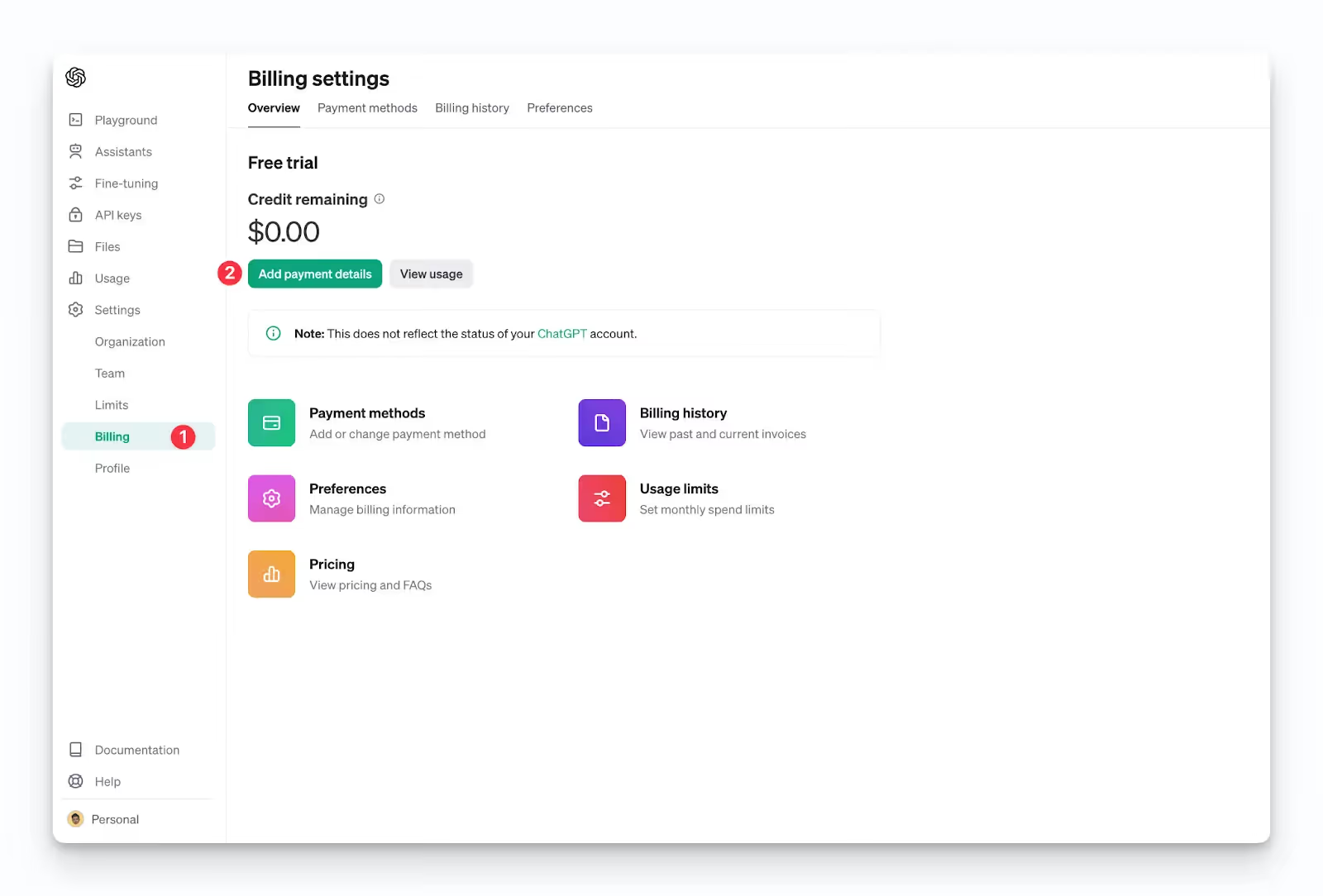
For billing configuration, select 'Billing' from the left-hand menu and then choose 'Add payment details’.
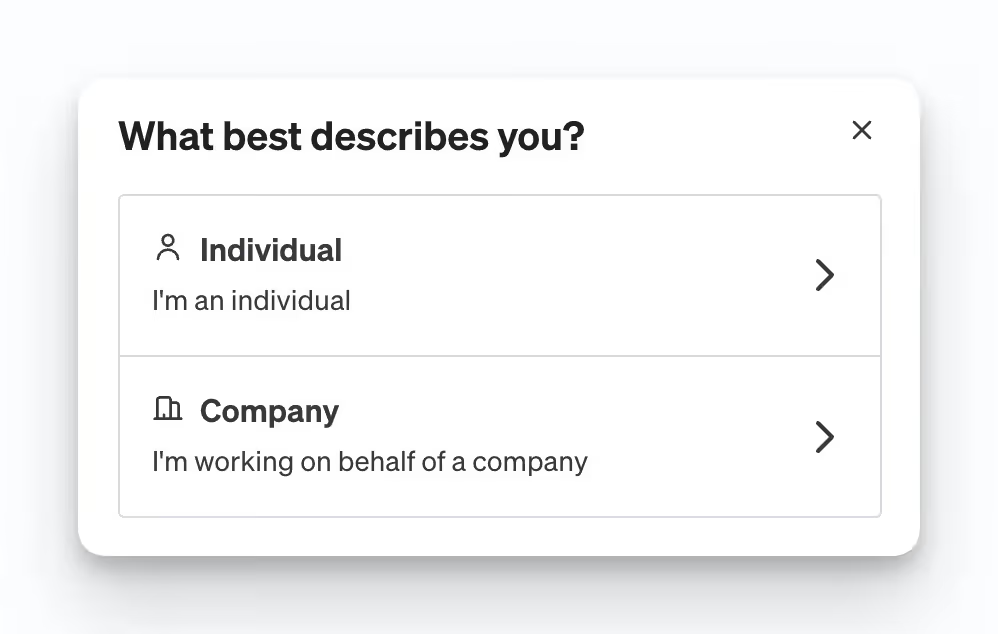
A pop up window will appear asking you to select which type of user you are. Select whichever option is applicable to you.
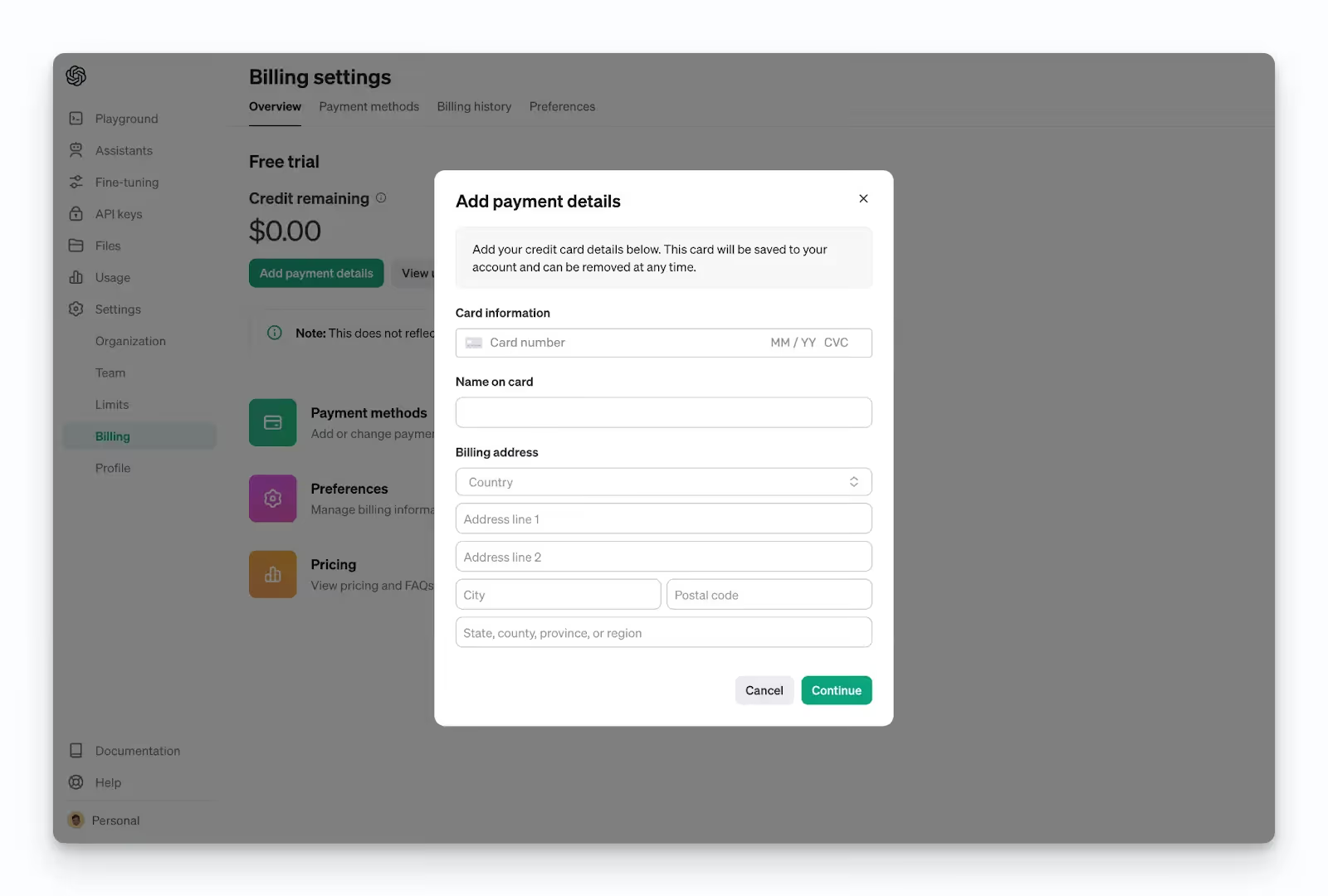
You’ll be prompted to enter your payment information. Once done, click “Continue”.
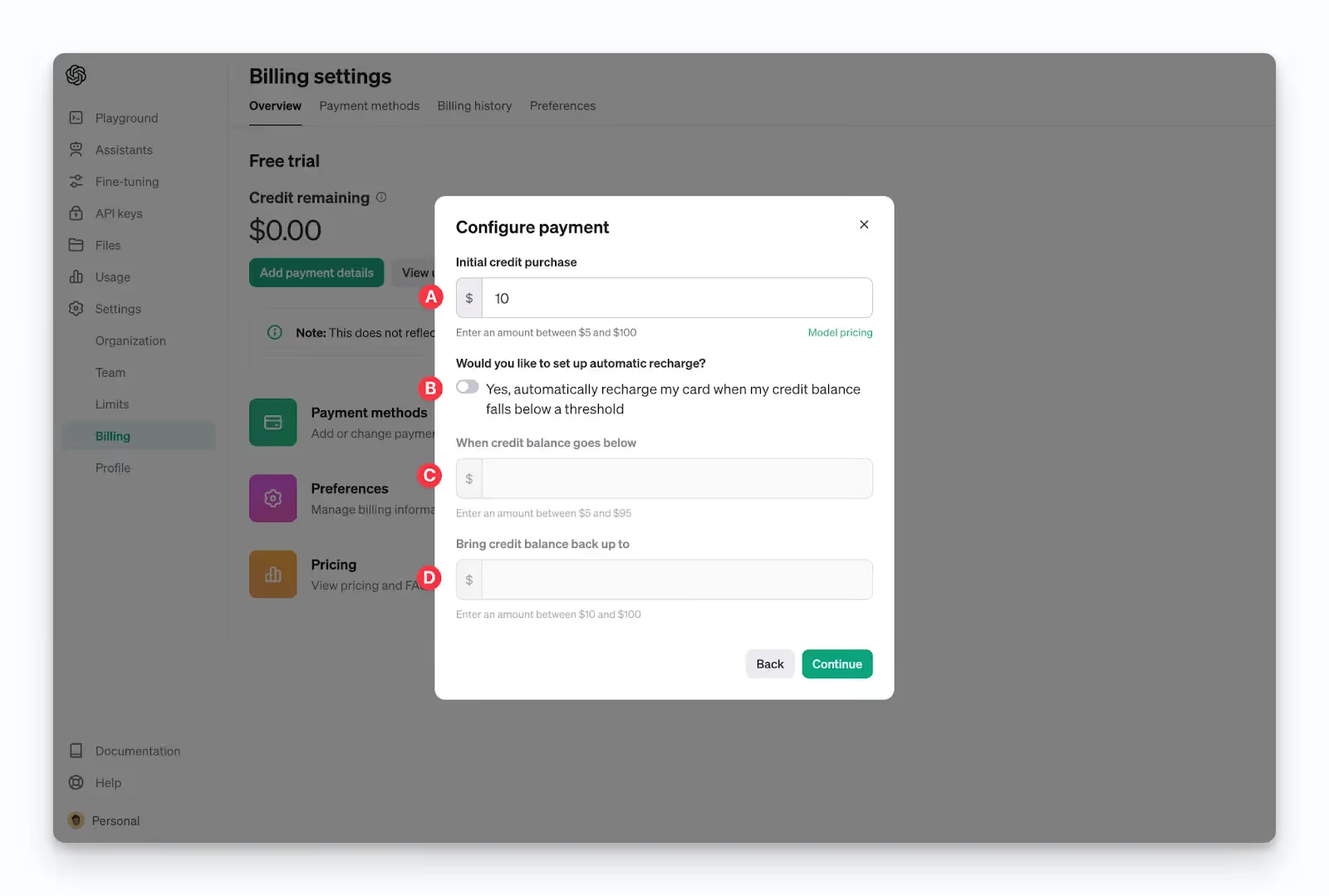
On the next screen, you’ll see a few configuration options for payment. We’ve broken down what each means:
A. Enter an amount between $5 and $100 to add an initial credit into your account
B. If you don’t want to pay for credits each time they run out, you can set up automated recharges here. Toggling this will allow you to select options in C and D.
C. Set a minimum balance threshold for when new credits should be purchased
D. Specify the total balance you want to set your account at when recharging
After entering your selections, click “Continue”.
On the final screen, you’ll see a confirmation of your selections. Click “Confirm payment” if everything looks correct.
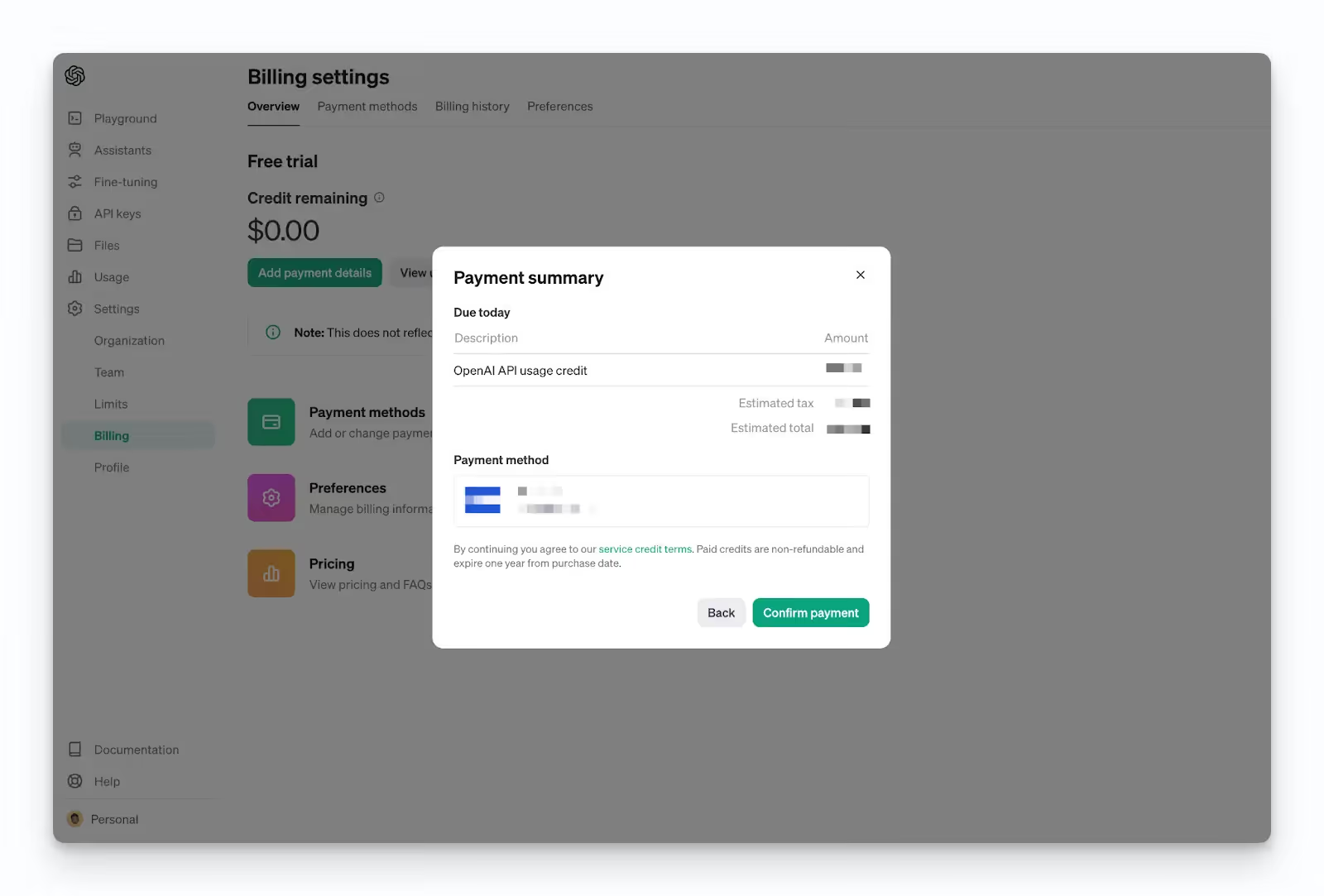
Related: How to create and copy your Llama API key
Step 4: Set usage limits
It's practical to implement usage limits to manage your monthly spend on the API.
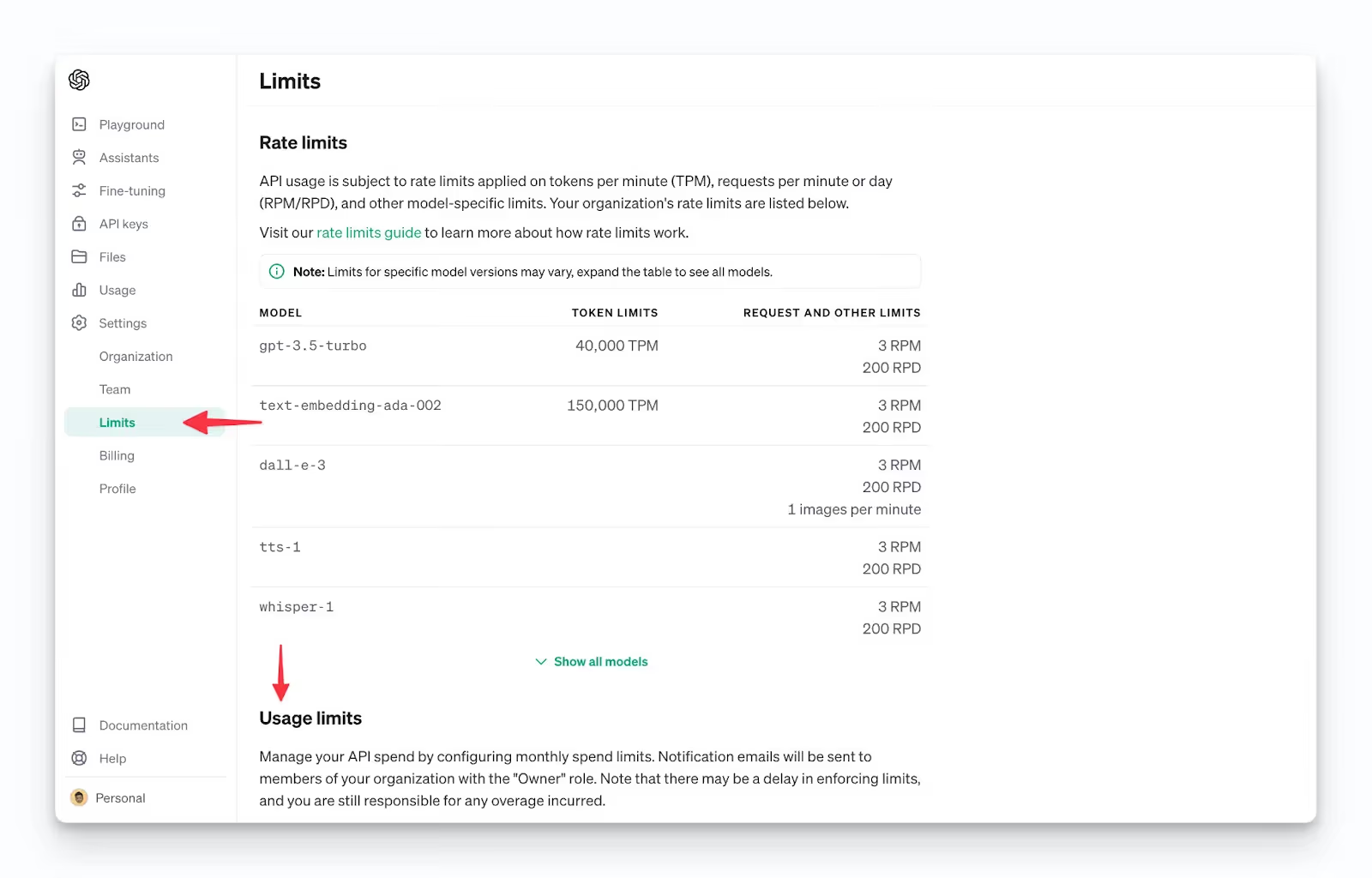
To do this, select 'Limits’ from the left menu, and scroll down to “Usage Limits”
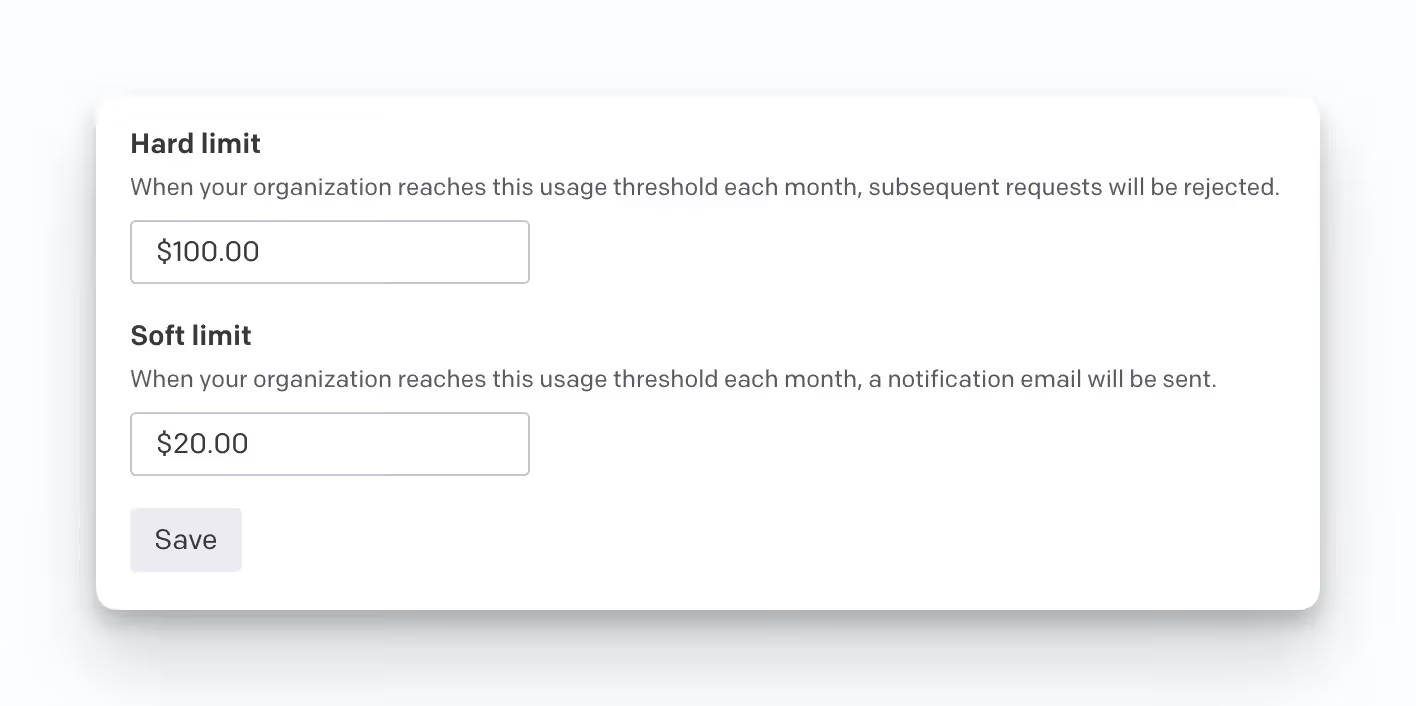
Input your desired hard and soft usage caps, and then click 'Save'.
You’re all set to start building your integrations!
Related: 5 steps for generating your Gemini API key
Other key considerations for building to ChatGPT’s API
There’s obviously more to accessing and using ChatGPT’s API. You can read on to get additional context on the API.
Pricing
OpenAI and ChatGPT regularly update their pricing tables and provide a clear breakdown of tiers on their website here. We recommend looking through to understand which model will work best for you.
Rate limits
API rate limits, in general, are implemented for several important reasons:
- They serve as a safeguard against potential abuse or misuse. For instance, a harmful user might try to inundate the API with requests, aiming to disrupt the service.
- Rate limits are essential for equitable access. If a single user or entity makes too many requests, it could negatively affect the API's performance for others.
- They assist in managing the overall demand. A sudden surge in API requests could strain the servers, leading to performance issues. Rate limits help maintain a stable and efficient service for all users.
ChatGPT has a rate limit model similar to their pricing model that differs by tier and functionality. We recommend reading through their guide here.
Errors to look out for
Each API is slightly different in how they handle errors, so it’s important to understand how ChatGPT’s API handles them. You can find a full list of error codes and explanations here.
Leverage ChatGPT models effectively with Merge Gateway
Merge Gateway is a unified API and control plane for production LLM traffic, with routing, cost controls, and observability built in.
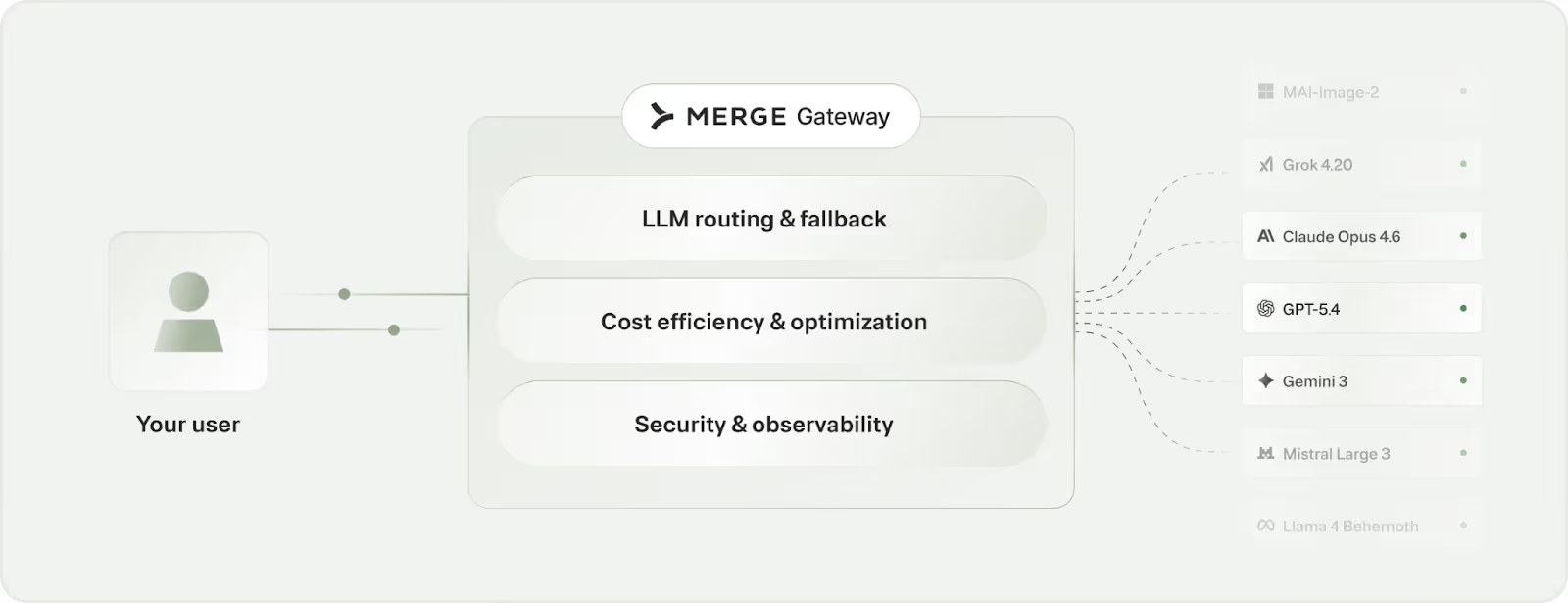
It offers:
- Adaptive model routing: Direct traffic to the optimal model for the job to keep costs down without sacrificing output quality
- Spend controls and governance: Apply budgets, limits, and usage rules across teams, projects, and customer tiers
- Audit-ready monitoring and failover: Track every request with detailed logs and routing context, with automatic fallback when a provider slows down or goes offline
Try Merge Gateway for free today!

Pritak Patel


Start optimizing your AI spend in production
Dynamically route each request to the best-fit model (including ChatGPT models) to reduce spend without compromising performance via Merge Gateway.

But Merge isn’t just a Unified
API product. Merge is an integration platform to also manage customer integrations. gradient text
But Merge isn’t just a Unified
API product. Merge is an integration platform to also manage customer integrations. gradient text
But Merge isn’t just a Unified
API product. Merge is an integration platform to also manage customer integrations. gradient text
But Merge isn’t just a Unified
API product. Merge is an integration platform to also manage customer integrations. gradient text
