In this post, we’ll take a look at how to use the work manager in android. Work manager is a part of the android architecture components and is a good replacement of all the previous scheduling options.
Other scheduling options such as JobScheduler, GcmNetworkManager etc. But they had their shortcomings. GcmNetworkManager required play services, so it won’t work on some chinese OEMs and JobScheduler supported API > 21.
But the work manager in android solves all of these problems and more, elegantly. It’s by far one of the most easy to use APIs in Android.
In this work manager example, we’ll create an app to use Work Manager to download 3 images in the background and add them to a list.
Warning: Work manager shouldn’t be used for tasks such as downloading something on button click. It should only be used for DEFERRABLE tasks. But for the sake of simplicity I’ve taken this example.
Getting Started
Create a new Android Studio Project
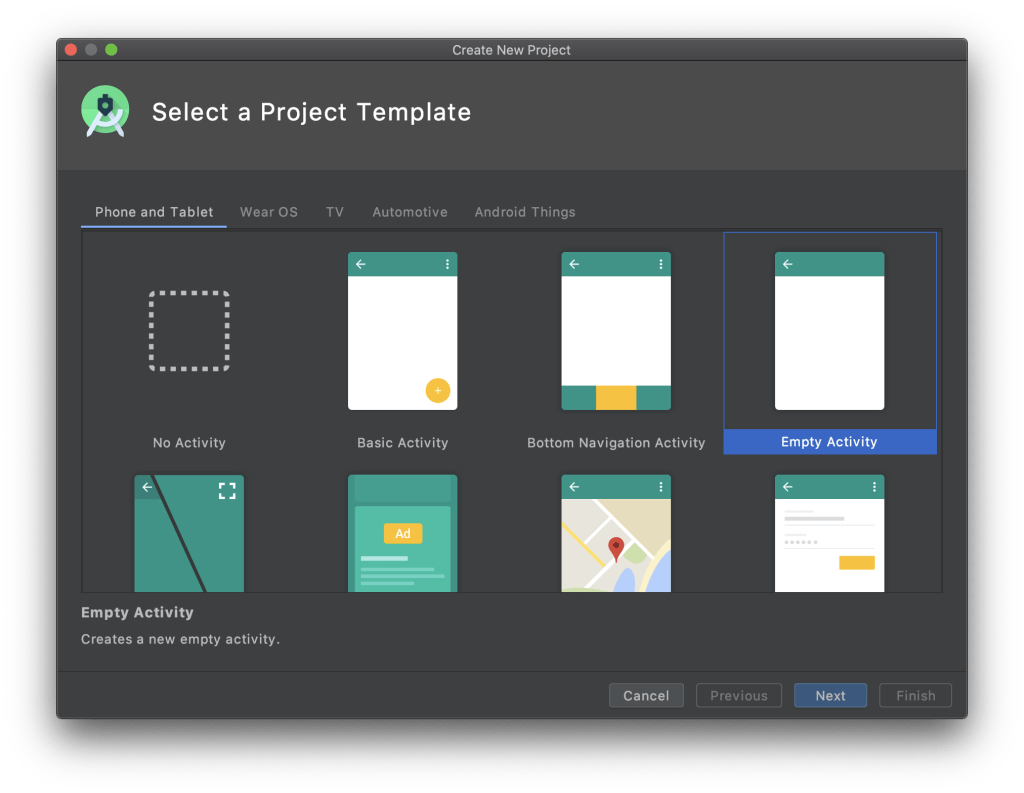
I’m going to name my project work manager demo. You can name it anything you want. Make sure to select an empty activity. We’ll be writing everything from scratch.
Add dependency for Work Manager in Android
Let’s add some dependencies. First and foremost for Work Manager. Then I’ll add some extra dependencies for this example. It includes Picasso, Gson, and EventBus.
1 2 3 4 5 6 | implementation "androidx.work:work-runtime-ktx:2.4.0"implementation 'io.reactivex.rxjava2:rxkotlin:2.3.0'implementation 'com.google.code.gson:gson:2.8.5'implementation 'com.squareup.picasso:picasso:2.71828'implementation 'com.squareup.okhttp3:okhttp:3.13.1'implementation 'org.greenrobot:eventbus:3.1.1' |
As of writing this article, the latest version is 2.4.0, you can find the latest version on developers.android.com. Or just search for work manager dependency and it’ll be the first link.
Structure of the app
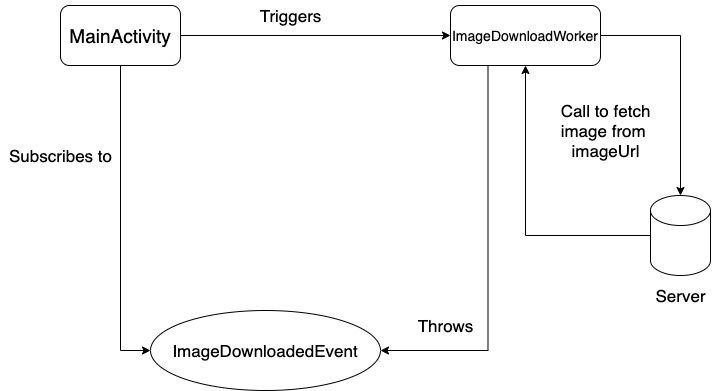
The diagram below shows the basic flow of our app. Mainly we’ll have a worker (which I’ll explain in the following sections), an ImageUtil class to download images and our MainActivity to start the process.
Using Work Manager in Android
Building the UI
The UI of this app will be very simple, it’s a scrollview with 3 imageviews. And a button at the bottom to kick off the Work Manager.
01 02 03 04 05 06 07 08 09 10 11 12 13 14 15 16 17 18 19 20 21 22 23 24 25 26 27 28 29 30 31 32 33 34 35 36 37 38 39 40 41 42 43 44 45 46 47 48 49 50 51 52 53 54 | <?xml version="1.0" encoding="utf-8"?><LinearLayout xmlns:android="http://schemas.android.com/apk/res/android" android:layout_width="match_parent" android:layout_height="match_parent" android:orientation="vertical" tools:context=".MainActivity"> <ScrollView android:layout_width="match_parent" android:layout_height="0dp" android:layout_weight="1"> <LinearLayout android:layout_width="match_parent" android:layout_height="match_parent" android:layout_weight="1" android:gravity="center_horizontal" android:orientation="vertical"> <ImageView android:id="@+id/iv_1" android:layout_width="300dp" android:layout_height="300dp" android:layout_marginTop="32dp" android:scaleType="fitXY" /> <ImageView android:id="@+id/iv_2" android:layout_width="300dp" android:layout_height="300dp" android:layout_marginTop="32dp" android:scaleType="fitXY" /> <ImageView android:id="@+id/iv_3" android:layout_width="300dp" android:layout_height="300dp" android:layout_marginTop="32dp" android:scaleType="fitXY" /> </LinearLayout> </ScrollView> <Button android:id="@+id/btn_download" android:layout_width="match_parent" android:layout_height="wrap_content" android:layout_gravity="bottom" android:text="Start Download" /></LinearLayout> |
Adding the data for Images
Add the JSON provided below to the top of your MainActivity.kt file. This will contain a URL for the image to download.
01 02 03 04 05 06 07 08 09 10 11 12 13 14 15 16 17 18 19 20 21 22 | val jsonString: String = "[\n" + " {\n" + " \"albumId\": 1,\n" + " \"id\": 1,\n" + " \"title\": \"Eminem\",\n" + " },\n" + " {\n" + " \"albumId\": 1,\n" + " \"id\": 2,\n" + " \"title\": \"MEME\",\n" + " \"url\": \"https://pics.me.me/eminems-emotions-suprised-sad-happy-curious-annoyed-excited-shocked-bored-13877943.png\",\n" + " },\n" + " {\n" + " \"albumId\": 1,\n" + " \"id\": 3,\n" + " \"title\": \"Eminem News\",\n" + " }]" |
Also, let’s go ahead and add a click listener to the button. Upon clicking the button, we’ll call a method startWorker(). Now this is where the fun starts!
01 02 03 04 05 06 07 08 09 10 11 12 | override fun onCreate(savedInstanceState: Bundle?) { super.onCreate(savedInstanceState) setContentView(R.layout.activity_main) btn_download.setOnClickListener { startWorker() }}private fun startWorker() {} |
Passing Data to our Worker
The Work Manager takes a Worker which contains the task that we want to perform. What we’ll do is, we’ll pass the JSON to our worker which then would download all the images.
To pass data in the work manager, we’ve to use a special Data object provided by the Work Manager in android. Here’ how to create the data object:
1 2 3 4 5 6 | private fun startWorker() { val data = Data.Builder() .putString("images", jsonString) .build()} |
Data takes all the primitive types. Hence we use the putString method.
Very Important: The limit for data is 10KB. If you try to pass things such as bitmap (by converting to Base64), it’d fail. So be very cautious when passing data to the worker.
Adding Constraints in Work Manager
Constraints are a very powerful feature of the work manager. It allows us to specify certain conditions which have to be met in order for work to start.
If the conditions are not met, work will not be started no matter if we’ve started the process in code.
There’s no guarantee that the work manager will start your work at the exact time. Hence tasks such as downloads should be done using DownloadManager in android. Use work manager for deferrable tasks only. For example: syncing logs in the background, taking backups of chat etc….
To add constraints, all you need to do is build a constraint object using builder pattern as shown:
1 2 3 4 5 6 7 8 9 | private fun startWorker() { val data = Data.Builder() .putString("images", jsonString) .build() val constraints = Constraints.Builder() .setRequiredNetworkType(NetworkType.CONNECTED)} |
You can specify many constraints such as:
- Require device idle: Will trigger work only if the device is idle and not in use.
- Require charging: Will trigger only if phone is plugged in for charging.
- Battery not low: Requires battery to be at a certain level.
- Storage not low: Storage should not be low
You can find all the constraints at: developer.android.com
Creating a OneTimeRequest for Work Manager
We’ll be creating a one time request. As the name suggests, it’ll fire once and stop. If you want to schedule periodic tasks, consider using PreiodicWorkRequest.
Use the builder pattern from OneTimeRequest. Pass ImageDownloadWorker::class.java in the builder constructor. We’ll be creating the worker in the next section.
Also pass the data and the constraints using the builder functions:
01 02 03 04 05 06 07 08 09 10 11 12 13 14 15 | private fun startWorker() { val data = Data.Builder() .putString("images", jsonString) .build() val constraints = Constraints.Builder() .setRequiredNetworkType(NetworkType.CONNECTED) val oneTimeRequest = OneTimeWorkRequest.Builder(ImageDownloadWorker::class.java) .setInputData(data) .setConstraints(constraints.build()) .addTag("demo") .build()} |
This creates our OneTimeRequest.
Starting the Work Manager
Finally, we can start the worker as below:
01 02 03 04 05 06 07 08 09 10 11 12 13 14 15 16 17 18 19 | private fun startWorker() { val data = Data.Builder() .putString("images", jsonString) .build() val constraints = Constraints.Builder() .setRequiredNetworkType(NetworkType.CONNECTED) val oneTimeRequest = OneTimeWorkRequest.Builder(ImageDownloadWorker::class.java) .setInputData(data) .setConstraints(constraints.build()) .addTag("demo") .build() Toast.makeText(this, "Starting worker", Toast.LENGTH_SHORT).show() WorkManager.getInstance(this) .enqueueUniqueWork("AndroidVille", ExistingWorkPolicy.KEEP, oneTimeRequest)} |
We get an instance of the work manager and then enqueue the work. Pass a UNIQUE work name. This will be used to refer to the work in future. If you append another work with this work.
Next we tell what ExistingPolicy to use. ExistingPolicy defines what will happen if a work with same name is already present.
There are 4 policies that can be used:
- REPLACE: If a work already exists with the same name, replace it with this new work. Previous work will be stopped and deleted.
- KEEP: If a work already exists with same name, do nothing. Original work will continue as it is.
- APPEND: append the new work to already existing work.
- APPEND_OR_REPLACE: If previous work failed, it’ll create a new sequence, else it behaves like APPEND.
Finally we pass our request object. This will trigger the work manager and if conditions are met, it’ll start the ImageDownloadWorker. Let’s go ahead and create the worker.
Creating Worker for Work Manager in Android
Our worker will do two things:
- Download the images.
- Display a notification for progress.
For creating the worker, create a class called ImageDownloadWorker.kt and extend if from Worker.
1 2 3 4 5 | class ImageDownloadWorker(private val mContext: Context, workerParameters: WorkerParameters) : Worker(mContext, workerParameters) {} |
Implement the doWork method. This is where our work starts. First let’s go ahead and implement the downloading.
1 2 3 4 5 6 7 8 | class ImageDownloadWorker(private val mContext: Context, workerParameters: WorkerParameters) : Worker(mContext, workerParameters) { override fun doWork(): Result { }} |
Downloading the images
Get the JSON data you passed in the MainActivity using inputData.getString:
01 02 03 04 05 06 07 08 09 10 11 12 | class ImageDownloadWorker(private val mContext: Context, workerParameters: WorkerParameters) : Worker(mContext, workerParameters) { @SuppressLint("RestrictedApi", "CheckResult") override fun doWork(): Result { val imagesJson = inputData.getString("images") return Result.Success() }} |
We’ll convert it into a list of image objects using Gson. Image is a data class that I created for storing info about images easily.
01 02 03 04 05 06 07 08 09 10 11 12 13 14 15 16 17 18 19 20 21 | class ImageDownloadWorker(private val mContext: Context, workerParameters: WorkerParameters) : Worker(mContext, workerParameters) { @SuppressLint("RestrictedApi", "CheckResult") override fun doWork(): Result { val imagesJson = inputData.getString("images") val gson = Gson() val listOfImages = gson.fromJson<List<Image>>(imagesJson, object : TypeToken<List<Image>>() {}.type); listOfImages.forEachIndexed { index, image -> Thread.sleep(1000) //emulating network call. downloadImage(image, index) } return Result.Success() }} |
The Image class:
1 | data class Image(var albumId: String, var id: String, var title: String, var url: String, var thumbnail: String) |
Next up, we’ll iterate through each image object, download the image and store it in our storage. Add the download function below to your worker:
01 02 03 04 05 06 07 08 09 10 11 12 13 14 15 16 17 18 19 20 21 | private fun downloadImage(image: Image, index: Int) { val client = OkHttpClient() val request = Request.Builder() .url(image.url) .build() try { val response = client.newCall(request).execute() val bitmap = BitmapFactory.decodeStream(response.body()?.byteStream()) ImageUtil.saveBitmap(mContext, bitmap, image.title).subscribe({ img -> displayNotification(ProgressUpdateEvent(image.title, 3, index + 1)) EventBus.getDefault().post(ImageDownloadedEvent(img, image.title, image.id)) }, { error -> error.printStackTrace() }) } catch (e: Exception) { e.printStackTrace() }} |
It uses the ImageUtil class provided below. I created it to keep my logic for downloading the image separate. Create a new ImageUtil class and add the code below:
01 02 03 04 05 06 07 08 09 10 11 12 13 14 15 16 17 18 19 20 21 22 23 24 25 26 27 28 29 30 31 32 33 34 35 36 37 38 39 40 41 42 43 44 45 | package com.example.workmanagerdemoimport android.annotation.SuppressLintimport android.content.Contextimport android.graphics.Bitmapimport io.reactivex.Observableimport io.reactivex.Singleimport java.io.ByteArrayOutputStreamimport java.io.Fileimport java.io.FileOutputStreamimport java.io.IOExceptionobject ImageUtil { @SuppressLint("CheckResult") fun saveBitmap(context: Context, bitmap: Bitmap, filename: String): Single<String> { return Single.create<String> { emitter -> val stream = ByteArrayOutputStream() bitmap.compress(Bitmap.CompressFormat.JPEG, 30, stream) val mediaByteArray = stream.toByteArray() try { val myDir = context.filesDir val path = "$myDir/media/" val secondFile = File("$myDir/media/", filename) if (!secondFile.parentFile.exists()) { secondFile.parentFile.mkdirs() } secondFile.createNewFile() val fos = FileOutputStream(secondFile) fos.write(mediaByteArray) fos.flush() fos.close() emitter.onSuccess(path) } catch (exception: IOException) { exception.printStackTrace() emitter.onError(exception) } } }} |
Displaying the notification
To display a notification for progress, add the following method to your worker. Also invoke it at the start of doWork method.
01 02 03 04 05 06 07 08 09 10 11 12 13 14 15 16 17 18 19 20 21 22 23 24 25 26 27 28 29 30 31 32 33 34 35 36 37 38 39 40 41 42 43 44 45 46 47 48 49 50 51 52 53 54 55 56 57 58 59 | class ImageDownloadWorker(private val mContext: Context, workerParameters: WorkerParameters) : Worker(mContext, workerParameters) { private val notificationManager = applicationContext.getSystemService(Context.NOTIFICATION_SERVICE) as NotificationManager @SuppressLint("RestrictedApi", "CheckResult") override fun doWork(): Result { Log.d("AndroidVille", Thread.currentThread().toString()) displayNotification(ProgressUpdateEvent("Please wait...", 3, 0)) val imagesJson = inputData.getString("images") val gson = Gson() val listOfImages = gson.fromJson<List<Image>>(imagesJson, object : TypeToken<List<Image>>() {}.type); listOfImages.forEachIndexed { index, image -> Thread.sleep(1000) //emulating network call. downloadImage(image, index) } notificationManager.cancel(notificationId) return Result.Success() } private val notificationId: Int = 500 private val notificationChannel: String = "demo" private fun displayNotification(prog: ProgressUpdateEvent) { if (android.os.Build.VERSION.SDK_INT >= android.os.Build.VERSION_CODES.O) { val channel = NotificationChannel( notificationChannel, notificationChannel, NotificationManager.IMPORTANCE_DEFAULT ) channel.enableVibration(false) notificationManager.createNotificationChannel(channel) } val notificationBuilder = NotificationCompat.Builder(applicationContext, notificationChannel) val remoteView = RemoteViews(applicationContext.packageName, R.layout.custom_notif) remoteView.setImageViewResource(R.id.iv_notif, R.drawable.eminem) remoteView.setTextViewText(R.id.tv_notif_progress, "${prog.message} (${prog.progress}/${prog.total} complete)") remoteView.setTextViewText(R.id.tv_notif_title, "Downloading Images") remoteView.setProgressBar(R.id.pb_notif, prog.total, prog.progress, false) notificationBuilder .setContent(remoteView) .setSmallIcon(R.drawable.eminem) notificationManager.notify(notificationId, notificationBuilder.build()) } data class ProgressUpdateEvent(var message: String, var total: Int, var progress: Int)} |
We’ll also have to cancel the notification when the worker stops. So override the onStopped method and add the following:
1 2 3 4 | override fun onStopped() { super.onStopped() notificationManager.cancel(notificationId)} |
And we’re done! Finally this is what your ImageDownloadWorker file would look like:
001 002 003 004 005 006 007 008 009 010 011 012 013 014 015 016 017 018 019 020 021 022 023 024 025 026 027 028 029 030 031 032 033 034 035 036 037 038 039 040 041 042 043 044 045 046 047 048 049 050 051 052 053 054 055 056 057 058 059 060 061 062 063 064 065 066 067 068 069 070 071 072 073 074 075 076 077 078 079 080 081 082 083 084 085 086 087 088 089 090 091 092 093 094 095 096 097 098 099 100 101 102 103 104 105 | package com.example.workmanagerdemoimport android.annotation.SuppressLintimport android.app.NotificationChannelimport android.app.NotificationManagerimport android.content.Contextimport android.graphics.BitmapFactoryimport android.util.Logimport android.widget.RemoteViewsimport androidx.core.app.NotificationCompatimport androidx.work.Workerimport androidx.work.WorkerParametersimport com.google.gson.Gsonimport com.google.gson.reflect.TypeTokenimport io.reactivex.Observableimport okhttp3.OkHttpClientimport okhttp3.Requestimport org.greenrobot.eventbus.EventBusimport java.util.concurrent.TimeUnitclass ImageDownloadWorker(private val mContext: Context, workerParameters: WorkerParameters) : Worker(mContext, workerParameters) { private val notificationManager = applicationContext.getSystemService(Context.NOTIFICATION_SERVICE) as NotificationManager @SuppressLint("RestrictedApi", "CheckResult") override fun doWork(): Result { Log.d("AndroidVille", Thread.currentThread().toString()) displayNotification(ProgressUpdateEvent("Please wait...", 3, 0)) val imagesJson = inputData.getString("images") val gson = Gson() val listOfImages = gson.fromJson<List<Image>>(imagesJson, object : TypeToken<List<Image>>() {}.type); listOfImages.forEachIndexed { index, image -> Thread.sleep(1000) //emulating network call. downloadImage(image, index) } notificationManager.cancel(notificationId) return Result.Success() } @SuppressLint("CheckResult") private fun downloadImage(image: Image, index: Int) { val client = OkHttpClient() val request = Request.Builder() .url(image.url) .build() try { val response = client.newCall(request).execute() val bitmap = BitmapFactory.decodeStream(response.body()?.byteStream()) ImageUtil.saveBitmap(mContext, bitmap, image.title).subscribe({ img -> displayNotification(ProgressUpdateEvent(image.title, 3, index + 1)) EventBus.getDefault().post(ImageDownloadedEvent(img, image.title, image.id)) }, { error -> error.printStackTrace() }) } catch (e: Exception) { e.printStackTrace() } } private val notificationId: Int = 500 private val notificationChannel: String = "demo" private fun displayNotification(prog: ProgressUpdateEvent) { if (android.os.Build.VERSION.SDK_INT >= android.os.Build.VERSION_CODES.O) { val channel = NotificationChannel( notificationChannel, notificationChannel, NotificationManager.IMPORTANCE_DEFAULT ) channel.enableVibration(false) notificationManager.createNotificationChannel(channel) } val notificationBuilder = NotificationCompat.Builder(applicationContext, notificationChannel) val remoteView = RemoteViews(applicationContext.packageName, R.layout.custom_notif) remoteView.setImageViewResource(R.id.iv_notif, R.drawable.eminem) remoteView.setTextViewText(R.id.tv_notif_progress, "${prog.message} (${prog.progress}/${prog.total} complete)") remoteView.setTextViewText(R.id.tv_notif_title, "Downloading Images") remoteView.setProgressBar(R.id.pb_notif, prog.total, prog.progress, false) notificationBuilder .setContent(remoteView) .setSmallIcon(R.drawable.eminem) notificationManager.notify(notificationId, notificationBuilder.build()) } override fun onStopped() { super.onStopped() notificationManager.cancel(notificationId) } data class ProgressUpdateEvent(var message: String, var total: Int, var progress: Int)} |
Display the images in MainActivity
We’re sending an event from our worker. We’ll catch it in our MainActivity class and display the image.
Simply initialise the EventBus in onStart and stop it in onStop. Here’s what your final MainActivity.kt file would look like:
01 02 03 04 05 06 07 08 09 10 11 12 13 14 15 16 17 18 19 20 21 22 23 24 25 26 27 28 29 30 31 32 33 34 35 36 37 38 39 40 41 42 43 44 45 46 47 48 49 50 51 52 53 54 55 56 57 58 59 60 61 62 63 64 65 66 67 68 69 70 71 72 73 74 75 76 77 78 79 80 81 82 83 84 85 86 87 88 89 90 91 | package com.example.workmanagerdemoimport android.annotation.SuppressLintimport android.os.Bundleimport android.widget.Toastimport androidx.appcompat.app.AppCompatActivityimport androidx.work.*import com.squareup.picasso.Picassoimport kotlinx.android.synthetic.main.activity_main.*import org.greenrobot.eventbus.EventBusimport org.greenrobot.eventbus.Subscribeimport org.greenrobot.eventbus.ThreadModeimport java.io.Fileclass MainActivity : AppCompatActivity() { val jsonString: String = "[\n" + " {\n" + " \"albumId\": 1,\n" + " \"id\": 1,\n" + " \"title\": \"Eminem\",\n" + " },\n" + " {\n" + " \"albumId\": 1,\n" + " \"id\": 2,\n" + " \"title\": \"MEME\",\n" + " \"url\": \"https://pics.me.me/eminems-emotions-suprised-sad-happy-curious-annoyed-excited-shocked-bored-13877943.png\",\n" + " },\n" + " {\n" + " \"albumId\": 1,\n" + " \"id\": 3,\n" + " \"title\": \"Eminem News\",\n" + " }]" @SuppressLint("CheckResult") override fun onCreate(savedInstanceState: Bundle?) { super.onCreate(savedInstanceState) setContentView(R.layout.activity_main) btn_download.setOnClickListener { startWorker() } } private fun startWorker() { val data = Data.Builder() .putString("images", jsonString) .build() val constraints = Constraints.Builder() .setRequiredNetworkType(NetworkType.CONNECTED) val oneTimeRequest = OneTimeWorkRequest.Builder(ImageDownloadWorker::class.java) .setInputData(data) .setConstraints(constraints.build()) .addTag("demo") .build() Toast.makeText(this, "Starting worker", Toast.LENGTH_SHORT).show() WorkManager.getInstance(this) .enqueueUniqueWork("AndroidVille", ExistingWorkPolicy.KEEP, oneTimeRequest) } @Subscribe(threadMode = ThreadMode.MAIN) fun onEvent(imageDownloadedEvent: ImageDownloadedEvent) { val file = File("${imageDownloadedEvent.path}/${imageDownloadedEvent.name}") when (imageDownloadedEvent.id) { "1" -> Picasso.get().load(file).into(iv_1) "2" -> Picasso.get().load(file).into(iv_2) "3" -> Picasso.get().load(file).into(iv_3) } } override fun onStart() { super.onStart() EventBus.getDefault().register(this) } override fun onStop() { super.onStop() EventBus.getDefault().unregister(this) }} |
Here’s the final app:
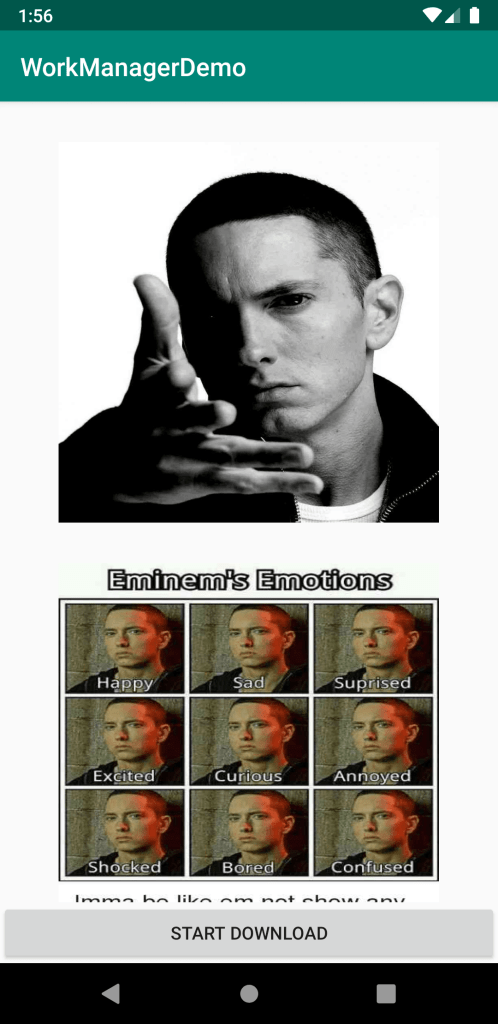
This brings us to the end of our work manager in android tutorial. If you have any problems with the application let me know in the comments below and I’ll be happy to help you out.
You can find the repository for this project here on github: https://github.com/Ayusch/WorkManagerDemo
Published on Java Code Geeks with permission by Ayusch Jain, partner at our JCG program. See the original article here: Using Work Manager in Android with Example Opinions expressed by Java Code Geeks contributors are their own. |