Product Documentation
Abstract
IBM® Verify adds an extra layer of protection to help prevent unauthorized access to your accounts. It provides a second verification step when authentication is required, such as approving a push notification or entering a one-time password (OTP).
Content
This user guide provides the following information for the IBM Verify mobile application:
- Overview
- Two-step verification
- Supported devices
- Install IBM Verify
- Add an authentication method
- Test your authenticator
- Authenticate with IBM Verify
- Manage accounts
- Troubleshooting
- Frequently asked questions
- What is the difference between IBM Verify authentication and OTP?
- Can I use IBM Verify for multiple accounts?
- Can I use IBM Verify on more than one device?
- Can I open the QR code scanner without navigating through the app?
- Can I back up my accounts?
- Why does IBM Verify ask for biometric authentication?
- What should I do if I delete IBM Verify?
- What should I do if my account is locked or I cannot sign in?
- Can I use IBM Verify without an internet connection?
- What should I do if I receive an authentication request I did not initiate?
- What is the difference between an MFA account and a TOTP account in the Accounts list?
IBM Verify adds an extra layer of protection to help prevent unauthorized access to your accounts. It provides a second verification step when authentication is required, such as approving a push notification or entering a one-time password (OTP).
Overview
IBM Verify is a mobile authentication app that provides the second factor when a connected service requires additional verification. With IBM Verify, you can:
- Approve authentication requests from your mobile device.
- Generate one-time passwords for accounts that support a standard authenticator app.
- Manage multiple authentication accounts from a single app.
- Receive alerts when someone attempts to access your account.
- Use device biometrics, such as Face ID, Touch ID, or fingerprint authentication, when supported by your account and device.
Two-step verification
Two-step verification adds a second step to the authentication process to confirm that you are the person trying to access an account. The second step uses your mobile device in addition to your username and password.

IBM Verify supports two authentication methods:
- IBM Verify app - multi-factor authentication (MFA)
IBM Verify sends a push notification to your mobile device when authentication is required. You review and approve or deny the request directly in the app. This method does not require you to type a code. - Authenticator app (OTP) - one-time password (OTP)
IBM Verify generates a temporary one-time password on your mobile device. You enter the code on the verification screen to complete authentication. Use this method for services that support any standard authenticator app.
Two-step verification helps protect your account if your password is compromised because an additional verification step is always required. For more information about configuring authentication factors, see Configuring authentication factors.
Important: The authentication methods available to you depend on the configuration of your organization or online service.
Supported devices
IBM Verify supports the following mobile operating system versions:
- iOS 18.6 or later
- Android 10.0 or later
Install IBM Verify
Install IBM Verify on your mobile device before connecting an account.
- On your mobile device, open the App Store on iOS or the Google Play Store on Android.
- Search for IBM Verify.


iOS Android - Tap Get on iOS or Install on Android.
Add an authentication method
Add an authentication method from the security settings of the account that you want to protect. This step generates the QR code that you use to connect the account to the mobile app.
Complete this procedure for each account that you want to protect.
Note: The exact navigation depends on your organization or online service. The following steps use the IBM Verify portal as an example.
- Sign in to the account you want to protect on a computer.
- Open the account or profile settings.
- Navigate to the security or authentication settings.
- Select the option to add a new authentication method.
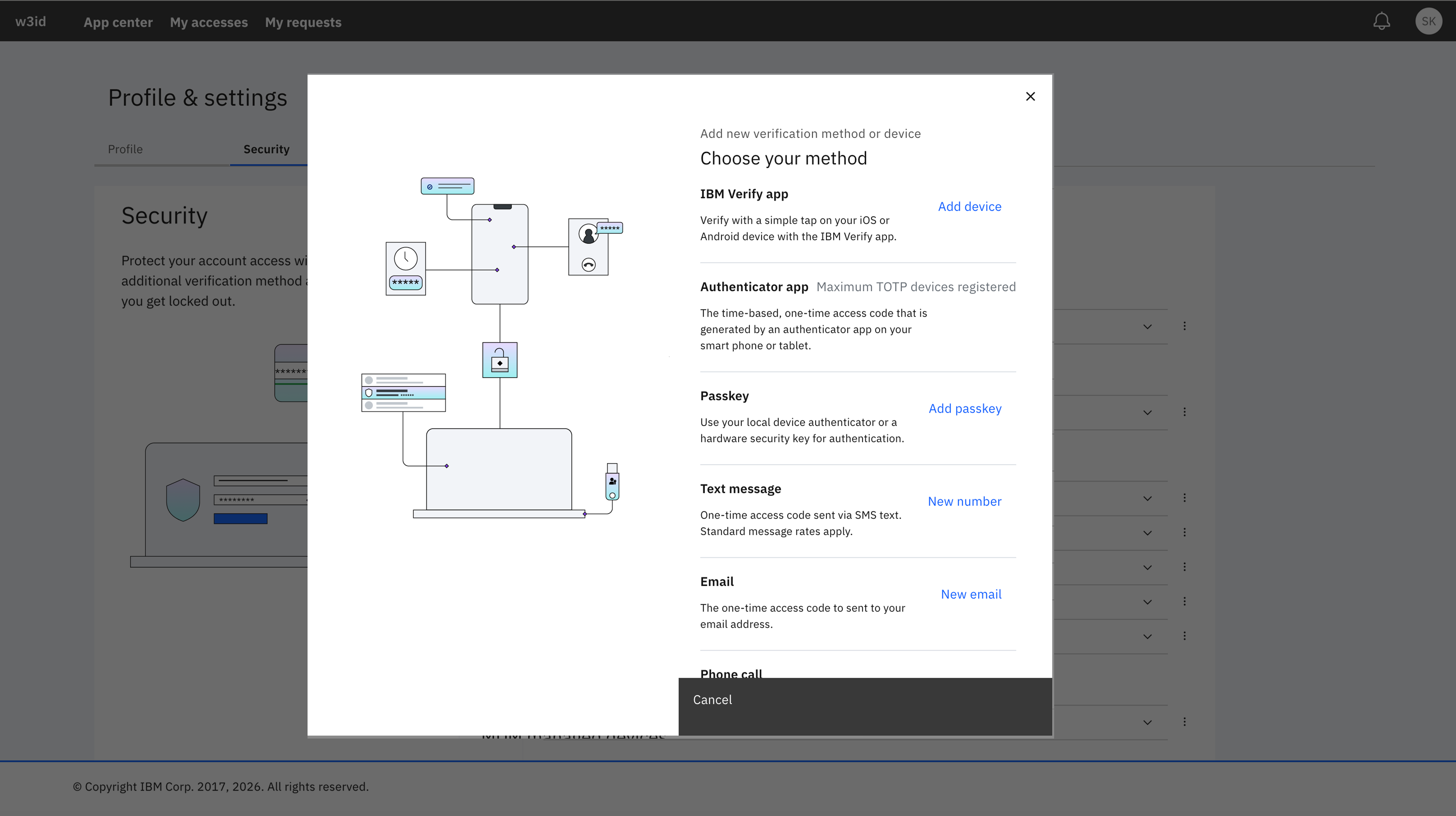
- Choose the authentication method that you want to add.
Authenticator app (OTP)
- Select Authenticator app and click Setup.
- Enter a name for the authenticator app.
- Click Next: Download the app.
- Click Next: Connect your authenticator.
A QR code is displayed in the browser. Keep this screen open. - Open IBM Verify on your mobile device.
- Tap the Scan QR code icon.
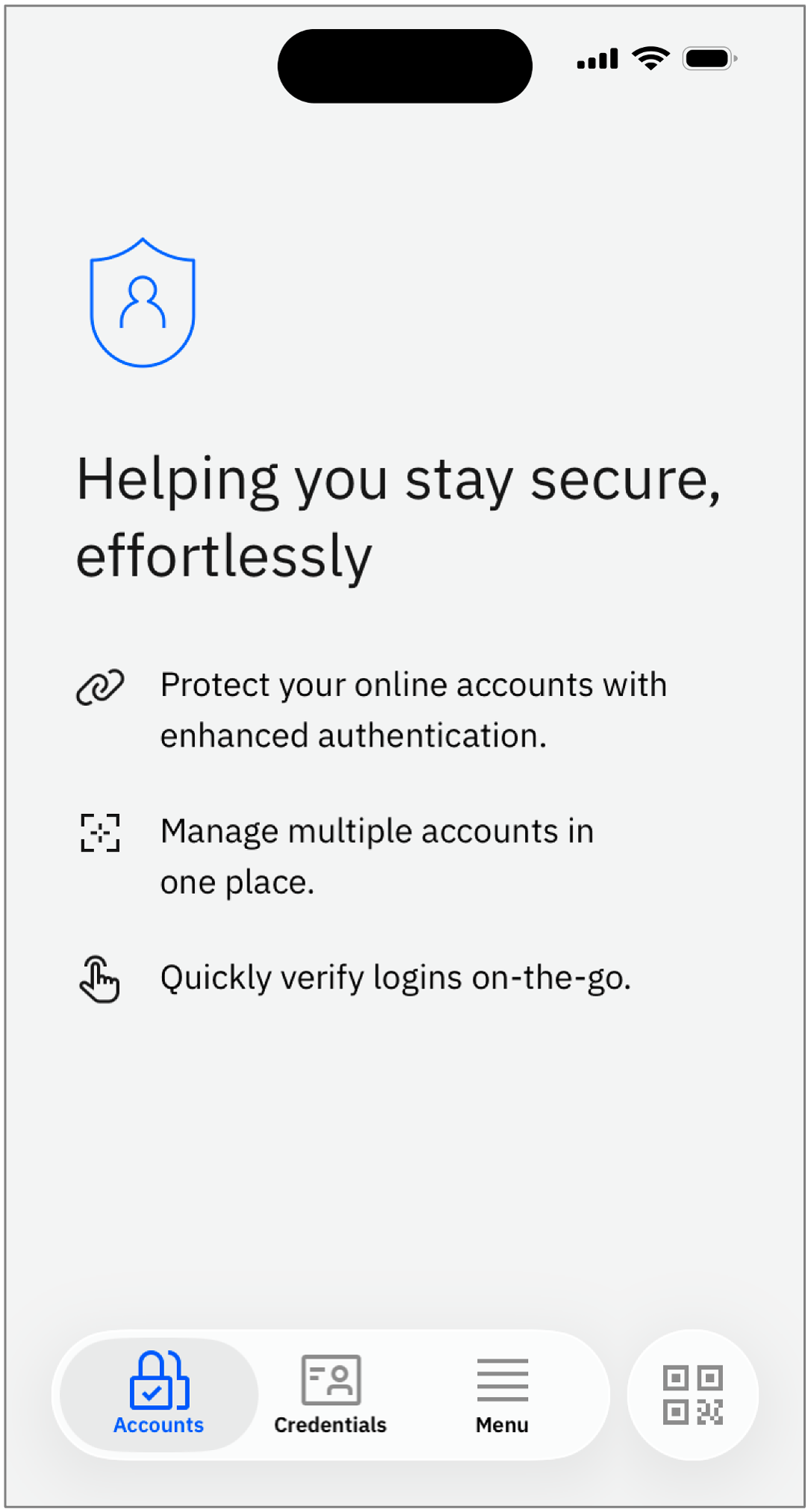
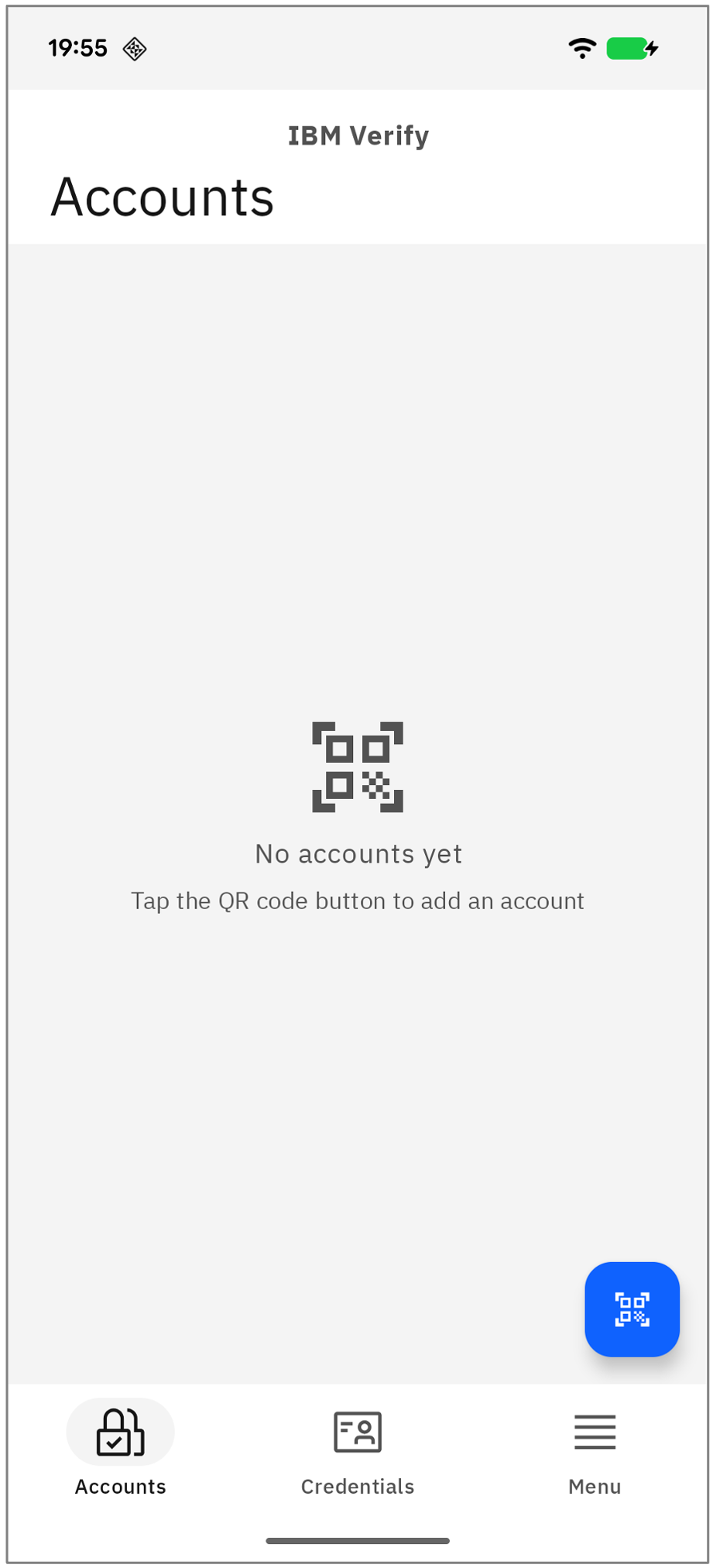
iOS Android
If prompted, allow IBM Verify to access the camera.
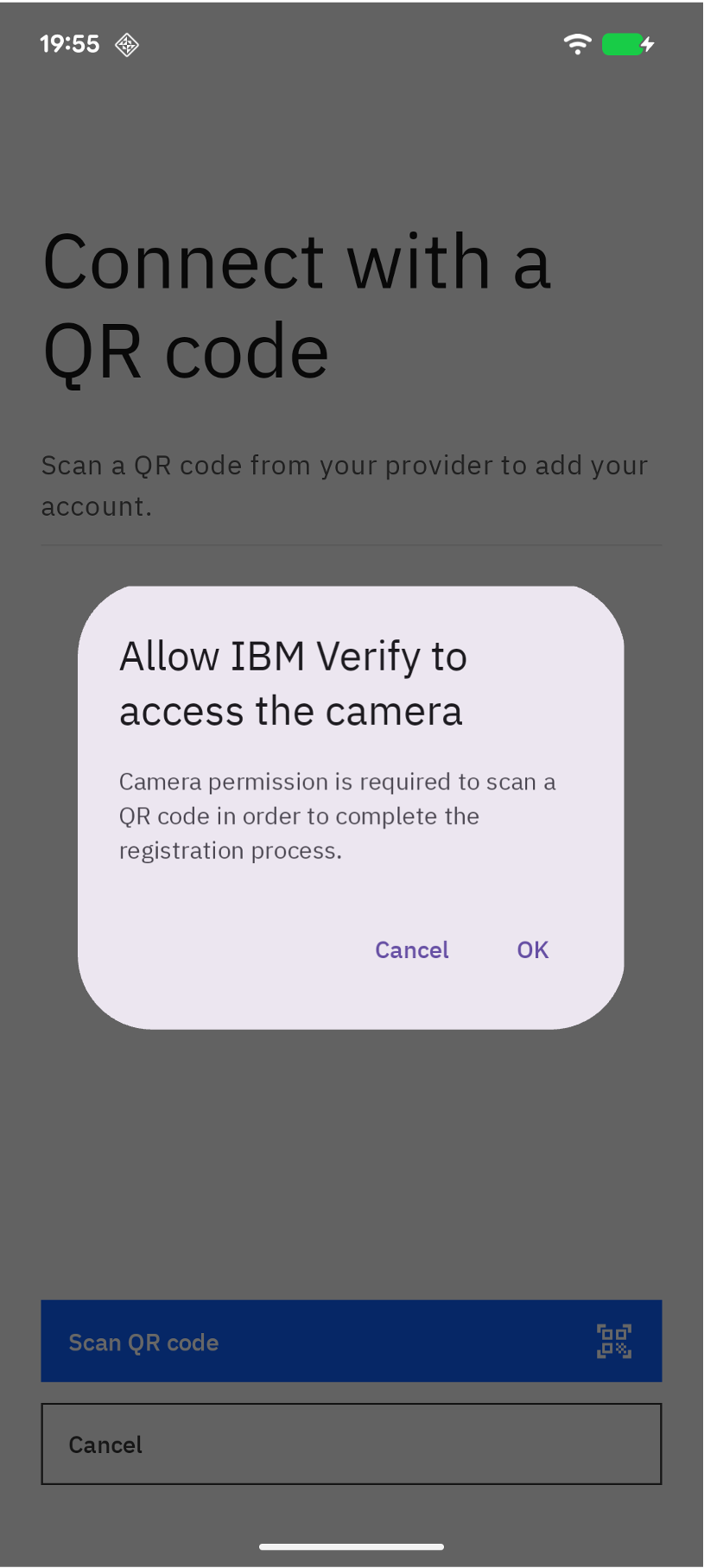
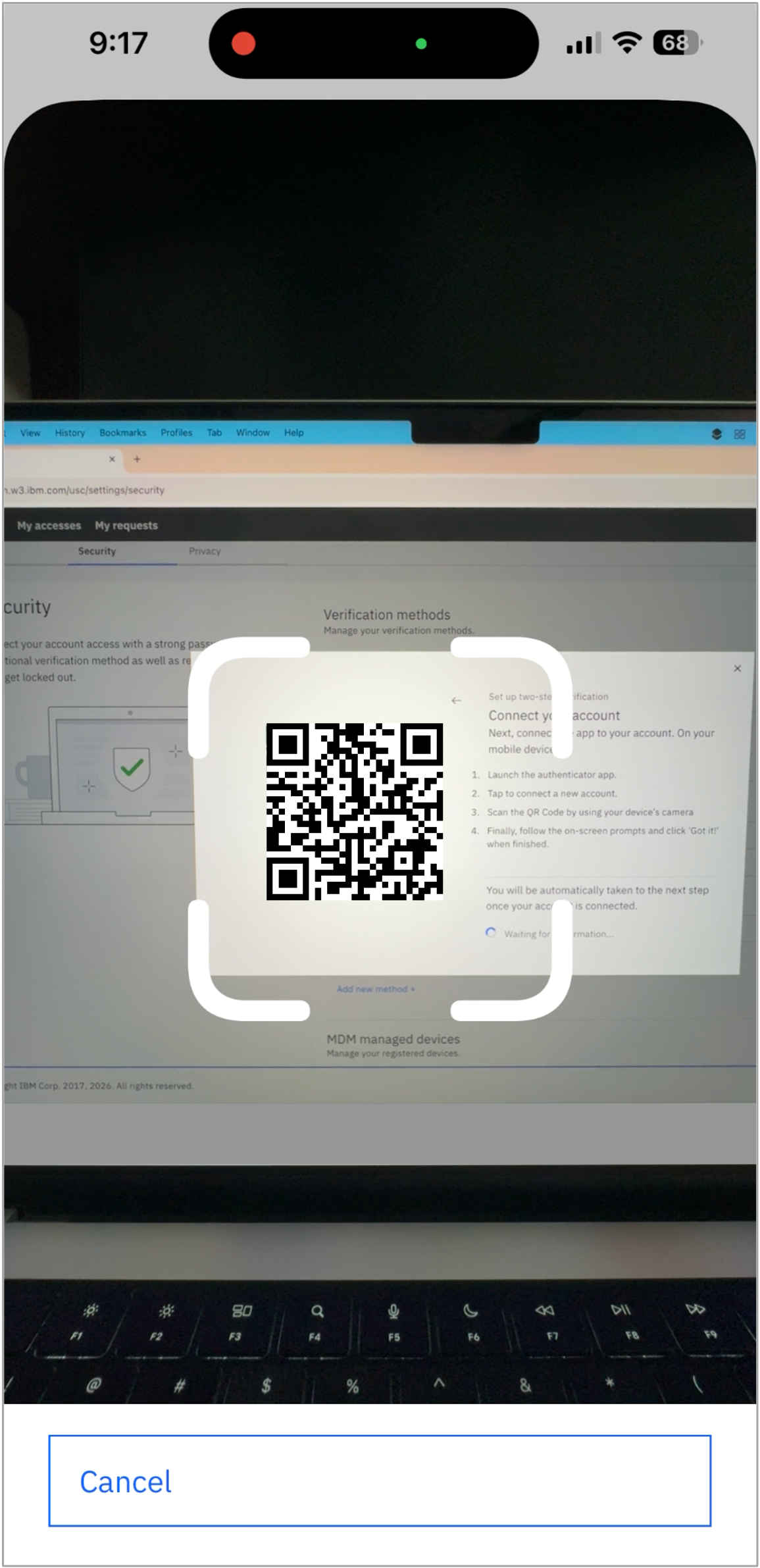
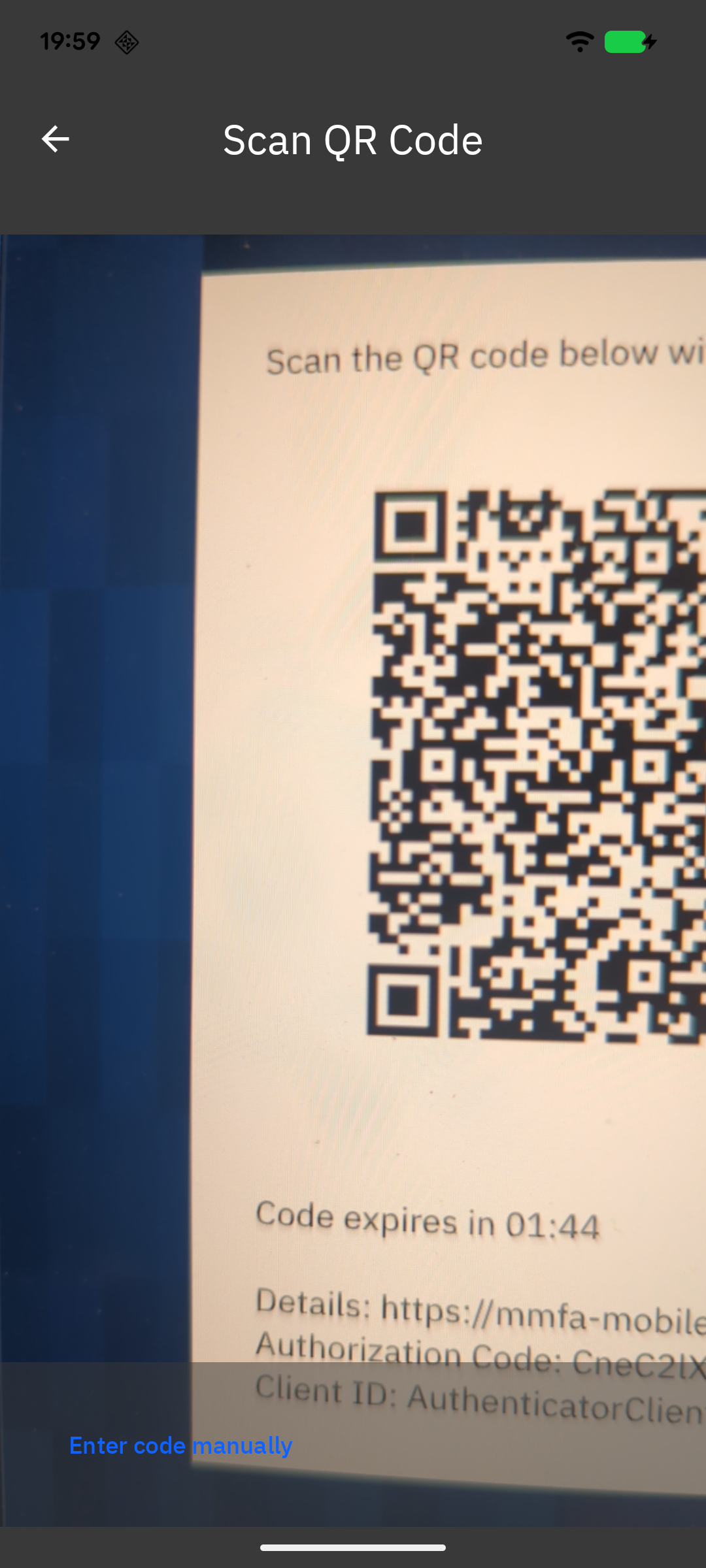
iOS Android - Scan the QR code displayed in the browser.
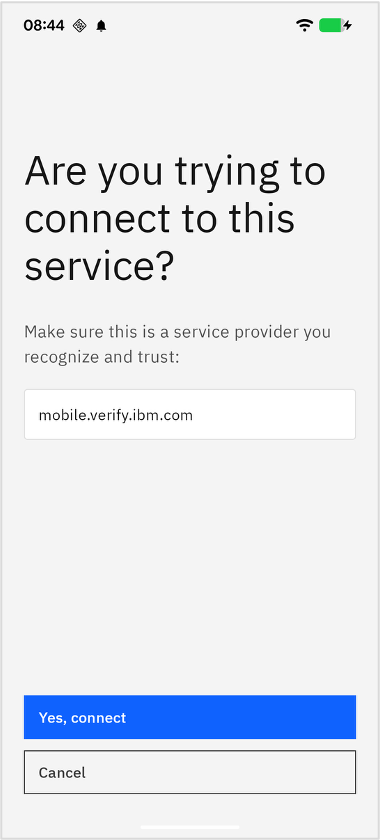
iOS Android - Review the account details and tap Yes, connect.

iOS Android - Tap Done. The OTP account appears in the Accounts list.


iOS Android
IBM Verify app (MFA)
- Select IBM Verify app and click Add device.
- Click Next: Connect your account.
A QR code is displayed in the browser. Keep this screen open. - Open IBM Verify on your mobile device.
- Tap the Scan QR code icon. If prompted, allow IBM Verify to access the camera.
- Scan the QR code displayed in the browser.
- Review the account details and tap Yes, connect.
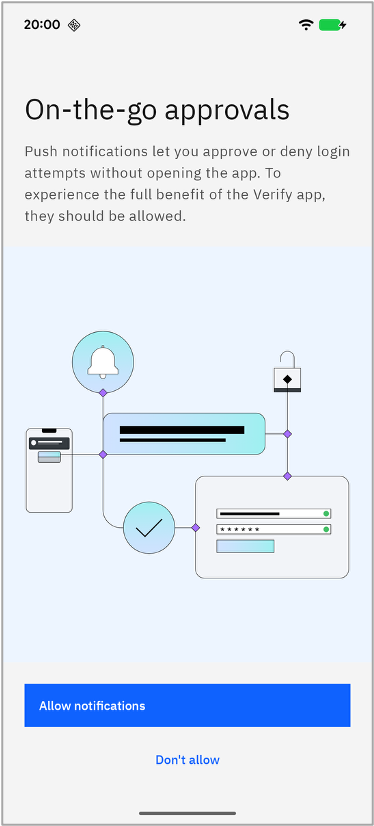
- (Optional) If prompted, tap Allow notifications to receive authentication requests.
If you are not prompted, you can enable notifications manually. On your device, go to Settings > Notifications > IBM Verify and turn on Allow Notifications.
iOS Android - (Optional) If biometrics is available for your account, you can enable Face ID, Touch ID, or fingerprint authentication to quickly verify authentication requests. For more information, see Enable or disable biometrics.


iOS Android - Tap Done. The MFA account appears in the Accounts list.
Note: In some configurations, the server automatically adds a TOTP account during registration. If a blue notification bar appears on the Success screen, a TOTP account has been added alongside the MFA account.

iOS Android
Test your authenticator
To verify the connection, return to the browser and complete the following steps:
- Click Next: Test your authenticator.
- Open the newly added account in the IBM Verify mobile app.
- Enter the passcode displayed in IBM Verify into the Access code field in the browser.
- Click Next: Verify to confirm the account was added correctly.
A success message is displayed. - Click Done.
Authenticate with IBM Verify
After you connect an account, IBM Verify provides the second factor whenever a connected service requires additional verification - such as signing in, approving a transaction, or confirming a sensitive action. The steps depend on whether your account uses IBM Verify authentication or a one-time password.
Note: Connect the account to IBM Verify before you can use it for authentication.
Approve an authentication request
Use this method when the service asks you to verify the request with IBM Verify.
- Open the website or application that requires authentication.
- Enter your username and password and select Continue.
- Select IBM Verify if you are asked to choose an authentication method.
- When IBM Verify sends a push notification to your mobile device, tap the notification to open the authentication request.
If you do not receive a notification, open IBM Verify and tap the pending request in the Accounts tab.
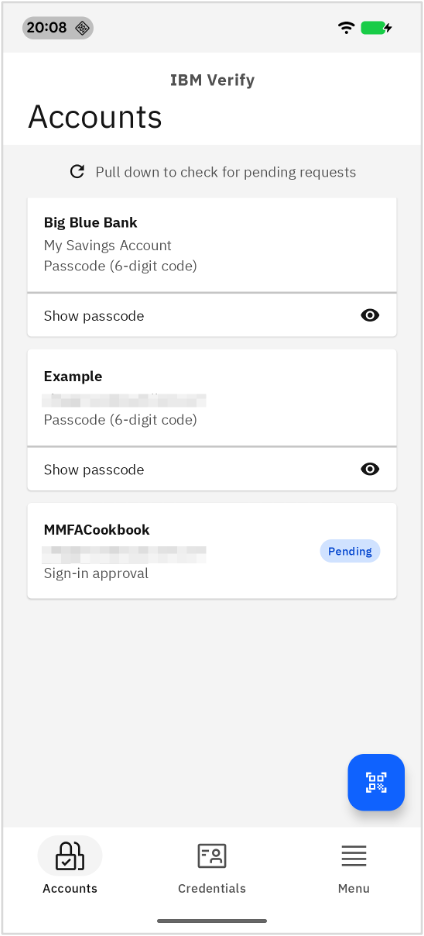
iOS Android - If the service displays a QR code instead of sending a push notification, open IBM Verify, tap Scan QR code, and scan the code displayed on the sign-in page.
- When IBM Verify sends a push notification to your mobile device, tap the notification to open the authentication request.
- Review the request details carefully - including the service name, time, and any transaction information that is shown - and then tap Approve to confirm.
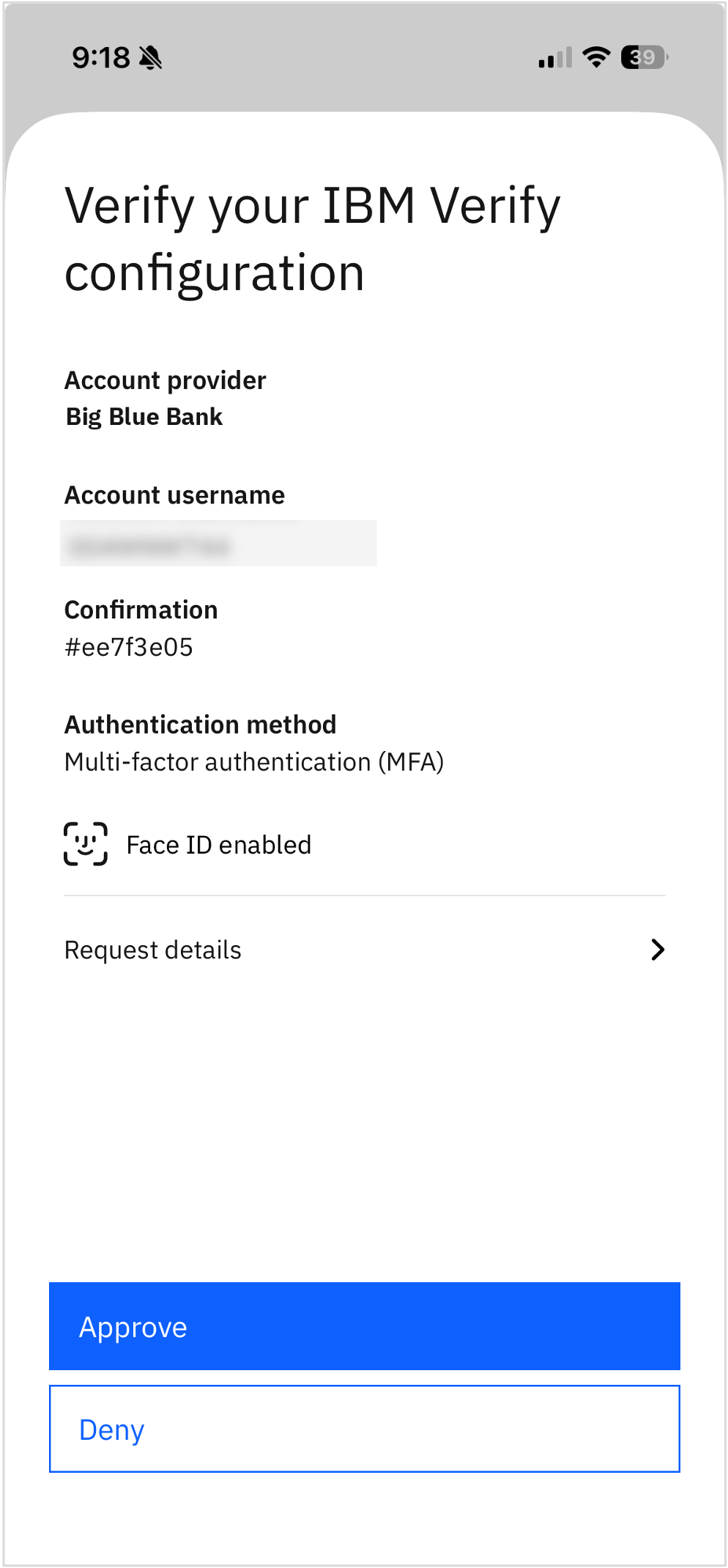
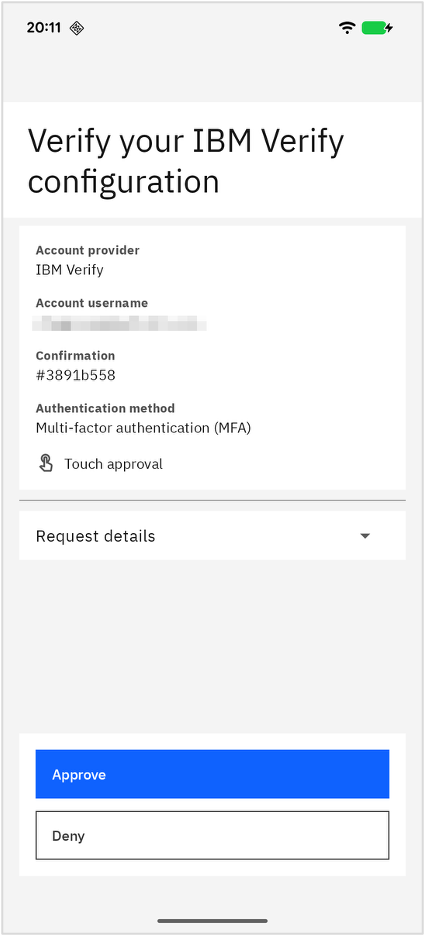
iOS Android - (Optional) If prompted, approve the sign-in request by using your device biometrics.
Important: Only approve requests that you initiated. If you receive a request you did not expect, tap Deny and select This request is suspicious to report it. This alerts your organization that an unauthorized sign-in attempt may have occurred.
For more information, see Configuring authentication factors.
Verify with one-time password
Use this method when the service asks you to enter a code from an authenticator app.
- Open the website or application that requires authentication.
- Enter your username and password.
- Select Authenticator app or the equivalent OTP option.
- Open the IBM Verify app and select the account that you are authenticating with.
Note: After you open the app, you are prompted to complete a biometric challenge before the passcode is displayed. This prompt appears only once.

iOS Android - Enter the passcode displayed in IBM Verify into the code field on the screen.
- Continue the authentication process.
Note: Time-based passcodes (TOTP) refresh automatically at regular intervals. By default, passcodes refresh every 30 seconds unless a different refresh period was configured when the account was created. If a passcode expires before you enter it, use the new passcode displayed in IBM Verify.
Manage accounts
Use the Accounts tab in IBM Verify to view and manage connected accounts.
Note: Changes that are made in IBM Verify affect only the mobile app. Removing an account from IBM Verify does not remove the authentication method from the online service.
Change an account name
- Open IBM Verify and tap Accounts.
- Select the account.
- Tap Edit.


iOS Android - Update Account name or Display username.
- Tap Save details.
Back up OTP accounts (iOS)
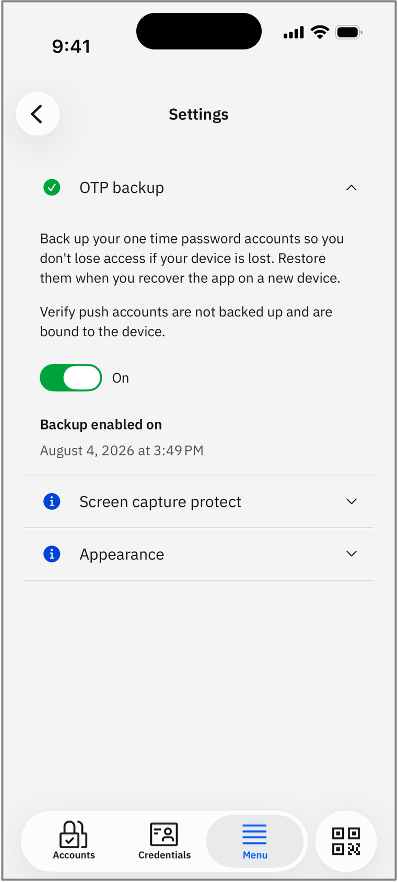
You can back up OTP accounts to iCloud so they can be restored when IBM Verify is reinstalled on a new or reset device.
Important: MFA accounts cannot be backed up using this feature. OTP backup is available on iOS only.
- Open IBM Verify.
- Go to Menu > Settings.
- Enable OTP backup.
iOS
Reorder accounts
- Open IBM Verify and tap Accounts.
- Touch and hold an account, then drag it to the desired position.


iOS Android
Remove an account
Important: Before removing an account from IBM Verify, make sure that you have another way to access the online service. Removing your only authentication method can prevent you from signing in.
Remove the authentication method from the online service first, then remove the account from IBM Verify.
- Sign in to the online service and open the account or security settings.
- Locate the authentication or sign-in methods.
- Remove IBM Verify or the authenticator account.
- Open IBM Verify and tap Accounts.
- Select the account.
- Scroll to the bottom and tap Remove account.
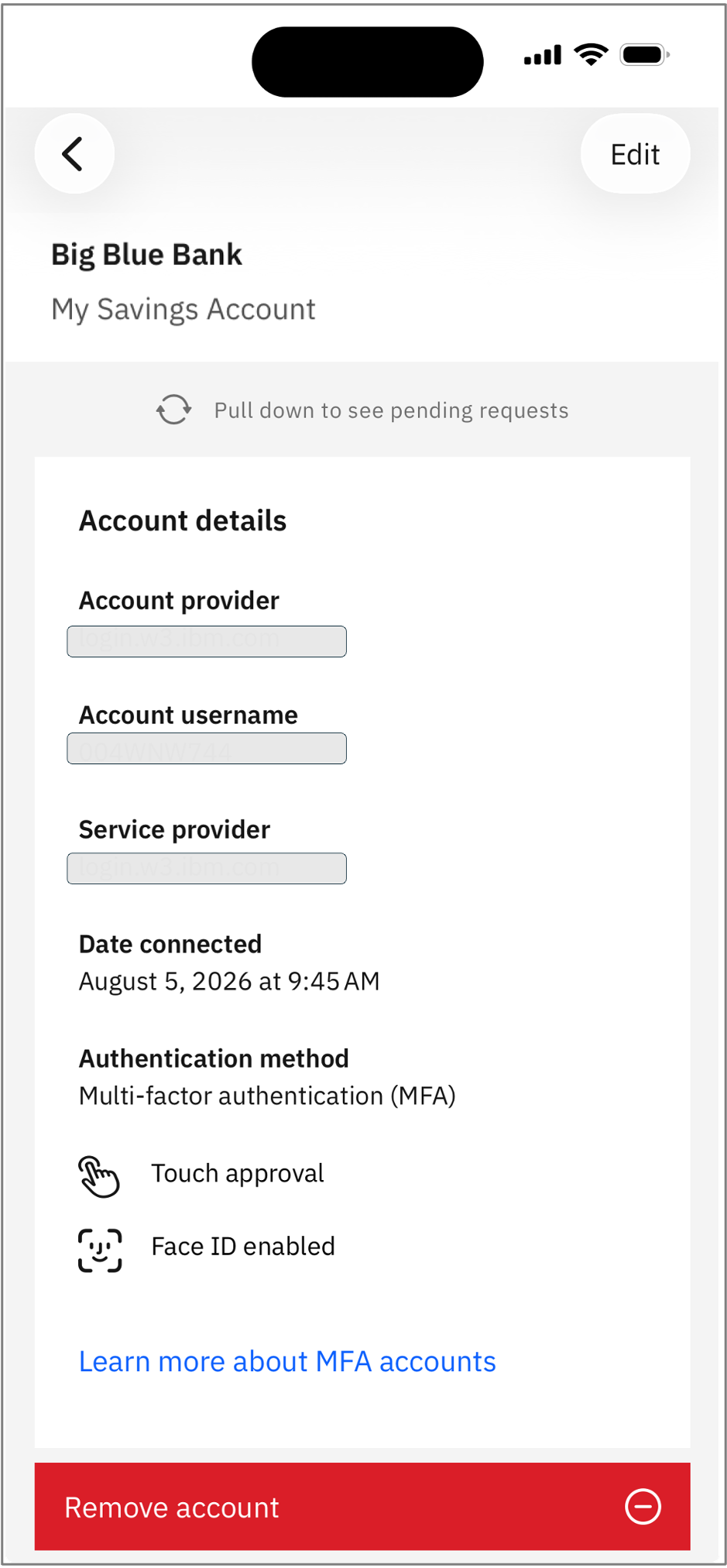
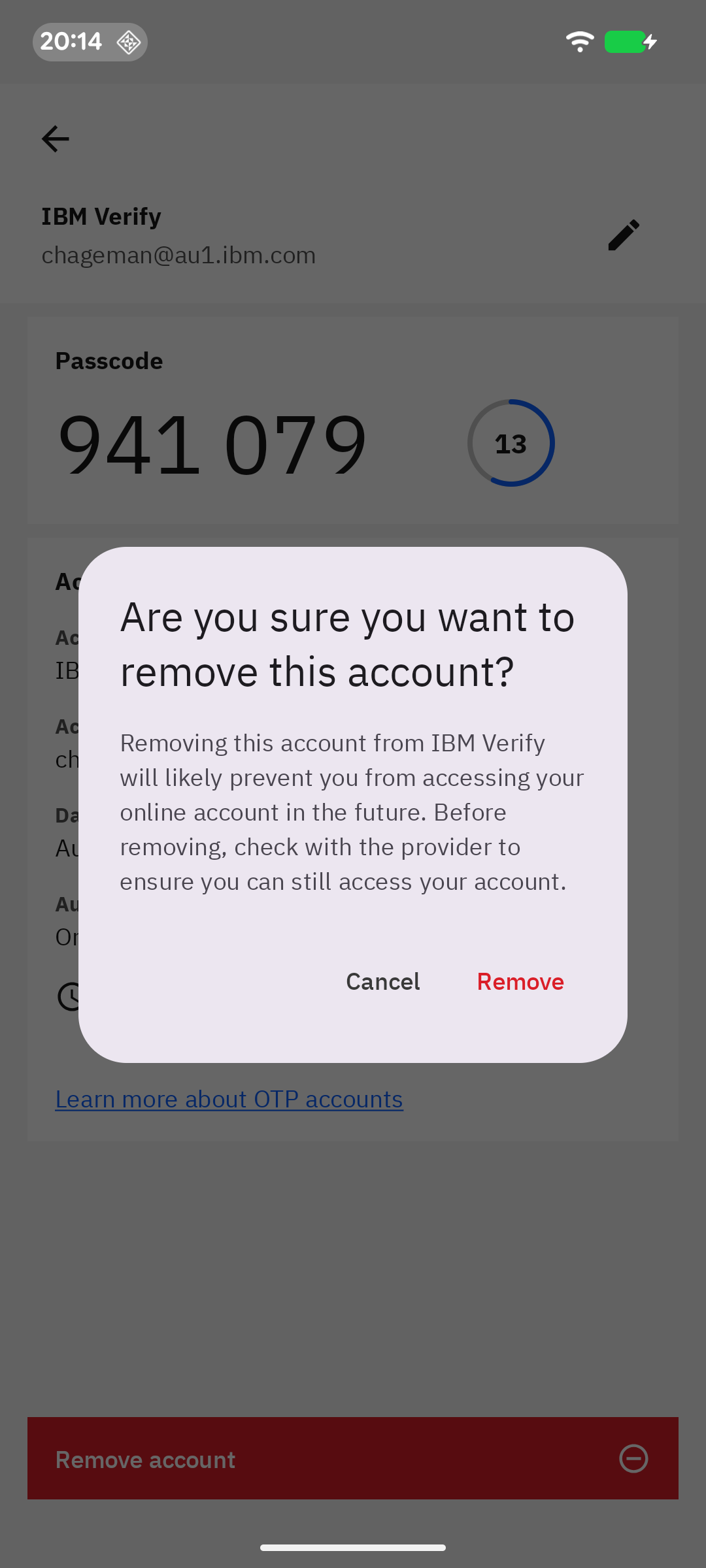
iOS Android - Tap Remove to confirm.
Enable or disable biometrics
Biometric authentication uses a supported device feature - such as Face ID, Touch ID, or fingerprint authentication - to verify you when IBM Verify requires additional device confirmation.
- For iOS devices:
- Open Settings.
- Go to Apps > IBM Verify.
- Turn Face ID / Touch ID on or off.
- For Android devices:
- Open IBM Verify.
- Go to Menu > Settings.
- Turn Biometric authentication on or off.
Troubleshooting
Use the following guidance for common problems when setting up or using IBM Verify.
I cannot find the QR code
Make sure that you have added an authentication method from the security settings of the account you want to protect. The QR code is displayed during that setup process.
For more information, see Add an authentication method.
I cannot scan the QR code
- Make sure that IBM Verify has permission to use your device camera. On your device, go to Settings > Privacy > Camera and enable access for IBM Verify.
- Make sure that you are scanning a QR code that is generated during the IBM Verify or authenticator app setup process. IBM Verify cannot process generic QR codes or URLs.
- Make sure that the QR code is displayed clearly on the screen and is not obscured, blurry, or too small. Increase the browser zoom level if needed.
- If you cannot scan the code at all, use the manual setup option instead. Return to the setup screen in your browser and look for an option to enter a setup key or code manually. For more information, see your service provider's documentation.
I did not receive an authentication notification
- Make sure that notifications are enabled for IBM Verify. On your device, go to Settings > Notifications > IBM Verify and turn on Allow Notifications.
- Make sure that your mobile device has an active internet connection.
- On Android, disable battery optimization for IBM Verify. Battery optimization can prevent the app from receiving push notifications promptly. On your device, go to Settings > Apps > IBM Verify > Battery and select Unrestricted.
- Open IBM Verify and check the Accounts tab for a pending request.
- If no request appears, restart the authentication process.
My OTP code does not work
- Make sure that you selected the correct account in IBM Verify.
- Enter the current passcode displayed in IBM Verify. Time-based passcodes usually expire every 30 seconds.
- Make sure the date and time on your mobile device are set to automatic.
- IBM Verify only supports OTPs with 6 or 8 digits. If your account generates a code of a different length, contact your service provider.
I cannot approve an authentication request
Open IBM Verify directly and check the Accounts tab for a pending request. If no request appears, restart the authentication process.
If the problem continues, verify that the correct account is connected and that the device has an active internet connection.
I lost or replaced my phone
Take the following steps as soon as possible.
If you still have access to your account:
- Sign in to the affected account on a computer.
- Navigate to the security or authentication settings.
- Remove or unregister the lost device from the authentication methods.
- On your new or reset device, reinstall IBM Verify and re-enroll following the Add an authentication method procedure.
Important: MFA accounts cannot be restored from backup. They must be re-enrolled manually after removing the lost device from the account's authentication methods.
If you cannot access your account:
Contact your account administrator or service provider immediately. They can revoke access for the lost device and help you regain entry to your account.
Note: For account-specific recovery, contact the administrator or service provider that manages your account. IBM Verify cannot recover access to customer accounts.
Frequently asked questions
What is the difference between IBM Verify authentication and OTP?
IBM Verify authentication sends a push notification to your mobile device. You approve or deny the request directly in the app without entering a code. OTP authentication generates a temporary passcode in IBM Verify that you enter manually on the verification screen. Your organization or service determines which method is available.
Can I use IBM Verify for multiple accounts?
Yes. IBM Verify can manage multiple connected accounts. Each account must be set up and connected separately.
Can I use IBM Verify on more than one device?
Yes. You can install IBM Verify on multiple devices. Each device must be registered separately with the account or service you want to protect.
Can I open the QR code scanner without navigating through the app?
You can launch the QR code scanner directly from the app icon's context menu, without opening IBM Verify first. Touch and hold the IBM Verify app icon on your home screen, then select Scan QR code from the menu that appears.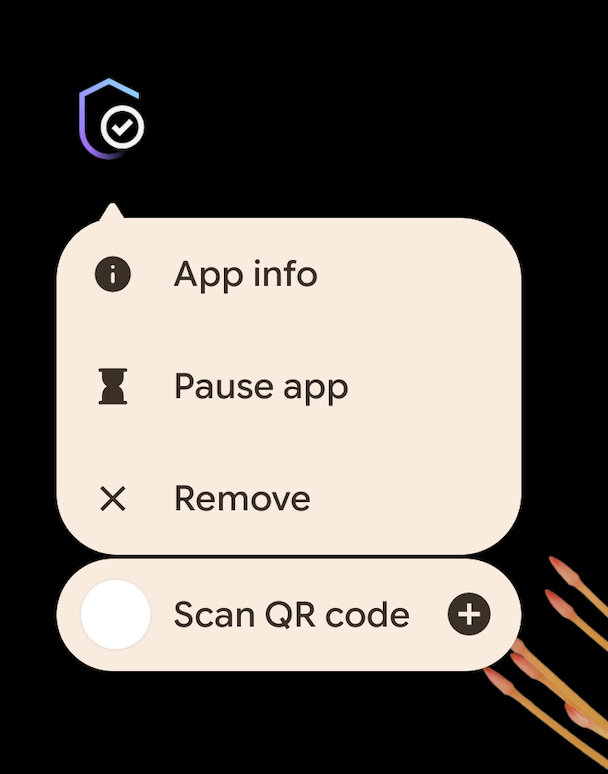
Android
You can also skip the QR code introduction screen so that subsequent scans open the scanner immediately. Inside the app, navigate to the QR code scanner and enable the option to skip the introduction screen on future visits. On Android, this option is available from version 3.1.3.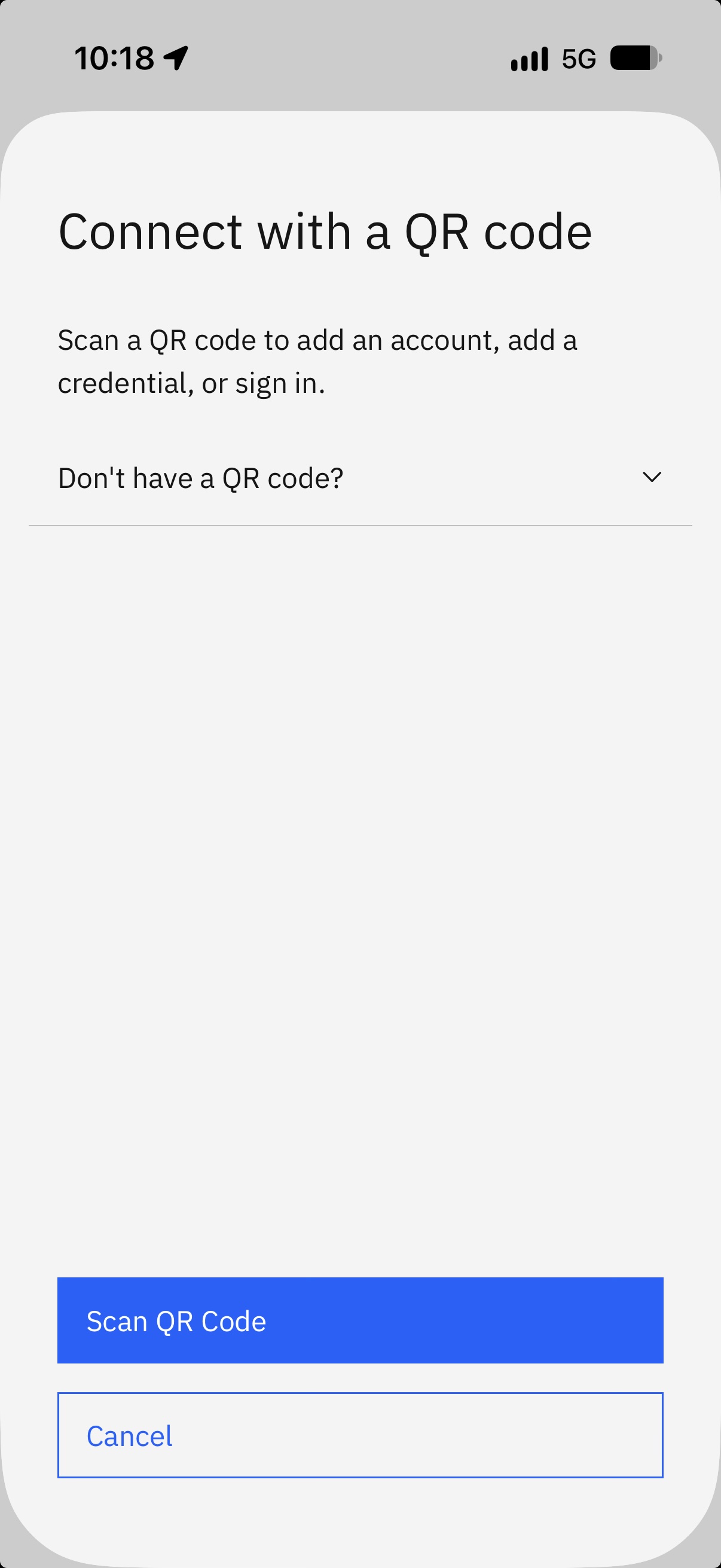

iOS Android
Can I back up my accounts?
OTP accounts can be backed up to iCloud on iOS and restored when IBM Verify is reinstalled. MFA accounts cannot be backed up using this feature.
Why does IBM Verify ask for biometric authentication?
Your organization or service may require device biometrics as an additional verification step. IBM Verify supports Face ID, Touch ID, and fingerprint authentication where available on the device.
Your biometric data never leaves the device. Authentication is handled entirely by your device's operating system. Your fingerprint, face, or other biometric data is never sent to, stored by, or accessible to IBM Verify or your organization. Your device's secure hardware performs the biometric match locally and returns the result to the app.
What should I do if I delete IBM Verify?
Reinstall IBM Verify and reconnect your accounts. If you previously enabled OTP backup on iOS, you can restore your OTP accounts from iCloud.
What should I do if my account is locked or I cannot sign in?
Contact the administrator or service provider that manages your account. IBM Verify cannot change account credentials or recover access to accounts managed by another service.
Can I use IBM Verify without an internet connection?
OTP (one-time password) accounts work fully offline - IBM Verify generates passcodes locally on your device without needing a network connection. MFA (push approval) accounts require an active internet connection on both your device and the service initiating the request. If your device is offline and you need to authenticate with an MFA account, connect to a network and try again, or contact your service provider about alternative access options.
What should I do if I receive an authentication request I did not initiate?
Tap Deny and select This request is suspicious to report the request. This alerts your organization that an unauthorized sign-in attempt may have occurred. Do not approve requests you did not initiate, even if the request appears to come from a service you use.
What is the difference between an MFA account and a TOTP account in the Accounts list?
An MFA account appears when you enrolled using the IBM Verify app method. It receives push notifications and shows pending approval requests. A TOTP account appears when you enrolled using the Authenticator app method, or when one was added automatically alongside an MFA account during registration. TOTP accounts display a rotating numeric passcode that you enter manually. Both types can coexist in the Accounts list.
Additional help
Contact IBM Support: https://www.ibm.com/support
Was this topic helpful?
Document Information
Modified date:
18 September 2026
UID
swg27048979
