Nano Banana Pro can help you create PPT cover, background, section-divider, and presentation-graphic image assets. The practical workflow is to brief the slide, generate a few visual variations, download the selected image, and finish the editable title and layout in PowerPoint or Google Slides.
If your project moves between research, writing, images, and other AI tasks, GlobalGPT keeps those model routes in one workspace. Use it as an entry point for the image step, then keep the presentation editor responsible for editable text, slide masters, and the final deck.
Quick answer: what can Nano Banana Pro do for a PPT?
Nano Banana Pro: model identity and route choices
Google’s model documentation maps Nano Banana Pro to Gemini 3 Pro Image with the API model ID gemini-3-pro-image. The official pricing page checked on September 30, 2026 lists the Standard API route at $2.00 per 1M text/image input tokens, $12.00 per 1M text and thinking output tokens, and $120.00 per 1M image output tokens; its table translates that image output to about $0.134 at 1K/2K and $0.24 at 4K. The captured Pro row marks Free Tier as not available. The image-generation documentation separately lists image output options such as 1K, 2K, and 4K and shows API examples using a 16:9 aspect ratio. These API facts describe the developer route; they do not prove that every consumer or third-party UI exposes the same controls.
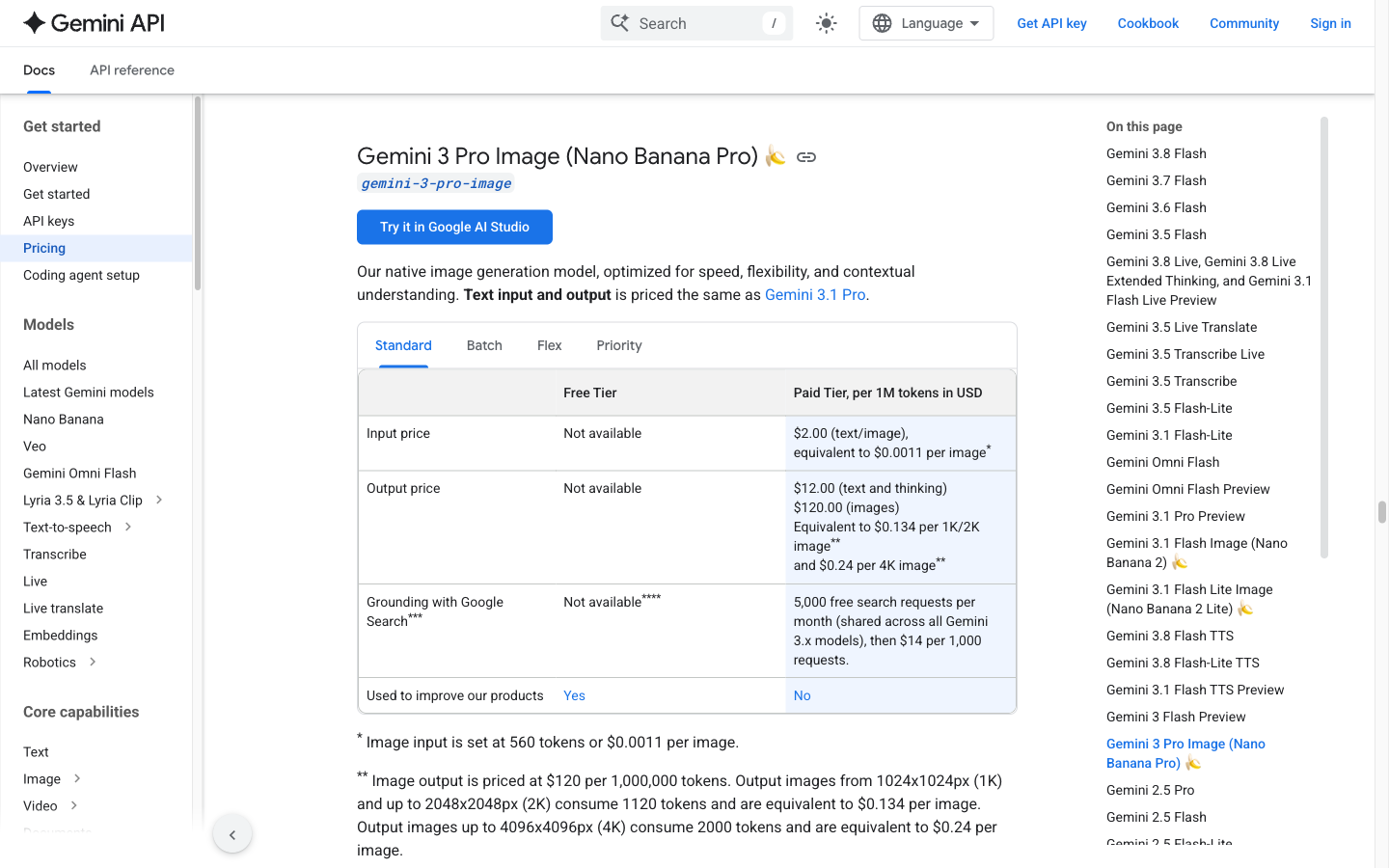
Use this image to distinguish an API image-output estimate from a complete request bill or a third-party credit balance.
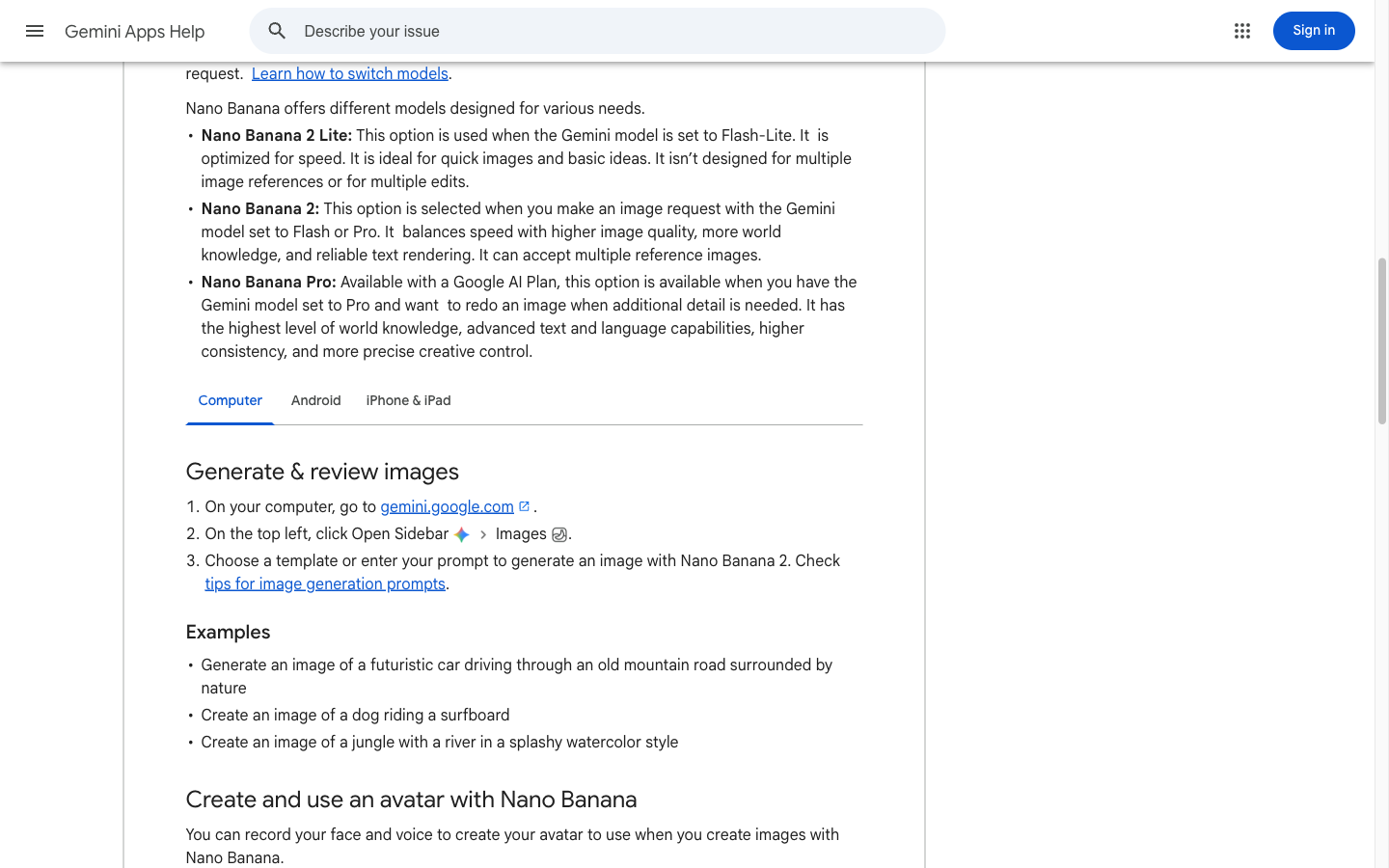
Choose the consumer route when you want an app workflow, then reserve Pro for a later refinement pass when your plan exposes it.
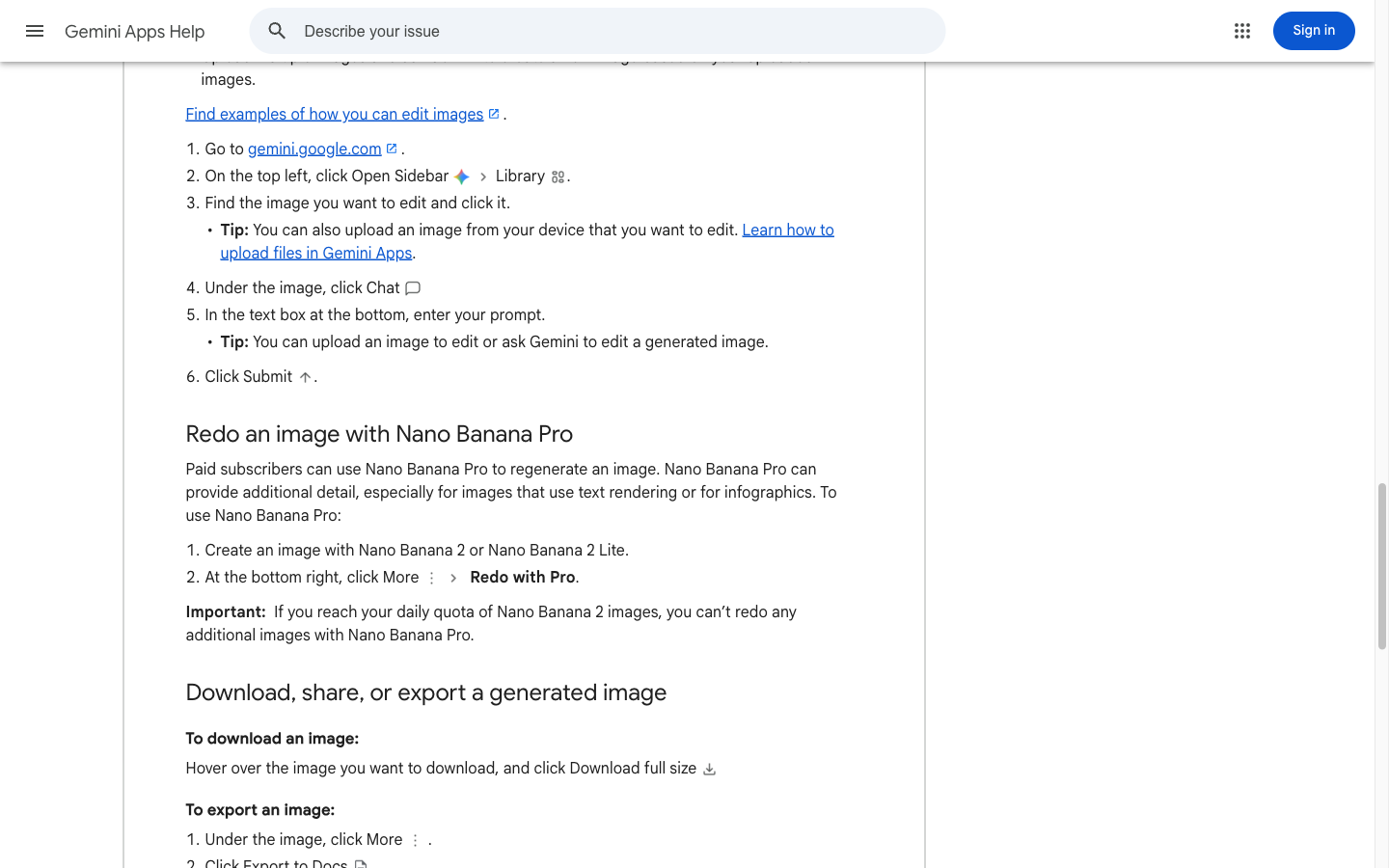
This is a route explanation, not a generated slide result; keep the first pass and the refinement pass conceptually separate.
Google’s API pricing page checked on September 30, 2026 lists the Standard Gemini 3 Pro Image route at $2.00 per 1M text/image input tokens, $12.00 per 1M text and thinking output tokens, and $120.00 per 1M image output tokens. Its table gives equivalents of about $0.134 per 1K/2K image and $0.24 per 4K image, while the Free Tier cell is marked Not available. Image input and other request components are billed separately, so these are not a complete request total, GlobalGPT credits, or a per-deck budget.
After you have a brief, open the GlobalGPT Nano Banana Pro workspace to try the image step. Do not confuse a generated PNG/JPEG/WebP asset with an editable presentation file.
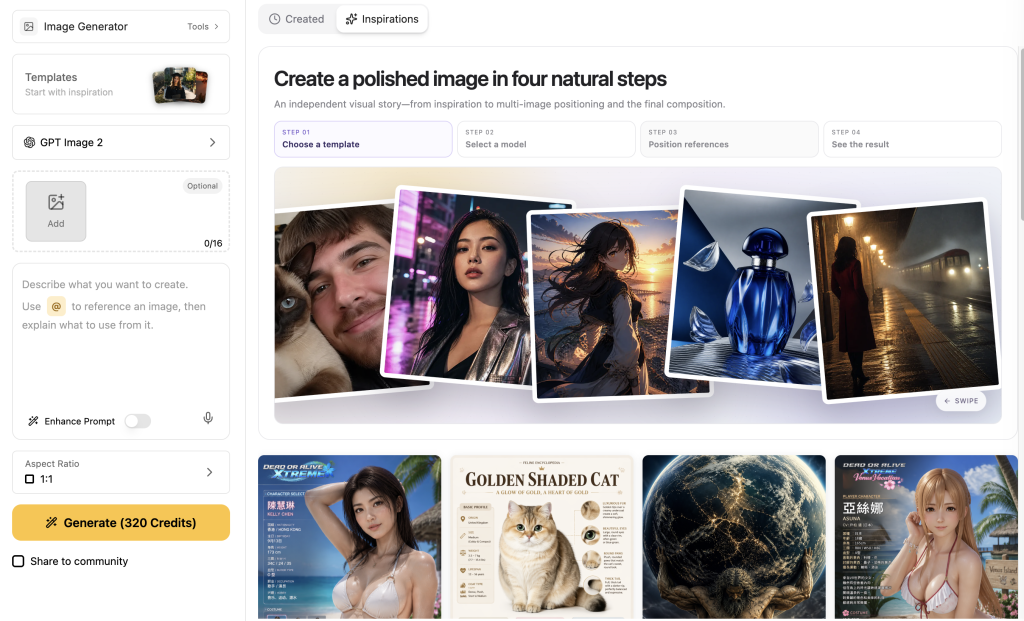
In the current public GlobalGPT interface checked on September 30, 2026, model choice, the reference-image area, Prompt, Enhance Prompt, aspect ratio, and resolution appear in one workspace. The initial controls showed Auto and 1K; the opened menus listed 1K, 2K, and 4K resolutions plus Auto, 1:1, 2:3, 3:2, 4:3, 16:9, and 9:16 ratios. That makes the page useful for setting up a widescreen brief, while account-specific credits and availability still need to be confirmed before generation.
What makes a useful PowerPoint cover?
A cover is a navigation surface for the deck, so the image should leave the title somewhere predictable and readable. Start with the slide’s job before choosing a visual style.
- Choose one focal subject or shape, then reserve a calm title zone on the opposite side.
- Brief a 16:9 widescreen canvas when the deck will use a standard widescreen layout.
- Use a small palette with a named contrast relationship, such as dark navy background plus warm white title area.
- Ask for edge-safe composition so important shapes do not sit under a crop, logo, or title box.
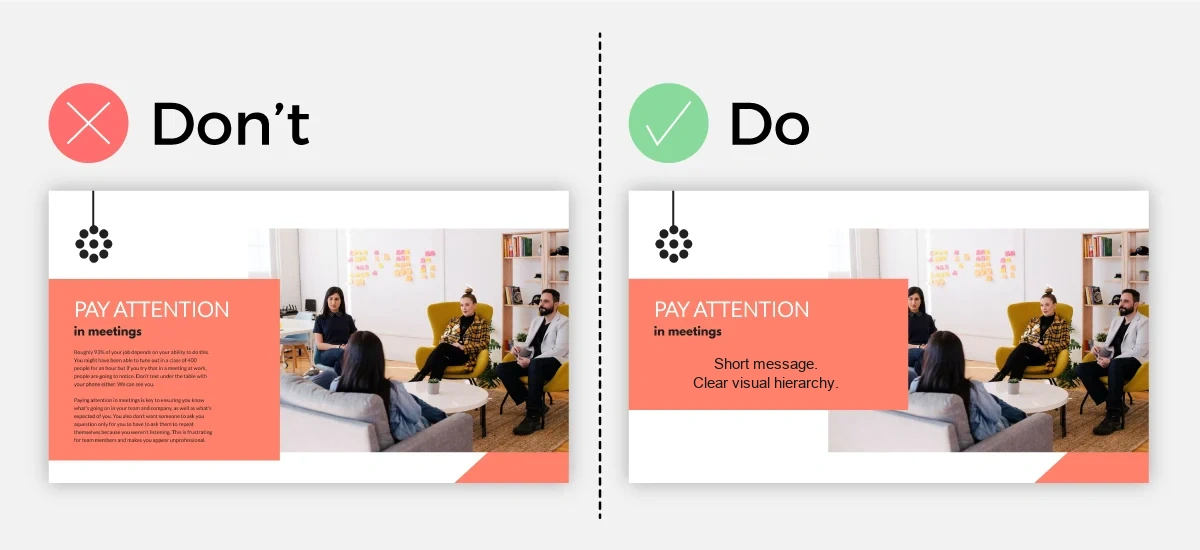
- Keep the cover simpler than an infographic: the title, subtitle, and one visual idea should be easy to scan.
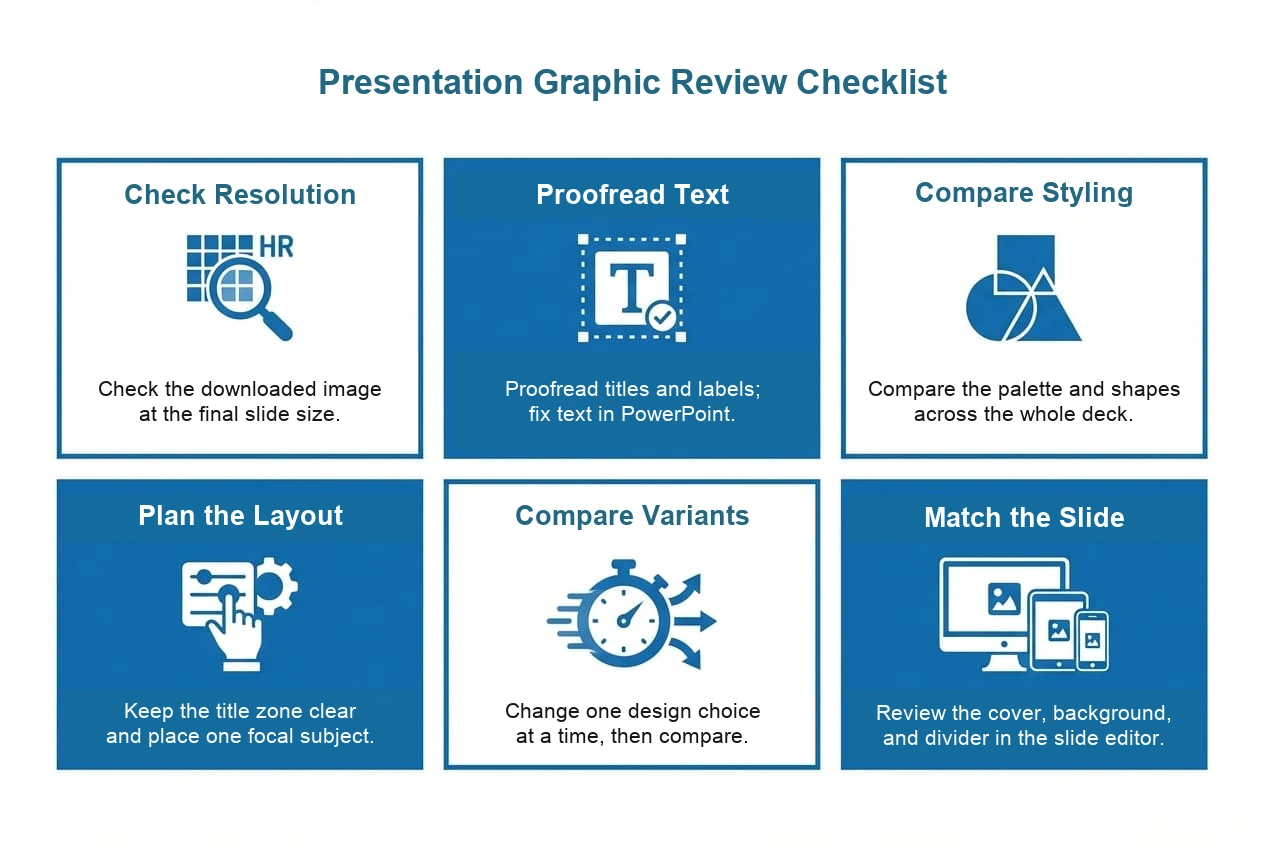
How to create PPT covers and presentation graphics step by step
1. Brief the slide before you write the prompt
Write down the audience, slide purpose, title length, mood, brand colors, visual subject, and where the title must remain clear. If the title is long or legally important, plan to typeset it in PowerPoint instead of asking the image model to carry the whole sentence.
2. Choose the canvas and output target
PowerPoint and Google Slides commonly use a 16:9 widescreen canvas. Treat that as your composition brief, then check the route you are using. In the GlobalGPT interface checked on September 30, 2026, Auto and 1K were the initial controls, with opened menus listing the 16:9 option and 1K/2K/4K resolutions. The API route documents 16:9 together with 1K/2K/4K image-size choices; these are route-specific controls, so confirm the menu shown in your account before generating.
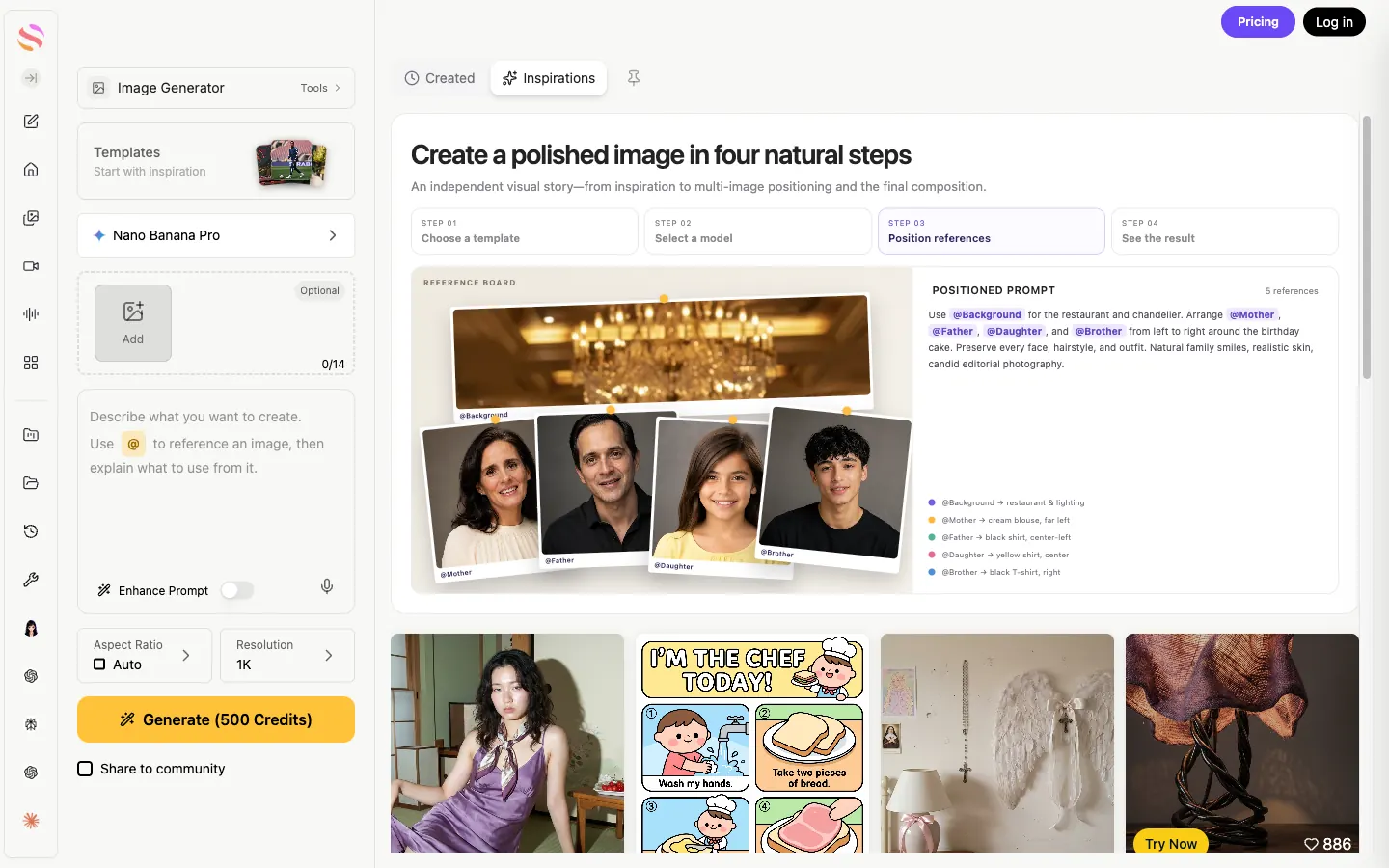
The interface supports a brief-first workflow; check the visible counter and credits label against your account instead of treating them as a tested limit or bill.
3. Write a structured prompt
Describe the visual hierarchy in the order a designer would make decisions: subject, composition, title zone, palette, lighting, texture, aspect ratio, and constraints. Say what must stay empty as clearly as what should be drawn.

4. Add a reference image and generate a small set of variants
If the tool accepts reference images, use one that shows the visual language you want to continue: palette, geometry, light, or illustration treatment. Keep the reference’s role explicit. Ask for three controlled variations that change one decision at a time, such as subject placement or background texture, so you can compare them in the deck.
On the Gemini Apps route, Google’s current help flow starts with Nano Banana 2 or Nano Banana 2 Lite. Paid subscribers can open More → Redo with Pro when an image needs extra detail, text rendering, or infographic control. If the Nano Banana 2 daily quota is exhausted, another Pro redo is unavailable, so this consumer workflow is different from calling the Pro API model directly.
- Variant A: subject on the right, empty title area on the left.
- Variant B: subject on the left, empty title area on the right.
- Variant C: quiet background with a small focal mark and maximum title space.
5. Download the image, insert it into PowerPoint, and proof the slide
Save the selected image with a useful filename, such as strategy-cover-v3-16x9.png. In PowerPoint, choose Insert → Pictures, place the image on the slide, crop it to the slide bounds, and add the editable title and subtitle. Zoom out to check the visual hierarchy, then view the slide at presentation size to catch low contrast or edge crops.
- Generate the image asset and compare variants at the same zoom level.
- Download the selected asset; do not assume the browser preview is the final file.
- Insert the image into PowerPoint or Google Slides on a 16:9 slide.
- Add or correct the title, subtitle, logo, and source line in the editor.
- Check contrast, crop, file dimensions, and readability in slideshow mode.
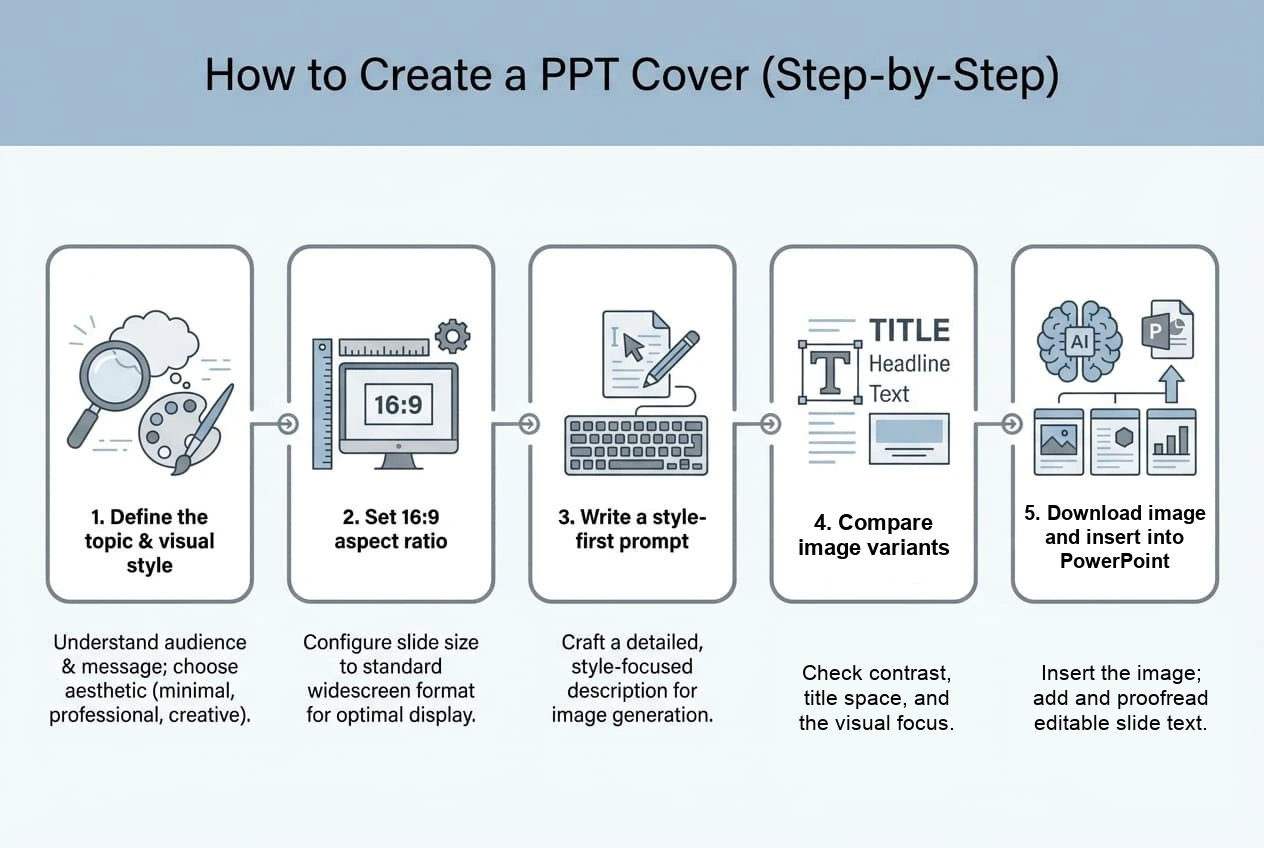
Create supporting presentation graphics beyond the cover
A deck usually needs several asset types. Match the prompt to the amount of text the slide must carry.
Section dividers
Ask for a strong visual marker and a generous label area. Reuse the same motif for every major section, changing only the section-specific subject or accent color.
Backgrounds
Background prompts should explicitly request low visual noise, soft edges, and no important objects behind the text area. A background is successful when it supports the content without becoming the content.
Icons and diagrams
For an icon family, name the shared stroke weight, corner radius, viewpoint, and palette. For a diagram, use the model for the visual base if helpful, then recreate critical labels, arrows, and numbers as editable PowerPoint shapes so they remain easy to correct.
How to keep a full deck visually consistent
Consistency comes from repeating decisions, not from asking for a vague instruction such as ‘make it match.’ Put the rules in a short deck style sheet and include the same rules in each prompt.
Copyable Nano Banana Pro prompts for presentation graphics
These are starting templates, not measured performance claims. Replace the bracketed fields, keep the title zone short, and decide whether the final text belongs in the image or in PowerPoint.
Cover prompt
Create a widescreen presentation cover image for [audience] about [topic]. Use [visual subject] as one clear focal point, [composition], and leave the [left/right/top] [percentage] of the canvas quiet for an editable title. Palette: [colors]. Mood: [mood]. Clean edges, readable contrast, no extra objects in the title zone, 16:9 composition.
Section divider prompt
Create a section-divider image for a presentation section called [section name]. Use the same [motif/geometry] and [palette] as the supplied reference, with one focal mark and generous negative space for a short editable label. Keep the image simple, balanced, and suitable for a 16:9 slide.
Background prompt
Create a low-detail 16:9 presentation background for [topic]. Use [texture/gradient/abstract form], keep the [area] calm and low contrast for body copy, avoid faces and small text, keep important shapes away from the crop edges, and preserve a restrained [palette].
Diagram base prompt
Create a clean visual base for a presentation diagram about [concept]. Show [three to five visual relationships] using one consistent icon and line language, leave label areas empty, use [palette], and avoid generating final numbers or long labels because those will be added as editable PowerPoint shapes.
Failure fixes: what to check when a PPT graphic goes wrong
Where this workflow fits: business, education, and research decks
The image-first workflow is useful when a deck needs a distinctive visual starting point but the final content still belongs in an editable slide system.
- Business pitches: create a cover and a small set of section dividers, then keep metrics and claims as editable text and charts.
- Training decks: use calm backgrounds and simple diagrams, leaving enough contrast for instructions and screenshots.
- Product demos: build a repeatable visual motif for feature sections while placing UI labels and steps in PowerPoint.
- Research presentations: use an abstract cover or section image, but keep methods, citations, axes, and numbers as editable elements.
When you are ready to test the image step, use the Nano Banana Pro route in GlobalGPT. The current public page is an entry point, not evidence of a fixed credit balance, generation speed, or fixed output standard.
Frequently asked questions
Can Nano Banana Pro make PowerPoint slides?
Nano Banana Pro can make image assets for PowerPoint slides, such as covers, backgrounds, section dividers, and diagrams. It returns an image workflow here; you still assemble the editable deck in PowerPoint or Google Slides.
Can it export a complete .pptx file?
The image workflow outputs an image asset. Download it, insert it into PowerPoint or Google Slides, add or correct editable text, and save the finished deck as a .pptx file.
What aspect ratio should I use for a presentation cover?
Use a 16:9 brief for a widescreen presentation. Treat it as a design and export target; the current GlobalGPT aspect-ratio menu includes 16:9 while initially showing Auto and 1K. Confirm the ratio and resolution shown in the tool you are using before generating.
How do I keep a full deck visually consistent?
Create a short visual system first: a small color palette, one geometry language, one image mood, a fixed title area, and a reference image. Reuse those constraints in every prompt, then check the downloaded assets side by side in the deck.
How do I put a generated image into PowerPoint?
Download the image, open the target slide, choose Insert > Pictures, select the downloaded file, crop or position it on the 16:9 canvas, and add or proof the title in PowerPoint.
What is the difference between Nano Banana 2 and Nano Banana Pro?
Google’s consumer help separates Nano Banana 2 or Nano Banana 2 Lite image generation from the paid-subscriber Redo with Pro path. The API route maps Nano Banana Pro to Gemini 3 Pro Image with the model ID gemini-3-pro-image. They are different workflows, and product access and limits can change, so verify the route shown in your current account or tool.
Final thoughts
Nano Banana Pro is most useful here as a visual asset generator inside a larger presentation workflow. Give it a clear brief, reserve space for editable text, compare a few controlled variants, download the image, and let PowerPoint or Google Slides handle the final type, layout, and deck file. That division of labor makes the result easier to proof and easier to revise.
If that workflow fits your next deck, open GlobalGPT Nano Banana Pro after you have your brief and reference image ready.