Yes, ChatGPT can read Excel files. It supports .xlsx, .xls and .csv for spreadsheet analysis, with available formats depending on your model, plan and workspace. You can upload a copy to clean data, summarize rows, create charts and request a modified file to download. OpenAI’s data-analysis documentation describes this upload workflow; editing an open workbook through ChatGPT for Excel is a separate experience.
When a critical data analysis task fails mid-processing due to these strict usage caps, users are forced to fragment their datasets. GlobalGPT solves this exact bottleneck by giving you unrestricted access to multiple top-tier AI models in one place. You no longer have to juggle fragmented accounts when one tool hits its limit.
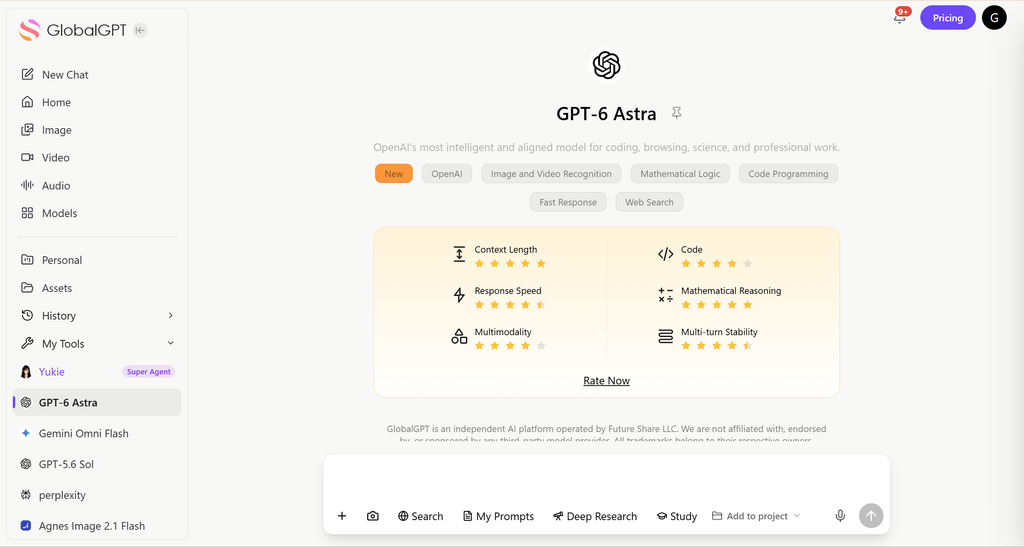
GlobalGPT is an all-in-one AI platform designed for seamless workflow integration. Instead of being locked into a single ecosystem, you can switch between GPT-6 Astra, Claude Fable 5.1 and Gemini 3.8 Flash in one workspace. Starting at just a $5.8 Basic Plan per month billed annually, you gain the analytical power of flagship models without rigid region restrictions or heavy usage limits.
Yes, ChatGPT Can Analyze Excel Data (Here is How It Works)
The Technology Behind It: Advanced Data Analysis (Python)
ChatGPT does not “read” Excel files in the traditional sense like Microsoft Excel does. Instead, it utilizes an official feature previously known as Advanced Data Analysis (or Code Interpreter).
For some spreadsheet tasks, ChatGPT writes and executes Python code in a sandboxed notebook environment. It can use pandas to parse rows and columns and display interactive tables. That environment is separate from Microsoft Excel and cannot make external web requests or API calls.
Step-by-Step: How to Upload and Process Spreadsheets
Processing your data is highly intuitive. ChatGPT can display an interactive data grid for a structured table, although the interface and available tools vary by account. File uploads are available on Free and paid ChatGPT plans; choose an available model with the file and analysis tools you need.
- Step 1: Click the paperclip or “+” icon in the chat bar.
- Step 2: Select your Excel file (.xlsx or .csv) and upload it.

- Step 3: Provide a clear prompt (e.g., “Summarize the total revenue by region”). Name the sheet, date range and columns to use.
- Step 4: Ask ChatGPT to show its calculations and check row counts and totals. If you need an edited workbook, explicitly request a downloadable .xlsx file, then open it in Excel and verify formulas and formatting.

To edit inside Excel: ChatGPT for Excel is an add-in with a sidebar that can build, update and explain the open workbook. Install it through Excel → Home → Add-ins, then sign in. OpenAI lists global access for Free, Go, Plus, Pro, Business, Enterprise, Edu and K-12; Free/Go have limited usage, Plus/Pro use agentic allowances, and organization plans follow their credits and usage terms after the June 2, 2026 preview. This is separate from uploading a file in a chat, and its conversations do not sync with main ChatGPT history.
What Can (and Cannot) ChatGPT Do with Your Spreadsheets?
Top Capabilities (Data Cleaning, Charts, Pivot Tables)
Once your file is uploaded, ChatGPT acts as a tireless junior data analyst. It excels at tedious formatting tasks and rapid visualizations.
Key capabilities include:
- Data Cleaning: Instantly remove duplicates, handle missing values (NaN), and standardize date formats.
- Statistical Analysis: Generate descriptive statistics, calculate averages, and find correlations between columns.
- Data Visualization: Create downloadable chart images; bar, line, pie and scatter charts can also have interactive versions. A chart image is not an editable Excel chart object. Request that output explicitly and check the downloaded workbook.
- File Merging: Upload two different spreadsheets and ask the AI to perform a
VLOOKUPorJOINoperation. - Formulas and pivot tables: ChatGPT can help write and explain formulas using its coding capabilities. Ask whether a result contains live formulas or fixed values, and whether a “pivot table” is a grouped summary or a native Excel PivotTable. Recalculate and inspect it in Excel before relying on it.
Crucial Limitations: File Size, Macros, and OOM Errors
Despite its power, standard ChatGPT is not a complete replacement for robust BI software. It has strict boundaries based on OpenAI’s server capacities.
ChatGPT Plus limits separate chat allowances from file and tool usage. Unlimited everyday text chat does not mean unlimited spreadsheet analysis.
Major roadblocks include:
- File size: OpenAI’s File Uploads FAQ sets an approximately 50MB limit for CSVs and spreadsheets, depending on row size. The general 512MB per-file ceiling does not make a 512MB spreadsheet eligible. The 2-million-token document cap does not apply to spreadsheets.
- Upload rate: Up to 80 files per 3 hours; Free users have 3 uploads per day. OpenAI may lower these limits at peak times, and failed attempts can count. The number attached to one conversation can vary; a project limit is not a per-message allowance.
- Shared storage: The upload FAQ lists 25GB per user and 100GB per organization across chats, Projects and custom GPT knowledge. Library storage is a separate setting to inspect under Settings → Storage; it does not show your remaining rolling upload allowance.
- Projects: Free supports 5 files per project; Go/Plus 25; Pro/Business/Enterprise/Edu 40. These are project file counts, not per-file sizes or guaranteed analysis capacity.
- VBA and macros: Reviewing VBA source that you paste or export as text is different from executing a macro. Ordinary Python analysis does not run Excel’s VBA runtime. Do not assume it will extract hidden VBA from an .xlsm file or preserve macros when saving a new workbook; OpenAI says advanced macro features in the Excel add-in may not be fully supported.
- Password protection: If an encrypted workbook cannot be opened, upload a decrypted copy only when you are authorized. Before sharing business data, review ChatGPT privacy and data-handling considerations.
- Memory and complexity: A successful upload does not guarantee complete analysis. If processing fails or omits data, ask it to list the sheets and row counts, then analyze a smaller range. An OOM error describes the processing failure; it does not establish a universal row limit.
For repeated uploads and multi-file work, the ChatGPT Plus file-upload guide explains the questions to check before splitting a dataset. Keep the sheet names, row counts and the total you expect in your prompt.
The Multi-Model Approach: ChatGPT vs. Claude vs. Gemini
When dealing with complex data, relying on a single AI model is risky. Different foundational models have unique architectures suited for different analytical tasks.
- ChatGPT: Useful for code-backed calculations and visual charts when Python analysis is available. Check which model and tools are enabled in your account.
- Claude: A useful second perspective for text-heavy sheets, assumptions and formula logic. Ask it to explain a disputed result using the same rows.
- Gemini: Useful when a workflow calls for related Google sources or web research. Connected sources and permissions depend on the product you are using.
Testing these different analytical strengths is much easier on GlobalGPT, where you can work with multiple models in the exact same workspace. The GPT-6 Astra vs. Claude Fable 5.1 comparison can help you choose a starting point. Provide the relevant files and instructions to each model; switching models does not itself establish access to OpenAI’s Python environment or the ChatGPT for Excel add-in.

Why Smart Analysts Switch to All-in-One AI Platforms
Modern data analysis requires extreme flexibility. Subscribing directly to OpenAI, Anthropic, and Google for their premium models costs over $60 per month combined, alongside dealing with rigid usage limits on each official site.
ChatGPT Plus costs $20 per month billed monthly in OpenAI’s published USD pricing; API usage is billed separately. GlobalGPT is a separate subscription, not a ChatGPT Plus entitlement. Compare the billing period, tools and final checkout total before paying.
Smart analysts are migrating to all-in-one AI platforms to bypass these friction points. By centralizing your workflow, you get uninterrupted access to the world’s best data-crunching models. You can clean data with one model, generate insights with another, and never worry about hitting a restrictive regional lock or an hourly prompt cap.
Choose your AI tools for data analysis around the output you need: an explanation, a downloadable workbook, or changes in a live Excel file. Those are different workflows even when they use the same model family.
FAQs
Can ChatGPT read Excel files?
Yes. ChatGPT can read Excel files such as .xlsx and .csv and analyze spreadsheet data when the file is uploaded.
Can ChatGPT analyze large datasets?
Yes, but extremely large spreadsheets may exceed processing limits.
Does ChatGPT replace Excel?
No. ChatGPT works as an AI assistant for data analysis, while Excel remains the primary spreadsheet editor.
What is the best AI tool for spreadsheet analysis?
ChatGPT can analyze Excel files, but many users prefer AI platforms like GlobalGPT, which provide access to multiple AI models and workflows in one place.
Can ChatGPT modify my original Excel file?
In an ordinary ChatGPT upload, your local original stays unchanged; request a new .xlsx or .csv to download. The separate ChatGPT for Excel add-in can update an open workbook directly, so review its changes before saving.
Can I upload multiple Excel files at once?
Yes. You can attach multiple spreadsheets in a single prompt. This is highly effective for asking the AI to merge tables based on a common identifier (like an Employee ID), essentially replacing complex VLOOKUP or INDEX/MATCH formulas.
Final Thoughts
Yes — modern AI models can read, analyze, and summarize spreadsheet data.
However, for advanced workflows, many professionals now rely on AI platforms like GlobalGPT, which combine multiple AI models and tools to analyze data faster and automate complex tasks.