

Python is a popular choice for desktop automation due to its simplicity and powerful libraries. Using the PyAutoGUI library, you can automate mouse movements, keyboard inputs, clicks, and interactions with application windows. This makes it useful for tasks such as data entry, file management, application control, and web browsing.
Desktop automation helps save time, reduce manual effort, minimize errors, and improve productivity by performing repetitive tasks automatically with just a few lines of Python code.
PyAutoGUI Features
- pyautogui Library
- Mouse Control
- Keyboard control
- Timing and delay control
- Application Window Controller
Required Modules
pip install pyautogui
Python code to automate desktop activities in Windows Examples
Automating Notepad Using Python
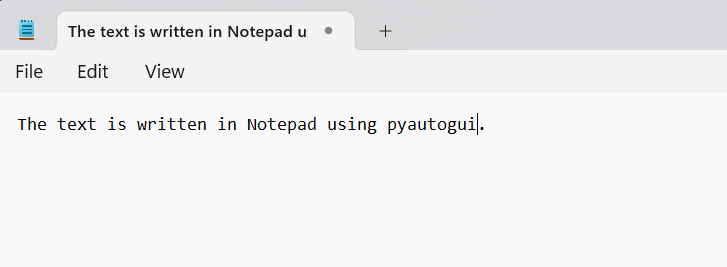
In this example, we are using pyautogui and time library to automate mouse and keyboard controls. We are simulating the Windows button to open a start menu followed by typing a Notepad and pressing the enter button. After the opening of the notepad, we write the text in the notepad.
import pyautogui
import time

pyautogui.press('win')
time.sleep(1)

pyautogui.typewrite('Notepad')
pyautogui.press('enter')

time.sleep(1)

pyautogui.write("The text is written in Notepad using pyautogui.")
Output :
Automating Browser using Python
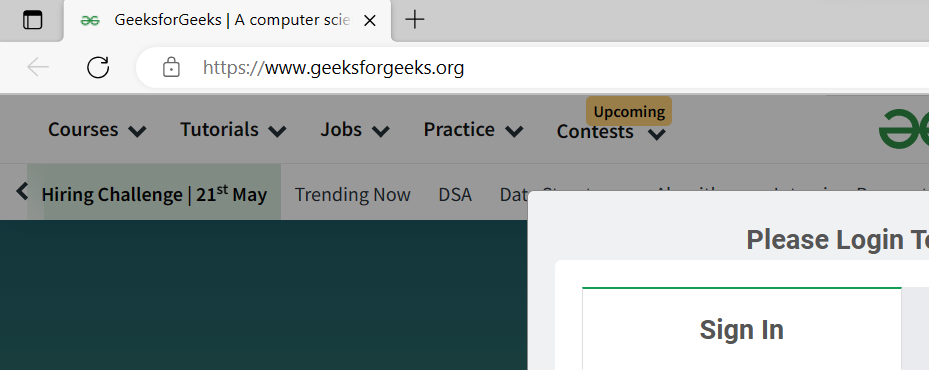
In this example, we are using pyautogui and time library to automate mouse and keyboard controls. We are simulating the Windows button to open a start menu followed by typing Edge and pressing the enter button. After the opening of the Edge, we write the link in the URL and press Enter.
import pyautogui
import time

pyautogui.press('win')
pyautogui.typewrite('Edge')
pyautogui.press('enter')

time.sleep(2)

pyautogui.typewrite('https://www.geeksforgeeks.org/')
pyautogui.press('enter')
Output :
Automating Paint using Python
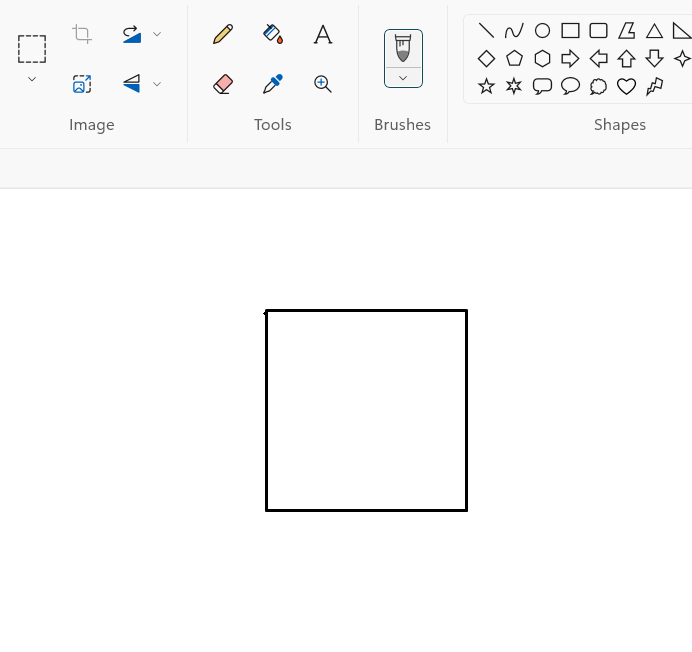
In this example, we are using pyautogui and time library to automate mouse and keyboard controls. We are simulating the Windows button to open a start menu followed by typing Paint and pressing the enter button. After opening the Paint, we are moving and drag the mouse pointer.
import pyautogui
import time

time.sleep(2)

pyautogui.press('win')
pyautogui.typewrite('Paint')
pyautogui.press('enter')

time.sleep(2)

pyautogui.moveTo(400, 400, duration=1)
pyautogui.dragTo(400, 600, duration=1)
pyautogui.dragTo(600, 600, duration=1)
pyautogui.dragTo(600, 400, duration=1)
pyautogui.dragTo(400, 400, duration=1)

time.sleep(1)
Output
Automate mouse control with Python
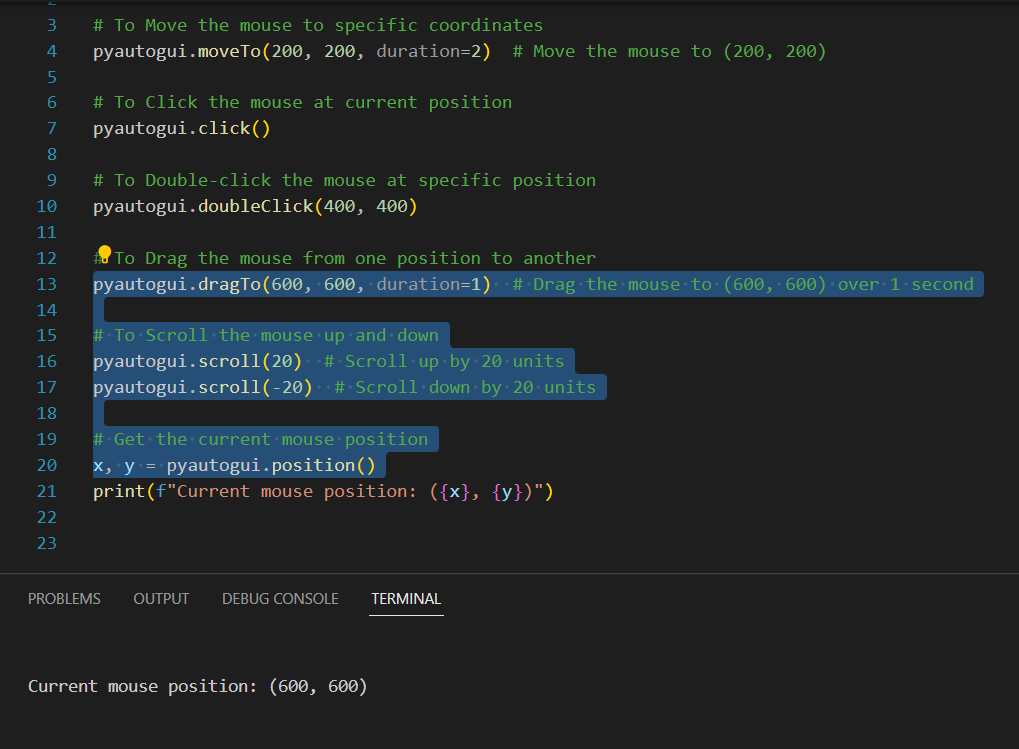
In this example, we're using pyautogui library for automating mouse control. This library provides us with various functions to move the mouse to specific coordinates using (moveTo) like moveTo(200,200) in this example, we can perform click operation with the (click) function, for double-clicking at a particular position we have (doubleClick) like doubleClick(400,400), to drag the mouse from one position to another we can use (dragTo) like dragTo(600,600), for scrolling the mouse up and down we use (scroll) like scroll(20) or scroll, and to get the current mouse position we use (position) function.
import pyautogui

# Move the mouse to specific coordinates
pyautogui.moveTo(200, 200, duration=2)

# Click the mouse at the current position
pyautogui.click()

# Double-click at a specific position
pyautogui.doubleClick(400, 400)

# Drag the mouse to another position
pyautogui.dragTo(600, 600, duration=1)

# Scroll the mouse
pyautogui.scroll(20)
pyautogui.scroll(-20)

# Get the current mouse position
x, y = pyautogui.position()
print(f"Current mouse position: ({x}, {y})")
Output :
Automate Social Media with Python
In this example, we are using pyautogui and time library to automate mouse and keyboard controls. We are simulating the Windows button to open a start menu followed by typing Edge and pressing the enter button. After the opening of the Edge, we write our social media link in the typewrite('URL') and press Enter after a delay of 2 sec. After that, we find the position of the like/unlike (Hide post in this case) button by trial and error method and move our mouse to that position and then perform the click operation.
import pyautogui
import time

# Delay before starting automation
time.sleep(2)

# Open Edge browser
pyautogui.press('win')
pyautogui.typewrite('Edge')
pyautogui.press('enter')

time.sleep(2)

# Open your social media website
pyautogui.typewrite('www.quora.com')
time.sleep(2)

pyautogui.press('enter')
time.sleep(5)

# Coordinates of the button determined manually
hide_button_position = (1125, 345)

pyautogui.moveTo(*hide_button_position)
time.sleep(2)

pyautogui.click()
Output

