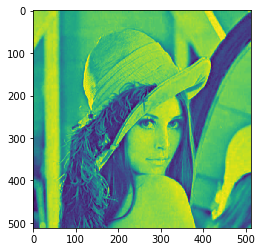
In this article we will see how we can apply mean filter to the image in mahotas.Average (or mean) filtering is a method of 'smoothing' images by reducing the amount of intensity variation between neighbouring pixels. The average filter works by moving through the image pixel by pixel, replacing each value with the average value of neighbouring pixels, including itself.
In this tutorial we will use “lena” image, below is the command to load it.
mahotas.demos.load('lena')
Below is the lena image
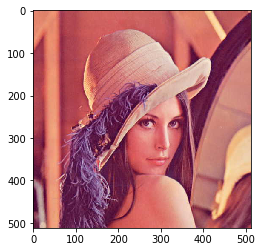
In order to do this we will use mahotas.mean_filter method
Syntax : mahotas.mean_filter(img, n)
Argument : It takes image object and neighbor pixel as argument
Return : It returns image object
Note : Input image should be filtered or should be loaded as grey
In order to filter the image we will take the image object which is numpy.ndarray and filter it with the help of indexing, below is the command to do this
image = image[:, :, 0]
Below is the implementation
# importing required libraries
import mahotas
import mahotas.demos
from pylab import gray, imshow, show
import numpy as np
import matplotlib.pyplot as plt

# loading image
img = mahotas.demos.load('lena')

# filtering image
img = img.max(2)

print("Image")

# showing image
imshow(img)
show()

# applying mean filter
new_img = mahotas.mean_filter(img, n)


# showing image
print("Mean Filter")
imshow(new_img)
show()
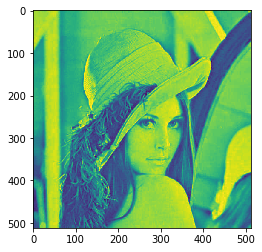
Output :
Image
Mean Filter
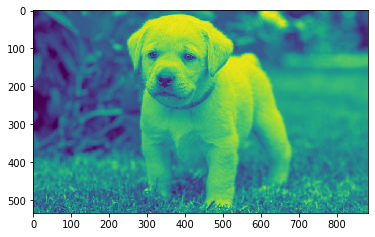
Another example
# importing required libraries
import mahotas
import numpy as np
from pylab import gray, imshow, show
import os
import matplotlib.pyplot as plt

# loading image
img = mahotas.imread('dog_image.png')


# filtering image
img = img[:, :, 0]

print("Image")

# showing image
imshow(img)
show()

# applying mean filter
new_img = mahotas.mean_filter(img, n)


# showing image
print("Mean Filter")
imshow(new_img)
show()
Output :
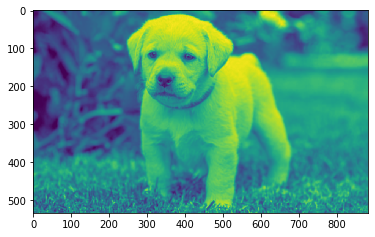
Image
Mean Filter