

SSH (Secure Shell) is a secure communication protocol that allows a user to access and control a remote computer over a network.
- Unlike older protocols like Telnet or Rlogin, SSH encrypts every piece of data, preventing attackers from spying on login credentials and commands.
- SSH typically uses TCP port 22 and is supported by all major Linux distributions.
Syntax
To connect to a remote server, use:
ssh [username]@[hostname or IP address]Here, Replace [username] with your remote server username, and [hostname or IP address] with the server's hostname or IP address.
Example:
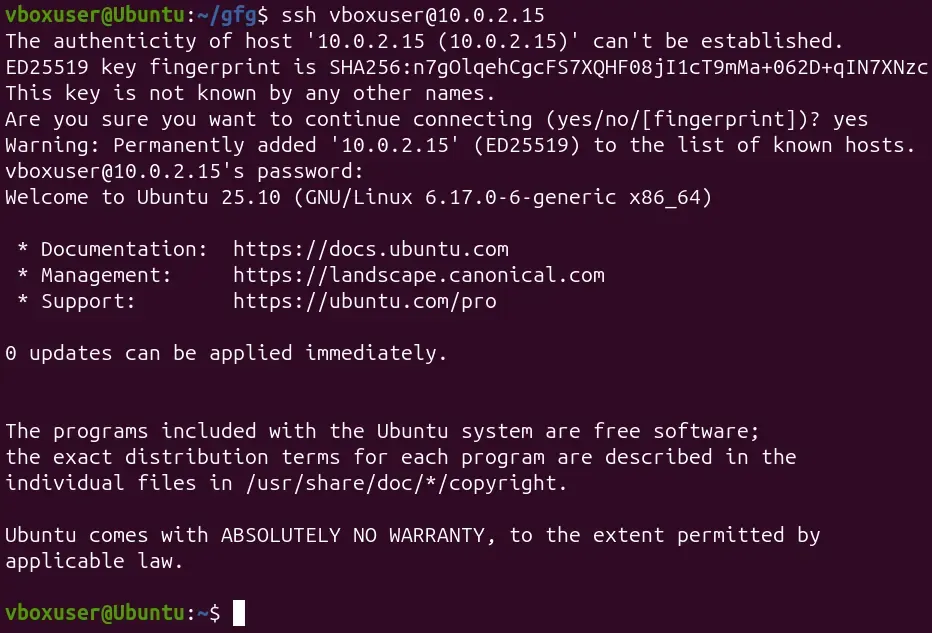
ssh vboxuser@10.0.2.15Output:
Installing
To install SSH, you simply install the OpenSSH package, which provides both the client and server components.
On Ubuntu/Debian:
sudo apt update
sudo apt install openssh-client openssh-server
On CentOS/Fedora/RHEL:
sudo dnf install openssh-clients openssh-serverStart and enable the SSH service:
sudo systemctl start sshd
sudo systemctl enable sshd
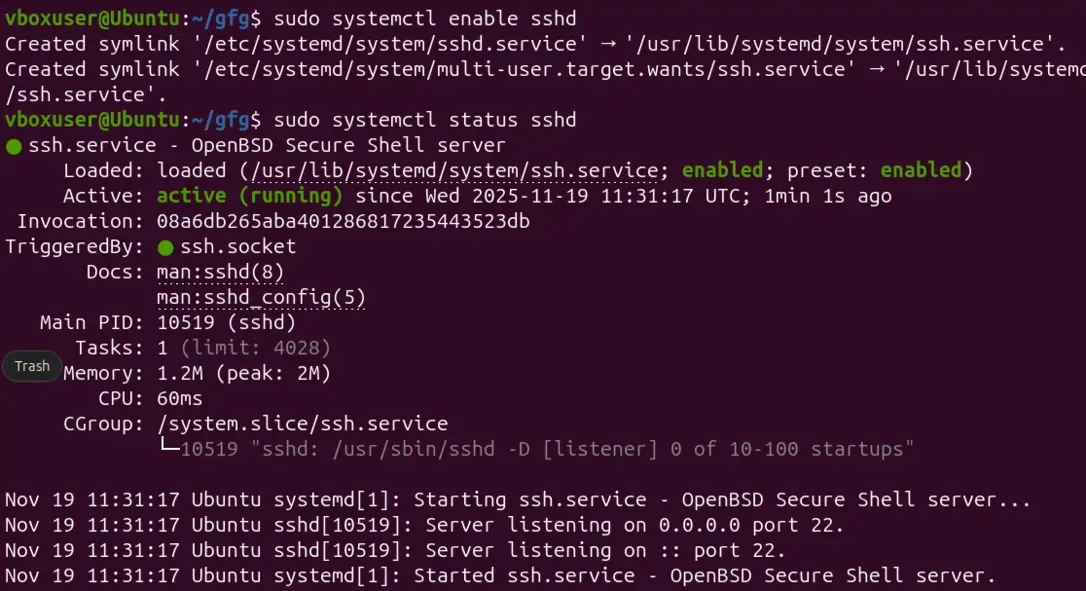
Check status:
sudo systemctl status sshdOutput:
Given below the examples by using SSH Command.
Example 1: Connect to a Remote Server Using SSH
- Username > vboxuser
- Server IP > 10.0.2.15
ssh vboxuser@10.0.2.15- If it’s your first time connecting, SSH will ask to verify the server’s fingerprint. Type yes, press Enter, and then enter the user’s password.
- Once authenticated, you will be logged into the remote machine and can run commands just like a local terminal.
Output:
Example 2: Using SSH Key Authentication
SSH keys offer better security than passwords.
- Generate keys on your local machine
ssh-keygen- Copy your public key to the remote server:
ssh-copy-id username@server_ip- Now you can log in without entering a password:
ssh username@server_ip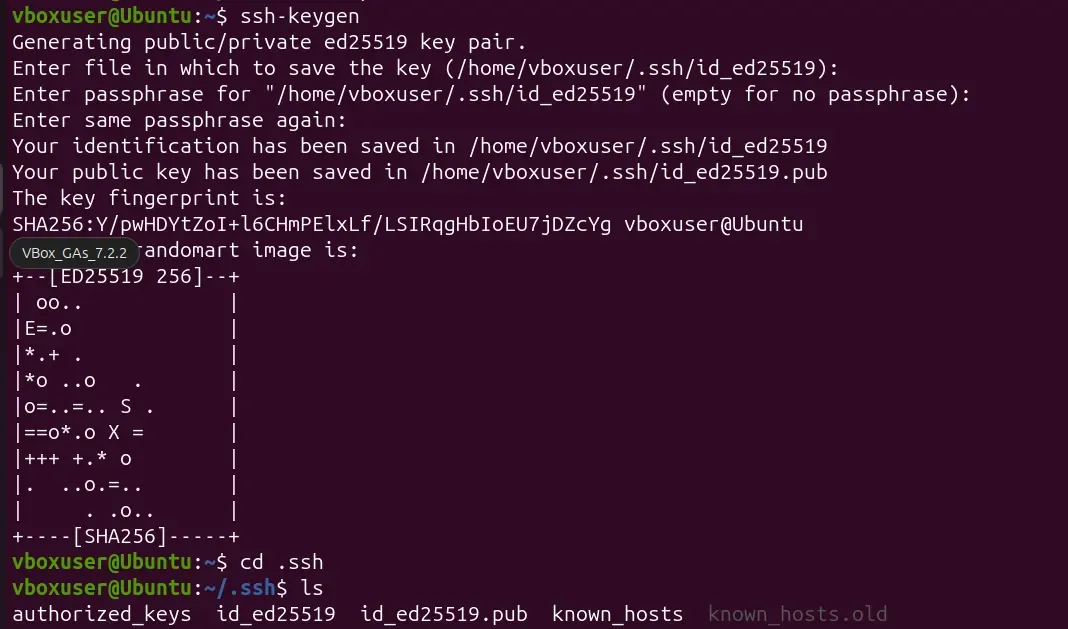
Common SSH Options
These options help troubleshoot issues, improve performance, and customize the connection.
| Option | Purpose | Example |
|---|---|---|
-p | Connect to a custom SSH port | ssh -p 2222 user@host |
-v | Enable detailed debugging output | ssh -v user@host |
-C | Enable compression | ssh -C user@host |
-4 | Force IPv4 | ssh -4 user@host |
-6 | Force IPv6 | ssh -6 user@host |
-X | Forward GUI applications | ssh -X user@host |
Requirements
To successfully connect to a remote Linux machine using SSH, ensure the following:
- The server must be switched on and connected to a network.
- You should have valid login credentials
- The OpenSSH server must be installed and active.
- Port 22 (or the configured custom port) should be open on your firewall.
How SSH Secures Communication
SSH uses multiple layers of cryptography:
- Symmetric Encryption: Uses one shared key for encrypting and decrypting the session.
- Asymmetric Encryption: Uses a public/private key pair for authentication and key exchange.
- Hashing: Ensures message integrity - any tampering is immediately detected.
Troubleshooting Common SSH Errors
| Error | Possible Cause | Solution |
|---|---|---|
| Connection refused | SSH server is not running | Start the sshd service. |
| Permission denied | Incorrect username, password, or SSH key | Verify credentials or authorized keys. |
| Connection timed out | Server is unreachable or firewall is blocking the port | Check network connectivity and firewall rules. |
| Host key verification failed | Server fingerprint has changed | Remove the old key using ssh-keygen -R hostname and reconnect. |
Best Practices for SSH Security
- Use SSH key authentication instead of passwords.
- Disable root login whenever possible.
- Use strong passphrases for private keys.
- Change the default SSH port if appropriate.
- Keep the OpenSSH package updated.
