Kali Linux provides a wide range of keyboard shortcuts that improve productivity while navigating the desktop, managing windows, using the terminal and performing system administration tasks. Instead of relying on mouse clicks, shortcut keys help security professionals execute tasks more efficiently, especially during penetration testing, system administration and troubleshooting.
Desktop Navigation Shortcuts
These shortcuts help navigate the Kali Linux desktop environment (XFCE by default).
- Super: Open the application menu.
- Alt + F2: Open the Run Command dialog.
- Alt + Tab: Switch between open applications.
- Alt + Shift + Tab: Switch applications in reverse order.
- Ctrl + Alt + D: Show desktop.
- Ctrl + Alt + Left/Right: Switch workspace.
- Super + L: Lock the screen.
- Ctrl + Alt + Delete: Log out or display session options.
Window Management Shortcuts
Window Management Shortcuts.
- Alt + F4: Close current window.
- Alt + Space: Open window menu.
- Alt + F10: Maximize window.
- Alt + F5: Restore window.
- Alt + F7: Move window.
- Alt + F8: Resize window.
- Super + Up: Maximize window.
- Super + Down: Restore or minimize window.
- Super + Left: Snap window left.
- Super + Right: Snap window right.
Terminal Shortcut Keys
Terminal shortcuts significantly improve command-line efficiency.
- Ctrl + Alt + T: Open Terminal.
- Ctrl + Shift + T: Open new terminal tab.
- Ctrl + Shift + W: Close terminal tab.
- Ctrl + Shift + N: Open new terminal window.
- Ctrl + Page Up: Previous terminal tab.
- Ctrl + Page Down: Next terminal tab.
- F11: Toggle full-screen mode.
Bash Command-Line Shortcuts
These shortcuts work directly inside the Bash shell.
- Ctrl + A: Move cursor to beginning of line.
- Ctrl + E: Move cursor to end of line.
- Ctrl + U: Delete from cursor to beginning.
- Ctrl + K: Delete from cursor to end.
- Ctrl + W: Delete previous word.
- Ctrl + Y: Paste previously deleted text.
- Ctrl + L: Clear terminal screen.
- Ctrl + C: Stop current process.
- Ctrl + Z: Suspend current process.
- Ctrl + D: Exit current shell.
- Ctrl + R: Search command history.
- Tab: Auto-complete command or file name.
- Tab + Tab: Display available completions.
- Up Arrow: Previous command.
- Down Arrow: Next command.
- !!: Execute previous command.
- !command: Execute last command beginning with the specified text.
File Manager Shortcuts
The XFCE file manager supports several useful shortcuts.
- Ctrl + N: New window.
- Ctrl + T: New tab.
- Ctrl + W: Close tab.
- Ctrl + H: Show hidden files.
- Ctrl + L: Edit location path.
- Ctrl + F: Search files.
- F2: Rename selected file.
- Delete: Move file to Trash.
- Shift + Delete: Permanently delete file.
- Ctrl + C: Copy.
- Ctrl + X: Cut.
- Ctrl + V: Paste.
- Ctrl + A: Select all.
Workspace Shortcuts
Multiple workspaces help organize tasks.
- Ctrl + Alt + Left: Previous workspace.
- Ctrl + Alt + Right: Next workspace.
- Shift + Alt + Left: Move window to previous workspace.
- Shift + Alt + Right: Move window to next workspace.
Screenshot Shortcuts
Capture screenshots without additional software.
- Print Screen: Entire screen.
- Alt + Print Screen: Active window.
- Shift + Print Screen: Select screen region.
Package Management Terminal Shortcuts
While running package management commands, these keyboard shortcuts are frequently used.
- Ctrl + C: Cancel installation.
- Ctrl + D: Exit shell after completion.
- Ctrl + L: Clear screen.
- Ctrl + R: Search previous package commands.
Create Custom Keyboard Shortcuts (Users define Shortcut Keys)
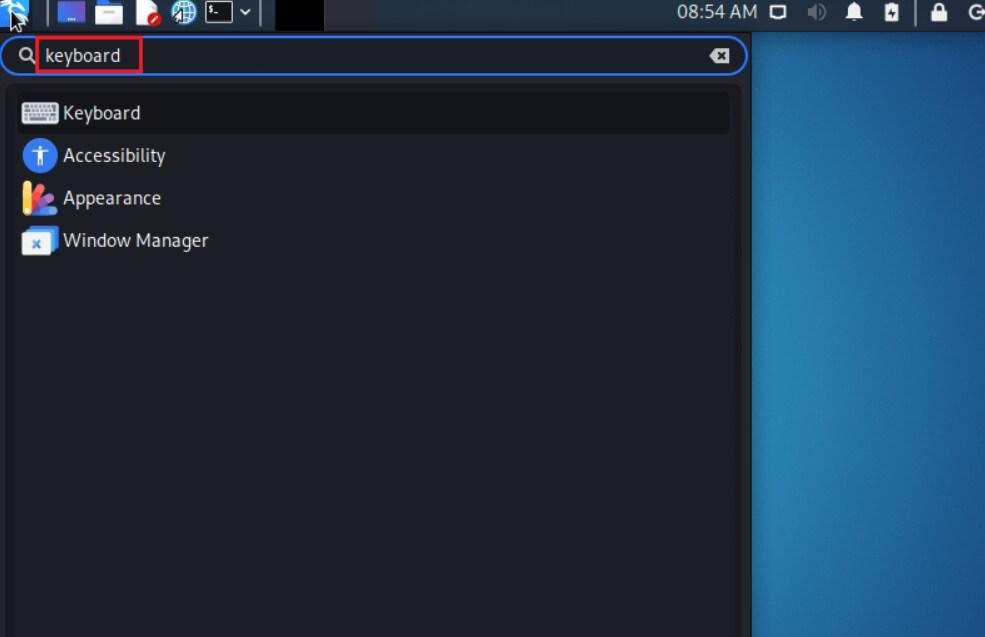
Step 1: First to access the keyboard settings menu, simply search for "keyboard" in the application launcher.
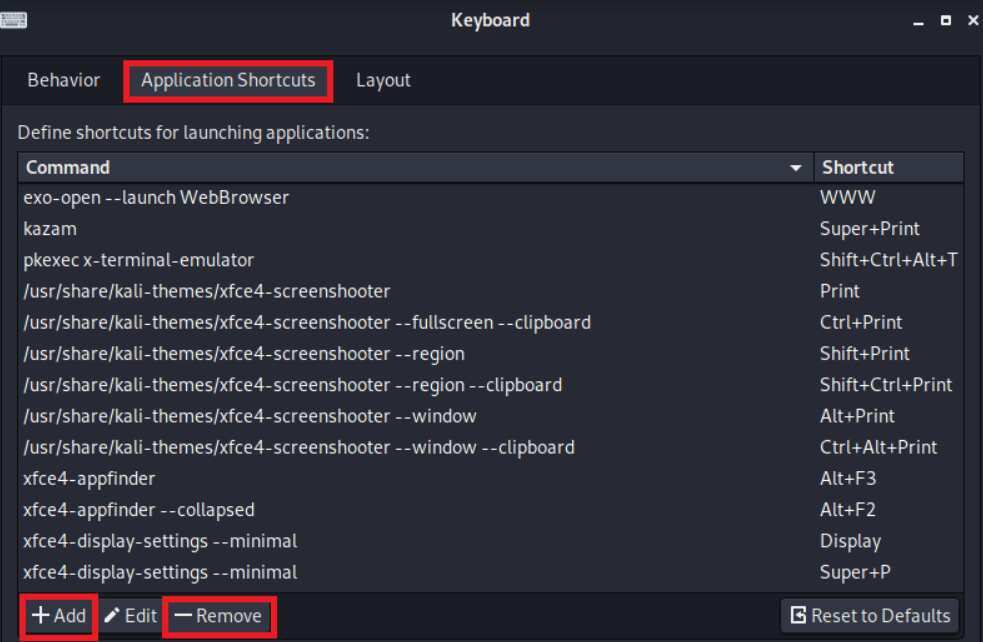
Step 2: Click on the "Application Shortcuts" tab. Here, you will find a list of all the keyboard shortcuts that are currently set up. If you want to create your own shortcut, you can use the "add" button at the bottom. If you want to delete a shortcut, you just need to select it and click on "remove".