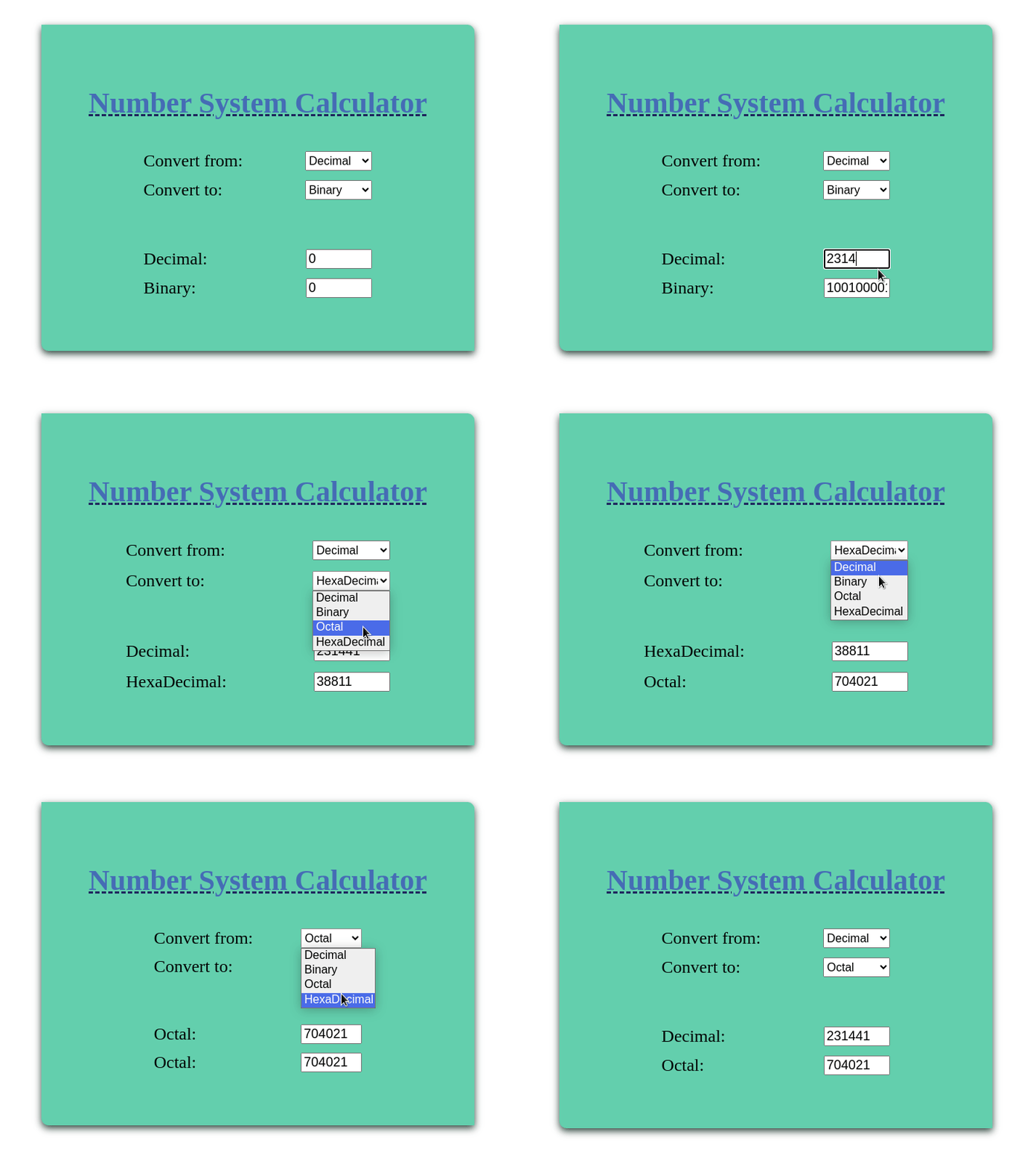
A Number System Converter is one that can be used to convert a number from one type to another type namely Decimals, Binary, Octal, and Hexadecimal.
In this article, we will demonstrate the making of a number system calculator using JavaScript. It will have the option to select the number type for input as well as the resulting output. The default input will be 1 that on change will show simultaneous results.
On completion, it will look like this:
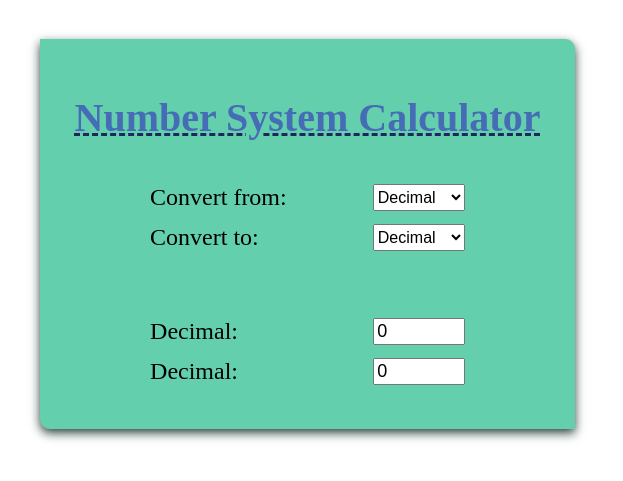
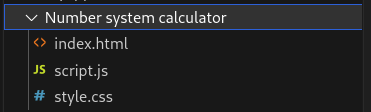
Project Structure
Approach
- Create a basic structure of a number system converter using HTML elements like form, section, and input for taking number input, and select an option element for dropdown input for number type along with relevant classes and ids.
- Style the calculator using CSS properties like margin, padding, background color, color, display, width, font sizes, etc.
- In JavaScript create an update function to update the values when input is added and a reverse function to update the values when other result input is changed to maintain the correct value
- Access the HTML element using HTML DOM methods like document.getElementById and innerText and value methods to access and update the values on the web page.
Example: This code example illustrates the number system calculator using Javascript.
<!DOCTYPE html>
<html lang="en">
<head>
    <meta charset="UTF-8">
    <meta name="viewport" content="width=device-width, initial-scale=1.0">
    <title>Number System Calculator</title>
    <link rel="stylesheet" href="style.css">
</head>
<body>

    <div class="calculator">
        <h1>Number System Calculator</h1>

        <label>Convert From:</label>
        <select id="fromBase">
            <option value="10">Decimal</option>
            <option value="2">Binary</option>
            <option value="8">Octal</option>
            <option value="16">Hexadecimal</option>
        </select>

        <label>Convert To:</label>
        <select id="toBase">
            <option value="10">Decimal</option>
            <option value="2">Binary</option>
            <option value="8">Octal</option>
            <option value="16">Hexadecimal</option>
        </select>

        <label>Enter Number:</label>
        <input type="text" id="inputNumber" value="0">

        <button onclick="convertNumber()">Convert</button>

        <label>Result:</label>
        <input type="text" id="result" readonly>
    </div>

    <script src="script.js"></script>
</body>
</html>
body {
    font-family: Arial, sans-serif;
    text-align: center;
    background-color: #f2f2f2;
}

.calculator {
    width: 350px;
    margin: 80px auto;
    padding: 25px;
    background-color: white;
    border-radius: 10px;
    box-shadow: 0 4px 10px gray;
}

h1 {
    font-size: 24px;
    margin-bottom: 20px;
}

label {
    display: block;
    text-align: left;
    margin-top: 15px;
}

select,
input,
button {
    width: 100%;
    padding: 10px;
    margin-top: 5px;
    box-sizing: border-box;
}

button {
    margin-top: 20px;
    cursor: pointer;
}
function convertNumber() {
    let number = document.getElementById("inputNumber").value;
    let fromBase = Number(document.getElementById("fromBase").value);
    let toBase = Number(document.getElementById("toBase").value);

    let decimalNumber = parseInt(number, fromBase);

    if (isNaN(decimalNumber)) {
        document.getElementById("result").value = "Invalid number";
        return;
    }

    let result = decimalNumber.toString(toBase);

    document.getElementById("result").value = result;
}
Where,
convertNumber()runs when the user clicks the Convert button.- It gets the entered number from the input field.
- It gets the selected source and target number systems.
parseInt()converts the number from the source base to a decimal value.toString()converts the decimal value to the target base and displays the result.
Output: