

Linking Google Sheets refers to the process of connecting data between sheets or different spreadsheets using formulas, allowing information to update automatically in real time. By using references like =Sheet1!A1 or functions such as IMPORTRANGE, users can seamlessly import and synchronize data, reducing manual effort, minimizing errors, and improving collaboration across multiple datasets.
Steps to get Data from other Sheets in your Spreadsheet
Step 1: Open Google Sheets
Open Google Sheets on your Desktop and select a sheet to which you want to refer data.
.webp)
Step 2: Select the Cell
Now after you have opened a sheet select a cell in which you want to display the referred data.

Step 3: Type the Formula
All the functions and formulas in Google Sheets start with the "=" sign, so just enter the "=' sign in the selected cell and type the sheet name of which data you want to refer. Also, enter the cell reference you want to copy. Press Enter.
For example: "=Sheet1!A1"
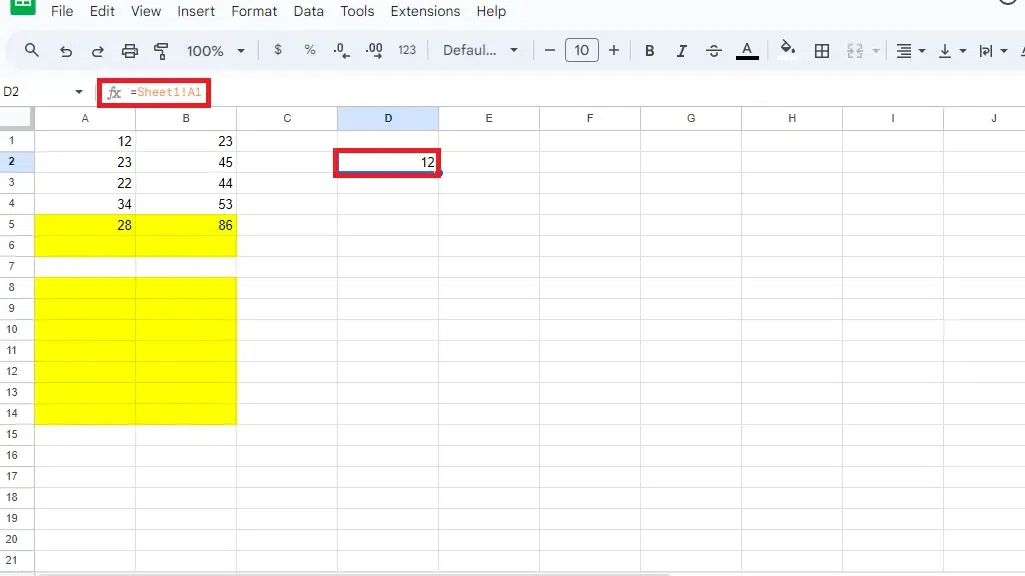
Steps to Get Data from Another spreadsheet
Step 1: Open Google Sheets -> Select a Document
Open Google Sheets on your Desktop and select a sheet to which you want to refer data.
Step 2: Copy the Spreadsheet URL
You will need the URL of the spreadsheet of which data you want to link into your original spreadsheet, so just copy the URL of that particular spreadsheet from the website bar.
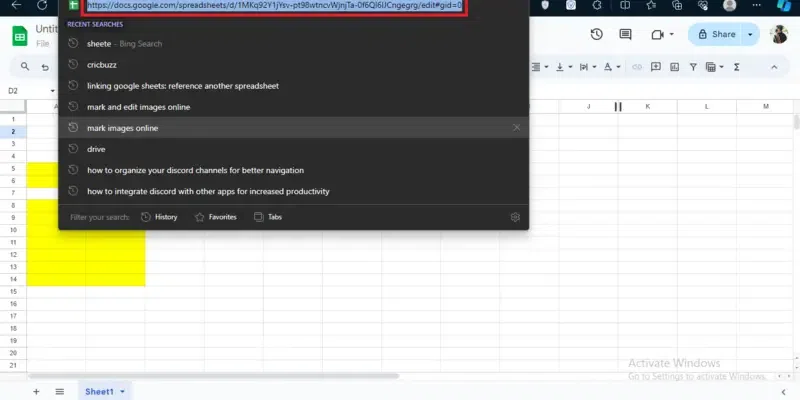
Step 3: Choose a Cell and Enter the "IMPORT RANGE" Formula
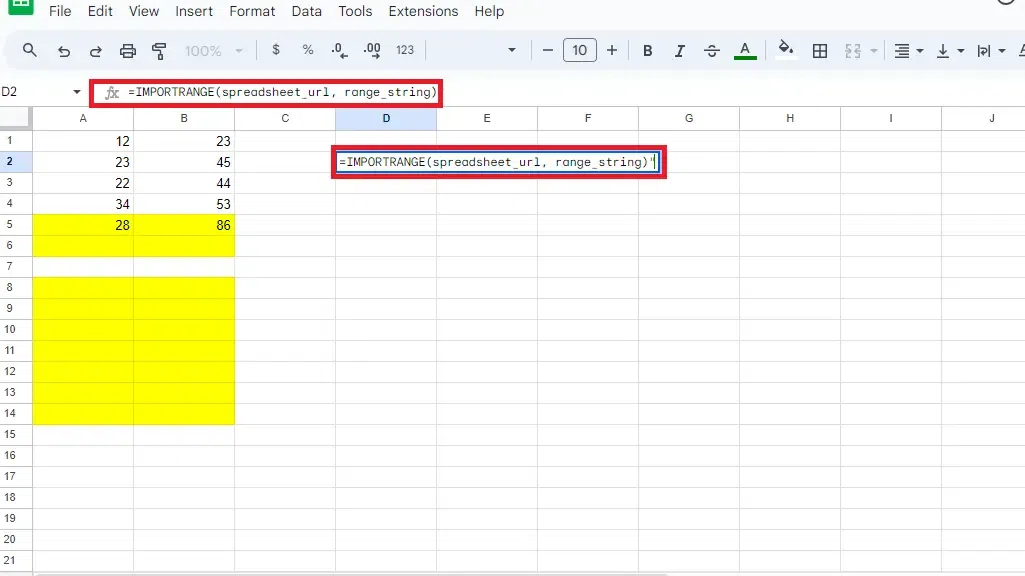
Now move to your original spreadsheet and choose a cell in which you want to insert the formula, simply just enter the "IMPORTRANGE" formula along with the spreadsheet URL and range strings.
For example:
"=IMPORTRANGE(spreadsheet_url, range_string)",
in which,
- spreadsheet_url : is the path of the sheet from the data is been linked.
- range_string: is the string from which the data is copied.
3. Practical Use Cases of Linking Google Sheets
- Financial Reporting: Consolidate financial data from multiple departments into one master spreadsheet for comprehensive analysis and reporting.
- Sales Tracking: Link sales data from various regions to create a unified sales dashboard.
- Inventory Management: Combine inventory data from different warehouses to monitor stock levels and optimize inventory management.
- Project Management: Aggregate project updates from different teams to track overall project progress.
Tips:
- For easier reference and to avoid errors, name your ranges in the source spreadsheet.
- Ensure you use the correct URL format, and maintain consistent access permissions.
- After entering formulas, verify that they correctly link the desired data.
- Regularly check linked data for accuracy and update formulas if the source structure changes.
