

Among all the event methods that MonoBehaviour provides, Start() and Update() are the most commonly used. Almost every Unity script you write will include one or both of these methods. Understanding when and how to use them is essential for writing effective game code.
Understanding the Start() Method
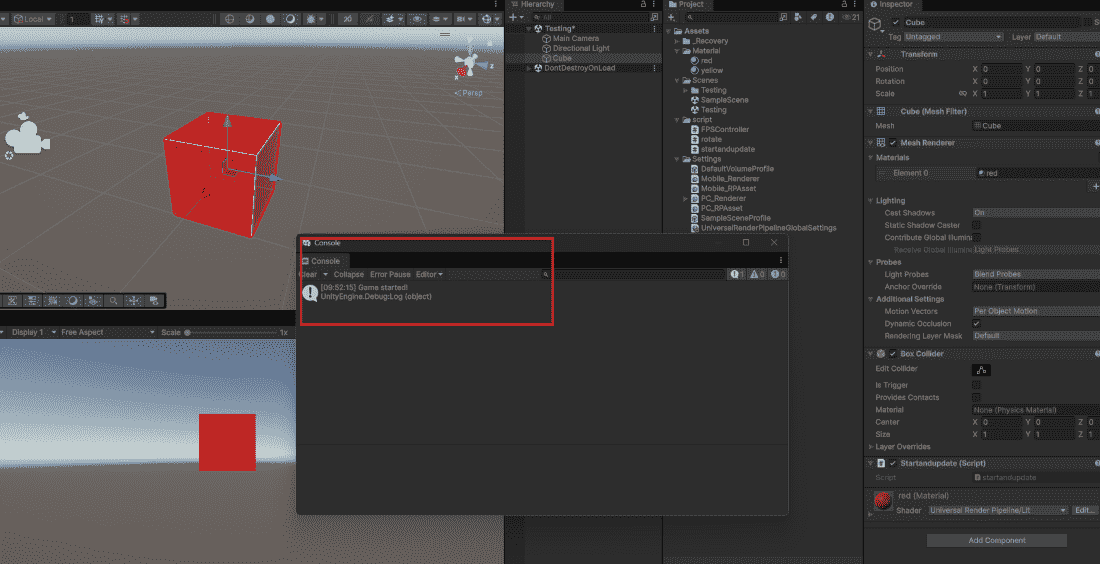
The Start() method runs once, before the first frame of the game, but only if the script is enabled.
Example:
void Start()
{// This code runs once at the beginning
    Debug.Log("Game started!");
    health = 100;
    FindPlayer();
}
- Runs automatically – you never call it manually
- Only runs if the script component is enabled
- Perfect for one-time setup and initialization
Use Cases
Use Start() for any code that needs to run once before the game begins:
- Initializing variables (health, score, ammo)
- Finding and caching references to other GameObjects or components
- Setting up initial game state
- Loading saved data
- Playing an introduction sound or animation
Difference Between Awake() and Start()
Both run once, but at different times:
- Awake(): Runs as soon as script instance loads, even if script is disabled. Use for self-initialization.
- Start(): Runs before first Update frame, only if script is enabled. Use for cross-script setup.
Understanding the Update() Method
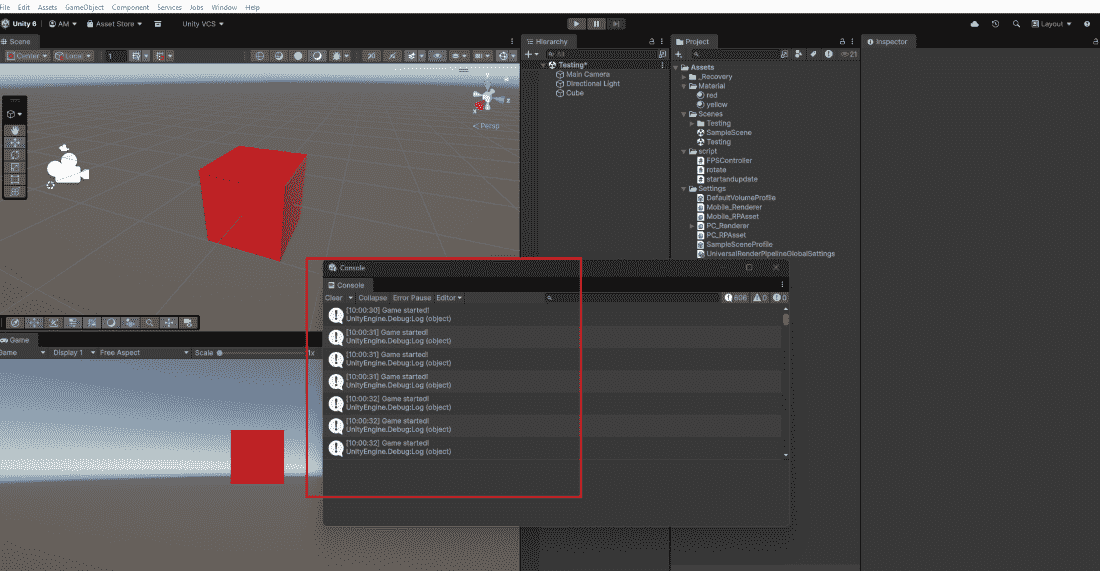
The Update() method runs once per frame. This means it can run 30, 60, or even 144 times per second depending on the player's frame rate.
void Update()
{// This code runs every single
    Debug.Log("Game started!");
    HandleInput();
    MovePlayer();
    CheckForCollisions();
}
- Runs automatically every frame
- Frame rate dependent (runs more often on faster computers)
- Perfect for continuous actions like input, movement, and checks
Use Cases
Use Update() for any code that needs to run continuously:
- Reading player input (keyboard, mouse, touch)
- Moving non-physics objects
- Checking win/loss conditions
- Updating timers and cooldowns
- Playing idle animations
- Following or tracking targets
Operations to Avoid in Update()
Since Update() runs every frame, heavy operations can kill performance:
- Heavy calculations (use once and store the result)
- Finding objects with
GameObject.Find()(useStart()instead) - Loading assets or data (use
Start()or async methods) - Complex pathfinding calculations (use coroutines or timers)
- Debug logging every frame (use condition checks)
Comparison of Update, FixedUpdate and LateUpdate
Unity provides three update methods for different purposes:
- Update(): Every frame. Use for input, non-physics movement, timers.
- FixedUpdate(): Fixed time interval (default 0.02 seconds). Use for Rigidbody physics movement.
- LateUpdate(): After every Update completes. Use for camera follow, effects.
Combining Start() and Update() in Practice
Most scripts combine both methods effectively:
Example:
using UnityEngine;

public class PlayerController : MonoBehaviour
{
    public float speed = 5f;
    private Rigidbody rb;
    private bool isAlive = true;

    void Start()
    {
        // One-time setup
        rb = GetComponent<Rigidbody>();
        isAlive = true;
    }

    void Update()
    {
        // Every frame checks
        if (!isAlive) return;

        // Handle input
        float horizontal = Input.GetAxis("Horizontal");
        float vertical = Input.GetAxis("Vertical");

        // Apply movement
        Vector3 movement = new Vector3(horizontal, 0, vertical);
        rb.linearVelocity = movement * speed;
    }
}
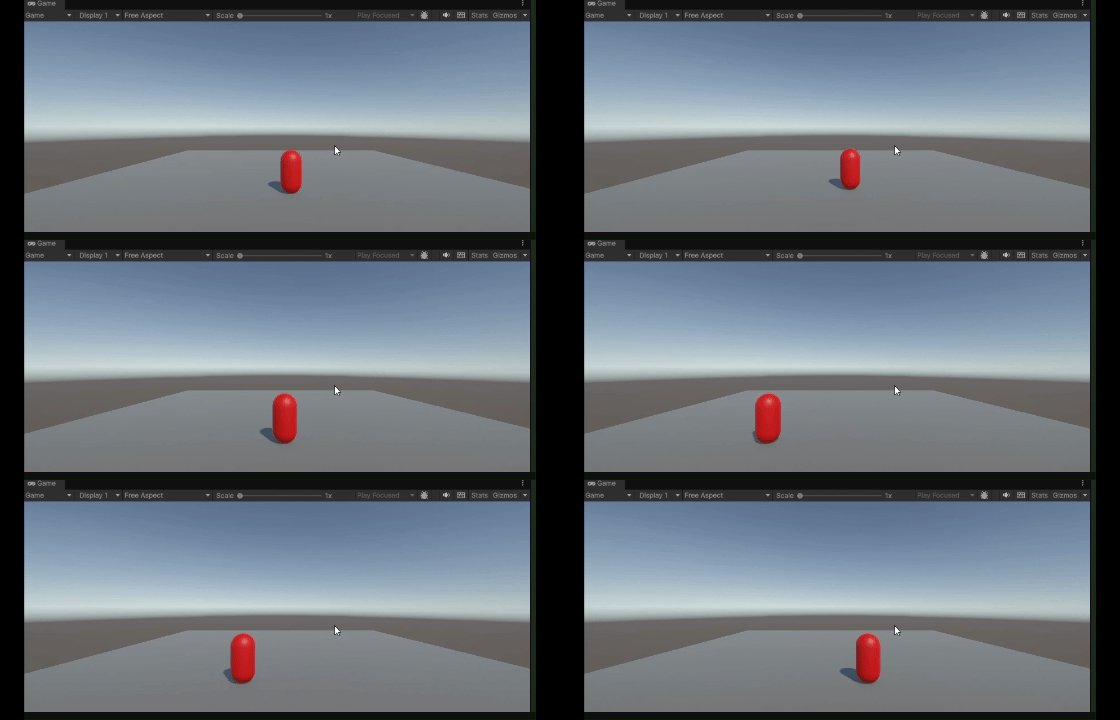
Output:
Common Errors and Solutions
- Running everything in Update() causes performance issues; heavy tasks should run in Start().
- Ignoring Time.deltaTime makes movement frame rate dependent.
- Using GameObject.Find() in Update() is slow; cache references in Start().
- Update() does not run at a fixed speed and varies with frame rate.
- If a script starts disabled, Start() will not execute.
