

Shader Graph is Unity's visual tool for creating shaders. You drag and connect nodes to control how objects look – color, glow, distortion, scrolling, and more.
- No coding required – all visual
- See changes in real time
- Works with URP and HDRP only
Installing Shader Graph
- Your project must use URP or HDRP (not Built-in Render Pipeline).
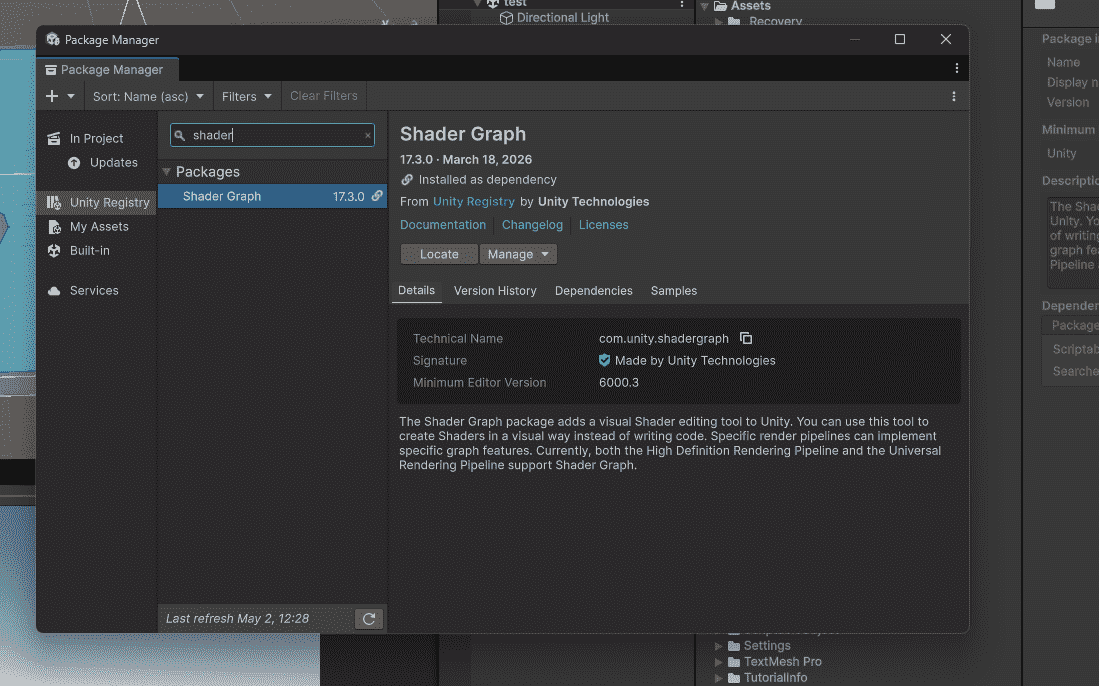
- Window - Package Manager.
- Search "Shader Graph" - Install.
Creating Your First Shader
- Right-click in Project window - Create - Shader Graph - URP - Lit Shader Graph.
- Name it "MyShader".
- Double-click to open Shader Graph window.
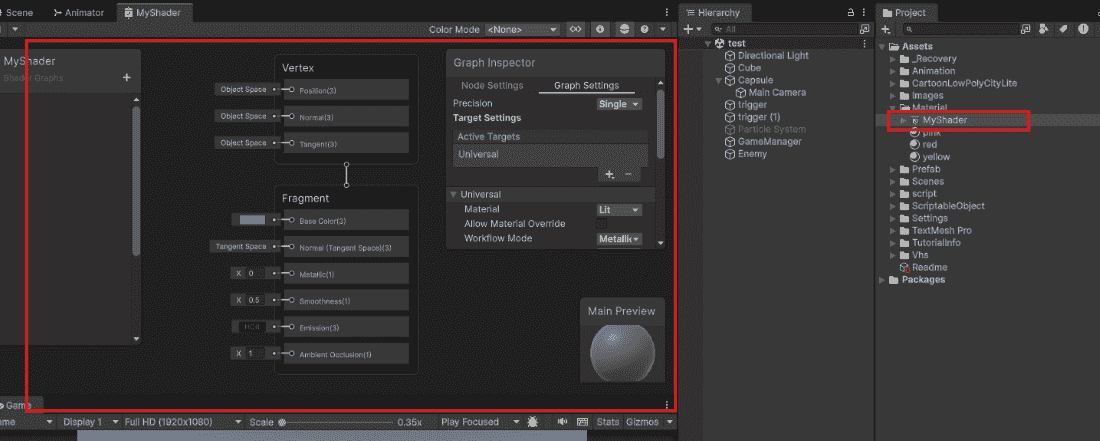
Shader Graph Interface
When you open Shader Graph, you see:
- Blackboard (left) – Stores properties (colors, sliders, textures).
- Graph Editor (center) – Where you connect nodes.
- Main Preview (right) – Shows how shader looks on sphere.
- Node Palette (search for nodes).
Example 1: Color Tint Shader
Make any object change color.
Step 1: In Blackboard, click "+" → Color → Name "TintColor"
Step 2: Drag TintColor from Blackboard to Graph Editor
Step 3: Create node: Right-click → search "Multiply" → select Multiply
Step 4: Connect nodes:
- Base Color node (from Fragment) → Multiply A
- TintColor node → Multiply B
- Multiply output → Base Color (on Fragment)
Step 5: Apply shader to material, then to object. Change color in Inspector.
Example 2: Glow/Pulse Effect
Make an object pulse in and out.
Step 1: Create nodes: Time - Sine - Multiply (with color) - Base Color.
Step 2: Add Color property to Blackboard.
Step 3: Connect:
- Color node - Multiply A.
- Sine node - Multiply B.
- Multiply output - Base Color.
The object glows brighter and dimmer automatically.
Shader Graph vs Code Shaders
| Feature | Shader Graph | Code Shaders |
|---|---|---|
| Approach | Visual editing (no coding) | Requires HLSL/CG programming |
| Ease of Use | Easy to modify and tweak | Harder to write and maintain |
| Best For | Artists and designers | Programmers |
| Performance | Less efficient for complex shaders | Better performance for complex shaders |
| Control | Limited control | Full control over shader behavior |
