

Windows Forensic Analysis is a critical process in digital investigations that focuses on examining a Windows-based system to uncover evidence of user activity, security incidents or malicious behavior. It primarily involves analyzing system data and artifacts to reconstruct events and identify potential threats. Windows forensic analysis focuses on two key areas:
- In-depth analysis of the Windows Operating System.
- Examination of Windows system artifacts.
Windows Artifacts
Windows artifacts are data sources that capture and store information about user and system activities within the Windows operating system.
- Track system and user activity: Record actions such as program execution, file access, browsing behavior and system changes.
- Provide valuable insights: Help analysts understand how a system has been used over time.
- Vary across Windows versions: Their structure, type and storage locations differ depending on the operating system version.
- Contain sensitive information: Store critical data that can reveal detailed user behavior.
- Support forensic investigations: Act as key evidence sources for uncovering system activity and identifying potential security issues.
Forensic Artifacts
Forensic artifacts are digital objects that hold evidentiary value in an investigation. These include logs, registry entries, files, caches and metadata that preserve traces of past actions within a system.
- Reconstruct user activity: Understand what actions were performed on the system.
- Identify security incidents: Detect unauthorized access or breaches.
- Detect malicious behavior: Uncover malware execution or suspicious patterns.
- Establish event timelines: Build a sequence of events for analysis and reporting.
Windows Forensic Investigation Process
A structured approach ensures accurate and reliable forensic analysis:
- Evidence Collection: Acquire system data such as disk images and memory dumps.
- Data Preservation: Maintain integrity using hashing and proper handling techniques.
- Artifact Analysis: Examine system artifacts to extract relevant information.
- Timeline Reconstruction: Correlate events to understand the sequence of activities.
- Reporting: Document findings clearly for legal or organizational use.
Key Windows Forensic Artifacts
1. Recycle Bin
The Windows Recycle Bin stores deleted files and provides useful forensic evidence.
- $I files: Store metadata such as original file path, deletion time and file size.
- $R files: Contain the actual content of deleted files.
- Tools: $I Parse.
Location: C:\$Recycle.Bin\SID*\
2. Web Browsers
Browsers are rich sources of user activity data.
- Cookies, Cached data, Browsing history, Download records.
- These artifacts help investigators understand user behavior and online activity.
3. Windows Error Reporting (WER)
Windows Error Reporting logs system and application crashes.
- Program execution traces.
- Crash reports of suspicious or malicious applications.
Locations:
C:\ProgramData\Microsoft\Windows\WER\ReportArchiveC:\Users\XXX\AppData\Local\Microsoft\Windows\WER\ReportArchiveC:\ProgramData\Microsoft\Windows\WER\ReportQueueC:\Users\XXX\AppData\Local\Microsoft\Windows\WER\ReportQueue
4. Remote Desktop Protocol (RDP) Cache
RDP cache files store fragments of remote sessions. Use Cases:
- Identify lateral movement in networks.
- Reconstruct remote session activity.
- Tools: BMC-Tools.
Location:
C:\Users\XXX\AppData\Local\Microsoft\Terminal Server Client\Cache.
5. LNK Files (Shortcut Files)
LNK files act as shortcuts and store metadata about accessed files. Information Extracted:
- Original file path, File timestamps, File attributes (hidden, system, etc.), Device and disk details, MAC address, Execution context (local/remote).
- Tools: LECmd, Windows LNK Parsing Library.
6. Jump Lists
Jump Lists track recently accessed files and applications. Types:
- AutomaticDestinations: Created automatically.
- CustomDestinations: Created when items are pinned.
- Tools: JumpList Explorer, JLECmd.
Locations:
C:\Users\XXX\AppData\Roaming\Microsoft\Windows\Recent\AutomaticDestinationsC:\Users\XXX\AppData\Roaming\Microsoft\Windows\Recent\CustomDestinations
7. Prefetch Files
Prefetch files provide insights into application execution. Information Included:
- Application name and path, Last execution time, File creation timestamp.
- Tools: PECmd, WinPrefetchView.
Location:
C:\Windows\Prefetch\
Top Open-Source Tools for Windows Forensic Analysis
- Magnet Encrypted Disk Detector: Detects encrypted drives (e.g., BitLocker, PGP).
- Magnet RAM Capture: Captures and analyzes system memory (RAM).
- Wireshark: A powerful network protocol analyzer for monitoring traffic.
- RAM Capture: Extracts volatile memory for forensic investigation.
- Nmap: Used for network scanning and identifying open ports and vulnerabilities.
- Network Miner: A passive network sniffer used to analyze network traffic and sessions.
- Autopsy: A GUI-based digital forensics platform for analyzing disks and mobile devices.
- Splunk Toolkit: Provides features like HEX/Base64 conversion and threat analysis.
Practical Example of Windows Forensic Analysis
A user reports that an important document is missing. As a forensic investigator, you need to determine whether the file was opened, deleted or copied to a USB drive.
- Aim: To find basic user activity on a Windows computer using simple forensic analysis.
- Requirements: Windows 10/11 PC or Virtual Machine, Autopsy (optional)
Step 1: Open the Documents Folder
Check whether the missing file is present. Go to:
C:\Users\<Username>\Documents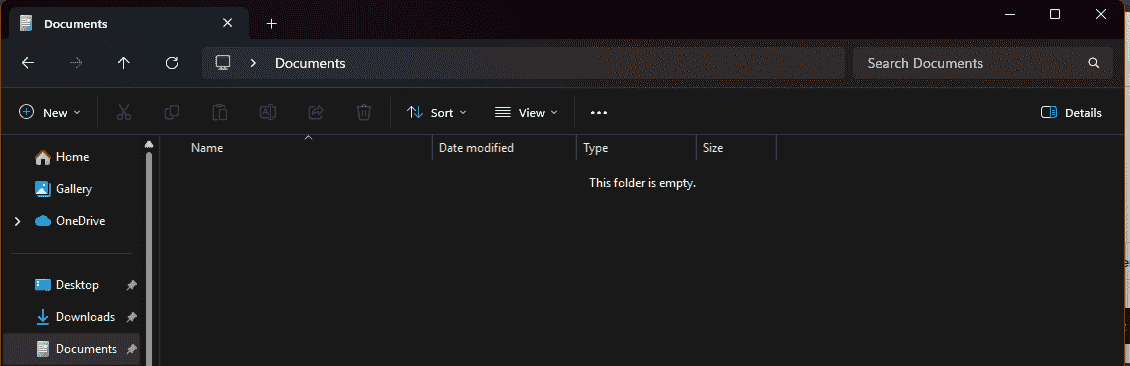
Step 2: Check Recent File
See if the missing document appears in the list of recently opened files. Go to:
C:\Users\<Username>\AppData\Roaming\Microsoft\Windows\Recent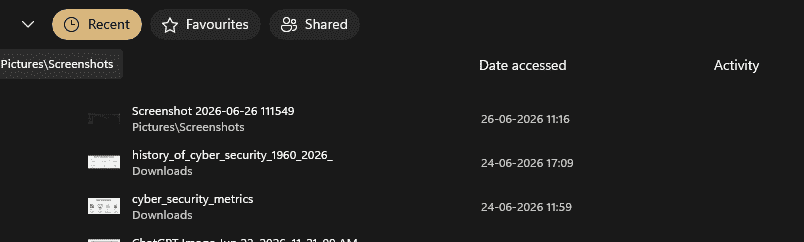
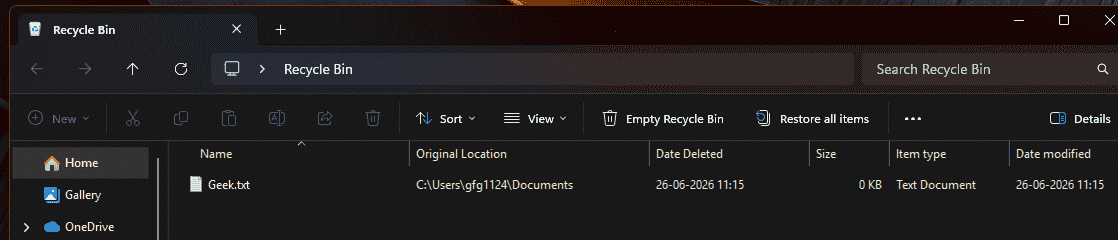
Step 3: Check the Recycle Bin
Open the Recycle Bin. Look for the missing document. If found, note its name and deletion date.
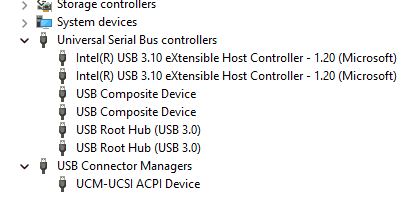
Step 4: Check USB Devices
Open Device Manager and see if a USB storage device has been connected recently. Sample Findings
| Evidence | Result |
|---|---|
| Missing file | Geek.txt |
| Recently opened | No |
| Found in Recycle Bin | Yes |
| USB connected | No |
