

Claude Cowork is Anthropic's AI workspace designed to help users complete complex tasks with minimal supervision. Unlike a regular chat, Cowork can plan, execute and manage multi-step tasks such as research, document creation, data analysis and working with connected applications.
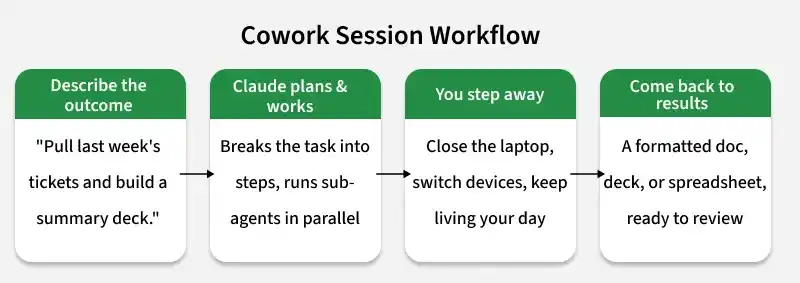
Claude Cowork is a dedicated workspace within Claude for handling multi-step tasks. Instead of responding to one prompt at a time like a chat assistant, Cowork can plan and complete tasks on your behalf. Some key features of Claude Cowork include:
- Works alongside Claude Chat within the Claude app.
- Can read and write files, browse the web, run code, and use connected applications.
- Breaks large tasks into smaller steps and completes them automatically.
- Supports long-running tasks with minimal user interaction.
- To start a session, select Cowork instead of Chat and describe the task you want Claude to complete.
Why Use Claude Cowork?
Claude Cowork is designed to automate complex tasks and improve productivity. Some of its key benefits include:
- Background execution: Continues working even if you close the app or switch to another task.
- Cross-device support: Start a task on one device and continue or review it on another.
- Multi-step task automation: Plans and completes complex workflows with minimal user input.
- Task scheduling: Automates recurring tasks such as weekly reports or regular data collection.
- Project memory: Remembers project-specific context and preferences for more consistent results.
Where Claude Cowork Runs
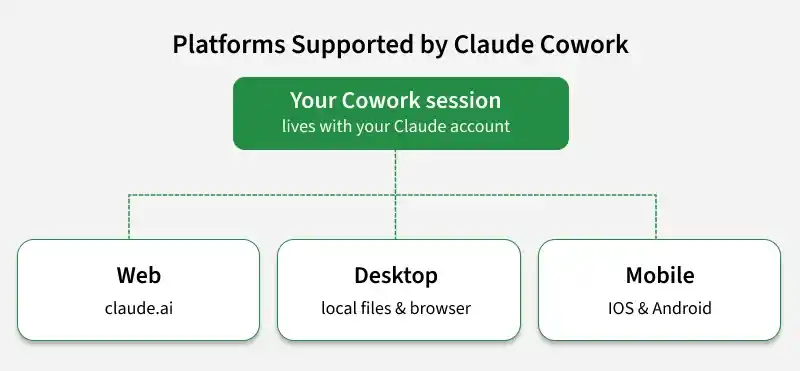
Claude Cowork is available on web, desktop and mobile platforms, allowing you to work across different devices.
- Desktop: Can access local files, the browser (through Claude in Chrome), and computer use features (research preview).
- Web and Mobile: You can start and manage Cowork sessions, but access to local files depends on the Claude Desktop app running on your computer.
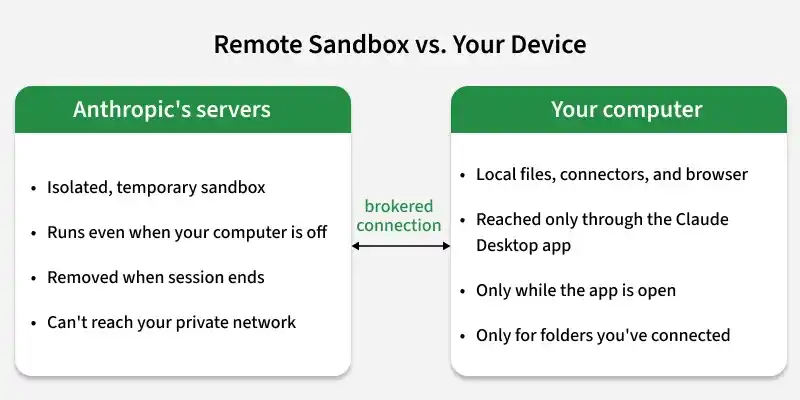
If the desktop app is closed, remote tasks continue to run, but local file access is unavailable until the desktop app is reopened.
Prerequisites
Before using Claude Cowork, make sure you have the following:
- A Claude Pro, Max, Team, or Enterprise subscription, as Cowork is not available on the Free plan.
- The latest version of the Claude app on your preferred platform (Web, Windows, macOS, Linux, Android, or iOS).
- Claude Desktop installed and running if you want Cowork to access local files, use your browser, or interact with your computer.
Starting a Claude Cowork Session
Follow these steps to start and use Claude Cowork effectively.
Step 1: Open Cowork Instead of Chat
- Open the Claude app or visit claude.ai.
- In the message box, select Cowork instead of Chat.
- If you do not see the Cowork option, update the app to the latest version.
Step 2: Describe the Desired Outcome
Instead of giving step-by-step instructions, describe the final result you want Claude to achieve. For example:
"Pull last week's support tickets from the shared drive, group them by issue type, and create a one-page summary report."
Claude automatically plans the required steps and chooses the appropriate workflow for the task.
Step 3: Grant Required Permissions
Claude may request permission to access files, applications, or connected services.
- Read permissions allow Claude to view files and data.
- Write permissions allow Claude to edit documents, send messages, or perform other actions.
- On the desktop app, Claude may also request permission to interact with specific applications using Computer Use.
Step 4: Let Claude Complete the Task
Once the task starts, Claude continues working independently.
- Remote sessions continue running even if you close your laptop.
- Local desktop sessions require the Claude Desktop app to remain open and your computer to stay powered on until the task is complete.
Additional Features
Once you are familiar with the basic workflow, you can explore these additional features:
- Dispatch: Start a task from your phone and let Claude use your desktop's files, applications, and connected services to complete it.
- Scheduled Tasks: Automate recurring tasks such as daily email checks or weekly reports.
- Projects: Organize related tasks, files, instructions, and project-specific memory in a single workspace.
- Live Artifacts: Share documents and files generated by Claude within Team and Enterprise workspaces.
- Computer Use: Allow Claude to interact with applications on your computer for tasks that do not have APIs or connectors.
Best Practices
Since Claude Cowork can access files and perform actions, it is important to use it responsibly.
- Only connect folders that are required for your task.
- Grant access only to trusted websites, applications, and connectors.
- Review Claude's actions before approving important or sensitive tasks.
- Use extra caution when enabling Computer Use, as it can interact directly with applications on your computer.
- Sensitive applications, such as banking or cryptocurrency platforms, are blocked from Computer Use by default.
