To create an Angular project from scratch, we'll need Node.js and npm installed on our computer. Once installed, we can use Angular CLI, a command-line tool, to quickly set up a new Angular project with a basic structure.
- After creating the project, we can start coding our application using TypeScript, HTML, and CSS files located in the project directory.
- Angular CLI simplifies tasks like serving the application locally for development, generating components, and managing dependencies, making it easy to get started with Angular development even for beginners.
Steps to create an Angular Project from Scratch
Step 1: Install Angular CLI:
Angular CLI (Command Line Interface) is a powerful tool for creating and managing Angular projects. You can install it globally using npm by running the following command in your terminal or command prompt:
npm install -g @angular/cliStep 2: Create a New Angular Project:
Once Angular CLI is installed, you can use it to create a new Angular project. Navigate to the directory where you want to create your project and run the following command:
ng new my-angular-app
cd my-angular-app
Step 3: Serve Your Angular Application:
After the project is created, navigate into the project directory then use an Angular CLI to serve your application locally by running:
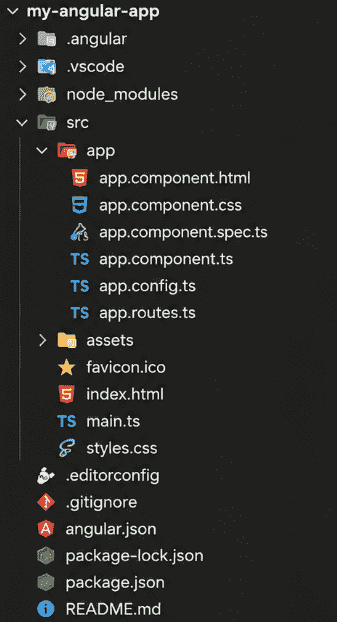
ng serveFolder Structure
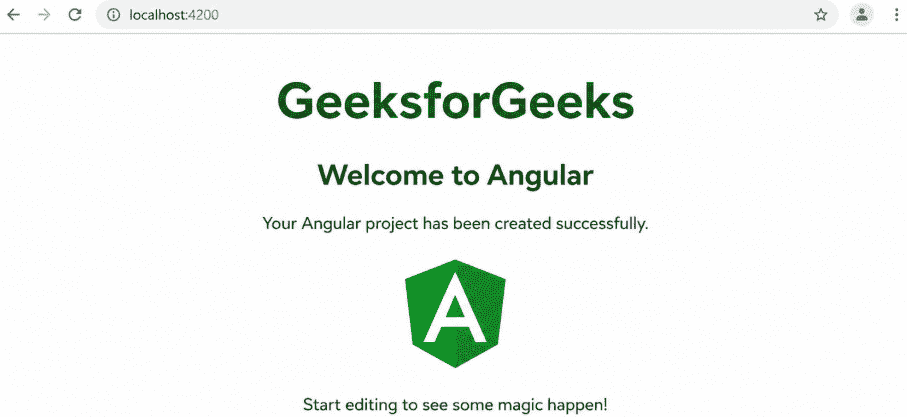
Example: In this example, we will create a simple Welcome page after creating the Angular project.
<div style="text-align:center; margin-top:60px;">
    <h1 style="color:green;">GeeksforGeeks</h1>
    <h2>Welcome to Angular</h2>
    <p>Your Angular project has been created successfully.</p>
    <img
        src="https://angular.dev/assets/images/press-kit/angular_icon_gradient.gif"
        alt="Angular Logo"
        width="120"
    >
    <p>Start editing to see some magic happen!</p>
</div>
//app.component.ts

import { Component } from '@angular/core';

@Component({
    selector: 'app-root',
    templateUrl: './app.component.html',
    styleUrls: ['./app.component.css']
})
export class AppComponent {
}
//app.module.ts

import { NgModule } from '@angular/core';
import { BrowserModule } from '@angular/platform-browser';

import { AppComponent } from './app.component';

@NgModule({
    declarations: [
        AppComponent
    ],
    imports: [
        BrowserModule
    ],
    providers: [],
    bootstrap: [AppComponent]
})
export class AppModule { }
To start the application run the following command.
ng serveOutput: