
This post covers best practices for using SetStablePowerState on NVIDIA GPUs. To get a high and consistent frame rate in your applications, see all Advanced API Performance tips.
Most modern processors, including GPUs, change processor core and memory clock rates during application execution. These changes can vary performance, introducing errors in measurements and rendering comparisons between runs difficult.
Recommended
- Use the
nvidia-smiutility to set the GPU core and memory clocks before attempting measurements. This command is installed by typical driver installations on Windows and Linux. Installation locations may vary by OS version but should be fairly stable.- Run commands on an administrator console on Windows, or prepend
sudoto the following commands on Linux-like OSs.
- To query supported clock rates
nvidia-smi --query-supported-clocks=timestamp,gpu_name,gpu_uuid,memory,graphics --format=csv
- To set the core and memory clock rates, respectively:
nvidia-smi --lock-gpu-clocks=<core_clock_rate>nvidia-smi --lock-memory-clocks=<memory_clock_rate>
- Perform performance capture or other work.
- To reset the core and memory clock rates, respectively:
nvidia-smi --reset-gpu-clocksnvidia-smi --reset-memory-clocks
- For general use during a project, it may be convenient to write a simple script to lock the clocks, launch your application, and after exit, reset the clocks.
- For command-line help, run
nvidia-smi --help. There are shortened versions of the commands listed earlier for your convenience. - For more information, see NVIDIA System Management Interface.
- Run commands on an administrator console on Windows, or prepend
- Use the DX12 function
SetStablePowerStateto read the GPU’s predetermined stable power clock rate. The stable GPU clock rate may vary by board.- Modify a DX12 sample to invoke
SetStablePowerState. - Execute
nvidia-smi -q -d CLOCK, and record the Graphics clock frequency with theSetStablePowerStatesample running. Use this frequency with the--lock-gpu-clocksoption.
- Modify a DX12 sample to invoke
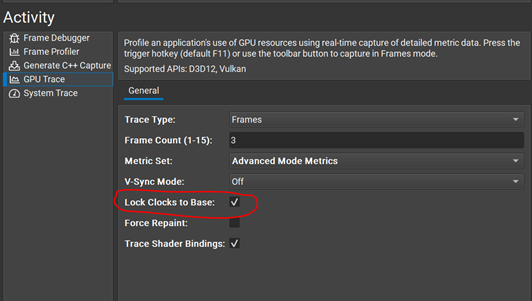
- Use Nsight Graphics’s GPU Trace activity with the option to lock core and memory clock rates during profiling (Figure 1).
Not recommended
- Don’t rely solely on the
SetStablePowerStatefunction when profiling.SetStablePowerStatedoes not lock the memory clock, which makes the results less comparable than when the appropriate clocks are locked withnvidia-smi.