

Context7 supports all MCP clients. Below are configuration examples for popular clients. If your client isn’t listed, check its documentation for MCP server installation. To configure manually, use the Context7 server URL https://mcp.context7.com/mcp with your MCP client and pass your API key via the Authorization: Bearer YOUR_API_KEY header.
Looking for the easiest way to get started? Use npx ctx7 setup to configure Context7
automatically, and npx ctx7 remove to remove the generated setup later. See the CLI
docs for more details.
For detailed guides including rules, skills, agents, and best practices, see Cursor for rules and Composer integration tips, and Claude Code for skills, agents, commands, and plugin installation.
OAuth Authentication#
Context7 MCP server supports OAuth 2.0 authentication for MCP clients that implement the MCP OAuth specification.
To use OAuth, change the endpoint from /mcp to /mcp/oauth in your client configuration:
OAuth is only available for remote HTTP connections. For local MCP connections using stdio transport, use API key authentication instead.
MCP Tools#
The Context7 MCP server exposes two tools. Clients list them under these exact names:
| Tool | Description |
|---|---|
resolve-library-id | Resolve a library name to a Context7-compatible library ID |
query-docs | Fetch up-to-date documentation and code examples for a library |
resolve-library-id#
Search for a library by name and resolve it to a Context7-compatible library ID (e.g., /vercel/next.js). Call this tool before query-docs unless the user already provides a library ID in the /owner/repo format.
| Parameter | Type | Description |
|---|---|---|
libraryName | string, required | Library name to search for, with the official punctuation — e.g., Next.js, not nextjs |
query | string, required | What you want to do with the library, e.g., set up middleware |
The tool returns the matching libraries with their ID, title, description, code snippet count, source reputation, benchmark score, and available versions.
query-docs#
Fetch documentation context for a library and a specific question.
| Parameter | Type | Description |
|---|---|---|
libraryId | string, required | Exact Context7-compatible library ID, e.g., /vercel/next.js or /vercel/next.js/v16.2.9 |
query | string, required | What to look up, scoped to a single concept |
language | string, optional | Programming language you write in, e.g., Python or Go. Code examples in that language rank first |
The tool returns the relevant documentation and code examples as text.
Claude Code
Run this command. See Claude Code MCP docs for more info.
Local Server Connection#
Remote Server Connection#
Cursor
Go to: Cursor Settings -> Tools & MCP -> New MCP Server
Pasting the following configuration into your Cursor ~/.cursor/mcp.json file is the recommended approach. You may also install in a specific project by creating .cursor/mcp.json in your project folder. See Cursor MCP docs for more info.
Since Cursor 1.0, you can click the install button below for instant one-click installation.
Remote Server Connection#

Local Server Connection#
Opencode
Add this to your Opencode configuration file. See Opencode MCP docs for more info.
Remote Server Connection#
Local Server Connection#
Pi
Built-in MCP#
We recommend built-in MCP because the Context7 MCP server receives updates more frequently than the Pi extension.
Pi has built-in MCP support from version 0.99.0. Run pi update to update Pi, then choose one connection method below. See the Pi guide for usage examples and Pi’s MCP documentation for configuration details.
OAuth
Approve access in your browser. Pi stores and refreshes the OAuth tokens.
Remote server with an API key
Create a key in the Context7 dashboard and export it before starting Pi:
Local server connection
With Node.js and npx installed, run:
These commands save the server in ~/.pi/agent/mcp.json. Add --local to pi mcp add to use .pi/mcp.json for a trusted project. The --exposure direct option makes Context7’s tools visible to the model immediately.
Run pi mcp list to check the connection. In an open Pi session, run /reload, then use /mcp to inspect the server. Ask Pi to use Context7 for a library documentation question.
Context7 extension#
The official Context7 extension is an alternative. It includes a documentation skill and the /c7-docs prompt. It calls the hosted Context7 HTTP API directly, without using the remote MCP server:
Run /reload or start a new Pi session, then ask a documentation question or use /c7-docs next.js Cache Components. It supports anonymous access and the CONTEXT7_API_KEY environment variable. Choose either the extension or the MCP setup above to avoid duplicate tools.
OpenClaw
Add the hosted Context7 server with OpenClaw’s MCP client registry. See the OpenClaw MCP documentation for more details.
OAuth (Recommended)#
Register the Context7 OAuth endpoint, then sign in through your browser:
OpenClaw also provides a code-based login fallback for headless or remote environments. See Set Up OAuth for more details.
API Key#
To connect with an API key, register the standard endpoint:
Verify that OpenClaw can connect and discover the Context7 tools:
OpenAI Codex
See OpenAI Codex MCP docs for more info.
Context7 Plugin#
You can also install Context7 as a Codex plugin. It connects to the hosted MCP server and includes a documentation lookup skill. After installation, a browser window opens so you can log in via OAuth.
Start a new Codex thread after installation so Codex can load the plugin.
Using CLI#
Local Server Connection#
Add this to your Codex configuration file (~/.codex/config.toml or .codex/config.toml).
Remote Server Connection#
startup_timeout_sec to 40.Google Antigravity
Add this to your Antigravity MCP config file. See Antigravity MCP docs for more info.
Remote Server Connection#
Local Server Connection#
VS Code
The easiest way to install is the Context7 VS Code extension, which registers the server automatically and supports an API key via the context7.apiKey setting. See VS Code for details. For manual configuration, use the options below.


Add this to your VS Code MCP config file (.vscode/mcp.json). See VS Code MCP docs for more info.
Remote Server Connection#
Local Server Connection#
Kiro
See Kiro Model Context Protocol Documentation for details.

- Navigate
Kiro>MCP Servers - Add a new MCP server by clicking the
+ Addbutton. - Paste the configuration:
Remote Server Connection#
To use an API key in Kiro, add:
See the API keys guide for how to create one.
Local Server Connection#
- Click
Saveto apply.
Kilo Code
You can configure the Context7 MCP server in Kilo Code using either the UI or by editing your config file. See Kilo Code MCP docs for more info.
Kilo Code stores MCP servers in a kilo.jsonc file:
- Global —
~/.config/kilo/kilo.jsonc - Project —
kilo.jsoncin your project root or.kilo/kilo.jsonc(takes precedence)
Configure via Kilo Code UI#
- Click the Settings icon in the sidebar toolbar.
- Navigate to the Agent Behaviour tab.
- Select the MCP Servers sub-tab.
- Click Add Server and choose Remote (HTTP) or Local (stdio).
- Fill in the details and save.
Manual Configuration#
Add Context7 under the mcp key in your kilo.jsonc.
Remote Server Connection#
Local Server Connection#
Roo Code
Add this to your Roo Code MCP configuration file. See Roo Code MCP docs for more info.
Remote Server Connection#
Local Server Connection#
Devin Desktop
Add this to your Devin Desktop MCP config file. See Devin Desktop MCP docs for more info.
Remote Server Connection#
Local Server Connection#
Claude Desktop
Remote Server Connection#
Open Claude Desktop and navigate to Settings > Connectors > Add Custom Connector. Enter the name as Context7 and the remote MCP server URL as https://mcp.context7.com/mcp.
Local Server Connection#
Open Claude Desktop developer settings and edit your claude_desktop_config.json file. See Claude Desktop MCP docs for more info.
ChatGPT
Add Context7 to ChatGPT on the web as a custom MCP server plugin. See Add custom MCP server in the OpenAI docs. Workspace permissions can block custom MCP servers.
1. Add the MCP server#
Go to ChatGPT Plugins → select the plus button → Add custom MCP server, and fill in the following:
| Field | Value |
|---|---|
| Name | Context7 |
| Description | Fetch up-to-date documentation and code examples for any library directly from the source |
| Server URL | https://mcp.context7.com/mcp/oauth |
| Authentication | OAuth |
Select I understand and want to continue, then Create as a plugin.
2. Install the plugin#
Find Context7 in your plugins, install it, and complete the one-time OAuth authorization.
3. Use in a conversation#
Start a new chat, type @ in the prompt box, and select Context7.
Trae
Use the Add manually feature and fill in the JSON configuration. See Trae documentation for more details.
Remote Server Connection#
Local Server Connection#
Cline
You can easily install Context7 through the Cline MCP Server Marketplace by following these instructions:
- Open Cline.
- Click the hamburger menu icon to enter the MCP Servers section.
- Use the search bar within the Marketplace tab to find Context7.
- Click the Install button.
Or you can directly edit MCP servers configuration:
- Open Cline.
- Click the hamburger menu icon to enter the MCP Servers section.
- Choose Remote Servers tab.
- Click the Edit Configuration button.
- Add context7 to
mcpServers:
Augment Code
To configure Context7 MCP in Augment Code, you can use either the graphical interface or manual configuration. See Augment Code MCP docs for more info.
Using the Augment Code UI#
-
Open the options menu in the upper right of the Augment panel.
-
Select Settings.
-
Navigate to the MCP section.
-
Click the + button to add a new server.
-
Enter the name Context7 and the command:
Manual Configuration#
In the MCP section, use Import from JSON and paste the following (a top-level mcpServers object keyed by server name):
Gemini CLI
See Gemini CLI Configuration for details.
- Open the Gemini CLI settings file at
~/.gemini/settings.json - Add the following to the
mcpServersobject:
Or, for a local server:
Hermes
Use the Hermes CLI or edit ~/.hermes/config.yaml directly. See the Hermes CLI docs for more info.
Remote Server Connection (API Key)#
Add this to your Hermes config file (~/.hermes/config.yaml).
Remote Server Connection (OAuth)#
Using CLI (OAuth)#
Local Server Connection#
Start with the API key method if you want the most direct setup. Hermes also supports OAuth for remote MCP servers via auth: oauth. On headless setups, Hermes may print an authorization URL to stdout or logs for you to open manually. If hermes mcp add ... --auth oauth drops into the interactive agent without saving the server entry, add the mcp_servers.context7 config manually, then run hermes mcp test context7 to trigger the auth flow and verify the connection.
Copilot Coding Agent
Add the following configuration to Repository -> Settings -> Code & automation -> Copilot -> MCP servers. Only secrets named with the COPILOT_MCP_ prefix are exposed to the MCP config, so store your key as a COPILOT_MCP_CONTEXT7_API_KEY Actions secret and reference it:
See the official GitHub documentation for more info.
Copilot CLI
The easiest way is the Context7 plugin, which bundles the MCP server with a skill, an agent, and a command — see GitHub Copilot CLI. For manual configuration, open ~/.copilot/mcp-config.json and add:
Or, for a local server:
Amazon Q Developer CLI
Add this to your Amazon Q Developer CLI configuration file. See Amazon Q Developer CLI docs for more details.
Warp
See Warp Model Context Protocol Documentation for details.
- Navigate
Settings>Agents>MCP servers. - Add a new MCP server by clicking the
+ Addbutton. - Paste the configuration:
- Click
Save.
Amp
Run this command in your terminal. See Amp MCP docs for more info.
With OAuth#
With API Key (Higher Rate Limits & Private Repos)#
Zed
It can be installed via Zed Extensions or you can add this to your Zed settings.json. See Zed MCP docs for more info.
Smithery
To install Context7 MCP Server for any client automatically via Smithery:
See the Context7 server page on Smithery for more details.
JetBrains AI Assistant
See JetBrains AI Assistant Documentation for more details.
- In JetBrains IDEs, go to
Settings->Tools->AI Assistant->Model Context Protocol (MCP) - Click
+ Add. - Select the HTTP or STDIO tab and paste the JSON configuration.
- Click
Applyto save changes.
Remote Server Connection#
Local Server Connection#
Qwen Code
See Qwen Code MCP Configuration for details.
Using CLI Command#
By default, configurations are saved to the project scope (.qwen/settings.json). Use the --scope user flag to save to the user scope (~/.qwen/settings.json) instead.
Remote Server Connection#
Local Server Connection#
Manual Configuration#
- Open the Qwen Code settings file at
~/.qwen/settings.json(user scope) or.qwen/settings.json(project scope) - Add the following to the
mcpServersobject:
Remote Server Connection#
Local Server Connection#
Using Docker
- Create a
Dockerfile:
- Build the image:
- Configure your MCP client:
Docker MCP Toolkit
Context7 is available in the Docker MCP Catalog as a remote server, so you don’t need to build, pull, or run a local image. The MCP Toolkit connects to the hosted endpoint for you.
- In Docker Desktop, open MCP Toolkit → Catalog, search for Context7, and enable it.
- In the server’s Config tab, set your free Context7 API key (
CONTEXT7_API_KEY). - Connect your MCP client to Docker’s MCP gateway. Either run
docker mcp client connect <client>(for examplevscode,cursor, orclaude-desktop), or add the gateway to your client config manually:
The gateway exposes every server you’ve enabled in the MCP Toolkit, including Context7. Tools appear under the MCP_DOCKER server in your client.
Windows
The configuration on Windows is slightly different. Use cmd to run npx:
LM Studio
See LM Studio MCP docs for more information.
One-click install:#

Manual set-up:#
- Navigate to
Program(right side) >Install>Edit mcp.json. - Paste the configuration:
- Click
Save.
Visual Studio 2022
Crush
Add this to your Crush configuration file. See Crush MCP docs for more info.
Remote Server Connection#
Local Server Connection#
BoltAI
Open the “Settings” page, navigate to “Plugins,” and enter:
See BoltAI’s Documentation for more info.
Zencoder
- Go to the Zencoder menu (…)
- Select Agent tools
- Click on Add custom MCP
- Add the name and configuration:
- Click Install.
Qodo Gen
See Qodo Gen docs for more details.
- Open Qodo Gen chat panel in VSCode or IntelliJ.
- Click Connect more tools.
- Click + Add new MCP.
- Add the configuration:
Local Server Connection#
Remote Server Connection#
Perplexity Desktop
See Local and Remote MCPs for Perplexity for more information.
- Navigate
Perplexity>Settings - Select
Connectors. - Click
Add Connector. - Select
Advanced. - Enter Server Name:
Context7 - Paste:
- Click
Save.
Manus
Manus includes a built-in Context7 connector:
- Navigate
Settings>Connectors. - In the
Appstab, search forContext7. - Click
Context7to enable it.
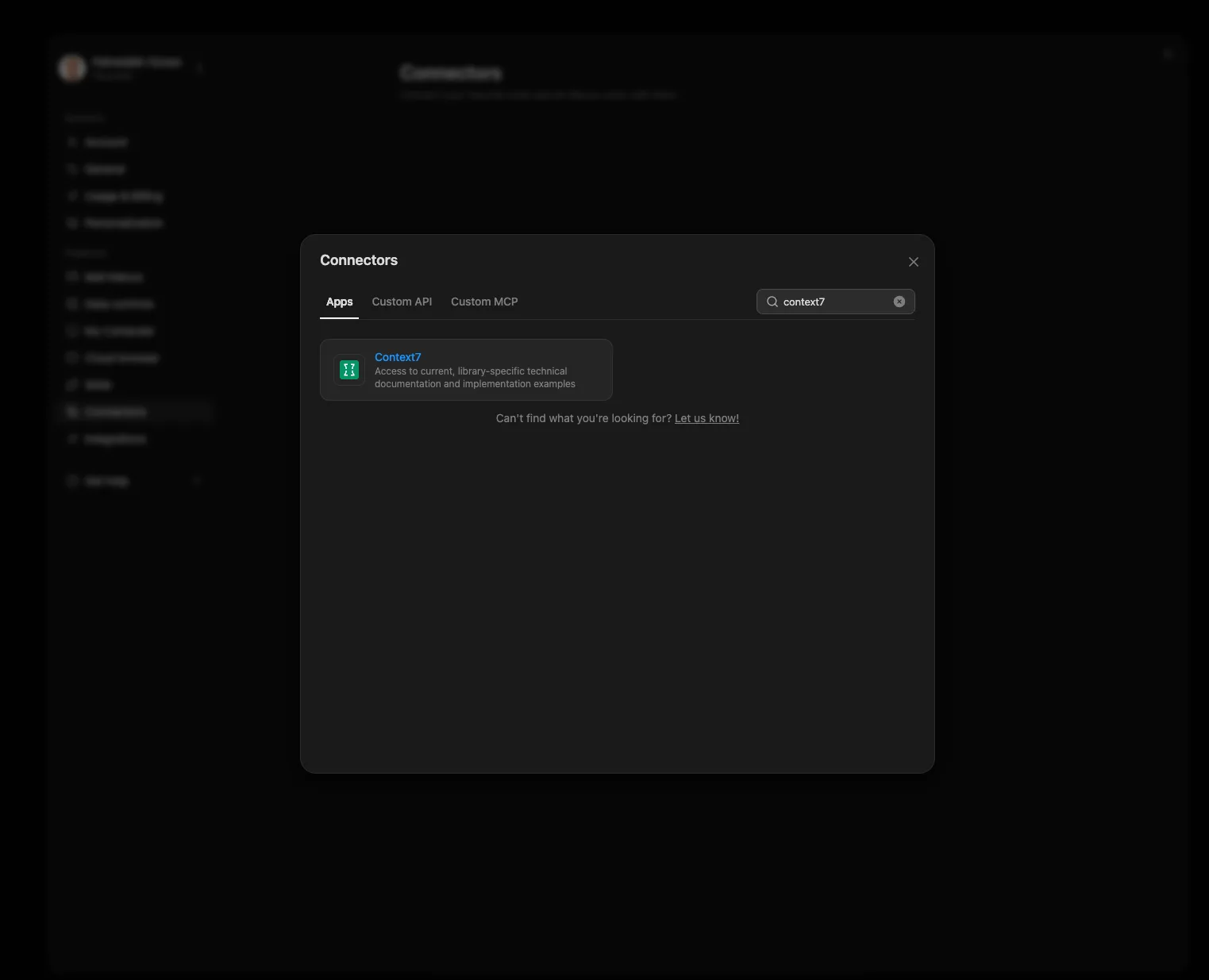
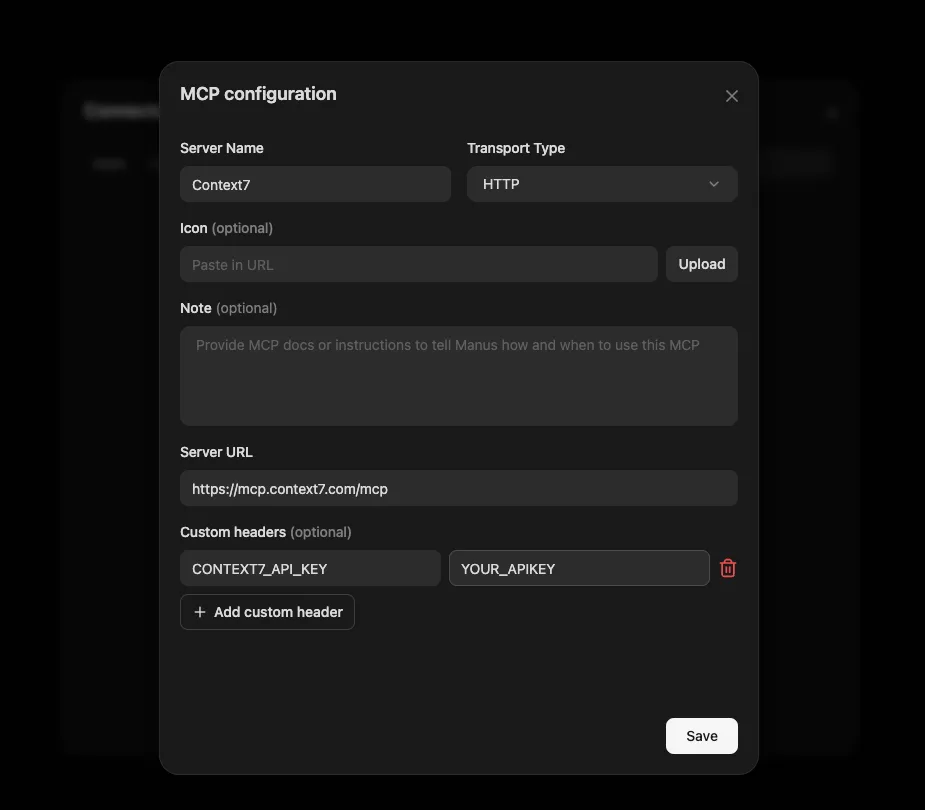
Alternatively, add it as a custom MCP connection with your API key:
- Navigate
Settings>Connectors>Custom MCP. - Fill in the configuration:
| Field | Value |
|---|---|
| Server Name | Context7 |
| Transport Type | HTTP |
| Server URL | https://mcp.context7.com/mcp |
| Custom headers | CONTEXT7_API_KEY: YOUR_API_KEY |
- Click
Save.
Factory
Factory’s droid supports MCP servers through its CLI. See Factory MCP docs for more info.
Remote Server Connection#
Local Server Connection#
Emdash
Emdash is an orchestration layer for running multiple coding agents in parallel.
Context7 is available as a built-in entry in Emdash’s MCP catalog. Enable it from the MCP view and authenticate with OAuth, or provide your CONTEXT7_API_KEY when the selected agent does not support OAuth. Emdash adapts and writes the MCP config into your selected coding agent’s config (Codex, Claude Code, Cursor, etc.) for you.
See the Emdash repository for more information.
Desktop Extension
Install the context7.mcpb file and add it to your client. See MCP bundles docs for more info.
FLUJO
FLUJO connects to Context7 through its remote-server setup.
- Open Connected Apps and select Connect App → I have connection details → At a remote URL.
- Enter
https://mcp.context7.com/mcpas the Server URL and click Connect. - Select Continue to setup if prompted. In Configure & Test, confirm that Streamable HTTP is selected.
- Under Custom HTTP headers, add an
Authorizationheader with the valueBearer YOUR_API_KEYand select Secret to mask it. Leave the optional OAuth client credentials blank for this endpoint. - Run 3) Test run if the connection test has not started automatically. After the test passes, click Update server to save.
- Open the connected server’s Tools tab. Select
resolve-library-id, provide a library name and a documentation query, and click Test tool. Use a returned library ID withquery-docsto retrieve documentation.
AnythingLLM
AnythingLLM supports MCP Servers through GUI.
- Navigate
AnythingLLM>Agents Skills - Select
MCP Servers. - Click
Edit MCP config. - Paste.
- Click to “Refresh” button.
