Wine translates Windows API calls into their Linux equivalents on the fly, so a Windows program runs as an ordinary process with no virtual machine, no dual boot and no Windows license underneath it. Winetricks is the companion script that installs the pieces Wine deliberately does not ship: the redistributable DLLs, core fonts, .NET components and Visual C++ runtimes that a surprising number of Windows applications refuse to start without.
The two are independent. Wine is the compatibility layer; Winetricks is a shell script that drops components into a Wine prefix. You can run Winetricks on its own, and plenty of Wine installs never need it. You reach for it the moment an installer dies complaining about a missing runtime, which is the point where most people give up on Wine without realising the fix is one command.
This guide installs both on Ubuntu and Debian from the WineHQ repository, then walks a real Windows application through install, launch and removal. The steps were run in August 2026 against WineHQ stable 11.0, the release that merged the old wine and wine64 loaders into a single wine command.
Install Wine and Winetricks on Ubuntu and Debian
Both packages come from the same WineHQ repository, so the repository step below covers Wine and Winetricks together. Everything after that is the same on Ubuntu and Debian.
Step 1. Adding the Wine Repository
Adding the official Wine repository ensures you get the latest and most stable version of Wine. Open a terminal and run the following commands:
# Add the Wine repository key
wget -O - https://dl.winehq.org/wine-builds/winehq.key | sudo gpg --dearmor -o /usr/share/keyrings/winehq-archive-keyring.gpg

# Add the Wine repository (for Ubuntu)
echo "deb [signed-by=/usr/share/keyrings/winehq-archive-keyring.gpg] https://dl.winehq.org/wine-builds/ubuntu/ $(lsb_release -cs) main" | sudo tee /etc/apt/sources.list.d/winehq.list > /dev/null

# Add the Wine repository (for Debian)
echo "deb [signed-by=/usr/share/keyrings/winehq-archive-keyring.gpg] https://dl.winehq.org/wine-builds/debian/ $(lsb_release -cs) main" | sudo tee /etc/apt/sources.list.d/winehq.list > /dev/null

# Update the package list
sudo apt update
Step 2. Installing Wine & Winetricks
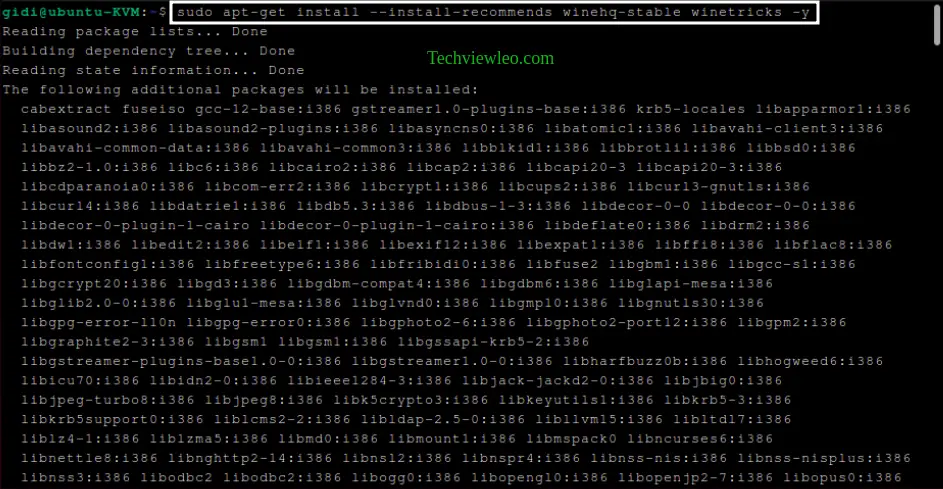
Now, install Wine and Winetricks using the following commands:
sudo apt install --install-recommends winehq-stable winetricks -yYou can choose between winehq-stable, winehq-devel, or winehq-staging depending on your preference for stable, development, or staging versions.
Step 3. Configure Wine
Run the Winetricks app, which will automatically create the necessary directories for you with the command below.
winetricksIf you run into an error such as “Wine could not find a wine-mono package which is needed for .NET applications to work correctly” shown below, just do as the prompt instructs and click “Install” to resolve the problem.
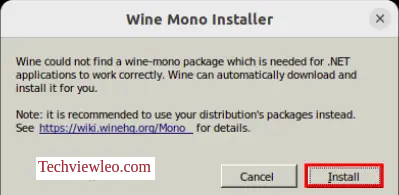
Wine will download and execute the Wine mono installer to resolve the missing package. Wine will then update and relaunch.
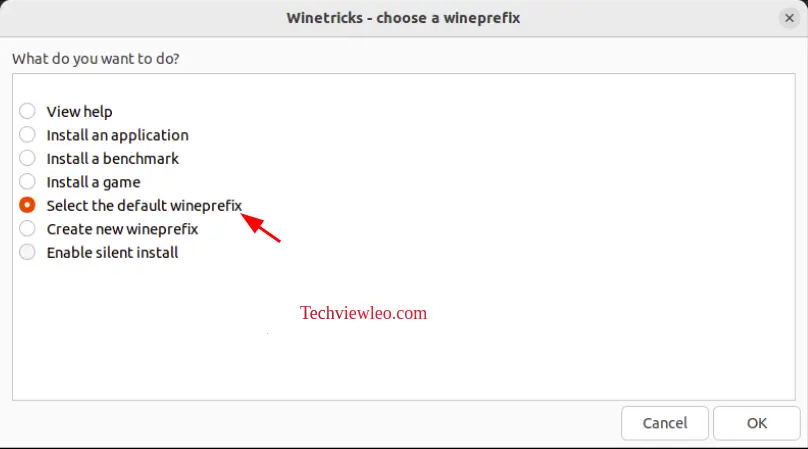
In the resulting window, click Select the default wine-prefix and then OK.
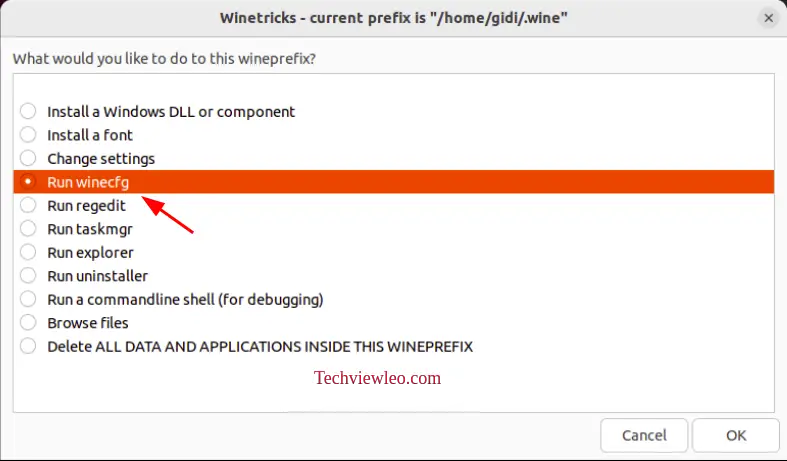
In the following window, choose Run winecfg and then click OK.
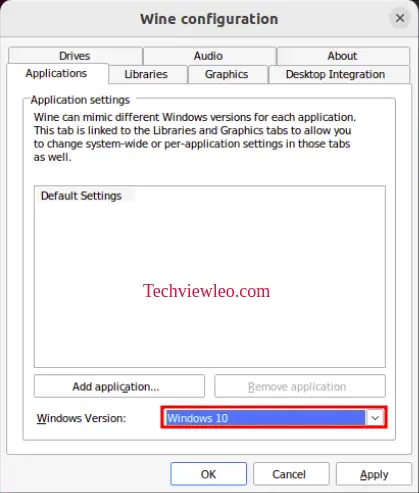
You may next choose the version of Windows you want Wine to emulate by picking an option from the Windows Version selection and click Apply then OK.
Winetricks allows you to also take care of a number of other options, such as installing DLLs, fonts, and more. But at this point, you can close out that window and prepare to install your first Windows app.
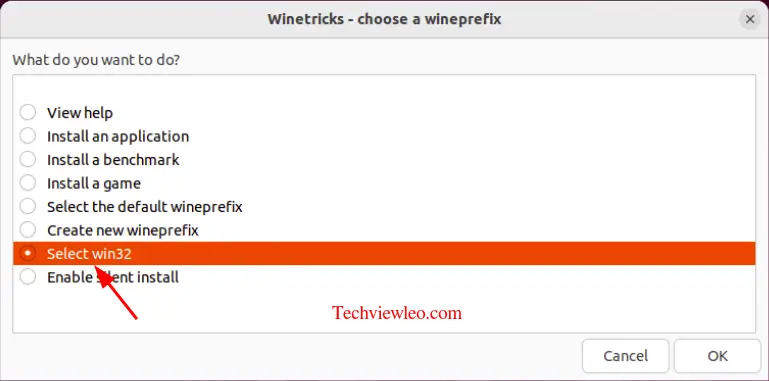
Now, we need to create a 32-bit (win32) prefix because many Windows applications, especially older ones, were designed to run on 32-bit Windows systems. Open winetricks program and select “Create new wineprefix” then select 32-bit and name it win32.
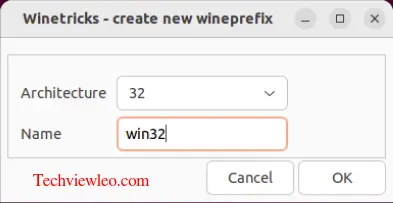
Now when you open winetricks, you can select win32.
Step 4. Download and Install Windows Application
When installing a windows application, we can either use Wine or Winetricks. Lets take a look at both:
Using Wine
Let’s install a very popular programmers notepad—Notepad++. First, download the Windows installer for the app and save it in your Downloads directory then, open your terminal window and change into the Downloads directory with the command cd ~/Downloads.
Run the installer with the command wine your_application_installer.exe or right-click that file and select Open in Wine Windows Program Loader.
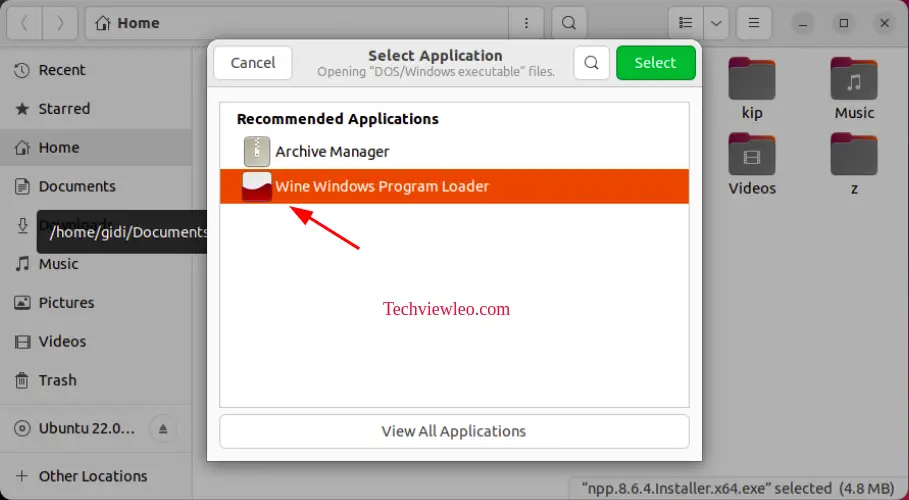
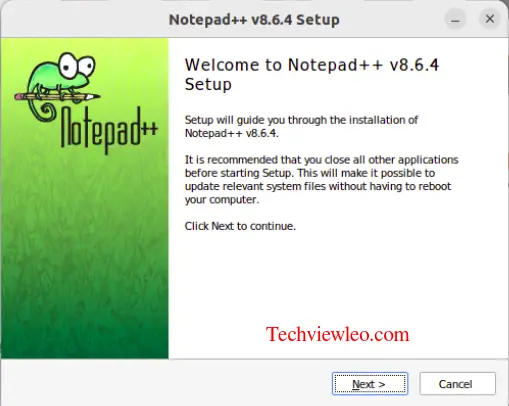
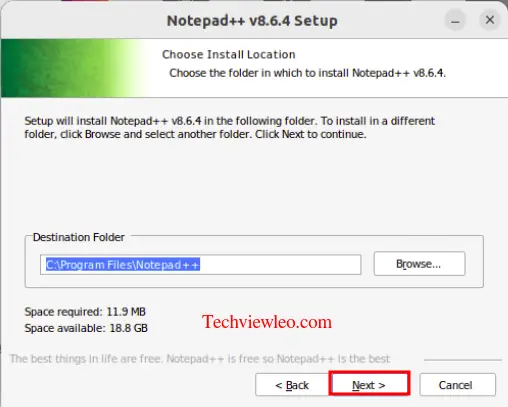
Finally, the Windows install wizard will open, where you can click your way to success.
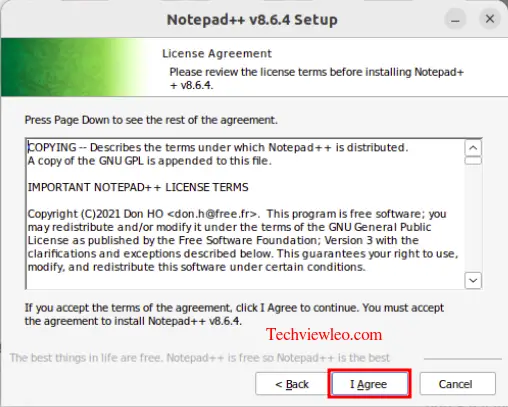
Agree to the license terms by clicking on the “I Agree” button.
Follow the installer to finish your installation.
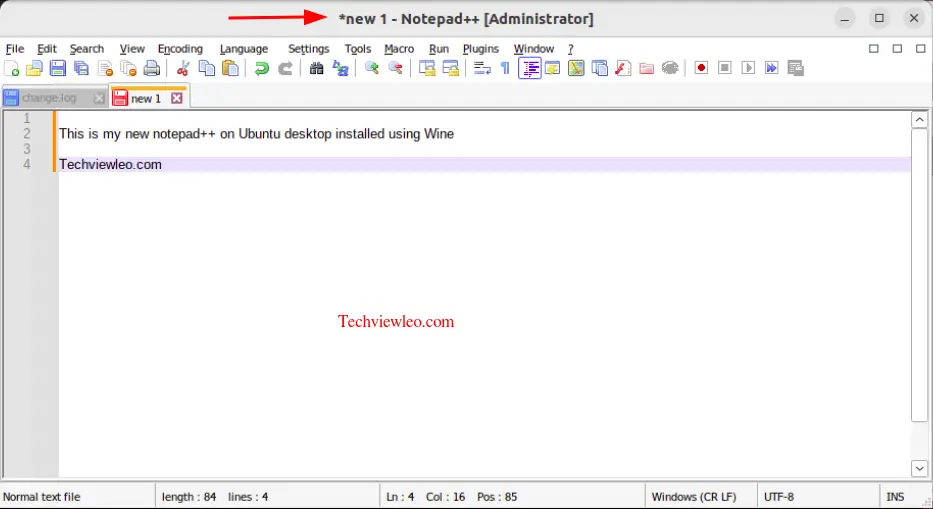
You Window application is ready.
Using Winetricks
Winetricks is an amazing feature of Wine which allows yo to install a Windows software straight via Winetricks. If you start the Winetricks program, which is now accessible from your desktop menu, and pick Install an application, you will be presented with a selection of apps that can be installed straight from the GUI. Using this technique, the installer file will be downloaded and executed automatically. The installation wizard will then be accessed to finalize the process.
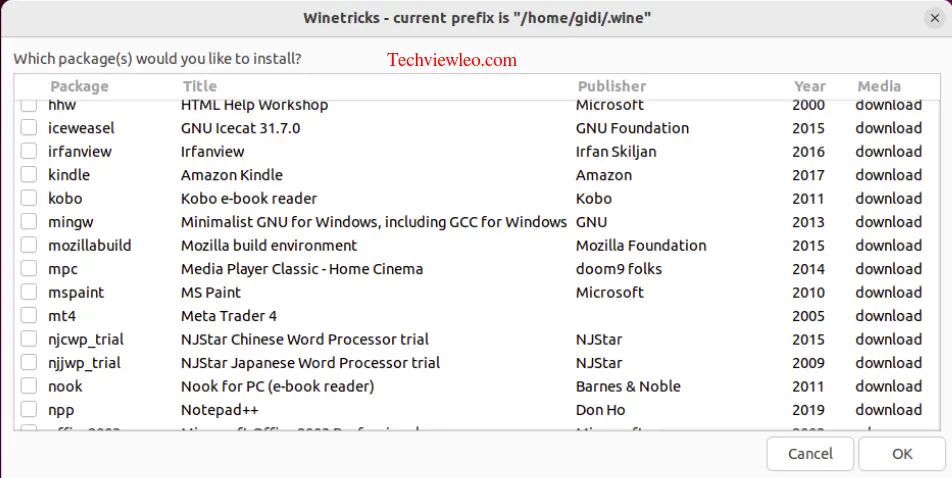
For instance, lets install the same Notepad++ using winetricks. Open winetricks then select Install application and click on npp which is the package name for Notepad++ then click OK. Select the installer language and proceed with the installation.
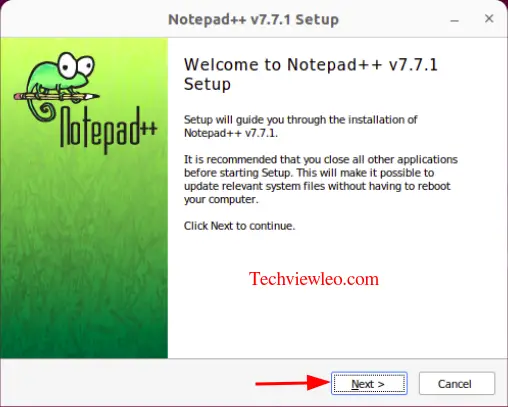
Follow the installer to complete your installation.
Uninstalling Windows Application
To uninstall a windows application using winetricks, open the winetricks program and pick select default wienprefix and then Run Uninstaller. This will open the Add/Remove Program showing all the installed programs.
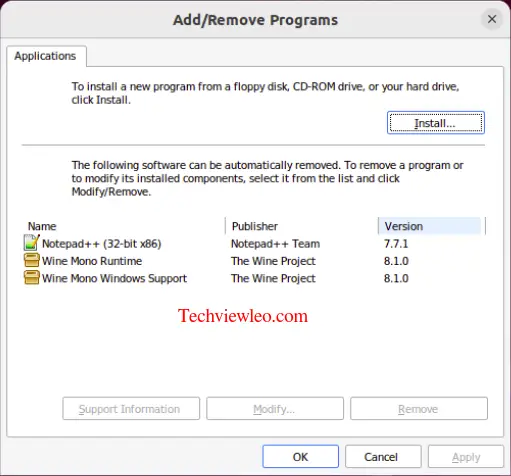
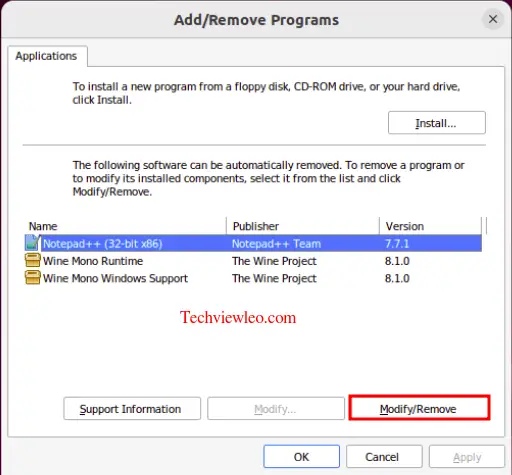
Choose the program you’d like to uninstall and click on Modify/remove to open the uninstall program.
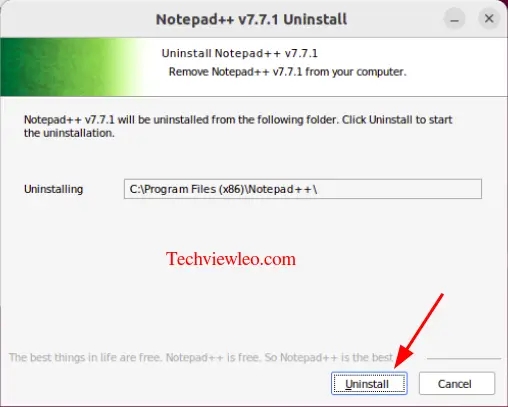
Now click the Uninstall button.
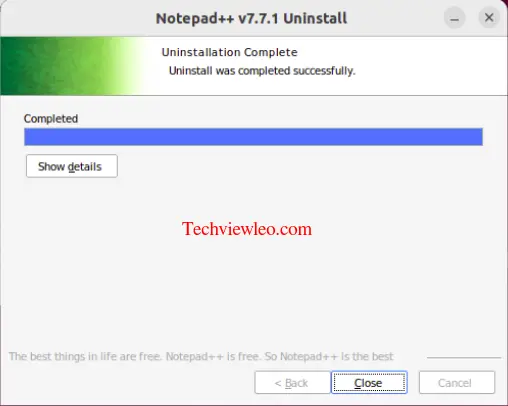
You have successfully uninstalled the application.
Conclusion
How much work an application needs comes down to the application. Plenty install and run with nothing but Wine; others want a font pack or a Visual C++ runtime first, which is exactly the gap Winetricks fills. When an installer fails, check the Wine Application Database entry for that program before assuming Wine cannot run it, since the required components are usually listed there.