


来自MSDN-2001-OCT: Visual Tools and Languages/Visual Studio 6.0 Documentation/Visual Basic Documentation/Using Visual Basic/Programmer’s Guide/Part 2: What Can You Do With Visual Basic/Working with Text and Graphics/
1. Working with Fonts
(1) When you select a TrueType font, it is rendered into the selected point size and displayed as a bitmap on the screen.
When printing, the selected TrueType font or fonts are rendered into the appropriate size and then sent to the printer. Therefore, there is no need for separate screen and printer fonts.
(2) One way to avoid font problems is to distribute the necessary fonts with your application.
You can also program your application to check among the fonts available in the operating system for the fonts you use.
Another way to avoid font problems is to use fonts users are most likely to have on their systems.
(3) Creating Your Own Font Types: The Font class is derived from the StdFont base class and is supported by all controls.
With MyFont
. Bold = True
. Name = "Arial"
End With
Set Text1 . Font = MyFont
2. Setting Font Characteristics
(1) Name, Size, Bold, Italic, StrikeThrough, Underline, Weight
(2) The order in which you select font properties is important, because not all fonts support all font variations. Set the Name property first. Then you can set any of the Boolean properties, such as Bold and Italic, to True or False.
(3) Some fonts do not support the sizes smaller than 8 points. When you set the Size property for one of these fonts to a size smaller than 8 points, either the Name property or the Size property will automatically change to a different font or a different size.
(4) If the text is specified by a property (such as Text or Caption), then changing a font property applies to all the text in that control.
If the application shows text with the Print method, then changing a font property affects all uses of Print after the property change.
Because changes in font properties apply to all the text in text boxes and labels, you cannot mix fonts in these controls.
(5) Forms and picture boxes have an additional font property, FontTransparent. When FontTransparent is True, the background shows through any text displayed on the form or picture box.
3. Displaying Text on Forms and Picture Boxes
(1) To display text on a form or picture box, use the Print method, preceded by the name of the form or picture box. To send output text to a printer, use the Print method on the Printer object.
(2) If the form or picture box is too small to display all the text, the text is cut off.
When you print text to a form, the text appears in a layer behind any controls that have been placed on the form.
(3) Use a semicolon (;) or a comma (,) to separate one item from the next. If you use a semicolon, Visual Basic prints one item after another, without intervening spaces. If you use a comma, Visual Basic skips to the next tab column.
(4) By default, each Print method prints the text and moves to the next line. If there are no items, Print simply skips a line.
By placing a semicolon (or comma) at the end of the first statement, however, you cause the output of the next Print statement to appear on the same line
(5) You can control placement of Print output by specifying the drawing coordinates, using either or both of these techniques:
a) Use the Cls (clear) method to erase a form or picture box and reset the drawing coordinates to the origin (0,0).
b) Set drawing coordinates with the CurrentX and CurrentY properties.
(6) To erase text selectively, draw a box with the Line method and fill it with the background color.
By default, forms and picture boxes use a coordinate system where each unit corresponds to a twip (1,440 twips equal an inch, and approximately 567 twips equal a centimeter). You may want to change the ScaleMode property of the form, picture box, or Printer object from twips to points, because text height is measured in points.
(7) Before using the Print method, you can use the TextHeight and TextWidth methods to determine where to position the CurrentX and CurrentY properties. TextHeight returns the height of a line of text, taking into account the object’s font size and style.The TextWidth method returns the width of a string, taking into account the object’s font size and style.
4. Formatting Numbers, Dates, and Times
(1) The Format function converts the numeric value to a text string and gives you control over the string’s appearance.
(2) Visual Basic provides several standard formats to use with the Format function. Instead of designating symbols in the format argument, you specify these formats by name in the format argument of the Format function. Always enclose the format name in double quotation marks ("").
(3) To print formatted dates and times, use the Format function with symbols representing date and time.
5. Working with Selected Text
(1) You can control what text is selected by setting the SelStart and SelLength properties.
(2) If you assign a new string to SelText, that string replaces the selected text, and the insertion point is placed just after the end of the newly inserted text.
6. Transferring Text and Graphics with the Clipboard Object
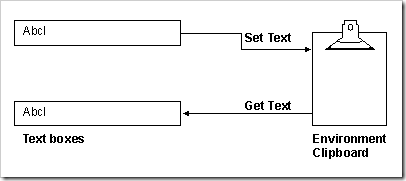
(1) The Clipboard object has no properties or events, but it has several methods that allow you to transfer data to and from the environment’s Clipboard. The Clipboard methods fall into three categories. The GetText and SetText methods are used to transfer text. The GetData and SetData methods transfer graphics. The GetFormat and Clear methods work with both text and graphic formats.
Clipboard . Clear
Clipboard . SetText Text1 . SelText
End Sub
Private Sub mnuCut_Click ()
Clipboard . Clear
Clipboard . SetText Text1 . SelText
Text1 . SelText = ""
End Sub
Private Sub mnuPaste_Click ()
Text1 . SelText = Clipboard . GetText()
End Sub
(3) You can actually place several pieces of data on the Clipboard at the same time, as long as each piece is in a different format.
(4) You can use the GetFormat method to determine whether the data on the Clipboard is in a particular format.
7. Understanding the Coordinate System
(1) Every graphical operation described in this chapter (including resizing, moving, and drawing) uses the coordinate system of the drawing area or container.
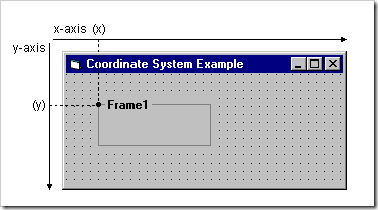
(3) When you move or resize a control, you use the coordinate system of the control’s container. If you draw the object directly on the form, the form is the container. If you draw the control inside a frame or picture box, the frame or the control is the container.
(4) Statements that resize or move a form always express the form’s position and size in twips. When you create code to resize or move a form, you should first check the Height and Width properties of the Screen object to make sure the form will fit on the screen.
(5) The upper-left corner of the screen is always (0, 0). The default coordinate system for any container starts with the (0, 0) coordinate in the upper-left corner of the container.
(6) twip : By default, all Visual Basic movement, sizing, and graphical-drawing statements use a unit of one twip. A twip is 1/20 of a printer’s point (1,440 twips equal one inch, and 567 twips equal one centimeter). These measurements designate the size an object will be when printed. Actual physical distances on the screen vary according to the monitor size.
8. Changing an Object's Coordinate System
(1) You set the coordinate system for a particular object (form or control) using the object’s scale properties and the Scale method.
You can use the coordinate system in one of three different ways: Use the default scale; Select one of several standard scales; Create a custom scale.
(2) Every form and picture box has several scale properties (ScaleLeft, ScaleTop, ScaleWidth, ScaleHeight, and ScaleMode) and one method (Scale) you can use to define the coordinate system.
(3) A pixel is the smallest unit of resolution on the monitor or printer. The number of pixels per inch depends on the resolution of the device.
(4) ScaleWidth and ScaleHeight always refer to the amount of room available inside the object. The distinction between internal and external dimensions (specified by Width and Height) is particularly important with forms, which can have a thick border.
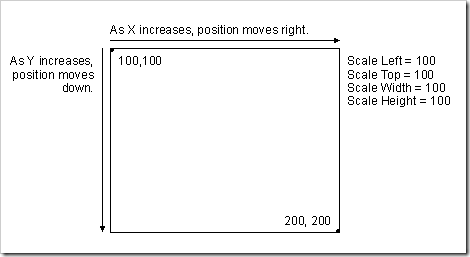
或者这样写更方便:Scale (100, 100)-(200, 200)
(5) Use the ScaleX and ScaleY methods to convert from one scale mode to another scale mode.



 扫一扫
扫一扫


:Fonts, Print, Format, and Selected Text&spm=1001.2101.3001.11974&articleId=4241778&d=1&t=3&u=8ddf8bfd5ef54a0ab47a879b75b4a09e)

 被折叠的 条评论
为什么被折叠?
被折叠的 条评论
为什么被折叠?
 到【灌水乐园】发言


