


面板是WPF裡其中一個很重要的控件。
面板扮演著裝載其他控件的容器的角色,同時也控制著頁面和視窗的佈局。
由於一個視窗只允許一個子控件,因此面板經常會被使用於分隔空間,這樣每個空間就會有一個控件或者面板。
wpf支持6种面板:
1. Canvas
这是一种简单的面板,与WinForms应用处理方式类似。该面板可以设置每个子控件的坐标,容许完全的布局控制。但是该面板不够弹性,因为你必须手动移动子控件以保证他们按照你需要的位置和方式排列。推荐在你想要完全自己布置子控件时选用。
canvas不会真正关心是否有足够的空间容纳所有控件或者是否有一个位于另一个控件之上。这种行为使得画布对于几乎任何类型的对话框设计来说都是一个糟糕的选择。
但正如其名称所暗示的那样,画布至少对于一件事情非常有用:绘画。WPF有一堆可以放在画布中的控件,使得画布可以做出漂亮的插图。
2. WrapPanel
将每个子控件按照水平(默认方式)或者竖直的方式满布一行或一列,让后再布置下一行或者下一列。当你需要水平或者竖直排列子控件且能自动滚动进入下一行(列)时采用他。
<Window x:Class="WpfTutorialSamples.Panels.WrapPanel"
        xmlns="http://schemas.microsoft.com/winfx/2006/xaml/presentation"
        xmlns:x="http://schemas.microsoft.com/winfx/2006/xaml"
        Title="WrapPanel" Height="300" Width="300">
	<WrapPanel>
		<Button>Test button 1</Button>
		<Button>Test button 2</Button>
		<Button>Test button 3</Button>
		<Button Height="40">Test button 4</Button>
		<Button>Test button 5</Button>
		<Button>Test button 6</Button>
	</WrapPanel>
</Window>

将“方向”设置为“垂直”时,所有这些行为也都是如此
<Window x:Class="WpfTutorialSamples.Panels.WrapPanel"
        xmlns="http://schemas.microsoft.com/winfx/2006/xaml/presentation"
        xmlns:x="http://schemas.microsoft.com/winfx/2006/xaml"
        Title="WrapPanel" Height="120" Width="300">
	<WrapPanel Orientation="Vertical">
		<Button>Test button 1</Button>
		<Button>Test button 2</Button>
		<Button>Test button 3</Button>
		<Button Width="140">Test button 4</Button>
		<Button>Test button 5</Button>
		<Button>Test button 6</Button>
	</WrapPanel>
</Window>
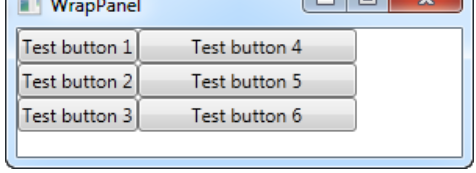
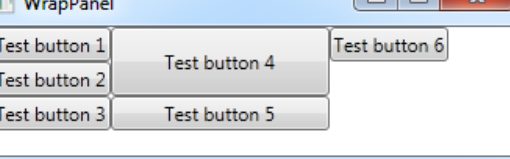
如果第四个按钮自定义了宽度和高度
<Button Width="140" Height="44">Test button 4</Button>
3. StackPanel
StackPanel 的行为与 WrapPanel 很相似,但与 WrapPanel 會自动滚动過長的子控件行為不同,它會盡量延長自己。
与WrapPanel类似,它的方向可以是水平或垂直,默认是垂直,但每个项目拉伸占满全宽或全高,而不是基于最大的项目调整宽度或高度。
当你想要一连串控制项尽可能填满空间,就使用StackPanel 。
<Window x:Class="WpfTutorialSamples.Panels.StackPanel"
        xmlns="http://schemas.microsoft.com/winfx/2006/xaml/presentation"
        xmlns:x="http://schemas.microsoft.com/winfx/2006/xaml"
        Title="StackPanel" Height="160" Width="300">
	<StackPanel>
		<Button>Button 1</Button>
		<Button>Button 2</Button>
		<Button>Button 3</Button>
		<Button>Button 4</Button>
		<Button>Button 5</Button>
		<Button>Button 6</Button>
	</StackPanel>
</Window>
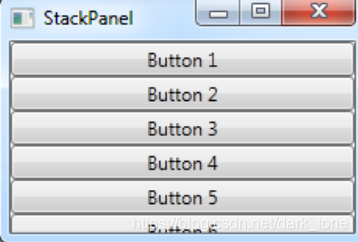
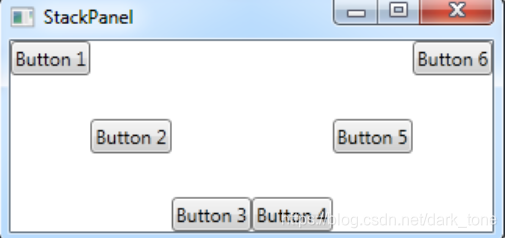
容易地針對排列方向性質做修改:
<StackPanel Orientation="Horizontal">
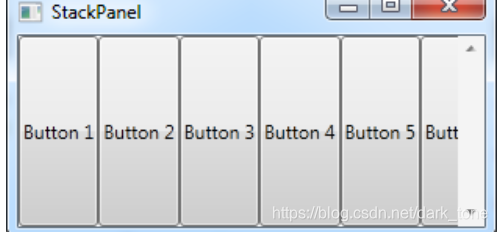
因為子控件的水平對齊或者垂直對齊的屬性設定為延展(Stretch),但是如果你需要,你可以很容易的修改這設定。
<Window x:Class="WpfTutorialSamples.Panels.StackPanel"
        xmlns="http://schemas.microsoft.com/winfx/2006/xaml/presentation"
        xmlns:x="http://schemas.microsoft.com/winfx/2006/xaml"
        Title="StackPanel" Height="160" Width="300">
	<StackPanel Orientation="Horizontal">
		<Button VerticalAlignment="Top">Button 1</Button>
		<Button VerticalAlignment="Center">Button 2</Button>
		<Button VerticalAlignment="Bottom">Button 3</Button>
		<Button VerticalAlignment="Bottom">Button 4</Button>
		<Button VerticalAlignment="Center">Button 5</Button>
		<Button VerticalAlignment="Top">Button 6</Button>
	</StackPanel>
</Window>
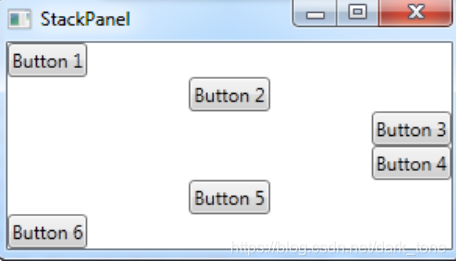
通过子控件使用垂直或者水平對齊,彻底改变了StackPanel外观:
<Window x:Class="WpfTutorialSamples.Panels.StackPanel"
        xmlns="http://schemas.microsoft.com/winfx/2006/xaml/presentation"
        xmlns:x="http://schemas.microsoft.com/winfx/2006/xaml"
        Title="StackPanel" Height="160" Width="300">
	<StackPanel Orientation="Vertical">
		<Button HorizontalAlignment="Left">Button 1</Button>
		<Button HorizontalAlignment="Center">Button 2</Button>
		<Button HorizontalAlignment="Right">Button 3</Button>
		<Button HorizontalAlignment="Right">Button 4</Button>
		<Button HorizontalAlignment="Center">Button 5</Button>
		<Button HorizontalAlignment="Left">Button 6</Button>
	</StackPanel>
</Window>
4. DockPanel
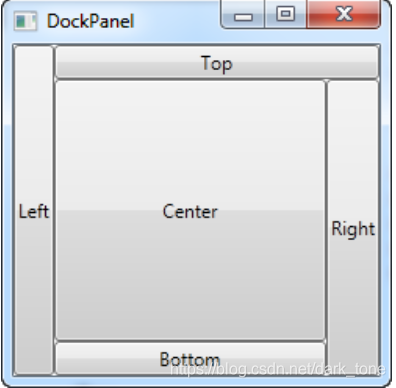
DockPanel允许您将子控件停靠在顶部、底部、左侧或右侧。默认情况下,如果没有给定特定的dock位置,最后一个控件将填充剩余的空间。
您可以使用Grid面板实现相同的操作,但是对于更简单的情况,DokPanel将更易于使用。
每当需要将一个或多个控件停靠到一个侧边时,使用DockPanel,比如将窗口划分为特定区域。
<Window x:Class="WpfTutorialSamples.Panels.DockPanel"
        xmlns="http://schemas.microsoft.com/winfx/2006/xaml/presentation"
        xmlns:x="http://schemas.microsoft.com/winfx/2006/xaml"
        Title="DockPanel" Height="250" Width="250">
	<DockPanel>
		<Button DockPanel.Dock="Left">Left</Button>
		<Button DockPanel.Dock="Top">Top</Button>
		<Button DockPanel.Dock="Right">Right</Button>
		<Button DockPanel.Dock="Bottom">Bottom</Button>
		<Button>Center</Button>
	</DockPanel>
</Window>
第一个控件将停靠在左边,最后一个控件占用剩余的空间。
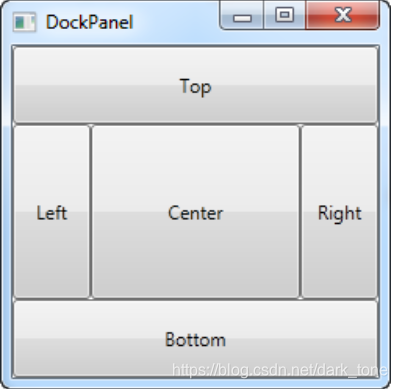
我们还可以通过为子控件指定宽度/高度来调整空间
<Window x:Class="WpfTutorialSamples.Panels.DockPanel"
        xmlns="http://schemas.microsoft.com/winfx/2006/xaml/presentation"
        xmlns:x="http://schemas.microsoft.com/winfx/2006/xaml"
        Title="DockPanel" Height="250" Width="250">
	<DockPanel>
		<Button DockPanel.Dock="Top" Height="50">Top</Button>
		<Button DockPanel.Dock="Bottom" Height="50">Bottom</Button>
		<Button DockPanel.Dock="Left" Width="50">Left</Button>
		<Button DockPanel.Dock="Right" Width="50">Right</Button>
		<Button>Center</Button>
	</DockPanel>
</Window>
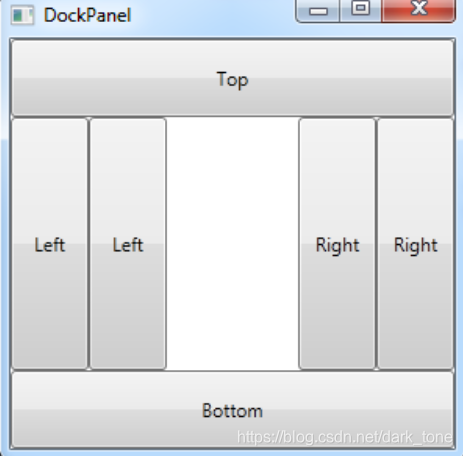
如前所述,默认行为是,DockPanel的最后一个子节点占用其余空间,但是可以使用LastChildFill禁用此操作
<Window x:Class="WpfTutorialSamples.Panels.DockPanel"
        xmlns="http://schemas.microsoft.com/winfx/2006/xaml/presentation"
        xmlns:x="http://schemas.microsoft.com/winfx/2006/xaml"
        Title="DockPanel" Height="300" Width="300">
	<DockPanel LastChildFill="False">
		<Button DockPanel.Dock="Top" Height="50">Top</Button>
		<Button DockPanel.Dock="Bottom" Height="50">Bottom</Button>
		<Button DockPanel.Dock="Left" Width="50">Left</Button>
		<Button DockPanel.Dock="Left" Width="50">Left</Button>
		<Button DockPanel.Dock="Right" Width="50">Right</Button>
		<Button DockPanel.Dock="Right" Width="50">Right</Button>
	</DockPanel>
</Window>

 3844
3844


 扫一扫
扫一扫


 被折叠的 条评论
为什么被折叠?
被折叠的 条评论
为什么被折叠?
 到【灌水乐园】发言


