 Mini-Module
Summary
The Windows System Security - 2 module is designed for cybersecurity experts, including detection engineers, and enthusiasts seeking to deepen their knowledge of Windows system security and Experienced IT professionals and system administrators responsible for securing Windows-based systems. Throughout this module, students will develop master advanced threat detection techniques to identify and respond to sophisticated cyber threats and the ability to implement robust security configurations for Windows-based systems, enhancing protection against vulnerabilities.
Recommended prior knowledge:
- Familiarity with basic cybersecurity concepts and terminology
Local Security Policy, Group Policy and UAC
Windows operating system is the main operating system on millions of computers, servers and laptops around the world. Its widespread use makes Windows a potential target for security threats. Therefore, effectively managing Windows' built-in security settings and policies is vital to ensuring the overall security of your computer and network.
The security framework of Windows provides a number of built-in mechanisms and services to protect users and system resources. These include features like User Account Control (UAC), Windows Defender, Windows Firewall, file system access controls, and BitLocker drive encryption.
Local Security Policy
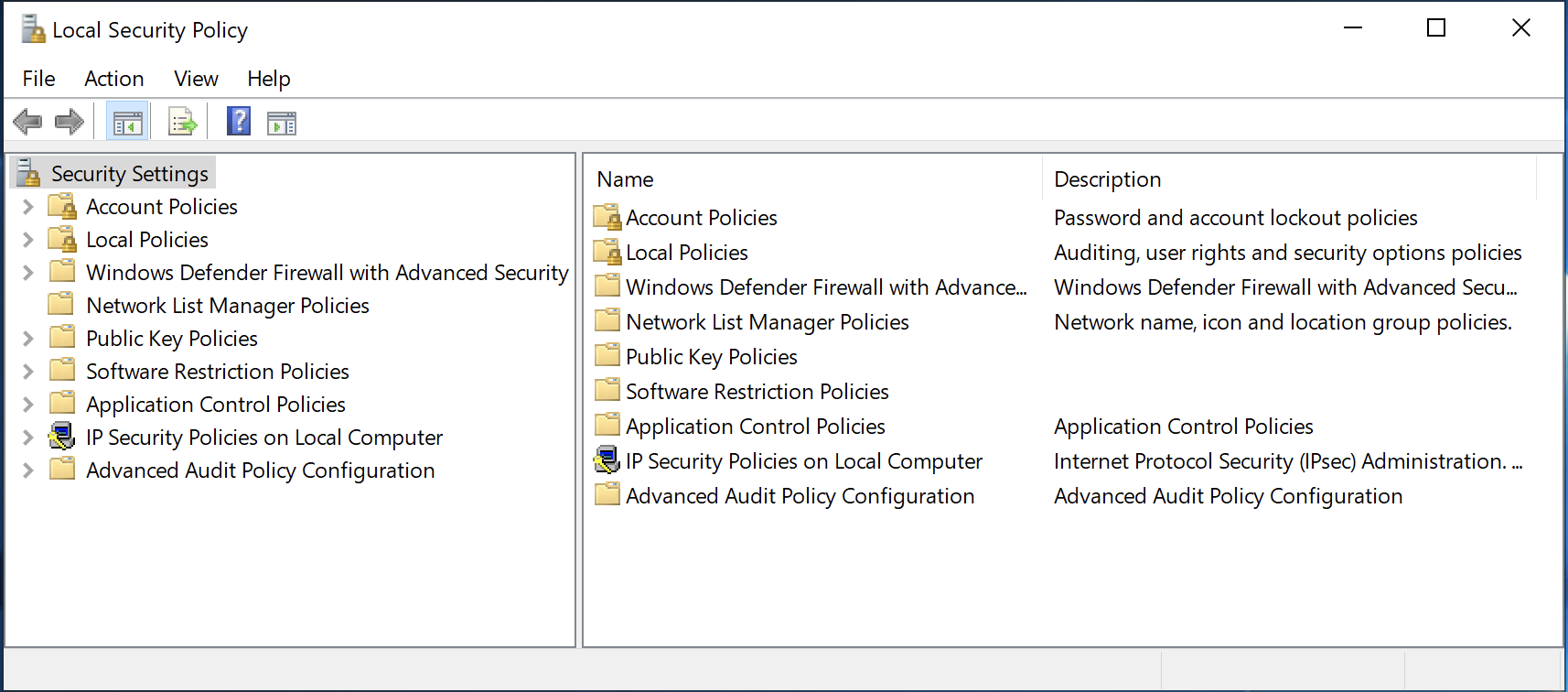
Windows Local Security Policy is a tool used to manage security settings on a Windows computer. It is a way to configure a computer's security settings, usually in accordance with an organization's policies, but it also allows individual users to control the security of their computers.
Local Security Policy controls a number of different settings, including user rights assignments, audit policies, user account control settings, and more. These policies control the computer's operating system and how users can access the system.
Local Security Policy in Windows is managed through a Microsoft Management Console (MMC) plug-in, usually accessed via the 'secpol.msc' command. This console allows a system administrator or user to view and change all local security policies.
For example, a system administrator might use Local Security Policy for:
-
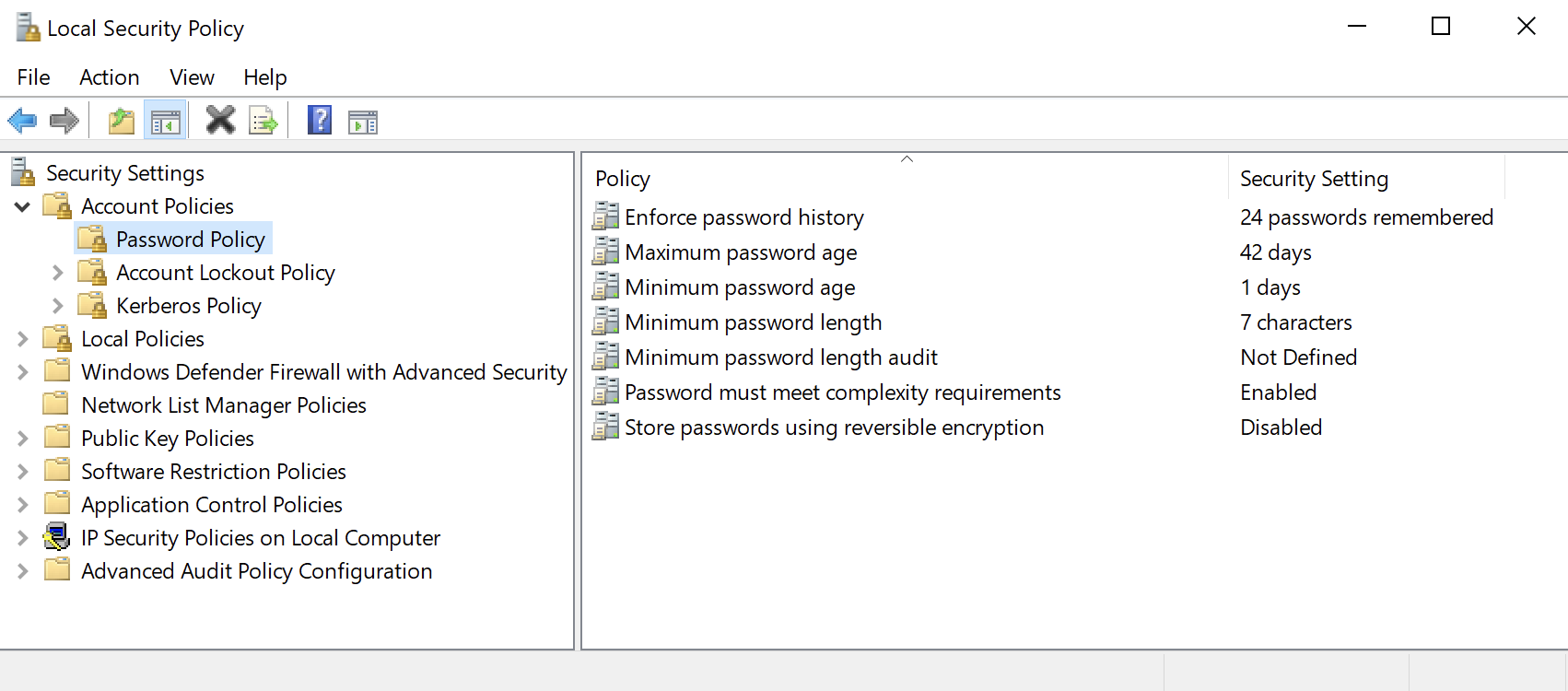
Setting password policies (for example, minimum length of a password or remembering password history),
-
Managing user rights assignment to allow or prevent users or groups from performing certain tasks,
-
Setting auditing policies so that certain types of events can be monitored and recorded (for example, failed login attempts).
However, improper use of Local Security Policy can reduce the security of a computer or cause systems to operate incorrectly, so changes made with this tool should be performed with caution and should generally only be made by experienced IT professionals or conscious users.
For example, you can view and edit local users' password policies under the "Accounts Policies" -> "Password Policy" section.
Group Policy (gpedit.msc)
Windows Group Policy Editor is a Microsoft Management Console (MMC) plug-in that helps a system administrator manage certain user and system settings in Windows operating systems. This tool is often used to centrally control settings on multiple computers on a network.
Group Policy Editor allows you to set and edit policies that apply to users and computers. These policies can affect system security, user experience, system performance, and more. Some of the main functions you can implement with Gpedit.msc are:
Managing User Settings
User settings control the user's Windows experience. For example, whether to allow the user to change the desktop background, screen saver, menu options, taskbar, and other similar features.
Managing System Settings
System settings control the overall functionality of the computer. For example, managing Windows Update settings, security settings, network connections and services, error reporting, and more.
Control Security Settings
You can adjust Windows' security settings and determine how often users change their passwords, user account control settings, secure login settings, and more.
Application Restrictions
You can determine which applications can or cannot be run. This may restrict the use of certain applications or require certain applications to run at all times.
Network Settings
Provides control over network connections, shares and protocols. This includes features such as VPN connections, firewall settings, and network shares.
Startup and Shutdown Scripts
You can specify scripts to run during Windows startup or shutdown.
Manage Windows Components
You can edit how certain components of Windows work. For example, Internet Explorer or Microsoft Edge settings, Windows Defender settings, and more.
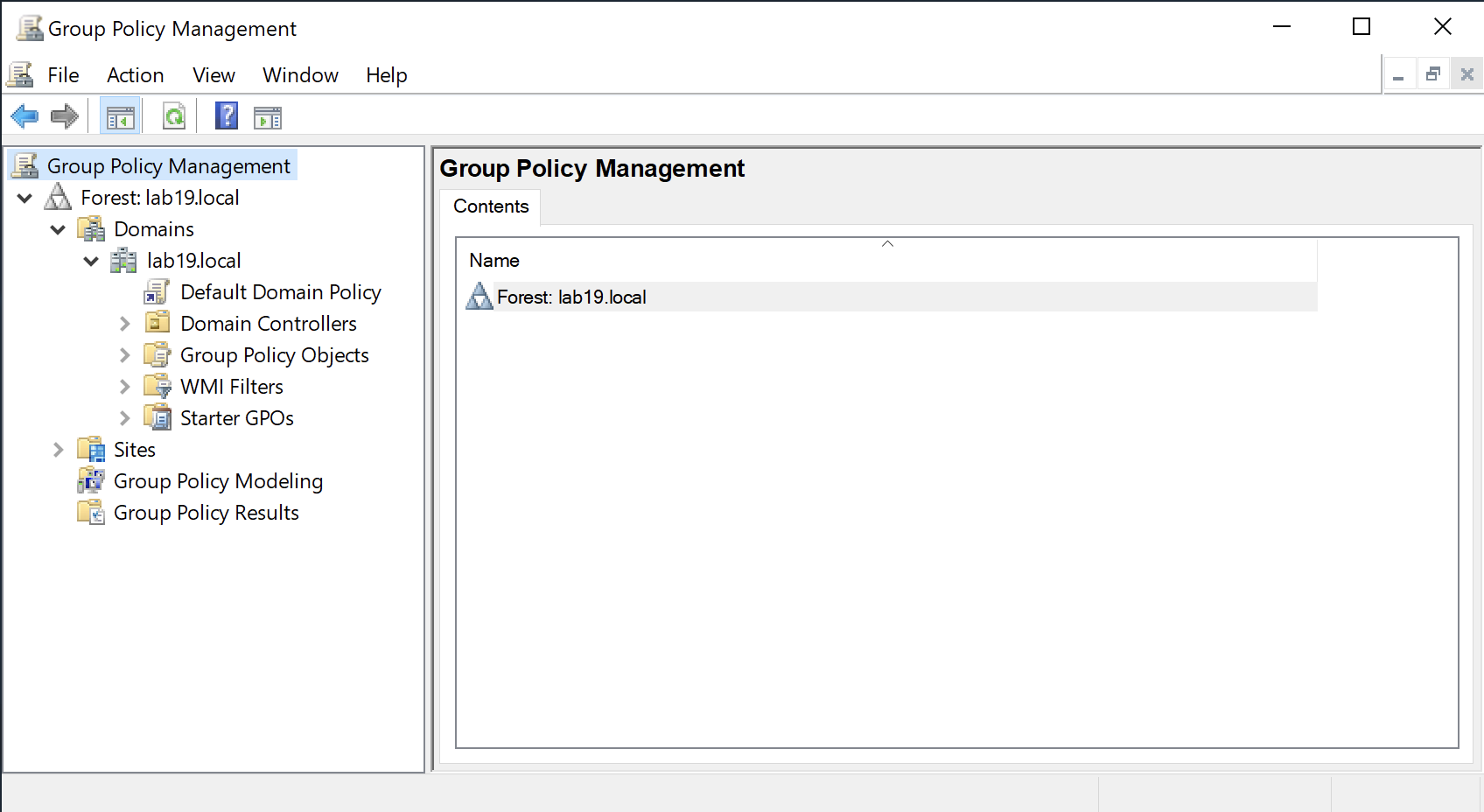
To open Group Policy Management, run this application with admin rights by typing “gpedit.msc” in the start section. You can then locate a specific setting in the tree structure on the left and edit the setting in the window on the right.
It is necessary to be careful when using this tool. An incorrect setting can make your system unstable or prevent you from accessing certain features. Therefore, it is recommended that you always make a backup before making changes and ensure that you fully understand each setting you are changing.
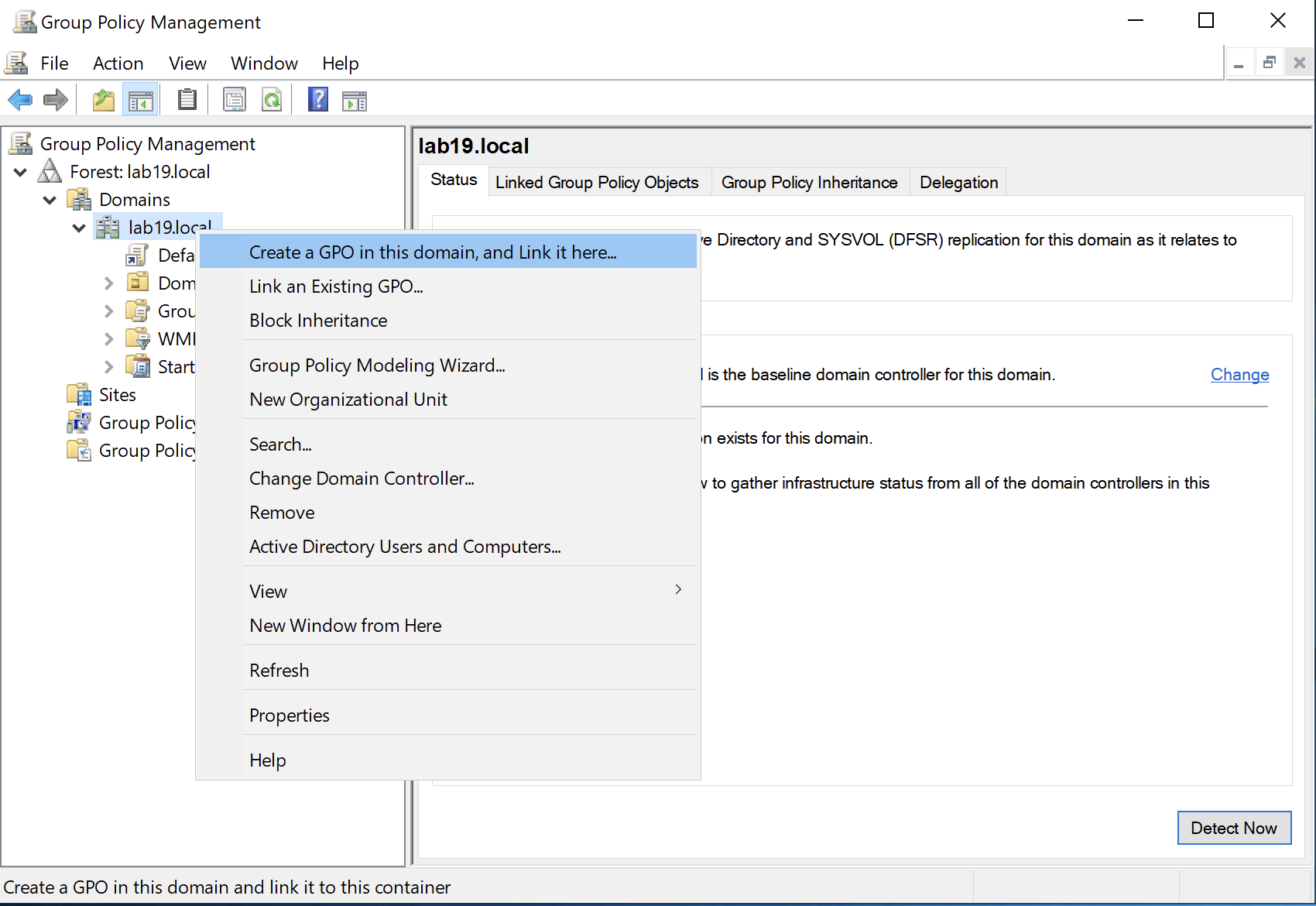
For group policy settings, right-click on the relevant domain on the relevant “Group Policy Management” screen and select the “Create a GPO in this domain, and Link it here…” option.
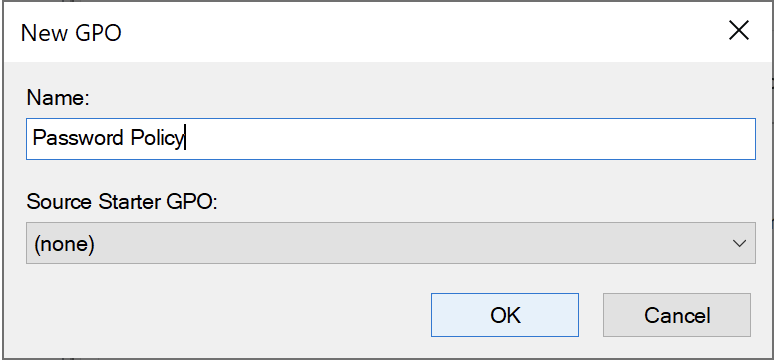
Name your newly created GPO policy and click “OK”.
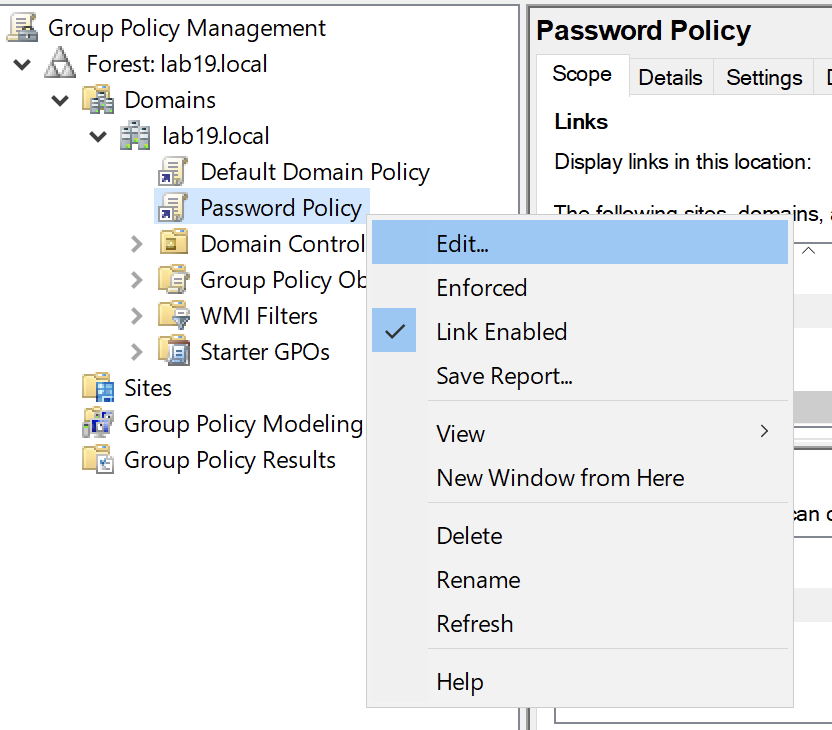
Right click on the relevant policy and select "Edit".
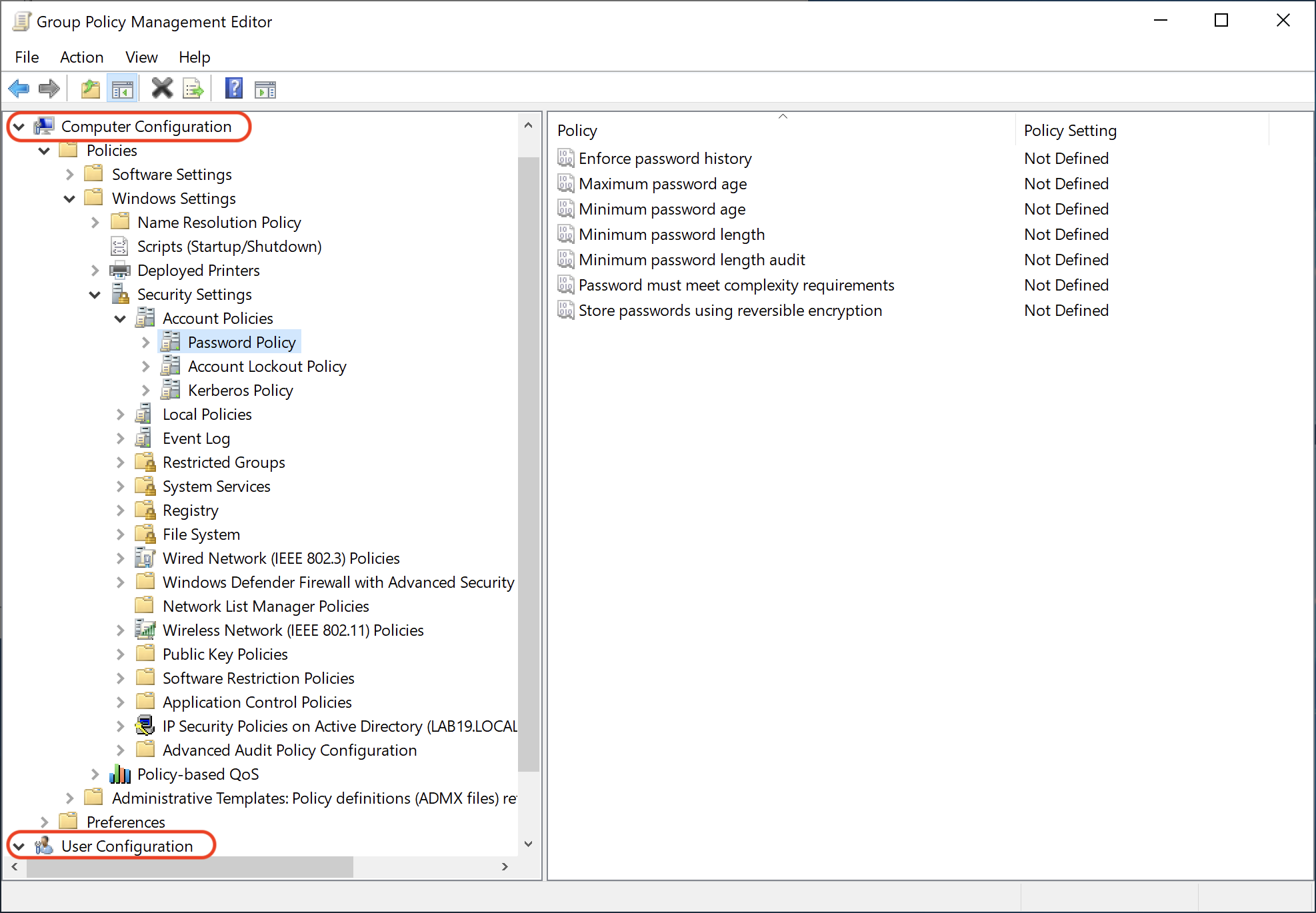
At this stage, policies are created in 2 main basic sections: "Computer Configuration" and "User Configuration".
Computer Configuration
This section determines the policies and settings to apply to computers within a Group Policy Object (GPO). These settings are applied when the operating system starts or when a computer is joined to the domain. In this section, system services, security settings, network protocols and other computer-level configurations can be defined.
User Configuration
This section determines the Group Policy settings to apply for user accounts. These settings are applied when a user signs in or Group Policy is refreshed. This section allows managing policies for users' desktop environment, application settings, network connections, and other user-level settings.
User Account Control (UAC)
User Account Control (UAC) is a security component in Windows Server and other Windows operating systems. UAC determines whether an application requires administrator-level privileges to make a change. This especially helps prevent malware from making changes to the system.
The way UAC works is when a user or application performs an action that requires administrator-level privileges, a UAC prompt is displayed. This prompt gives the user the option to confirm or reject the transaction.
For administrator accounts, this is usually just a warning. For standard user accounts, this typically requires the user to enter an administrator password.
To configure UAC on Windows Server, you can follow these steps:
Open the start menu and type 'User Accounts', then press enter.
In the User Accounts window, click 'Change User Account Control Settings'.
Determine how UAC reacts using the slider. If you move the slider up, UAC will alert you with more notifications. If you move the slider down, UAC will notify you less. Once you have set your settings, click 'OK' and enter the desired administrator password.
Note : You should be extremely careful when changing UAC settings. Disabling UAC completely may make it less effective at protecting your system from malware. To make UAC most secure, it's usually best to specify that you should always approve users or applications from making changes that require administrator-level privileges.
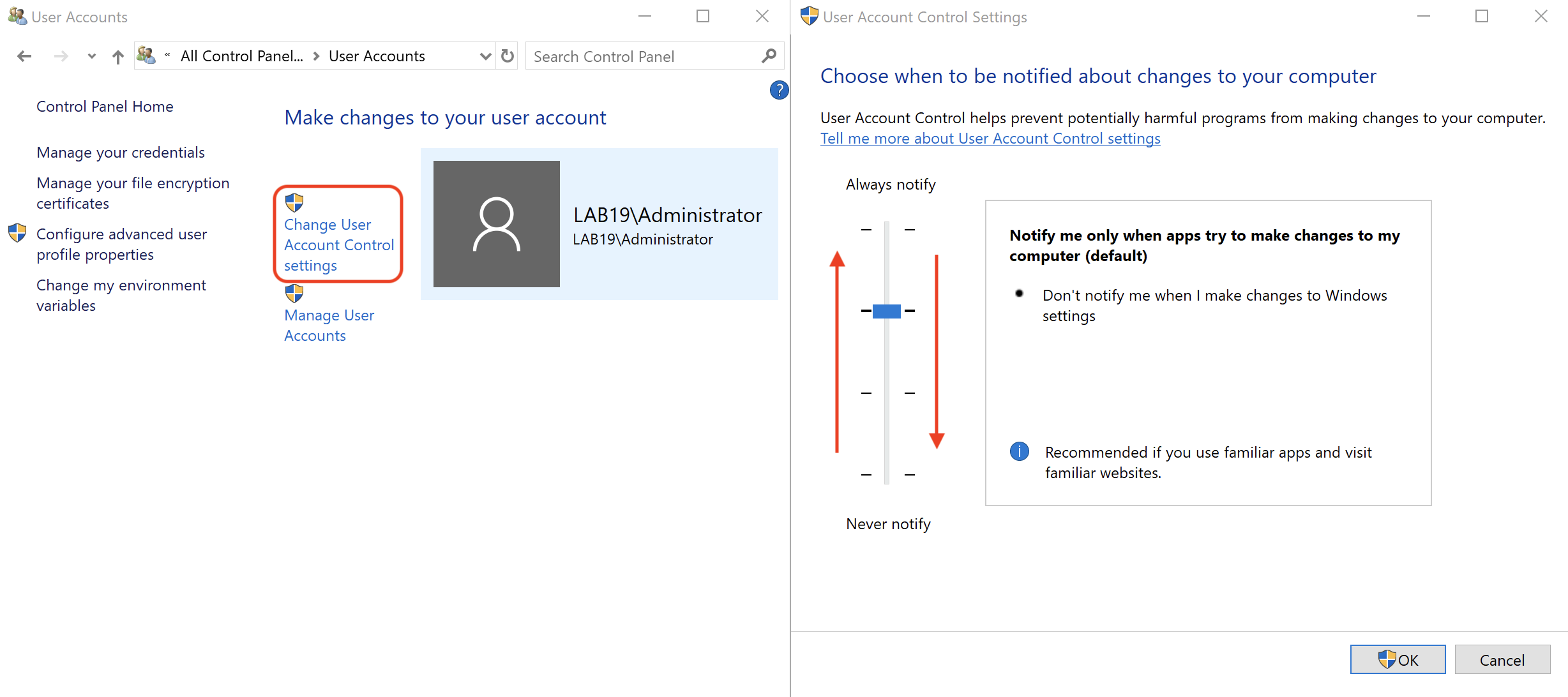
In the Windows operating system, User Account Control (UAC) can be set at four different levels. These levels alerts users with different level of notifications about important changes to be made to the system. Here are those levels:
Always notify: This is the highest level of UAC and ensures that users are always notified if applications attempt to make changes to their computer. This level includes the application trying to change system settings or triggering a software or application installation. This setting always requires the user to consent to such changes.
Notify me only when apps try to make changes to my computer (default): This setting notifies the user when apps need to make changes, but does not dim the secure desktop (it only shows the UAC prompt, dimming the rest of the screen). This may be slightly less intrusive, but still requires the user to consent to such changes.
Notify me only when apps try to make changes to my computer (do not dim my desktop): This level notifies the user when an app requires a change, but does not require approval for the user's own changes (for example, changing system settings or installing a new app, etc.).
Never notify: The lowest level of UAC and users are not notified if applications attempt to make changes to their computer. This disables all UAC warnings and can potentially make the system more vulnerable to security risks.
To set these levels, go to the "User Accounts" control panel, click "Change User Account Control Settings" and then select your preferred level. You may need to restart your computer for the changes you make to take effect.
Conclusion/Summary
Windows Security Settings and Policies provide a variety of tools and methods to gain control over users and systems in Windows operating systems. These include Local Security Policy, Group Policy and User Account Control (UAC).
Local Security Policy is used to control the security settings of a single computer. This includes various policies such as user rights assignments, security options, auditing policies, and more.
Group Policy Editor is used to control settings on multiple computers on a network centrally. This is a powerful tool for managing user and system settings, security settings and more.
User Account Control (UAC) controls what changes users can make to a computer. This is used to block potentially harmful or unwanted actions.
These tools and policies are essential components for ensuring and managing user and system security in Windows operating systems. When used correctly, they provide an effective way to keep a Windows environment safe and prevent unwanted or harmful activity.
In this part of the training, we have covered local security policy on Windows. We have learned what the Group policy is, what the UAC is and how they can be managed. We will learn about the Authentication and Authorization on Windows" topic in the next part of our training.
